What is wrong with my Xfinity router? A Practical Troubleshooting Guide
Urgent, step-by-step troubleshooting for Xfinity routers. Learn quick fixes, a diagnostic flow, and best practices to restore your home network quickly and safely.


Most likely, your Xfinity router issue stems from a simple misconfiguration or signal problem. Start by rebooting the gateway, checking coax and power, and verifying the gateway status LEDs. If stability remains, reset the device to factory settings and re-run the setup via the Xfinity app. If the issue persists, contact WiFi Router Help for guided support.
Common Causes of Xfinity Router Problems
If you’re asking what is wrong with my xfinity router, the fastest path to a fix usually starts with identifying the root cause. According to WiFi Router Help, the most frequent culprits are a loose coax connection, a service outage in your area, outdated firmware, or a misconfigured network setting. Start here to narrow things down.
- Loose or damaged coax cable at the wall jack or the gateway can degrade signal quality and cause intermittent drops.
- An outage or planned maintenance from your provider can look like a router problem if devices sit idle.
- Firmware glitches or recent config changes can trigger instability after normal operation.
- Interference from nearby networks, improper channel selection, or too many devices on the same network can slow things down.
Because a lot of issues arise from simple, fixable causes, you can often recover connectivity without replacing hardware. The WiFi Router Help team sees many cases resolved by double-checking cables, restarting devices, and keeping firmware up to date. If you troubleshoot in this order, you’ll quickly reveal whether the Xfinity gateway is healthy or needs deeper work.
Quick Hardware Checks You Should Do Right Now
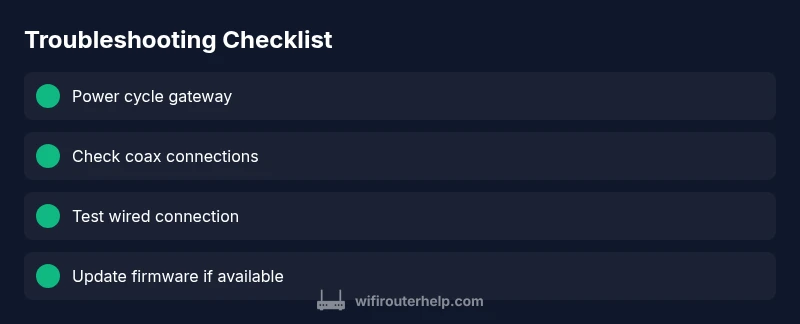
Before you blame the devices, perform quick hardware checks that solve many 'what is wrong with my xfinity router' situations. The WiFi Router Help team recommends starting with the basics: ensure the gateway is powered, the power adapter is properly seated, and all cables are firmly connected. Then perform a graceful power cycle: unplug, wait 30 seconds, plug back in, and give the gateway a couple minutes to reinitialize. While you wait, inspect the LEDs for a stable pattern; consult the user guide for exact colors and blinking behavior. If the LEDs indicate a fault, skip ahead to step 4 of the diagnostic flow. This stage is deliberately simple, but it catches most common faults and buys you time for deeper checks.
Cable and Signal Quality: Coax, Modem, and Splitters
Signal quality hinges on the condition of your coaxial path. Start by ensuring the wall jack, splitter, and gateway connections are tight and free of corrosion. A damaged coax or a cheap splitter can introduce noise and dropouts that masquerade as router issues. If you recently added a new splitter or ran a long coax run, test with a direct line from the wall to the gateway. Keep in mind that Xfinity gateways have known sensitivities to signal strength, so even small losses can degrade performance. If the signal looks weak, contact your service provider to verify line health. This can explain the question, what is wrong with my xfinity router, in many cases.
Internet Service Status and Account Checks
Sometimes the problem isn’t the router at all. Check your service status in the Xfinity app or on the provider’s website. Look for outages in your area, maintenance windows, or a recently suspended account. If service status shows an outage, your router may appear nonfunctional even though the device is fine. Confirm that your account is active, payments are up to date, and there are no service restrictions. If service is restored, perform a fresh test by rebooting the gateway and re-testing wired and wireless devices. This helps determine if the router or the service was at fault.
Wi-Fi Performance and Channel Optimization
If devices connect but experience slow speeds or streaming pauses, optimization is often the fix. Use the Xfinity app to check bandwidth usage and network health. Switch from the crowded 2.4 GHz band to 5 GHz for fewer interference sources if your devices support it, and consider changing the channel to avoid neighboring networks using the same channel. Position the gateway in a central, elevated location away from thick walls and metal objects. Use a single SSID for both bands or separate SSIDs if you want to force older devices onto 2.4 GHz. These adjustments address questions like what is wrong with my xfinity router by targeting performance bottlenecks rather than hardware faults.
Firmware, Settings, and App-Based Troubleshooting
Firmware stability matters as much as cables. Check for firmware updates via the Xfinity app and apply any available updates. Review router settings to ensure DHCP, NAT, and firewall rules aren’t unnecessarily restricting traffic. If you made recent changes and problems started afterward, revert those changes or reset to factory defaults before reconfiguring. For many users, a quick app-based reset and re-setup solves stubborn problems without requiring hardware replacement. If issues persist after a firmware update, escalate to supported configurations or consider professional guidance.
Reset Scenarios: Soft Reset vs Factory Reset
When basic fixes fail, reset options can restore stability. A soft reset (reboot) preserves configurations and accounts, making it the safer first choice. A factory reset wipes all custom settings, returning the gateway to its original state and requiring full reconfiguration. Only perform a factory reset after backing up important settings and ensuring you can re-establish the network. If you’re unsure, consult the guide or contact WiFi Router Help for a guided reset plan.
When to Call for Help and What to Expect
If you’ve followed the steps and still can’t restore service, it’s time to contact support. Prepare details: model number, firmware version (if visible), the LED behavior, any error codes from the app, and recent changes. A technician can perform line tests, verify signal strength, and check for issues outside your home. The WiFi Router Help team can assist with a structured plan, ensuring you don’t waste time on ineffective steps.
Steps
Estimated time: 60-75 minutes
- 1
Power cycle the gateway
Unplug the gateway from power, wait 60 seconds, then plug it back in. Allow 3-5 minutes for the device to fully reboot and re-establish connections.
Tip: Label the reboot time in a notebook to spot recurring cycles. - 2
Check all physical connections
Inspect the coax line at the wall and gateway for tightness and damage. Ensure the Ethernet cable to a test device is secure.
Tip: Replace visibly worn cables to improve reliability. - 3
Verify LED indicators
Look for a stable power indicator and normal online status. Note any blinking or amber colors and cross-check with the manual.
Tip: Document LED codes for faster support calls. - 4
Test a wired connection
Connect a laptop directly to the gateway with an Ethernet cable and run a speed test. Compare with expected results from your plan.
Tip: If wired works but wireless doesn’t, focus on Wi‑Fi settings next. - 5
Check service status and account
Open the Xfinity app to confirm service status and any alerts. Check for overdue payments or outages that could affect your gateway.
Tip: If outages are reported, wait for service restoration before deeper fixes. - 6
Update firmware or perform a soft reset
Update the gateway firmware through the app, then perform a soft reset to apply changes cleanly.
Tip: Always back up settings if you plan to reconfigure later. - 7
Consider a factory reset (last resort)
If problems persist, perform a factory reset via the device button or app. Reconfigure from scratch afterward.
Tip: Factory reset erases all settings; prepare to re-enter network name and passwords. - 8
Escalate if unresolved
If issues remain after all steps, contact WiFi Router Help for expert guidance and potential service checks.
Tip: Provide detailed notes from the previous steps to speed up the diagnosis.
Diagnosis: Multiple devices cannot access the internet or gateway LEDs indicate a fault.
Possible Causes
- highCoax cable loose or damaged, causing signal degradation
- highArea service outage or maintenance
- mediumGateway firmware glitch or misconfiguration
- lowInterference or misconfigured channel settings
Fixes
- easyTighten and inspect coax connections at the wall jack and gateway
- easyPower cycle the gateway and modem, wait 2-3 minutes to reinitialize
- easyCheck service status in the Xfinity app and perform a soft reset
- mediumUpdate firmware or reset to default settings via the Xfinity app
- hardIf issues persist, attempt a factory reset and reconfigure from scratch
People Also Ask
What do the gateway LED lights mean, and how should I react to them?
LED indicators vary by model, but they typically signal online status or faults. If you see unusual colors or blinking patterns, consult the manual or app for codes and perform a reboot. Persistent faults may require a reset or professional help.
LED lights show the gateway status. Check the manual or app for codes, then reboot or reset if needed.
Is it safe to reset my Xfinity gateway?
A soft reset is safe and preserves your settings. A factory reset wipes all customizations, requiring full reconfiguration. Use a factory reset only if you have backed up your data and can re-enter your network details.
A soft reset is safe and keeps your setup; a factory reset is a last resort because it erases your settings.
Do I need a separate router when I have an Xfinity gateway?
Xfinity gateways combine modem and router functionality. You can bridge to use your own router if you need advanced features, but most home setups work fine with the gateway alone.
An external router is optional; you can bridge the gateway to use your own router if you need extra features.
What should I check before contacting support?
Verify service status, inspect cables, reboot the gateway, and test both wired and wireless connections. Note any error codes or patterns to share with support.
First, check service status and cables, then reboot and test connections before calling for help.
How often should I update firmware on the Xfinity gateway?
Let the gateway update automatically when possible and check for updates periodically. Keeping firmware current helps fix glitches and improve security.
Keep firmware up to date by allowing automatic updates and checking occasionally.
Watch Video
What to Remember
- Reboot gateway first to clear glitches.
- Check physical connections and LEDs.
- Use Xfinity app for service status.
- Reset cautiously and only after safe steps.
- Call WiFi Router Help if the issue persists.