Fix Comcast Router Issues: Quick, Step-by-Step Guide
Struggling with Comcast router issues? This urgent guide from WiFi Router Help walks homeowners through rapid diagnostics, fixes, and prevention tips to restore reliable internet and optimize home Wi-Fi performance in 2026.


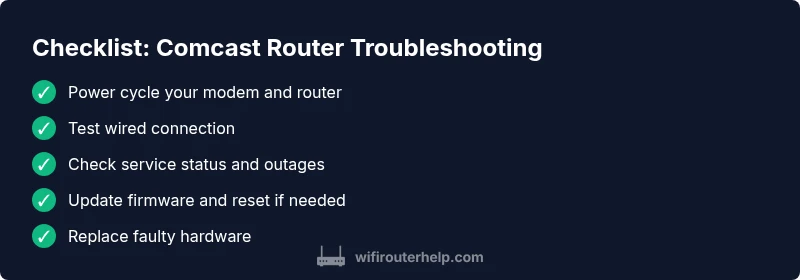
Comcast router issues are most often caused by a local network problem or outdated firmware. First, power cycle the modem and router, then check for service outages. If Wi-Fi remains unreliable, test with a wired connection, reset the router to factory settings, and update firmware. If problems persist, contact Comcast support for help.
Quick Diagnosis: What’s Common When Comcast Router Has Issues
According to WiFi Router Help, router issues comcast are most often caused by a mix of local wiring, outdated firmware, misconfigurations, or service outages. The fastest path to relief is a disciplined sequence: power cycle all devices, check status pages for outages, and test with a wired connection to isolate Wi‑Fi problems. If symptoms persist, update firmware and reset to factory defaults, then reapply essential settings. Keep your cool and stay systematic; this reduces downtime and helps you reclaim reliable connectivity across all devices. This approach also minimizes the back-and-forth with support by giving you clear, testable steps to verify when a problem is hardware, firmware, or service related.
For homeowners dealing with the constant churn of connected devices, a methodical plan matters. By thinking like a technician and following a repeatable routine, you can quickly separate causes you can fix yourself from problems that need a professional touch. The WiFi Router Help team emphasizes documenting each step for faster escalation if needed, and always starting with safe, basic fixes before diving into advanced settings. This mindset helps keep your network stable and minimizes future disruptions.
Verify Your Hardware: Modem, Router, and Cables
A lot of Comcast router issues stem from simple hardware faults or loose connections. Start by inspecting the coaxial cable at the wall and the modem’s power supply. Ensure the modem and router are powered on and show steady indicator lights per the manufacturer’s guide. If you use a separate router behind a gateway, verify that the gateway is functioning, then check for any bridging or DMZ settings that might block traffic. Try swapping out a suspect Ethernet cable and move devices closer to the gateway to see if interference or distance is a factor. By confirming physical health first, you’ll save time diagnosing software or service problems later.
When you experience intermittent drops, take a moment to identify patterns—time of day, number of devices connected, and whether guests or smart home hubs are active. These details often point to channel congestion, IP address conflicts, or bandwidth saturation rather than a global service issue. Document these observations because they’re valuable if you end up contacting Comcast.
Check Service Status and Local Outages
Local outages are a common trigger for what looks like a router problem. Check Comcast’s service status page or outage map for your area, and review any recent notices sent to your account. If multiple devices report no internet simultaneously, the issue is more likely network-side rather than your home setup. WiFi Router Help analysis shows that outages or maintenance windows can mimic router problems, so verifying with the provider before making changes to your equipment can save you time. If an outage is confirmed, you’ll simply need to wait for service restoration while keeping a small bridge network (like a mobile hotspot) as a temporary fallback.
If the status page is clear but you still have issues, perform a quick test: connect a laptop directly to the modem with an Ethernet cable and run a baseline speed test. Compare these results to your plan’s expected performance. Discrepancies might indicate a problem inside your gateway, while normal results suggest a device-level misconfiguration in your home network.
Safe Basic Fixes You Can Do Now
Some fixes are fast and safe, and they fix many Comcast router issues without needing a technician. Begin with a power cycle: unplug power from the modem and router for about 30 seconds, then plug back in and wait for the lights to stabilize. Next, update the device firmware if an update is available—this often resolves compatibility glitches and improves security. If you’re using a separate router behind a gateway, perform a factory reset on the router (not the gateway) to clear stubborn settings, then reconfigure essential options like SSID, password, and security mode. Finally, verify that NAT and firewall settings aren’t overly restrictive and that UPnP is enabled if your devices rely on it for port mapping. Small, well-placed changes here reduce conflict and improve stability.
While performing these fixes, avoid installing untrusted firmware or bypassing standard security practices. Keep a backup of standard settings in a text file to speed up reconfiguration if you reset again in the future.
Advanced Troubleshooting Flow: When to Dive Deeper
If basic fixes don’t solve the problem, follow a structured diagnostic flow designed to isolate root causes. Start with symptom verification, then map each symptom to a likely cause, prioritize fixes by ease and impact, and test after each step. For Comcast router issues, the most common advanced routes involve checking for channel interference, testing with a different DNS provider, and reviewing router logs for unusual events. In many cases, you’ll find a simple misconfiguration—like a conflicting IP range or a stale DHCP lease—behind persistent disconnects. If you discover a hardware fault, plan for replacement or a professional diagnostic.
Always document the changes you make and the results you observe. This creates a clear trail for support conversations and helps you avoid repeating steps. If you reach a dead end, consider engaging Comcast support for a line test or hardware assessment; sometimes external problems require their equipment on-site. The goal is a clean, testable path from issue to resolution.
Finally, practice safe network hygiene: disable unused services, segment IoT devices from your main network, and routinely monitor performance to catch issues early.
Preventive Steps and Best Practices
Preventing Comcast router issues is easier with a routine that preserves hardware health and keeps firmware current. Schedule regular firmware checks and apply updates promptly, but only from trusted sources. Document network layouts and keep your network password strong but memorable. Use a dedicated guest network for visitors to reduce base network load and potential misconfigurations. Regularly audit connected devices and remove those you no longer use. For households with many streaming devices or gaming consoles, consider a modern router with improved QoS and better multi-device handling. Finally, maintain a small backup plan: a spare Ethernet cable, a portable hotspot for outages, and a recent backup of essential settings in case you need to restore quickly. With this plan, you minimize downtime and maximize uptime across daily activities.
Key Takeaways
- Start with safe basics: power cycle, check outages, test wired vs wireless.
- Isolate hardware faults before changing software: verify cables and indicator lights.
- Use a structured diagnostic flow to differentiate service outages from device issues.
- Update firmware and reset defaults only after confirming hardware health.
- Maintain a preventive routine and a simple backup plan for resilience.
Steps
Estimated time: 30-60 minutes
- 1
Power cycle all devices
Unplug the modem and router, wait 30 seconds, plug in the modem first, then the router. Wait for lights to stabilize. This clears temporary glitches and often restores stable connectivity.
Tip: Label the devices to ensure you always follow the proper startup order. - 2
Check wired connection
Connect a laptop directly to the modem with an Ethernet cable and run a baseline speed test. If speeds are normal, the issue is likely wireless-related; if not, the problem may be provider-side or hardware-related.
Tip: Keep a record of test results for trend tracking. - 3
Update firmware
Check for firmware updates on both gateway and any separate router. Install any available updates and reboot. Firmware updates can resolve many compatibility and stability issues.
Tip: Only download updates from official manufacturer sites or your ISP portal. - 4
Reset to factory defaults if needed
If issues persist after updates, perform a factory reset on the router (and gateway if you’re using one device). Reconfigure essential settings, then test again.
Tip: Back up current settings before resetting, so you can restore quickly. - 5
Check cabling and placement
Inspect coaxial, Ethernet, and power cables for wear or loose connections. Move the gateway away from interference sources like microwaves or cordless phones and ensure ventilation.
Tip: Avoid coiled power cables or running cables under carpets. - 6
Escalate if needed
If issues persist after all steps, contact Comcast support for a line test or hardware assessment. Sometimes external issues require professional intervention.
Tip: Have your test results and device details ready to speed up diagnosis.
Diagnosis: Intermittent connectivity, slow speeds, or no internet after Comcast service changes
Possible Causes
- highISP outage or maintenance in your area
- mediumOutdated gateway/firmware
- highWiring problems or loose connections
- mediumConflicting network settings or DNS issues
- lowHardware failure in modem or router
Fixes
- easyCheck Comcast outage status and wait if an outage is reported
- easyPower cycle modem and router, then verify indicator lights
- easyTest with a wired connection to isolate Wi-Fi problems
- mediumUpdate firmware and reset gateway/router to factory defaults
- hardReplace faulty hardware if symptoms persist after fixes
People Also Ask
What is the first step to fix Comcast router issues?
Begin with a power cycle of the modem and router, then check for outages and test a wired connection to confirm if the problem is wireless or service-related.
Start by rebooting both devices, check outages, and test with a wired connection to pinpoint where the issue originates.
Why is my Wi-Fi working on some devices but not others?
This usually points to channel congestion, selective device interference, or incorrect Wi‑Fi settings like mismatched security modes. Recheck SSID, password, and channel selection.
If some devices work and others don’t, verify network settings and consider changing the channel to reduce interference.
Can I fix Comcast router issues without calling support?
Yes. Safe fixes like rebooting, firmware updates, and factory resets can solve many problems. If the issue persists after these steps, contact support for a line test or device replacement.
Most fixes can be done at home; if it keeps happening after updates and resets, call for a line check.
How do I tell if the problem is with the router or the modem?
Test a direct connection from a computer to the modem. If internet works, the issue is likely in your router or home network configuration. If it doesn’t, the problem may be with the modem or the service.
Connect a device straight to the modem to see where the fault lies.
What if there is an outage on Comcast's end?
In case of a confirmed outage, the best course is to monitor the provider’s status page and wait for service restoration. Keep critical devices running on a mobile hotspot if possible.
If an outage is reported, wait it out and use a backup connection if available.
When should I replace my router?
Consider replacement if the device is old, cannot receive updates, or shows persistent failure after all troubleshooting steps. A newer model can improve stability and performance.
If everything fails and the hardware is old or out of support, replacement is reasonable.
Watch Video
What to Remember
- Start with the basics: power cycle and test wired connections
- Differentiate router vs modem problems with systematic checks
- Firmware updates fix most Comcast router issues
- Outages require monitoring service status and escalation if needed
- Maintain a preventive routine and back up settings for resilience