Fixing a Comcast Router Problem: Urgent Troubleshooting Guide
Urgent, step-by-step guide to diagnose and fix a Comcast router problem. Learn quick fixes, diagnostic flow, and when to call a pro for reliable home networking.


The quickest path to resolving a Comcast router problem starts with a power cycle and basic checks, then moves through a deliberate sequence of steps. Begin by rebooting both the modem and the router, inspect all coax and Ethernet cables, and verify indicator lights. If the issue persists, test bridge mode, update firmware, and check IP assignments. If you still see problems, contact Comcast/Xfinity support for a line test.
What is causing a Comcast router problem?
A Comcast router problem can arise from several intertwined factors: service outages, coaxial cable issues, modem-gateway mismatches, firmware glitches, or simple misconfigurations. When customers report a Comcast router problem, the first questions are: is the outage over? are the lights indicating a fault? is the router correctly paired with the modem? By understanding these root causes, you can prioritize fixes and avoid wasted time. In this guide, we walk through a practical, urgent troubleshooting flow designed for homeowners and tech enthusiasts who rely on a steady home network. The Comcast router problem is not uncommon, and a methodical approach helps you regain reliable Wi-Fi quickly. The WiFi Router Help team emphasizes practical steps and clear actions over guessing, so you can act with confidence and minimize downtime.
Quick checks you can do before deep troubleshooting
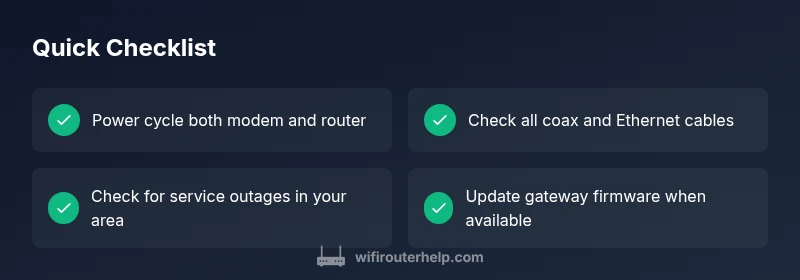
Before diving into deeper fixes, perform a quick triage to separate obvious problems from deeper technical root causes. First, power cycle both the modem and the router: unplug, wait 60 seconds, plug back in, and allow to reboot fully. Verify that all cables are snug—coax from the wall to the modem, Ethernet between the modem and router if you’re using a separate device, and any power adapters. Check the status lights on both devices; a steady green or blue usually means healthy connection, while amber or red can signal issues. If there’s a known Comcast service outage in your area, you’ll likely see indicators of degraded service. Finally, ensure your devices are connected to the correct network and that you’ve entered the right Wi‑Fi password. If the Comcast router problem persists after these checks, proceed with more targeted diagnostics.
Understanding lights and indicators on Comcast equipment
LED indicators are your first at-a-glance diagnostics. A solid green or blue on most consumer gateways typically signals normal operation, while blinking lights often indicate activity or a processing state. Amber or red lights can denote a hardware fault, line problem, or authentication issue with the service. If the Power, Downstream, Upstream, or Online LEDs are off or flashing abnormally, that points to a hardware fault, a service outage, or a failing modem. Document which lights behave abnormally, as this helps when you contact support. For a Comcast router problem, matching symptoms to light patterns can dramatically speed up the troubleshooting process and prevent unnecessary steps.
Diagnostic flow at a glance
A clear diagnostic flow helps you move from symptom to solution without looping. Start with symptoms: internet drops, no device can connect, or slow speeds. Then diagnose: is the gateway online, is the modem syncing, are there line errors, or is there an IP conflict? Finally, apply solutions: reboot, reconfigure, update firmware, or replace faulty hardware. This flow also covers if you should test in bridge mode or separate the modem and router to isolate the problem. Following a consistent flow keeps you from chasing phantom issues and aligns with best practices from WiFi Router Help.
Common causes and practical fixes
Most Comcast router problems stem from issues with the modem, the coax line, or simple misconfigurations. Common causes include a service outage, a loose coax connection, an outdated firmware version, or an IP/DHCP conflict within your home network. Less frequent but real issues include a faulty gateway, incompatible third-party equipment, or misconfigured bridge mode when using a separate router. Address these with practical fixes: verify service status, reseat cables, update firmware, verify bridge mode settings, and ensure the router is receiving a valid IP from the modem. Keeping a tidy network with consistent naming and password management reduces future problems and simplifies troubleshooting for the Comcast router problem.
Step-by-step fixes for the most common causes (overview)
This section provides a practical roadmap for the most frequent Comcast router problem fixes. Start with the simplest option—reboot the devices and verify connections. Next, check for outages and confirm the modem is syncing properly. Then, update firmware on the gateway, reconfigure network settings, and validate IP assignments. If the problem persists, test in bridge mode or reset the gateway to factory defaults as a last resort. Throughout, keep documentation of observations to inform support if needed. Remember, the goal is to restore stable connectivity with the least invasive changes.
Safety, warnings, and best practices
When troubleshooting, avoid physically forcing cables or opening the gateway. Do not attempt to modify line connections beyond the provided admin interface. If you’re unsure about bridging your own router or enabling advanced features, pause and consult the WiFi Router Help guide or contact your ISP for assistance. Power safety matters: unplug equipment before handling power adapters and ensure your hands are dry. A common mistake is applying firmware updates from third-party sources—stick to official firmware to avoid security risks. Keep your router in a ventilated area to prevent overheating, which can mimic a Comcast router problem.
Prevention: keeping your network stable and resilient
After resolving a Comcast router problem, implement preventive steps to minimize future outages. Schedule regular firmware checks and enable automatic updates if available. Maintain a clean network with unique SSIDs for each device type, and keep a rolling log of changes to configurations. Consider a basic uptime monitoring strategy: periodically test speed and connectivity from multiple devices across rooms. If you rely on smart home devices, ensure they’re on a reliable, low-latency Wi-Fi channel. Proactive maintenance reduces the chance of recurring Comcast router problems and keeps your home network running smoothly.
Steps
Estimated time: 60-90 minutes
- 1
Power cycle all equipment
Unplug both the modem and router, wait 60 seconds, then plug the modem back in first and let it fully initialize. Next, plug in the router and wait for all lights to stabilize. This step clears temporary faults and resets the path from the ISP to your home network.
Tip: Note any lights that stay red or blink abnormally; they indicate deeper problems. - 2
Check all physical connections
Inspect the coax cable from the wall to the modem, the Ethernet cable between modem and router, and power adapters. Replace any damaged cables and ensure connectors are snug. A loose or damaged cable can mimic many Comcast router problem symptoms.
Tip: Move cables away from power cords to reduce interference. - 3
Test for a service outage and verify sync
Visit the Comcast service status page or call support to confirm there is no outage in your area. Confirm that your modem shows online and that downstream/upstream channels are syncing properly. If there’s no sync, the issue is likely on the provider side.
Tip: Document the outage timestamp for future reference. - 4
Update firmware and reset options
Access the gateway admin page and check for available firmware updates. If stabilization fails, perform a soft reset first, then a factory reset only if necessary. Reset should be your last resort as it erases customized settings.
Tip: Back up your Wi-Fi name and password before a factory reset. - 5
Check bridge mode and IP configuration
If you’re using a separate router, ensure bridge mode is configured correctly and that the Comcast gateway is not conflicting with your secondary router. Confirm DHCP and NAT settings align with your network design to avoid IP conflicts.
Tip: Test the network with only the Comcast gateway enabled to isolate issues. - 6
Test with a single device and reintroduce devices gradually
Connect one device directly to the router via Ethernet or Wi-Fi and verify stability. Gradually reintroduce other devices to identify if a single device is causing the issue or if the problem is network-wide.
Tip: If a particular device repeatedly disconnects, check its network adapter settings or drivers.
Diagnosis: Internet intermittently drops or devices fail to connect to the Comcast router
Possible Causes
- highService outage or line issue from ISP
- highLoose or damaged coaxial cable connections
- mediumOutdated gateway firmware or faulty hardware
- lowIP conflict or DHCP misconfiguration in home network
- lowBridge mode misconfiguration when using a separate router
Fixes
- easyCheck service status with Comcast; run a line test if outages are reported
- easyPower cycle modem and router; reseat coax and Ethernet cables
- easyUpdate gateway firmware; restore default settings if necessary
- mediumVerify DHCP settings and IP assignments; disable conflicting static IPs
- mediumIf using bridge mode, reconfigure or remove bridging to test stability
People Also Ask
What is the first step I should take when I notice a Comcast router problem?
Begin with a full power cycle of both modem and router, then check cables and lights. This often resolves temporary faults and confirms whether the issue is hardware-related or service-related.
Start with a full power cycle and check cables. If it still fails, you’ll know it’s more likely a service or hardware issue.
How do I know if there’s an outage affecting my Comcast router?
Check Comcast’s service status page or contact customer support to confirm outages in your area. An outage often explains widespread connectivity problems.
Check the service status page to see if there’s an outage in your area.
Should I update firmware on my Comcast gateway?
Yes, if an update is available. Firmware updates can fix bugs that cause instability. If you’re unsure, use the official admin interface to check and apply updates.
Update firmware from the official gateway page if an update is available.
What if the problem only happens with one device?
Isolate the device by testing its connection to the gateway; update its network adapter drivers, and check for a static IP conflict. If others stay online, the device itself may be the problem.
Test the device separately and update its drivers if needed.
When should I consider bridging or a separate router?
Bridge mode or a separate router is useful if you need advanced features, but it can create double NAT issues. Only enable bridging after confirming the current gateway’s role in your network.
Bridge mode can help with advanced setups, but it can cause double NAT if not configured carefully.
What signs mean I should call a professional?
If you notice persistent outages, line noise, or the gateway failing to stay online despite trials, it’s time to contact the provider or a qualified tech. A professional can test the line and swap equipment if needed.
Call a professional if the gateway won’t stay online after basic fixes.
Watch Video
What to Remember
- Start with power-cycle and cable checks
- Diagnose via light indicators and service status
- Follow a structured symptom-to-solution flow
- Update firmware and verify network settings
- Escalate to pro help for line tests or hardware faults