Xfinity Router Red Light Troubleshooting
Urgent guide to diagnose and fix a red light on your Xfinity router. Learn quick fixes, a structured diagnostic flow, step-by-step actions, safety tips, and when to contact support.


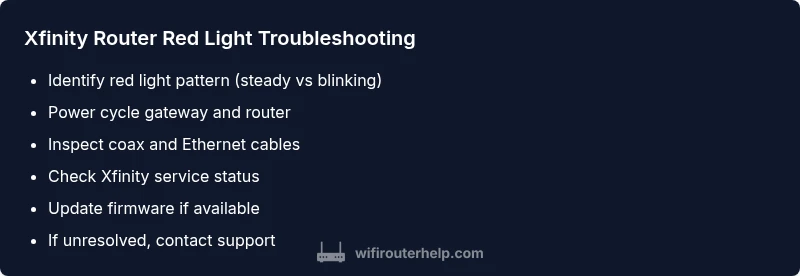
A red light on an Xfinity router usually signals a connectivity or hardware issue. Start with these quick steps: 1) power cycle the modem and router for 60 seconds, 2) inspect all cables and the coax connection for damage, 3) check the service status in your account or via the Xfinity app. If unresolved, contact support.
Why the red light matters on an Xfinity router
A red light on an Xfinity router can feel alarming, but it's a clear signal that something isn't communicating as expected. The exact meaning depends on the model and which LED is red, but in most cases it points to a connectivity issue, a line problem, or a hardware fault that requires attention. According to WiFi Router Help, the red light is a reliability cue that often traces to power, wiring, or service status, not a mystery fault. Start by identifying which LED is red and the pattern (steady, flashing, alternating). Understanding the pattern helps narrow down the cause before you poke at advanced settings. Once you know the pattern, you can narrow down the cause and pick the right next step. The following sections provide a practical, field-tested approach to restore service quickly and safely, with emphasis on avoiding common missteps and reducing downtime. As of 2026, this method has helped many homeowners avoid unnecessary service calls by isolating basic issues first.
Key takeaway: treat the red light as a diagnostic clue, not a punishment—systematically verify simple causes before assuming hardware failure.
Common causes of a red light
There are several frequent culprits behind a red light on your Xfinity router. A simple power issue—like a loose outlet, a tripped surge protector, or a momentary outage—can reset the device and trigger the alert. A loose or damaged coax cable from the modem to the wall outlet or a degraded ethernet cable can break the data path. An ISP-side outage or a service fault in your area will also cause the device to show red while waiting for the connection to resume. Overheating after extended use or blocking airflow around the device can cause thermal protection to kick in, resulting in a red indicator. Finally, a firmware glitch after an update or a misconfiguration in the gateway settings can produce a red light even when the line is technically up. Recognize that not all red lights are equal—some patterns indicate more serious hardware or line problems than others. WiFi Router Help analysis shows that many red-light issues stem from simple, fixable faults rather than permanent damage.
Quick checks you can do before contacting support
- Observe the pattern: steady red vs blinking/red sweep patterns to guide next steps.
- Power cycle: unplug the gateway and router, wait 60 seconds, plug back in, and allow 2–3 minutes to re-sync.
- Inspect cables: ensure the coax is firmly seated at the wall and the gateway; replace any frayed or damaged cables.
- Verify service status: open the Xfinity app or account page to see if there’s an outage or maintenance in your area.
- Check device placement: ensure adequate ventilation and keep the unit away from heat sources, direct sunlight, or obstructions.
- Firmware updates: if the device prompts, apply any available firmware updates through the app or admin interface.
- Test with another device: check if a different computer or phone experiences the same issue to rule out a single-device problem.
- If the light remains red, note the LED sequence and outage status; this information will help support troubleshoot faster.
These basic checks can resolve many red-light scenarios and limit the need for a service appointment.
Understanding the diagnostic flow
This section outlines a pragmatic diagnostic flow you can follow, which matches the structured diagnostic approach we provide in the DIAGNOSTIC-FLOW block. Start with the simplest explanations (power, cables, status) and gradually move toward network-layer checks (line integrity, modem config, and service provisioning). The goal is to map the symptom to a likely cause and apply the least disruptive fix first. Always document what you tested and the light patterns observed; this record speeds up any remote or in-person troubleshooting by your provider.
By following a consistent flow, you minimize guesswork and make decisions based on observable evidence rather than assumptions. The flow also helps determine when professional help is genuinely required, such as when line tests show a service fault or when the gateway hardware may be failing.
Step-by-step: Most common fix (Power cycle and reseat)
- Power cycle the gateway and router: unplug both devices, wait 60 seconds, then plug the gateway back in first, allow 1–2 minutes to boot, then reconnect the router. This clears minor firmware hiccups and re-provisions network sessions.
- Reseat all connections: firmly reconnect the coax, ethernet, and any fiber adapters; a loose cable is a frequent culprit for red lights.
- Check the local service status: use the Xfinity app or website to confirm there’s no regional outage affecting your account.
- Confirm device placement and climate: ensure proper ventilation and avoid stacking devices that trap heat.
- Run an internal diagnostic via the app: if available, use built-in tests to identify line quality or gateway health.
- Try a temporary replacement: if you have an extra router or a guest network device, test to see if the issue persists.
- Factory reset if the problem persists: back up settings, then restore to factory defaults from the admin page; reconfigure afterwards.
- Reprovision from the provider side: if the red light remains after a reset, contact Xfinity support to reauthorize the line or re-provision the gateway.
Estimated time: about 30–60 minutes depending on reconfiguration needs.
Safety, warranty, and professional help
Dealing with power-related issues requires caution. Always unplug equipment before inspecting cables and avoid touching metal connectors while the device is powered. Do not attempt to open or repair gateway hardware yourself; this can void warranty and create electrical hazards. If your device stays red after the above steps, or if you observe signs of physical damage, overheating, or buzzing sounds, contact WiFi Router Help to guide you and consider arranging a technician visit or a provider-assisted line test. In some cases, the fault lies with the service provider’s network, not your home equipment. The best practice is to escalate when the outage or line issues persist beyond a few hours. The WiFi Router Help team recommends documenting your steps and the LED patterns to accelerate professional troubleshooting and minimize downtime.
Steps
Estimated time: 30-45 minutes
- 1
Identify the red light pattern
Note whether the red light is steady, flashing, or alternating. Patterns help distinguish simple outages from hardware faults. Use the Xfinity app to cross-check the device status and any alerts.
Tip: Record the exact pattern to share with support. - 2
Power cycle the gateway and router
Unplug the gateway and router, wait 60 seconds, then plug the gateway back in first. Allow 2–3 minutes for full boot and re-sync. This often clears minor glitches.
Tip: Avoid pressing reset during this process. - 3
Check coax and cable integrity
Inspect the coax connection at both ends for tightness and any damage. Replace frayed or pinched cables. Confirm Ethernet cables are secured and not damaged.
Tip: Keep cables away from heat sources. - 4
Test with a different device and outlet
Try another device on the same network and test using a different power outlet or surge protector to isolate outlet-related issues.
Tip: If the other device has internet, the issue may be device-specific. - 5
Check for outages and provisioning
Open the Xfinity app or portal to check for outages in your area and verify your gateway is properly provisioned. Outages can trigger red indicators even if everything is physically connected.
Tip: Take screenshots of outage notices if available. - 6
Apply a firmware update or reset gateway
If updates are available, apply them and monitor stability. If problems persist, restore the gateway to factory defaults and re-provision.
Tip: Back up custom settings before reset. - 7
Escalate to provider support if unresolved
If the red light persists after all checks, contact Xfinity support for a line test or gateway replacement. Persisting issues may indicate a network fault outside your home.
Tip: Prepare your account info and LED pattern details.
Diagnosis: Xfinity router red light with no or unstable internet
Possible Causes
- highPower issue (outlet, surge protector, or power cycle fault)
- mediumLoose or damaged coax/ethernet cables
- mediumISP outage or provisioning fault in the area
- lowRouter or gateway firmware glitch
- mediumOverheating or ventilation obstruction
Fixes
- easyPower cycle gateway and router; verify proper boot sequence
- easyReseat or replace coaxial and ethernet cables
- easyCheck for regional outages in the Xfinity app
- mediumApply firmware updates or reset gateway to factory settings
- easySchedule a service call if line tests indicate a provider fault
People Also Ask
What does a steady red light mean on an Xfinity router?
A steady red light typically indicates a critical connection or hardware problem. It may point to a line fault, a gateway issue, or an outage in the service region. Follow the quick checks and diagnostic flow to identify the precise cause.
A steady red light usually signals a serious connection problem or hardware fault. Follow the diagnostic steps to identify the cause.
Is a red light always an outage?
No. A red light can be caused by local issues like loose cables or power problems, which are fixable from home. Only an outage will usually affect the entire service area across multiple devices.
No. It can be local issues or outages; check status in the app.
Can I fix a red light myself?
Many red-light scenarios can be resolved with simple steps: power cycling, reseating cables, and checking for outages. If the issue persists, it’s best to escalate to support for line tests or replacement of hardware.
Yes, many issues can be fixed at home; if not, contact support.
When should I reset to factory settings?
Only after basic checks fail and you’ve backed up settings. A factory reset erases custom configurations and may require re-provisioning from your provider.
Only after trying basic fixes and backing up settings.
Do I need a technician for a red light?
If the outage is provider-related or the line tests show faults beyond home equipment, a technician visit may be required. For persistent hardware faults, replacement may be needed.
Sometimes yes, if the provider finds a line fault or hardware replacement is needed.
What if the red light is on the gateway but not the modem?
The gateway handles the provider connection; if only the gateway shows red, focus on internal gateway health, power cycles, and re-provisioning. The issue could be with the gateway device rather than the line.
If the gateway alone shows red, focus on gateway health and re-provisioning.
Watch Video
What to Remember
- Power cycle the gateway to reset the system.
- Check coax and Ethernet cables for secure connections.
- Use the Xfinity app to verify outages and gateway status.
- The WiFi Router Help team recommends escalating to support if unresolved.