Why is My Xfinity Router Blinking Orange? Troubleshooting Guide
Urgent, practical steps to diagnose and fix an orange blinking light on your Xfinity router, with checks, fixes, and prevention tips.


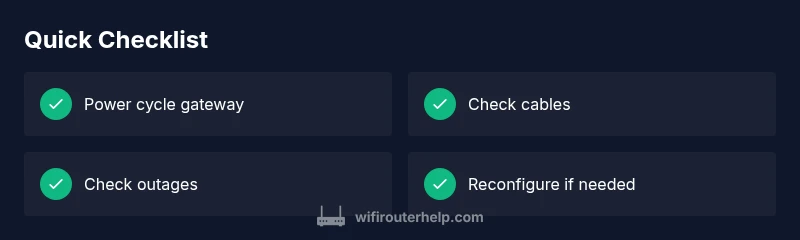
Most often, an orange blinking light on an Xfinity router signals a power, firmware, or connection issue. Start with a quick power cycle: unplug the gateway for 30 seconds, plug back in, and wait 2 minutes. If the blink continues, check service outages, verify cables, and consider a factory reset as a last resort.
Understanding the orange blinking light on Xfinity routers
If you're asking why is my xfinity router blinking orange, you're not alone. The orange blink is a warning from the gateway that something in the power, firmware, or line connection needs attention. It can be caused by a simple reset or signal an underlying service issue that requires action. In most homes, a blinking orange LED is not catastrophic, but it does mean you should verify a stable power supply, confirm cable connections, and check for service outages. Below we break down what the color and blink pattern typically mean and how to approach it quickly.
Common causes of an orange blink
The orange blink on a consumer Xfinity gateway can originate from several sources. Understanding the usual culprits helps you prioritize steps:
- Power issues: unstable supply, surge protection, or a modest power cycle needs.
- Firmware or device startup: a software update or interruption during boot can flash orange.
- Line or connection problems: coax, Ethernet, or fiber line problems can trigger warnings.
- Overheating or hardware fault: in rare cases, persistent orange signals indicate a component failure.
Note: Xfinity gateways may display different blink patterns (steady vs. intermittent). An intermittent orange blink often resolves with a reboot, while a steady blink can indicate a deeper issue.
Quick checks you can perform before calling support
These checks cover the basics that solve many orange-blink problems quickly:
- Reboot the gateway: unplug the unit, wait 30 seconds, plug back in; give it 2 minutes to initialize.
- Inspect cables: ensure coax and Ethernet cables are snug; look for visible wear or loose connectors.
- Check for outages: open the Xfinity status page or use the Xfinity app to verify service in your area.
- Avoid overheating: keep the gateway in an open space with ventilation and away from heat sources.
- Confirm device placement: avoid tight cabinets and keep it elevated if possible to improve airflow.
Diagnostic flow at a glance
This section maps a practical pathway from symptom to solution, mirroring a diagnostic flow you can follow in real time:
- Symptom: orange blinking persists after a reboot.
- Likely causes: power instability, firmware state, outage, or hardware fault.
- Immediate fixes: power cycle, reseat cables, check outages.
- Next steps: soft reset via admin interface, then factory reset if needed.
- If unresolved: escalate to Xfinity support for hardware checks.
Following this flow helps you avoid unnecessary steps and targets the most common root causes first.
Step-by-step fix: resolving the orange blink (most common cause)
- Power cycle the gateway
- Unplug the gateway from power, wait 30 seconds, plug back in, and allow 2 minutes for initialization.
- Tip: If you have a large home network and multiple devices connected, give the gateway extra minutes to stabilize.
- Check connections and cables
- Confirm that all coax and Ethernet cables are firmly seated; replace any visibly damaged cables.
- Tip: Test with a known-good cable if available to rule out a faulty cable as the cause.
- Check for outages and account status
- Visit the Xfinity status page or app to confirm there’s no area outage affecting your service.
- Tip: Take a screenshot of the outage status for reference when you contact support.
- Soft reset via admin interface
- Log in to the gateway admin page and perform a soft reset or reboot from the System or Device section.
- Tip: Back up essential settings before performing resets that change network parameters.
- Factory reset if necessary
- If the orange blink persists after the above steps, perform a factory reset and reconfigure your network from scratch.
- Tip: Have your Wi‑Fi name and password handy; saving a backup of your config speeds up the reconfiguration.
- Test and monitor
- Reconnect devices, run a quick speed test, and observe LED behavior over the next 15–30 minutes.
- Tip: Document any changes you made to the network so you can reproduce a working setup later.
Safety notes and common mistakes
- Do not unplug equipment during firmware updates; interrupting an update can leave the device in an unusable state.
- Avoid placing the gateway in enclosed spaces without airflow; overheating can trigger hardware faults.
- Never attempt internal repairs; contact your ISP or a qualified technician if physical damage is suspected.
Prevention tips to avoid future orange blinks
- Place the router in a well-ventilated area, away from heat sources and large metal objects that could interfere with signals.
- Use a stable, surge-protected outlet to protect power integrity and prevent voltage spikes.
- Regularly check for firmware updates and apply them through the official app or admin interface.
- Keep spare cables handy for quick swaps to rule out faulty cabling as the root cause.
Real-world scenarios you might encounter
Many households report an orange blink after a power outage, a firmware update, or when their line quality changes due to weather or seasonal usage. In most cases, a routine reboot and cable check restores normal operation. More persistent blinking often indicates an outage in your area or a hardware fault that requires professional intervention. Understanding these scenarios helps you respond quickly and avoid unnecessary service calls.
Steps
Estimated time: 30-60 minutes
- 1
Power cycle the gateway
Unplug the gateway from power, wait 30 seconds, plug back in, and allow 2 minutes for initialization. This clears most transient faults.
Tip: A longer wait (up to 5 minutes) is sometimes needed in larger homes. - 2
Check connections and cables
Ensure coax and Ethernet cables are firmly seated at both ends and check for any visible damage. Replace faulty cables if needed.
Tip: Test with a known-good cable to rule out cabling issues. - 3
Check for outages and account status
Open the Xfinity status page or app to verify there are no outages in your area and that your account is in good standing.
Tip: Capture outage status screenshots for reference. - 4
Soft reset via admin interface
Log in to the gateway admin page and perform a soft reset or reboot from the System/Device menu. This resets network parameters without erasing all data.
Tip: Back up settings before performing resets that touch configuration. - 5
Factory reset if necessary
If the orange blink continues after the above steps, perform a factory reset and reconfigure your network from scratch.
Tip: Have your Wi‑Fi name and password ready; consider exporting a config backup if the option exists. - 6
Test and monitor
Reconnect devices, run a speed test, and observe LED behavior over the next 15-30 minutes.
Tip: Document changes so you can replicate a working setup later if needed.
Diagnosis: Orange blinking light on Xfinity router persists after reboot
Possible Causes
- highPower issue or unstable supply
- mediumFirmware update in progress or failed update
- mediumService outage or line issue from provider
- lowOverheating or hardware fault
Fixes
- easyEnsure gateway is plugged into a stable outlet; use a surge protector; avoid power strips with multiple devices
- easyPerform a full reboot and then a soft reset if available via the admin interface
- easyCheck Xfinity service status/outage page and social feeds for any reported outages
- mediumIf unresolved after above steps, perform a factory reset and reconfigure network settings
People Also Ask
What does an orange blinking light on an Xfinity router indicate?
An orange blink typically signals a power, firmware, or line issue. Start with a reboot and cable checks, then verify outages. If unresolved, proceed to a soft reset or factory reset as needed.
An orange blink usually means a fault in power, firmware, or the line. Start with a reboot and cable checks, and check outages; if it persists, try a soft reset or factory reset as a last resort.
Is orange blinking dangerous for my devices?
No, the orange blink is a fault indicator. It doesn't pose danger to you or your devices. Unplugging for a reboot and following the steps is safe.
No, it’s not dangerous. It’s just signaling a fault you can fix with a reboot and proper checks.
Will a factory reset erase my Wi-Fi name and password?
Yes. A factory reset restores the gateway to its default settings, so you’ll need to reconfigure your Wi-Fi name and password afterward.
Yes, a factory reset wipes the current settings, so you’ll have to set up your Wi-Fi name and password again.
How long should I wait after reboot to reassess the problem?
Give the gateway 2-5 minutes to complete initialization and reconnect devices before deciding the issue is fixed.
Wait a few minutes after reboot to see if everything comes back online.
When should I contact Xfinity support?
If the orange blink persists after reboot, outage checks, and a factory reset, contact Xfinity support for hardware diagnostics and guidance.
If it’s still blinking after you’ve tried these steps, it’s time to reach out to Xfinity support for help.
Watch Video
What to Remember
- Start with a power cycle to clear faults
- Check for local outages before deeper troubleshooting
- Use a soft reset before a factory reset
- Factory reset as a last resort after other fixes