Xfinity Router Blinking Orange: Troubleshooting Guide
Learn safe, practical steps to diagnose and fix an orange blinking Xfinity router quickly, focusing on power, coax, firmware, and service status to restore your network.


Orange blinking on an Xfinity router usually signals a connectivity or power issue. Start with a quick power cycle, then inspect coax connections and modem status. If the light stays orange after reboot, check for an outage, and only resort to a factory reset if you are prepared with backups and know your login credentials.
What the orange light on an Xfinity router means
An orange blinking light on an Xfinity router typically indicates a problem in the path from your modem to the Xfinity network, or a power/boot issue that needs attention. According to WiFi Router Help, the exact meaning can vary by model, but there are consistent patterns you can rely on. A brief power cycle or checking the coax connection often clears transient hiccups. If the orange blink persists after a reboot, it usually signals a deeper issue with the connection, service status, or device firmware. The goal is to follow a methodical, non-destructive approach rather than rushing to replace hardware. This guide provides a practical troubleshoot workflow tailored to residential setups, with clear steps, safety notes, and when to escalate to the provider.
Quick checks you can do before calling support
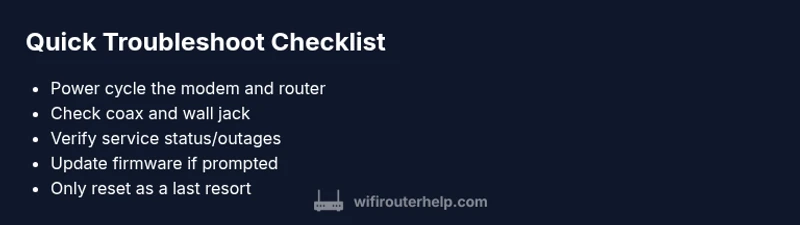
- Power cycle the entire chain: unplug the modem and router, wait 60 seconds, then plug back in starting with the modem. This reset often clears minor glitches that trigger orange blinking.
- Inspect coax connections: ensure the coax cable is snug at both ends and that there are no visible tears. A loose or damaged coax can cause signal loss and orange indicators.
- Check for outages and service status: visit Xfinity’s outage page or your account to confirm service status in your area. An outage will produce blinking indicators regardless of device health.
- Verify LED pattern consistency: note whether the light blinks at a steady rate or in a specific sequence. Some patterns point to power, boot, or login issues that require different steps.
- Avoid aggressive resets: a factory reset should be a last resort after you’ve attempted standard reboots and verified service status. Being prepared with login details and backup settings is essential if you proceed.
- Upgrade firmware only when prompted: if the router prompts a firmware update, let it run through. Interrupting an update can worsen the issue.
Common causes of an orange blinking light
- Boot/Power cycle in progress: during initial startup or after a power interruption, the orange blink may indicate the device is refreshing its firmware or re-establishing the connection.
- Coax or line issue: a loose or damaged coax cable, splitter, or wall jack can disrupt the signal, triggering orange indicators until the path stabilizes.
- Service outage or account problems: if Xfinity detects an outage or has an account-related restriction, the router may show orange while awaiting service restoration or authorization.
- Firmware update in progress: an ongoing firmware update can manifest as a blinking orange light; avoid interrupting the process and monitor for completion.
- Hardware fault or overheated device: persistent orange blinking after normal resets may signal a hardware fault or overheating, especially if the unit feels warm.
Diagnostic flow: symptom → diagnosis → solutions
- Symptom: Orange blinking light persists after a reboot.
- Diagnosis: Service outage or line issue; try verifying status and reseating connections.
- Solution: Check outage page, reseat coax, and perform a full power cycle.
- Symptom: Orange blinking during startup only.
- Diagnosis: Boot loop or firmware update in progress.
- Solution: Allow time for boot or update; if it stalls, power cycle and check for update prompts.
- Symptom: Intermittent orange blinking with device warm.
- Diagnosis: Potential overheating or hardware fault.
- Solution: Improve ventilation, power cycle, and consider replacement if it persists.
- Symptom: No internet after reboot, orange light, and lights on the modem also show patterns.
- Diagnosis: Modem–router handshake issue or ISP authentication.
- Solution: Verify login status in your account and perform a modem reset if allowed by the provider.
Step-by-step fixes for the most common causes
Step 1: Power cycle the entire chain
Power off the modem and router, unplug all cables, wait 60 seconds, then reconnect the modem first and wait for it to fully boot before powering the router. This resolves many transient glitches that trigger orange blinking. TIP: Note any LED changes during boot to help identify stages.
Step 2: Check coax and connections
With devices powered off, inspect the coax cable at each connection point for tightness and damage. If you can, replace a suspect coax or try a different wall jack. A loose connection often causes inconsistent signals and orange indicators.
Step 3: Verify service status
Log in to your Xfinity account or check the outage map for your area. If an outage is reported, there’s little you can do at home beyond monitoring and waiting for service restoration. If not, proceed to the next step.
Step 4: Test with a direct modem connection
If you’re using a separate modem and router, connect a computer directly to the modem with an ethernet cable to test the connection. If you lose service at the modem, the issue is with the line or the ISP; if the modem sees service but the router doesn’t, focus on router settings.
Step 5: Firmware update check
If the router shows a firmware update prompt, allow it to complete uninterrupted. Interrupting an update can brick the device in rare cases. After update, reboot and reassess the LED status.
Step 6: Factory reset as a last resort
Only perform a factory reset if you’ve exhausted other steps and you’ve backed up all configurations. After reset, you’ll need to reconfigure your network from scratch, including Wi-Fi SSID, password, and any guest networks.
Preventive tips to avoid future orange blinks
- Regularly update firmware and keep a backup of your configuration for quick recovery.
- Place the router in a well-ventilated area away from heat sources.
- Use a quality coax cable and minimize the number of splitters.
- Schedule periodic reboots to refresh connections, especially after power outages.
- Document your network settings so a reset doesn’t leave you in the dark.
When to contact support and what to prepare
If you cannot resolve the orange blinking light after completing the steps above, contact Xfinity support and provide:
- Your account email and plan, plus any outage IDs.
- The exact LED pattern and timing (how many blinks, and in what sequence).
- Serial numbers for the modem and router, plus firmware version if available.
- Your steps taken, so a technician can reproduce the issue quickly.
diagnosticFlow":{"symptom":"Orange blinking light persists after troubleshooting","causes":[{"cause":"Power/boot issue","likelihood":"high"},{"cause":"Coax/line problem","likelihood":"high"},{"cause":"ISP outage or account issue","likelihood":"medium"},{"cause":"Firmware update in progress","likelihood":"low"}],"fixes":[{"fix":"Power cycle the chain from modem to router","difficulty":"easy"},{"fix":"Reseat/replace coax connections and check wall jack","difficulty":"easy"},{"fix":"Check service status and outage maps","difficulty":"easy"},{"fix":"Allow firmware update or perform a controlled reset","difficulty":"medium"},{"fix":"Call support for line tests or hardware replacement","difficulty":"easy"}]}
stepByStep":{"steps":[{
title
Power cycle the entire chain
description
Power off both devices, unplug cables, wait 60 seconds, plug the modem back in, wait for it to boot, then power the router. Check if the orange light clears after full boot.
tip
Keep the modem powered during the reset to ensure a clean handshake.
number
1
Steps
Estimated time: 25-45 minutes
- 2
Check coax and connections
Inspect all coax connections; tighten or replace if needed. Ensure the wall jack and splitter are secure.
Tip: A simple tightening can restore a lost signal. - 3
Test with direct modem connection
Connect a computer directly to the modem with Ethernet to confirm a stable signal from the ISP. If internet is present on the modem but not on the router, focus on router settings.
Tip: Document results with timestamp. - 4
Firmware update check
If a firmware update is prompted, let it complete without interruption. Reboot after the update.
Tip: Avoid unplugging during the update. - 5
Factory reset (last resort)
If all else fails, reset the router and reconfigure your network from scratch.
Tip: Back up settings if possible. - 6
Contact support
If problems persist, contact Xfinity support with your findings and outages.
Tip: Have serial numbers handy.
Diagnosis: Orange blinking persists
Possible Causes
- highPower/boot issue
- highCoax/line problem
Fixes
- easyPower cycle the chain
People Also Ask
Why is my Xfinity router blinking orange and solid?
A solid orange light often indicates a non-critical issue that may require checking for outages or login status, while blinking typically signals an active process or line issue. Start with a power cycle and verify service status before deeper troubleshooting.
A blinking orange light usually means a process or line issue, so try a power cycle and verify service status first.
Can I fix orange blinking without a service call?
Yes, many orange blinking issues can be resolved at home by power cycling, reseating coax, and verifying outages. If the problem persists after these steps, contact your provider for line tests.
Most orange blinking problems can be fixed at home by rebooting and checking connections; if it continues, call your provider.
Is orange blinking the same as service outage?
Not always. An outage is provider-wide, while orange blinking can also result from a local hardware issue. Check outage maps first, then test your hardware if outages are not reported.
Outages affect many users, but orange blinking can also be a local hardware issue. Check both.
What precautions before a factory reset?
Back up your WiFi settings, SSIDs, and passwords. Note any custom configurations. A reset will restore factory defaults and require reconfiguration.
Backup your settings before resetting so you can restore quickly.
Should I replace my router when blinking orange?
Not necessarily. Most orange blinking issues are resolvable with resets and connectivity checks. Consider replacement only if hardware appears faulty or overheating persists.
Only replace if the hardware is clearly failing after thorough troubleshooting.
What if the modem and router are separate devices?
Treat the modem as the primary device; ensure it has a stable signal. If the router still blinks orange after a stable modem connection, focus on router settings or replacement.
If you have separate devices, fix the modem first, then address the router.
Watch Video
What to Remember
- Power cycle first to clear glitches
- Coax integrity is crucial for stability
- Firmware updates must finish undisturbed
- Factory reset should be last resort
- Prepare account info before calling support