Why is my Xfinity router solid orange? Troubleshooting guide
Urgent, step-by-step guide to fix a solid orange Xfinity router light. Learn checks, diagnostics, and when to contact support to restore internet quickly.


A solid orange light on an Xfinity router typically signals a connection or device fault, often indicating offline status or a firmware issue. Start with the basics: power cycle the gateway, check coax and Ethernet cables, verify service status with your provider, and confirm the unit is registered on your account. If the light remains steady, escalate to support.
What the orange solid light on your Xfinity router might mean
If you’re wondering why is my xfinity router solid orange, you’re not alone. A solid orange light generally signals an offline gateway or a fault that prevents your home network from accessing the internet. The exact meaning can vary by model, but most Xfinity gateways use orange to indicate a non-operational state rather than a normal boot or ready status. According to WiFi Router Help, your first clue should always be the light. Treat the orange LED as a status message you should interpret in the context of power, cabling, and service status. In many homes the issue is resolved with a simple power cycle or a reseat of connections. If the orange light remains steady after the basics, you’re facing a more persistent problem such as a wiring fault, a registration hiccup with the provider, or a firmware glitch. This guide walks you through a safe, methodical approach to diagnose and fix the problem, without jumping to conclusions. The guidance below reflects general best practices suitable for homeowners and tech enthusiasts in 2026.
Quick checks you can perform right now
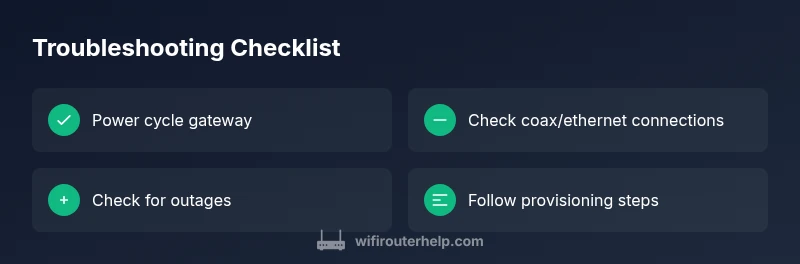
- Power cycle the gateway: unplug the power, wait 30 seconds, plug it back in, and allow about 2 minutes for a full reboot.
- Inspect cables and connections: verify the coax cable is snug at the wall and at the gateway, and ensure any Ethernet cables are firmly connected. Replace damaged cables if you find visible wear.
- Check for overheating: ensure the gateway has room to vent and is not placed in a closed cabinet or against a heat source.
- Check service status: visit your provider’s status page or contact support to confirm there are no outages affecting your area.
- Check gateway login: try to access the admin page (the address varies by model) and see if you can reach the status or diagnostics screens. If you can, you can run a basic health check or view connected devices.
- Test with wired devices: if a PC can’t reach the internet while a phone connected via cellular data can, the issue is likely gateway-level rather than a total outage.
Interpreting the orange light through a logical lens
Light color and behavior give clues, but you must map them to your model’s manual. A solid orange light often points to one of a few root causes: a power/boot issue, a loose or damaged line, a provider outage or provisioning problem, or a firmware hiccup that prevents normal operation. Do not jump to conclusions; rule out the easiest explanations first. Document the steps you take so you can share details with support if needed. If the light changes from solid to blinking or changes color, note the pattern, as that can indicate a different fault class and guide you toward a specific fix.
Diagnostic flow overview
Symptom: solid orange light on the gateway.
Causes:
- Power issue or unstable supply (likelihood: high)
- Loose or damaged coax or Ethernet cables (likelihood: high)
- Provider-side outage or provisioning problem (likelihood: medium)
- Gateway hardware fault or firmware hiccup (likelihood: low)
Fixes:
- Power cycle and verify reboot (difficulty: easy)
- Reseat/replace cables and check for damage (easy)
- Check service outage and account status (easy)
- If unresolved, contact Xfinity to re-provision or replace the gateway (difficulty: medium)
Step-by-step fixes for the most common causes
- Power cycle and soft reset
- Start by unplugging the gateway, waiting 30 seconds, then plugging it back in. Give it 2 minutes to boot fully. Tip: Power cycling clears temporary faults without losing configuration.
- Inspect and reseat cables
- Tighten all coax connectors at the wall and the gateway. If you have a spare coax, swap to rule out a bad line. Tip: Avoid using a damaged splitter or excessive adapters.
- Check for outages and service status
- Use your provider’s outage tools or call support to confirm whether your area is affected. If there’s an outage, wait until service is restored. Tip: Document outage times for your records.
- Validate account activation or provisioning
- Sign in to your Xfinity account and verify the gateway is registered and active. If you recently replaced the device, activation may be required. Tip: Follow provisioning prompts exactly as shown in the portal.
- Firmware or reset as a last resort
- If the light persists after the above steps, you may perform a firmware update check or a factory reset. Note: A reset will restore defaults and may erase custom settings. Tip: Back up config if possible.
- After action, monitor results
- Reboot again and observe the LED pattern. If the orange light persists, go to the next step or contact support. Tip: Keep a changelog of what you tried.
Safety tips and common mistakes to avoid
- Do not unplug devices during storms or when power is unstable; ensure a stable power source to avoid surges.
- Do not use damaged cables or third-party adapters; faulty hardware can trigger faults and pose safety risks.
- Do not flood the gateway with EMI devices; keep it away from microwaves or cordless phones.
- Do not ignore persistent orange lights; if the gateway smells burnt or gets unusually hot, power down and call support immediately.
- Do not attempt advanced hardware modifications; only use manufacturer-supported methods for resetting or updating.
When to call a pro and what to expect
If after following the steps the orange light remains, it’s time to reach out to Xfinity support or a qualified technician. Have your outage checks, account provisioning steps, and a log of tests ready. A technician may re-provision the gateway, replace the device, or check line quality at the demarc. Expect a short diagnostic call or visit; your service may be temporarily suspended during the repair window.
Prevention tips to avoid orange-light issues in the future
- Schedule regular reboots of the gateway to keep firmware healthy.
- Inspect coax connections periodically and replace aging cables.
- Enable automatic firmware updates if available and monitor the admin page for alerts.
- Keep your account status up to date and ensure devices are registered after any replacement.
- Place the gateway in a ventilated area with space around it to prevent overheating.
Steps
Estimated time: Total time: 25-40 minutes
- 1
Power cycle the gateway
Unplug the gateway, wait 30 seconds, then plug it back in. Allow 2 minutes for the device to boot and recheck the LED. This clears many temporary faults without affecting your configuration.
Tip: Power cycling often resolves minor firmware glitches. - 2
Inspect and reseat cables
Ensure the coax is firmly connected at both ends and the Ethernet cable is snug. If a spare coax is available, swap to rule out a damaged line. Inspect for wear or kinks.
Tip: Damaged cables are a common root cause. - 3
Check for outages and provisioning status
Visit the service status page or call support to confirm there’s no area outage and that your gateway is properly provisioned in your account.
Tip: Outages cancel many in-home fixes. - 4
Test with wired and wireless devices
Connect a computer directly to the gateway with an Ethernet cable and test internet access; compare with a mobile device on Wi-Fi to determine if the issue is wired, wireless, or general.
Tip: Different results point to different root causes. - 5
Consider a firmware check or reset
If none of the above fixes work, check for a firmware update or perform a factory reset as a last resort (note: resets erase custom settings).
Tip: Back up important settings first. - 6
Monitor and escalate if needed
After the reset, monitor the light pattern. If orange persists, escalate to Xfinity support for re-provisioning or replacement.
Tip: Document your steps and test results for faster help.
Diagnosis: Solid orange light on Xfinity gateway
Possible Causes
- highPower issue or unstable power supply
- highLoose or damaged coax/Ethernet cables
- mediumProvider-side outage or provisioning problem
- lowGateway hardware fault or firmware hiccup
Fixes
- easyPower cycle the gateway (unplug for 30 seconds, plug back in) and monitor reboot
- easyTighten or replace coax/Ethernet cables; reseat connectors firmly
- easyCheck service outage and account provisioning status with your provider
- mediumIf unresolved, contact the provider to re-provision or replace the gateway
People Also Ask
What does a solid orange light mean on an Xfinity router?
A solid orange light typically signals an offline gateway or fault affecting your internet. It can indicate power, cable, provisioning, or firmware issues. Work through basic checks first before escalating to support.
A solid orange light usually means the gateway is offline or faulty. Start with power, cables, and outages, then contact support if it stays on.
Is a blinking orange light different from a solid orange light?
Yes. A blinking orange light often points to an ongoing retry or update process, while a solid light usually indicates a stable fault state. Follow the same basic checks and consult the manual for blink patterns.
Blinking indicates a retry or update; solid means a fault. Check power and cables, then look for outages or provisioning issues.
Should I reboot my router when the light is orange?
Rebooting is a recommended first step. Power cycle the gateway, wait for full reboot, and re-check the light. If the issue persists, proceed with the diagnostic steps or contact support.
Yes—start with a reboot, then continue with the troubleshooting steps if needed.
How can I check if there’s a service outage in my area?
Visit your provider’s outage status page or contact customer support to confirm outages in your area. Outages can make the gateway appear orange even if hardware is fine.
Check the provider’s outage page or call support to confirm local service status.
When should I replace the router?
If the gateway is consistently faulty after all troubleshooting steps and provisioning checks, replacement may be necessary. Your provider can advise on a model replacement or exchange.
If repeated fixes fail, replacement is often the next step.
Watch Video
What to Remember
- Start with power-cycle and cable checks.
- Verify area outages before hardware changes.
- Escalate to provider if persistent orange light.
- Regular maintenance reduces future orange-light issues.