Why Your Router Cannot Connect to Internet: A Practical Troubleshooting Guide
A practical, urgent troubleshooting guide to fix why your router cannot connect to internet. Step-by-step checks, diagnostic flow, and pro tips to restore service fast and prevent future outages.


Most often, the router cannot connect to the internet due to a misconfigured WAN/Internet setup, a modem mislink, or a simple cable issue. Quick first steps: 1) power cycle modem and router in the correct order, 2) confirm the coax/phone line is firmly connected, 3) verify WAN status in the router admin page, and 4) check for ISP outages. If problems persist, continue diagnostic flow.
Why connectivity fails on home networks
Connectivity issues haunt many households, especially when work from home or streaming demands are high. The exact phrase to search is why router cannot connect to internet because many root causes look similar at first glance. According to WiFi Router Help, most outages trace to three domains: the modem-ISP link, the router configuration, or a local network fault. Understanding how these layers interact helps you triage quickly. In this guide, we focus on practical, step-by-step strategies that homeowners can apply safely without technical jargon. The goal is to restore a usable connection in the shortest time and to prevent repeat outages. Whether you rely on fiber, cable, or DSL, the same fundamental rules apply: confirm hardware is powered, verify that the path from your device to the internet is clear, and isolate the point of failure through controlled tests. Keep in mind that even small changes—like a loose coax connector or an outdated firmware version—can break connectivity. The WiFi Router Help team emphasizes a methodical approach: don’t skip basic checks, document what you observe, and escalate when you’re outside your comfort zone.
Quick checks you can do in the next minutes
Start with a triage checklist that covers the simplest issues first. First, confirm the power is on for both the modem and the router and verify the order of power cycling: unplug the router after the modem, wait, then plug the modem back in, then the router. Next, inspect all cables: coaxial or telephone line securely seated, Ethernet cables undamaged, and the WAN cable connected to the correct port. Check the status LEDs on both devices; a red or blinking light often signals a specific fault. Attempt to reach the router’s admin interface from a wired PC; if you can access it but the internet still does not work, the problem is beyond the local network. Also test with multiple devices: if one device is online but others aren’t, the fault might be router-side rather than ISP. Finally, verify the ISP’s service status by visiting their status page or calling support. If your ISP is reporting outages, your router’s symptoms may be a consequence rather than the cause. Document the outage and wait for restoration before proceeding with deeper fixes.
Understanding the roles: modem, router, and ISP
To reliably diagnose why your router cannot connect to internet, you need a clear mental map of how the three core pieces interact. The modem connects you to the wider network supplied by the ISP. The router creates your home network and assigns IP addresses to devices. The ISP provides the actual internet path and may require authentication or specific settings. Misunderstandings here are a frequent source of confusion: for example, a modem in bridge mode vs routing mode can dramatically change behavior. WiFi Router Help emphasizes validating each layer: the modem must be online, the router must obtain an IP via DHCP (or PPPoE credentials if your service requires them), and the DNS should be accessible. If any layer is misconfigured, devices may show “connected, no internet” even though local network features work.
Diagnostic flow you can follow to isolate the problem
A structured diagnostic flow helps you pinpoint where the problem lies. Start by confirming basic power and cable integrity. Then test a wired connection directly from a computer to the router and to the modem to separate device-wide issues from network-wide outages. If wired access to the internet fails but local network access remains, focus on WAN settings and ISP status. If you can access the router’s admin panel but Internet still isn’t reachable, inspect PPPoE credentials, DHCP settings, DNS addresses, and NAT configuration. When all else fails, temporarily bypass your wireless by using a wired connection and test again. Each step should lead to a clearer diagnosis, not a guess. Always note the observed LED statuses and timestamp changes as you test.
Step-by-step fixes for the most common causes
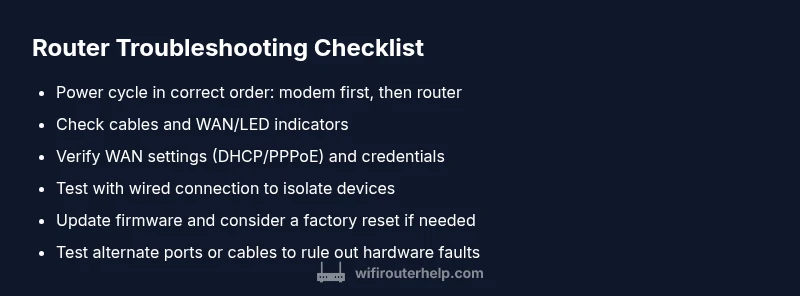
Unlock the most common fixes first, in order of ease. Begin with a proper power cycle: switch off both devices, wait, power on the modem first, then the router. Check cables for signs of wear or looseness and replace damaged cables. Access the router’s web interface and verify WAN/Internet status; ensure the correct connection type (DHCP, PPPoE, or static IP) is chosen, and re-enter credentials if required. If the issue persists, run a firmware update from the router’s admin page, or perform a factory reset if you have backups of settings. Finally, test with a different Ethernet port or a different router if available to determine hardware failure. These steps cover 90% of common household outages and should restore service in many cases.
Advanced checks and tests to isolate the problem
For stubborn issues, advance to tests that separate variables. Connect a computer directly to the modem with an Ethernet cable to verify the modem’s reach to the internet. If the modem shows a valid connection but the router does not, the fault is likely in router settings or hardware. Try replacing the Ethernet WAN cable, testing different ports, and disabling unused router features such as firewall rules or VPNs to test for conflicts. Ping test: from a connected computer, ping the gateway, then a public DNS like 1.1.1.1 to verify DNS resolution. If you still have no internet, consider a firmware update or a reset to factory defaults after backing up important settings. If the problem persists after all tests, you may be facing an external issue—contact your ISP with the test results.
Safety, warnings, and when to call a professional
Always unplug power before handling hardware and avoid opening devices that are still under warranty. Do not attempt internal repairs on a modem or router; these devices can carry risk of electric shock and warranty voids. If you are uncomfortable performing resets, firmware updates, or wiring changes, seek professional help. When you notice recurring outages, frequent disconnects, or suspect line faults, consider scheduling a technician visit with your ISP or a qualified network technician. WiFi Router Help recommends documenting all steps taken and the observed LED codes to speed up the service visit.
Preventive practices to avoid future outages
Prevention is easier than repeated troubleshooting. Regularly update firmware on both modem and router, enable automatic updates where feasible, and keep a record of your network password and settings. Periodically check cables for wear and replace any that show signs of damage. Use a stable uptime monitoring approach by noting any ingress interruptions and performing periodic reboots to refresh DHCP leases. Finally, consider saving a current router configuration after a successful fix, so you can restore quickly if something changes. Following these practices reduces the likelihood of future outages and keeps your home network resilient.
Steps
Estimated time: 60-90 minutes
- 1
Power cycle in correct order
Power off the router and modem, unplug both, wait a brief moment, plug in the modem first, wait for a solid online status, then plug in the router and allow it to boot. This clears stale DHCP leases and re-establishes sessions.
Tip: Label the order so you don’t mix up plug-in sequence next time. - 2
Check physical connections
Ensure the coax/phone line is firmly connected to the modem, the Ethernet WAN cable is seated, and there are no frayed cables. A loose connection is a common cause of internet outages.
Tip: Replace any damaged cables immediately for best results. - 3
Access router admin and verify WAN
From a wired computer, open the router’s admin page and confirm the WAN/Internet status. Make sure the connection type matches your service (DHCP, PPPoE, or static IP). Re-enter credentials if required.
Tip: Take a screenshot of current settings before changing anything. - 4
Test with wired connection to ISP
Connect a computer directly to the modem (bypassing the router) to see if the internet is reachable. If not, the problem is with the ISP or the modem link; if yes, the router is the likely issue.
Tip: If no reachability, contact the ISP with your modem model and error codes. - 5
Update firmware or reset
Check for firmware updates in the router's interface. If issues persist, perform a factory reset and reconfigure from backup. Ensure you have the backup settings handy.
Tip: Reset is a last resort; some settings may be hard to recreate. - 6
Check DNS and gateway
Verify the DNS server addresses (automatic or manual) and ensure the router is set as the default gateway for your devices. Misconfigured DNS can mimic internet outages.
Tip: Try using a known reliable DNS like an uptime-friendly public DNS. - 7
Isolate devices and networks
Test multiple devices on both wired and wireless connections to rule out a single-device problem. If all devices fail, the issue is network-wide.
Tip: Disable guest networks temporarily to avoid configuration conflicts. - 8
Prepare for escalation
If none of the steps resolve the issue, document LED codes, times, and the tests you ran. Contact your ISP or a professional with this information for faster resolution.
Tip: Keep a log so service calls go smoothly.
Diagnosis: No internet after power cycling; WAN light off or blinking
Possible Causes
- highModem not syncing with ISP (service outage or line problem)
- mediumIncorrect WAN settings on the router (PPPoE, IP, DNS)
- lowFaulty cables or bad Ethernet/WAN port on the router or modem
Fixes
- easyCheck physical connections and power cycle in the correct order
- easyVerify WAN settings in the router admin page and ensure a valid IP is assigned
- easyTest with a direct modem connection or try alternative cables/ports
- mediumUpdate firmware or reset to factory defaults if necessary
People Also Ask
What is the first thing I should check when my router can't connect to the internet?
Begin with power, cables, and WAN status. Ensure both devices are on in the correct order and that the WAN link is stable. If these basics fail, proceed with deeper diagnostics.
Start with power, cables, and the WAN link. If those basics don’t fix it, move on to deeper checks.
Can a faulty modem cause the problem?
Yes. If the modem isn’t syncing with the ISP, you’ll see no internet even if your router is fine. Test by connecting a computer directly to the modem to confirm if the issue is upstream.
Yes. A faulty modem can block internet access even if the router is fine. Test with a direct modem connection.
Is resetting the router safe?
Factory resetting wipes all settings; back up your configuration first. Use resets only after attempting other fixes, as it requires reconfiguring your network from scratch.
Resetting can fix many problems, but you’ll lose settings. Back up first and proceed only if necessary.
Why do I have no internet but local network still works?
That usually points to DNS or gateway issues, or the WAN/ISP path not providing internet while LAN devices communicate locally. Check DNS, gateway settings, and WAN status.
Local network works but internet doesn’t usually means DNS or WAN problems. Check those settings first.
What if there is an outage in my area?
If the ISP reports an outage, your router will reflect that absence of internet. Monitor status pages and wait for the provider to restore service. Do not assume a fault on your end.
Outages happen. Check the provider’s status page and wait for them to fix it.
How long should I wait after changes to test?
Give devices a few minutes after changes to re-establish connections and waste minimal time, so you can see if the fix took effect.
Wait a few minutes after changes to let the network settle.
Watch Video
What to Remember
- Start with basic checks to save time
- Isolate the problem with a wired test
- ISP status matters and may drive symptoms
- Back up settings before resets
- Seek professional help when uncomfortable