Why is Spectrum Router Solid Red? Urgent Troubleshooting Guide
Urgent, step-by-step guide to diagnose and fix a solid red light on Spectrum routers, with practical checks, diagnostics, and prevention tips. Learn how to restore service quickly and safely.


Why is Spectrum router solid red? A solid red light usually signals a fault in the network path or hardware within your Spectrum setup. Start with basic checks: power cycle the router and modem, verify coax/phone line connections, and ensure the router is not in bridge mode unless intended. If the red light persists, contact Spectrum support for a line check.
Why a Spectrum Router Shows a Solid Red Light and Why It Demands Urgent Attention
If you're wondering why is spectrum router solid red, this indicator usually means the device has lost its connection to the network path or is experiencing a hardware fault. In most homes the red LED corresponds to a downstream problem rather than a simple Wi-Fi outage. The distinction between a red light and a blinking amber or green light is important; solid red generally signals a condition that blocks service entirely. Immediate investigation is warranted because prolonged red illumination can indicate either a corrupted config, a failed modem, or a service interruption. The WiFi Router Help team emphasizes that diagnosing red lights quickly reduces downtime and frustration. Start with the simplest checks, then escalate to Spectrum if the issue persists. Throughout this guide we’ll use practical steps, real-world examples, and safe, user-friendly testing routines to restore connectivity as fast as possible.
Quick checks you can perform before calling support
Begin with the basics to rule out common, easy-to-fix causes. Check that the power adapter is firmly seated and that the router and modem are powered on. Inspect all physical cables—the coax/DSL line should be snug and undamaged, with connectors properly screwed. If your setup includes a separate modem or a bridge mode configuration, verify that the devices are in the correct mode for your service. While testing, unplug devices for 30 seconds and plug them back in to refresh assignments. If you see the red light immediately after a storm or outage, you may be dealing with a service disruption beyond your gear. Use this time to confirm if Spectrum is reporting an outage in your area. The goal is to distinguish a local issue from a network-wide problem, guided by practical checks and safe, repeatable steps.
Common causes behind a solid red light on Spectrum gear
There are several frequent culprits behind a solid red LED. A loose or damaged coax/line connection can easily trigger a red light, as can a modem that’s not syncing properly with the network. Firmware glitches or a misconfigured router setting (including incorrect bridge mode) can block connectivity. A service outage in your area is another common factor, especially if all indicators show no connection. Physical damage or overheating of the router is less common but possible, and it’s important to rule these out as part of a thorough inspection. Remember that the goal is to map symptoms to probable causes and choose fixes that address the root issue rather than masking the problem with a simple reset.
How to verify service status and hardware integrity
First, check Spectrum’s outage map or status page from another device to verify if there is a known problem in your locale. If there’s no outage reported, move on to hardware checks: reseat the coax or line cable, ensure all cables are in good condition, and confirm that the modem and router are on the correct power cycle sequence. Access the router’s admin interface if possible to review connected devices, firmware versions, and bridge-mode settings. If your device has a built-in diagnostic tool, run it to check for hardware errors or port failures. Document the results for reference when you contact support. Keeping a simple log helps you stay organized and reduces back-and-forth with customer service.
Step-by-step quick fixes you can try right now
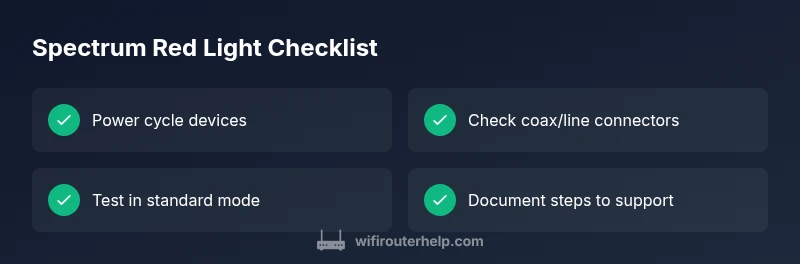
- Power cycle: unplug both router and modem, wait 60 seconds, plug modem in first, wait for its lights to stabilize, then plug in the router. 2) Check cables: tighten all connectors and inspect for wear or damage; replace any frayed cables. 3) Disable bridging if not needed: ensure the router is in standard router mode unless you intentionally use bridge mode. 4) Factory reset (as a last resort): if instructed by Spectrum or the device manual, perform a reset and reconfigure from scratch. 5) Test after each step: re-check the LED color and network connectivity. 6) Contact Spectrum if red persists: ask for a line check or device replacement. These steps emphasize safer, incremental fixes with clear progress checkpoints.
Safety, warnings, and best practices to avoid future red lights
Always power down devices before unplugging or reseating cables to avoid electrical surges or damage. Do not use damaged cables or force connectors beyond their seating. Do not attempt unofficial firmware updates or bypass official support channels. If you’re uncomfortable with any step, pause and contact Spectrum’s support to prevent accidental misconfiguration. Regularly saving a backup of your router settings can help you recover quickly if a reset becomes necessary. By treating the red light as a signal to methodically verify both hardware and service status, you reduce the risk of extended outages.
When to escalate to Spectrum and what to prepare
If basic troubleshooting does not resolve the red light scenario, escalate to Spectrum support with your device model, firmware version, and a brief history of the steps you performed. Have your account details ready, including the service address, and note any outage notices you’ve seen. Spectrum technicians may request a line test, modem replacement, or a site visit to diagnose deeper issues. In many cases, a cooperative, prepared customer speeds up the process and leads to a faster restoration of service.
Steps
Estimated time: 20-40 minutes
- 1
Power cycle devices
Unplug both the modem and router. Wait 60 seconds, then plug the modem back in and allow it to fully boot. Finally, plug in the router and give it a minute to stabilize before testing connectivity.
Tip: Having a timer helps you avoid rushing the boot sequence. - 2
Inspect cables and connections
Tighten all coaxial and Ethernet connections. Look for visible wear or kinks. If a cable seems damaged, replace it and re-test.
Tip: Never overtighten connectors; snug is enough. - 3
Check bridge mode and device roles
Log into the router’s admin page and verify that the device is in standard router mode (not bridge) unless your setup requires bridge mode. Incorrect mode can cause loss of service.
Tip: Document current settings before changing anything. - 4
Test after each step
After each fix, power cycle as needed and run a quick test by pinging a site or loading a page to confirm service. If red persists, proceed to the next step.
Tip: A simple ping test helps confirm connectivity. - 5
Reset to factory defaults if advised
If Spectrum support instructs or nothing else works, perform a factory reset on the router, then reconfigure from scratch using the quick-start guide.
Tip: Back up settings if possible before resetting. - 6
Call Spectrum for a line check
If the red light remains after steps and no outages are reported, contact Spectrum to request a line test or device replacement.
Tip: Have your account and troubleshooting log ready for the agent.
Diagnosis: Solid red light on Spectrum router
Possible Causes
- highPower issue
- mediumCoax/line connection fault
- mediumModem compatibility or firmware issue
- lowService outage in area
- lowHardware failure of router
Fixes
- easyPower cycle power supply and router, wait 2 minutes
- easyCheck all cables and connections; reseat coax
- mediumReset modem and router to factory defaults if advised
- easyCheck service status with Spectrum outage page or support
- mediumReplace router or contact Spectrum for line check
People Also Ask
What does red mean?
A solid red light typically indicates a loss of service, hardware fault, or line issue. It’s a higher-priority problem that usually needs action beyond routine Wi‑Fi tweaks.
A solid red light usually means a service or hardware problem that needs attention.
Should I reset my router if red persists?
Resetting can help, but it may erase custom settings. Only reset if instructed by Spectrum or if you’re prepared to reconfigure afterward.
Yes, reset if Spectrum asks you to, but be ready to reconfigure your settings.
Is the red light the same across Spectrum devices?
Red indicators can vary by model. Some devices use red for network failure, others for hardware faults. Always refer to your device manual for exact meanings.
Models differ; check your device manual for the red light meaning.
What if there’s an outage in my area?
If Spectrum or outage maps show an area-wide problem, your router red light may be temporary. Monitor status and wait for Spectrum to restore service.
If there’s an outage, wait for the service to come back up and check status periodically.
When should I replace equipment?
If troubleshooting fails after a full set of steps and Spectrum confirms no outages, consider replacing the router or modem if they show signs of hardware failure.
If all fixes fail and there’s hardware wear, replacement may be needed.
Can I reset just the modem or just the router?
Yes. Resetting the modem or router individually can isolate issues. Follow device-specific guidance before partial resets.
You can reset one device at a time to isolate problems.
What information should I have when calling support?
Have your account number, device model, firmware version, and a brief steps history. This helps the agent diagnose faster.
Have your device model and steps you tried ready for the support agent.
Is bridge mode a potential cause?
Bridge mode can disrupt normal routing if not intended. Verify your configuration and restore standard router mode if unsure.
Bridge mode can cause issues; verify settings and revert if needed.
Watch Video
What to Remember
- Always start with power cycling and cable checks
- Differentiate basic outages from hardware faults
- Escalate to Spectrum with a documented troubleshooting log
- Prevent future issues with safe configurations and backups