What to Do If Spectrum Router Is Red: A Troubleshooting Guide
Urgent, practical steps to fix a red Spectrum router LED, with a diagnostic flow, quick checks, and when to contact Spectrum support for service restoration.


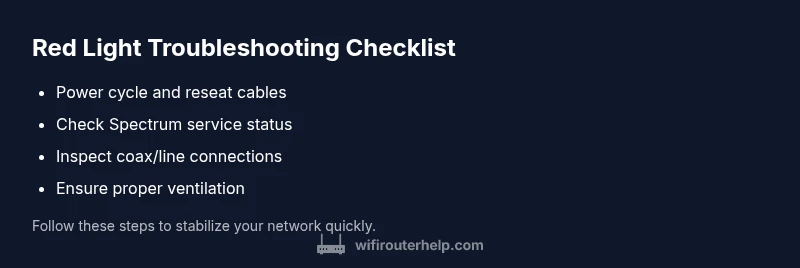
A red light on a Spectrum router usually signals a hardware or line issue. Start with the easy fixes: power cycle the gateway, inspect coax/line connections, and verify service status with Spectrum. If the red light remains after a factory reset, contact Spectrum support while documenting the lights and any patterns. Also ensure proper ventilation and avoid overheating.
What a red LED on Spectrum router really means
A solid or flashing red LED on your Spectrum gateway typically signals a fault that prevents your home network from stabilizing. In Spectrum's all-in-one devices, this can indicate a loss of downstream or upstream synchronization, a damaged coax/line, or a hardware fault in the unit. According to WiFi Router Help, correctly interpreting the LED state is the first step toward a fast resolution. A blinking red light often points to a boot issue or an incomplete reset, while a steady red light usually means the gateway cannot reach Spectrum's network. Understanding the exact pattern helps you choose the right next step and avoid unnecessary steps.
When you’re troubleshooting, remember that the color and pattern (steady vs. blinking) matter and can indicate different root causes. This guide follows a methodical approach to help you separate external service issues from device faults, with practical steps you can take right away.
Quick checks you should perform before calling support
- Power cycle: unplug the gateway, wait 60 seconds, then reconnect and watch the LED as it boots.
- Inspect cables: ensure the coaxial/line cable from the wall to the modem is snug and undamaged. Replace any frayed or kinked cable.
- Service status: check Spectrum's outage status via the official app or website. If an outage is reported, a red LED can indicate service disruption rather than a device fault.
- Ventilation and placement: make sure the gateway is well ventilated and not tucked behind a TV stand or closet, which can cause overheating and LED instability.
- Bridging vs. gateway mode: if you own a separate router, ensure the Spectrum device is in bridge mode or that double-NAT is handled correctly to avoid LED confusion.
- Observing the pattern: note whether the red light is steady or blinking, as timing clues guide diagnosis.
Common causes behind a red light on Spectrum routers
- ISP outage or service disruption: some red LEDs appear during outages, even if your local network remains reachable by some devices.
- Signal or coax issues: loose, damaged, or water-damaged coax lines can prevent proper synchronization.
- Hardware fault: age-related failures or manufacturing defects can trigger persistent red LEDs.
- Firmware or configuration glitches: a corrupted setting or failed update may block normal operation.
- Power supply problems: an undervoltage or unstable power source can destabilize the gateway.
- Misconfiguration with a secondary router: incorrect bridge/NAT settings can create red LED symptoms when you expect normal operation.
Diagnostic flow: symptom → diagnosis → solution path
- Symptom: red LED persists after basic power cycling.
- Possible causes: see above list (high likelihood for power/coax issues; medium for outages; low for firmware glitches).
- Primary actions: verify physical connections, confirm service status, and rule out overheating.
- If the light remains: progress to a factory reset or firmware check; escalate if hardware fault is suspected.
This flow keeps you aligned with a methodical approach rather than random fixes. Remember, the goal is to confirm whether the issue is external (ISP/service) or internal (gateway hardware).
Step-by-step fixes: from easy to advanced (concise overview)
- Start with the easiest fix: power cycle and reseat cables.
- If no improvement, perform a soft reset and recheck service status.
- For ongoing issues, consider a factory reset after backing up settings and reconfiguring.
- If you manage your own router, ensure the Spectrum gateway is set to bridge mode or disable its Wi-Fi to avoid conflicts.
- Check for overheating and provide adequate ventilation; relocate if necessary.
- Finally, check for firmware updates; apply if available or contact Spectrum if the device fails to update.
Note: The above steps focus on the most common red-light causes first; if none resolve the issue, professional help is advised.
When to contact Spectrum support and what to have ready
If the red light persists after all basic checks and attempts at reset, contact Spectrum support. Have your account details, device serial number, model name, and screenshot or notes about the LED pattern ready. If you suspect a hardware fault, request a technician or a replacement gateway. For business-critical networks, discuss temporary service restoration options Spectrum offers while diagnosing the issue.
Prevention: how to avoid red light in the future
- Regularly update firmware when prompted and monitor for new updates from Spectrum.
- Keep cables dry and connections snug.
- Ensure adequate ventilation and avoid stacking equipment in enclosed spaces.
- If you rely on another router, configure bridging properly or consider a dedicated modem instead of relying on a flawed combined device.
- Periodically reboot home network gear on a schedule to prevent stale configurations from lingering.
Final note: staying proactive and informed
Red LEDs signal important issues; treating them as urgent is appropriate, especially when home networks support work, school, and critical devices. The WiFi Router Help team recommends following a structured troubleshooting approach, documenting LED patterns, and coordinating with Spectrum when problems persist. With a calm, methodical process, most red-light issues resolve without costly repairs.
Steps
Estimated time: 30-60 minutes
- 1
Power cycle the gateway
Unplug the gateway, wait 60 seconds, then plug it back in. Allow it to fully reboot and watch the LED as it powers up to see if the red light clears or persists.
Tip: Label the time you unplugged and note any LED pattern changes during reboot. - 2
Inspect and reseat cables
Tighten the coax/line connections at the wall and on the gateway. Look for damaged connectors and replace if necessary. A loose connection is a frequent cause of red LEDs.
Tip: Avoid bending cables sharply; use a gentle, straight path for the line. - 3
Check service status and outages
Open Spectrum’s app or website to verify if there is an ongoing outage in your area. Even when devices seem offline, service issues can cause red LEDs on gateways.
Tip: Refresh status before assuming device fault to avoid unnecessary steps. - 4
Soft reset and recheck settings
If the light remains, perform a soft reset (if available) or follow Spectrum’s guidance for a non-destructive reset. Recheck connectivity after reboot.
Tip: Back up your Wi‑Fi name/password before resetting if you intend to reconfigure. - 5
Bridge mode check (if you use your own router)
If you rely on a separate router, ensure the Spectrum gateway is in bridge mode or disable its built-in Wi‑Fi to prevent conflicts like double NAT.
Tip: Document current router settings before making changes. - 6
Check for overheating
Ensure the gateway has ample airflow and isn’t stuffed into a cabinet. Overheating can cause instability and LED anomalies.
Tip: If hot, relocate to a cooler, open area and test again after a cooldown. - 7
Firmware update and final test
Look for a firmware update in the admin interface or Spectrum app. Install if available, then reboot and test the connection.
Tip: Do not interrupt firmware during update to avoid bricking the device. - 8
Escalate if issues persist
If the red light remains after all steps, contact Spectrum support with the documented LED patterns and steps you’ve taken.
Tip: Ask for escalation to a technician if a hardware fault is suspected.
Diagnosis: Red LED on Spectrum router
Possible Causes
- highPower issue
- highCoax/line signal issue
- mediumISP outage or service disruption
- lowFirmware or configuration glitch
- lowOverheating or inadequate ventilation
- lowHardware fault in gateway
Fixes
- easyPower cycle the gateway and reseat all cables
- easyCheck coax connections and replace damaged cables
- easyVerify Spectrum service status/outages and wait if applicable
- mediumSoft reset or factory reset after backing up settings
- mediumUpdate firmware or check for known issues with the gateway
- hardAssess hardware fault and request replacement if needed
People Also Ask
Why is my Spectrum router red?
A red LED usually indicates a fault that prevents normal operation, such as power issues, coax signal problems, an ISP outage, or a hardware/configuration fault. Start with basic checks before assuming a device failure.
A red LED means a fault is blocking normal operation; begin with simple checks before assuming hardware failure.
Is a red light always a Spectrum outage?
Not always. A red LED can appear due to local signal problems or hardware faults. Check service status first, then inspect cables and power before concluding there’s an outage.
Sometimes it’s local hardware or cables, not an outage; check service status first.
Should I reset the gateway if the LED stays red?
A soft reset or factory reset can fix many issues, but back up settings first. If the problem persists after reset, contact Spectrum support for further steps.
Reset can help, but back up first; if it doesn’t fix it, call Spectrum.
What information should I gather before calling Spectrum?
Have your account details, device model/serial, firmware version if shown, and a record of LED patterns and times. This helps support diagnose quickly.
Have your account info and device details ready, plus LED patterns you observed.
When is it time to replace the gateway?
If there’s a confirmed hardware fault after diagnostics or repeated failures despite fixes, Spectrum may offer a replacement gateway.
If it’s a hardware fault after trying fixes, replacement may be needed.
I have a second router; what should I check first?
Ensure bridging is set correctly or disable Spectrum Wi‑Fi to avoid conflicts. Incorrect settings can trigger LED issues that look like hardware faults.
Make sure bridge mode is set right or disable Spectrum Wi‑Fi to prevent conflicts.
Watch Video
What to Remember
- Identify LED patterns to distinguish causes
- Start with simple power and cable checks
- Rule out outages before blaming hardware
- Escalate to Spectrum with documented steps if unresolved