Spectrum Router Red Light Troubleshooting
Learn fast, practical steps to resolve a spectrum router flashing red. Step-by-step diagnostic flow, safe fixes, and when to contact Spectrum support. Get back online with WiFi Router Help.


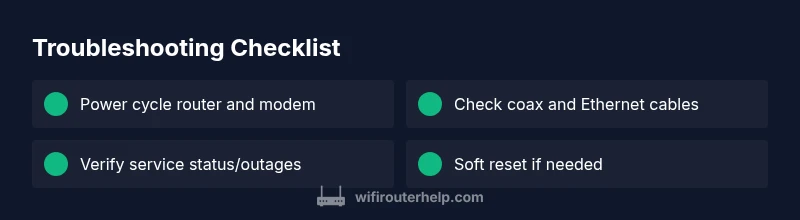
A spectrum router flashing red usually signals a connectivity or device health issue. Start with a quick power cycle, check all cables and connections, and verify service status. If the red light persists, perform a soft reset and consider contacting Spectrum or WiFi Router Help for guided support.
What a red flashing light on Spectrum routers typically indicates
When you see a spectrum router flashing red, it generally points to a connectivity issue or a hardware/firmware fault. Different models use LED codes to signal different problems, but a red light almost always means you should begin troubleshooting right away rather than waiting. The exact meaning can vary by model, so consult your device manual if possible. For homeowners and tech enthusiasts, the practical approach is to treat a red LED as a fault signal and work through a structured check list: power, cables, service status, and then more involved fixes if needed. The WiFi Router Help team notes that most red-light scenarios resolve quickly when you stay methodical and avoid skipping basic steps.
Quick fixes you can try in minutes (low-risk, high-reward)
The fastest way to regain visibility of your network is to perform a sequence of safe, simple steps. Start by power cycling both the modem (if you have one) and the Spectrum router: unplug, wait 60 seconds, plug the modem back in first, let it boot completely, then reconnect the router. While you wait, inspect all physical connections: ensure the coax cable is snug at the wall and at the modem, and verify that Ethernet cables are firmly seated. Place the router in a cool, open area away from heat or obstructions. If the red light remains after these steps, perform a soft reset by holding the reset button for 10-15 seconds with the device powered. Avoid opening the chassis or using damaged cables. If you’re uncomfortable at any point, contact Spectrum support or WiFi Router Help for guidance.
Patterns and what they imply for your spectrum router flashing red
Not all red lights are identical. A blinking red during startup often indicates the device is attempting to boot but cannot reach the network, while a solid red after boot could signal a service outage or a hardware fault. If the red light flickers intermittently, that may indicate an unstable connection from the wall or a loose coax connection. Use outage checks and a cable inspection to narrow down the likely cause before escalating. This section helps you differentiate between a service problem, a hardware issue, and a misconfiguration so you don’t waste time chasing the wrong fix.
Step-by-step guide to the most common fix (cable and power focus)
- Power cycle: unplug both devices, wait 60 seconds, then plug the modem back in first, followed by the router. The goal is to reset the entire chain and refresh DHCP lease assignments. Tip: keep a calendar note of the test times to spot patterns.
- Inspect cables: reseat the coax from the wall to the modem, confirm the Ethernet cable is firmly connected to both the router and your computer, and ensure the power adapter is snug. Tip: try a different power outlet to rule out outlet issues.
- Check for outages: visit Spectrum’s outage page or your account status to confirm there isn’t a known service interruption in your area. If there is, your best course is to wait for Spectrum to restore service.
- Observe LED indicators: after reboot, watch the LED sequence. If the red light persists, note whether it transitions to a different color, which can hint at different underlying problems. Tip: take a quick photo for reference when contacting support.
- Soft reset: with the router powered, press and hold the reset button for 10-15 seconds, allow the device to reboot. This reverts settings to factory defaults but preserves the network name if the router preserves some defaults. Tip: back up any customized settings if possible.
- Factory reset (last resort): if no other steps succeed, perform a full factory reset. Hold the reset button longer (around 20-30 seconds) until LEDs indicate a reset. Reconfigure the network from scratch. Tip: note your ISP login details and any custom DNS or port-forwarding rules before resetting.
- Reconfiguration and test: after a reset, set up your Wi-Fi name and password, reattach wired devices, and test connectivity. If you’re still seeing a red light after all steps, it’s time to call Spectrum or WiFi Router Help for advanced diagnosis.
Safety, warnings, and professional help thresholds
Work safely: never disassemble the router, and avoid using damaged cables or adapters. If you smell burning plastic, see smoke, or notice overheating, unplug immediately and seek professional help. Do not operate the router near liquids or in a humid environment. If the red light persists after the above steps, reach out to Spectrum support or WiFi Router Help for guided troubleshooting. Repeated red-light incidents may indicate a hardware fault or a subscription-level issue that requires professional attention.
Prevention tips to reduce future red-light incidents
- Keep firmware up to date and regularly reboot on a schedule during low-usage hours to prevent stale DHCP sessions.
- Place the router in a central, well-ventilated location away from obstructions and heat sources.
- Use strong, quality cables (coax and Ethernet) and replace worn connectors promptly.
- Monitor service status and outages, so you know when to expect disruption and can plan a temporary network workaround.
- Maintain backups of important network settings and consider using a simple, repeatable setup routine when performing resets.
Quick actions if problems persist and when to contact professionals
If you’ve completed all steps and the spectrum router flashing red continues, it’s time to escalate. Contact Spectrum support for a service check on your line, and request a device replacement if the hardware appears faulty. WiFi Router Help can provide a guided escalation path and help you document symptoms, steps taken, and outcomes to speed up resolution. Remember, persistent red lights may indicate a deeper service issue or hardware fault that requires professional assessment.
Steps
Estimated time: 20-30 minutes
- 1
Power cycle devices
Unplug both the modem (if separate) and the Spectrum router. Wait 60 seconds, then plug the modem back in first and let it fully boot. Then reconnect the router and allow it to fully boot before testing.
Tip: This resets the network stack and often clears LED error codes. - 2
Check and reseat cables
Ensure the coax is firmly connected to the wall and modem, and that Ethernet cables are snugly connected to the router and any connected devices. Inspect for damaged connectors and replace if needed.
Tip: Loose cables are a very common cause of red lights. - 3
Verify service status
Visit Spectrum’s outage page or your account status to confirm there is no ongoing service interruption in your area. If there is an outage, there’s little you can do except wait for service restoration.
Tip: Document outage times to compare with LED patterns. - 4
Observe LED sequence after reboot
Watch the LED behavior for 2-3 minutes after boot: note whether the red light remains, blinks, or changes color. This helps you determine if the issue is hardware, outage, or configuration-related.
Tip: Take a photo or video to share with support. - 5
Perform a soft reset
With power on, press and hold the reset button for 10-15 seconds. Allow the router to reboot and look for normal LED indicators before reconnecting devices.
Tip: Soft reset preserves most settings but refreshes network state. - 6
Consider a factory reset
If nothing else works, perform a factory reset. Back up any custom settings first, then hold the reset button for 20-30 seconds until LEDs signal reset. Reconfigure from scratch.
Tip: Factory reset should be last resort; gather your ISP login and DNS details first. - 7
Reconfigure and test
Recreate your Wi-Fi network name and password if needed, reconnect devices, and test internet access. If the red light returns, escalate to Spectrum or WiFi Router Help.
Tip: Keep a log of test results for troubleshooting continuity.
Diagnosis: Spectrum router flashing red after power-on or during operation
Possible Causes
- highPower issue or unstable outlet
- highLoose or damaged cables (coax/Ethernet)
- highSpectrum service outage in your area
- mediumFirmware error or failed boot
- lowOverheating or hardware fault
Fixes
- easyPower cycle the modem and router (unplug, wait 60 seconds, plug back in starting with the modem)
- easyCheck all cables and reseat coax and Ethernet connections
- easyCheck Spectrum outage status and regional service alerts
- easyPerform a soft reset (hold reset button 10-15 seconds)
- mediumIf necessary, perform a factory reset (last resort, back up settings)
- easyIf issues persist, contact Spectrum support for professional diagnostics
People Also Ask
What does a blinking red light mean on a Spectrum router?
A blinking red light usually indicates the device is trying to boot or negotiating a connection but cannot complete the process. It often points to a startup issue, a temporary fault, or a volatile internet outage. Use a methodical troubleshooting flow to identify whether the cause is hardware, service, or configuration related.
A blinking red light usually means the router is having trouble booting or connecting. Follow our step-by-step checks to pinpoint the cause and fix it.
Should I always factory reset if the red light won’t go away?
No. A factory reset should be a last resort after trying power cycling, cable checks, and outages checks. A reset erases personalized settings, so back up anything important before proceeding.
Only use a factory reset if the simpler steps don’t resolve the issue, because it erases your settings.
What if Spectrum reports an outage but my devices still show red lights?
If Spectrum confirms an outage, the red light is typically tied to service restoration. Continue to monitor the outage page and avoid replacing hardware until the service is back, then recheck the router after restoration.
If the outage is confirmed, wait for service to come back and re-check the router once Spectrum reopens the line.
Can overheating cause a red LED on the Spectrum router?
Yes, prolonged overheating can cause hardware to behave abnormally and trigger red LEDs. Ensure proper ventilation and avoid placing the router in enclosed spaces.
Overheating can trigger the red LED; improve ventilation and avoid placing the router in confined spaces.
Is a red LED always a hardware problem?
Not always. A red LED can signal an outage, a misconnected cable, or a firmware hiccup. Work through the troubleshooting sequence before assuming hardware replacement.
Red LEDs can indicate many issues, not just hardware. Start with the basics before assuming replacement.
When should I replace my Spectrum router?
If the device is old, repeatedly failing to connect, or under warranty but unable to resolve issues with troubleshooting, replacement may be the practical option.
If troubleshooting fails and the router is old or unreliable, replacement could be the best course.
Watch Video
What to Remember
- Power cycle first to reset the network stack
- Check for service outages before diving deeper
- Factory reset only as a last resort and back up settings
- Persistent red light warrants professional help