Why is Router Red Spectrum? A Troubleshooting Guide
Urgent, practical troubleshooting for a red spectrum router LED. Learn quick checks, diagnostic steps, a detailed fix workflow, safety notes, and prevention tips to restore connectivity fast.


Short answer: a red spectrum indicator usually signals a fault or connectivity issue that blocks internet access. Start with the simplest fixes: power-cycle the router and modem, reseat all cables, and verify service status with your provider. If the red light persists, progress to the next steps: check firmware, try a reset safely, and contact Spectrum support if there’s an outage.
Understanding the red spectrum indicator
If you’re searching for why is router red spectrum, you’re not alone. A red LED on a home router or gateway is a high-priority alert that something is not right enough to keep your devices connected. The exact meaning can vary by model and provider, but the pattern is similar: the device is warning you about a fault or a non-synchronizing state. According to WiFi Router Help, begin with the simplest checks before diving into advanced adjustments. In most cases, a red spectrum signal points to core issues like power stability, a non-working WAN link, or a firmware glitch. Treat red as urgent, and approach it with a methodical checklist: verify power supplies are correct, inspect cables for damage, and confirm there is an active service from Spectrum. If the issue persists after basic steps, move to the deeper diagnostic steps outlined below.
Common causes behind a red LED on a Spectrum router
Red LEDs on Spectrum equipment can arise from several scenarios. The most common are power issues (a faulty power adapter or unstable outlet), WAN/link problems (modem-router handshake failures or misconfigured settings), and temporary firmware glitches that misreport status. Less frequent but important causes include overheating, a factory reset that wasn’t completed properly, or a provider outage affecting the gateway’s ability to connect. In many homes, a simple reseat of cables and a fresh power cycle resolves the issue. If the red LED persists, you’ll want to methodically test each potential cause rather than jumping to conclusions. WiFi Router Help’s guidance emphasizes a stepwise approach, starting with physical connections and moving toward software updates or resets as needed.
Quick-start triage you can do in minutes
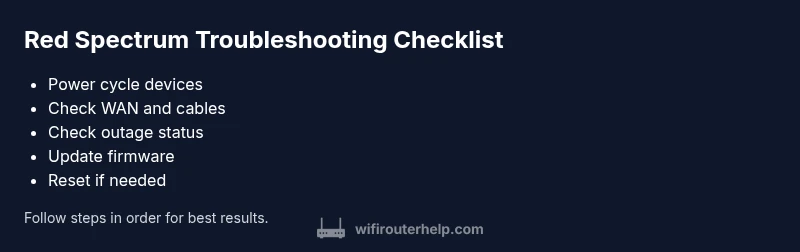
Begin with the ultra-simple checks before touching admin settings. First, power-cycle the gateway and any connected modem: unplug, wait 60 seconds, plug back in, and observe LED behavior for 2–3 minutes. Next, inspect all cables (power, Ethernet/WAN, and coax where applicable) for signs of wear or looseness and reseat them firmly. Check the provider’s status page or a trusted outage tracker to confirm Spectrum is not currently down in your area. If your devices still reveal a red light after a clean reboot and confirmed service, proceed to a firmware check or a controlled reset as a next step. Finally, ensure you haven’t enabled any aggressive parental controls or firewall rules that could block the modem-router handshake.
Diagnostic considerations and what to check first
Diagnostics should be grounded in observable symptoms. Note whether the red LED appears only when attempting to access the internet, or if it remains red even with no devices connected. Check WAN status and link lights in the router’s admin interface if you can reach it; look for a status like ‘connected,’ ‘sync,’ or ‘downstream/upstream’ activity. If the interface is unreachable due to the red LED, perform a controlled reboot and try a safe mode or minimal boot (if the device supports it). Keep an eye on heat: touch the casing carefully after power-up; if it’s hot to the touch, cooling and ventilation steps become necessary. Throughout, avoid guessing—each action should rule out a distinct potential cause.
Step-by-step fix for the most likely cause (Power and connection)
A red spectrum LED often starts with power and basic connectivity. Start with a clean power cycle of both the router and modem, then reseat all cables and try a direct Ethernet connection to verify local connectivity. If the LED remains red, check for an outage with Spectrum and then sign in to the admin panel to validate the WAN status. If you can access the interface, apply any available firmware updates and back up your settings before performing a factory reset if the symptoms persist. Finally, test with a different power outlet or adapter to rule out a faulty PSU.
Safety, warnings, and when to seek professional help
Never force open the gateway or replace components beyond your comfort level. Unplug devices before inspecting power cables or cleaning vents to avoid electric shock or static damage. If you smell burning or see scorch marks, discontinue use and contact Spectrum support immediately. If you’re unsure about making firmware updates or factory resets, or if the error persists after the above steps, professional help may be needed to diagnose internal hardware faults.
Prevention and maintenance to avoid red spectrum issues
Regular reboot schedules, clean ventilation, and stable power supplies reduce the chances of red spectrum warnings. Keep firmware up to date and periodically verify that cabling remains intact; replace worn cables proactively. Set a simple monitoring routine to check your service status page after routine maintenance or weather-related outages, and keep a basic backup of router settings. Implementing these habits minimizes future red indicator surprises and keeps your home network stable.
Steps
Estimated time: 45-60 minutes
- 1
Power cycle power and modem
Unplug both devices, wait 60 seconds, plug the modem back in first, then the router. Allow 2–3 minutes for the devices to boot and re-establish connections. Observe the LEDs for any change and note the time to stabilize.
Tip: Label power adapters if you have multiple devices to avoid swapping the wrong one. - 2
Inspect physical connections
Ensure the coax (if used) is tight at the wall and modem, and the Ethernet cable to the router is firmly seated in the correct WAN port. If you have a second Ethernet cable, try swapping to rule out a faulty cable.
Tip: Use a known-good Ethernet cable to test connection handshakes. - 3
Check service status and device sync
Visit Spectrum’s status page or a trusted outage dashboard to confirm service availability. If outages are reported, wait for Spectrum to restore service. If no outage is listed, verify the modem is syncing with the network (look for online/down indicators on the modem).
Tip: Refresh outage page on a different device to verify real-time status. - 4
Access router admin and verify WAN status
Log in to the router’s admin interface and check the WAN/Internet status. If you see disconnected or error messages, note them for support. Disable any recently changed settings that could block the handshake.
Tip: Back up current settings before making substantial changes. - 5
Firmware update or reset
If firmware is available, apply the update. If the syndrome persists, perform a factory reset after backing up settings; reconfigure quickly to restore network services. Avoid repeated resets without assessing underlying causes.
Tip: Reset only once if possible; repeated resets may indicate a hardware fault. - 6
Consult Spectrum support
If none of the above steps resolve the red spectrum indicator, contact Spectrum support with your account details, the model, and the exact LED behavior. They can verify outages, check line quality, and arrange hardware diagnostics if needed.
Tip: Have your account number, device model, and serial number ready.
Diagnosis: Router shows red spectrum LED and Internet is unavailable
Possible Causes
- highPower issue or unstable PSU
- highISP outage or modem not syncing
- mediumFirmware glitch or misreporting
- lowOverheating or hardware fault
Fixes
- easyPower cycle router and modem; wait 2 minutes before re-powering
- easyCheck all cables; reseat Ethernet/WAN and coax connections
- easyCheck provider outage status and ensure service is active
- mediumUpdate firmware or perform a safe reset if needed
- hardIf unresolved, contact Spectrum support for hardware assessment
People Also Ask
What does a red spectrum LED on my router mean?
A red spectrum LED typically signals a fault or a state that prevents proper connectivity. Start with power, cable checks, and outages, then proceed to firmware updates or a controlled reset if needed.
A red LED usually means a fault. Start with power and cables, check for outages, then update firmware or reset if needed.
Should I reset my router if the light is red?
Reset can fix many issues, but save your current settings first. If the red LED remains after a reset, contact your provider for further diagnostics.
Yes, but back up first. If it stays red after resetting, contact support.
Can a red LED indicate a Spectrum outage?
Yes. An outage can prevent the device from syncing with Spectrum's network, causing a red LED. Check Spectrum's status page and wait for service restoration.
Yes, outages can cause a red LED. Check Spectrum's service status and wait for it to be fixed.
Will a firmware update fix a red LED?
Firmware updates can resolve misreporting or handshake issues that trigger a red LED. Update through the admin interface, or perform a safe reset if advised by support.
Firmware updates can fix misreporting. Update the firmware via the admin panel.
What safety steps should I take before troubleshooting?
Unplug devices before inspecting connections. Keep the area ventilated and avoid touching internal circuitry. If uncertain, contact support instead of attempting risky repairs.
Unplug first, keep it safe, and contact support if unsure.
When should I call a professional?
If the red LED persists after all basic troubleshooting, or you suspect hardware failure, professional diagnostics or replacement may be needed.
Call a professional if the issue persists after basic steps.
Watch Video
What to Remember
- Start with power and cable checks.
- Check for provider outages before deeper fixes.
- Back up settings before any reset.
- Firmware updates can fix misreporting LEDs.
- If unresolved, contact Spectrum support promptly.