Spectrum Router Red Light Troubleshooting: Fast Fixes
Urgent troubleshooting guide for a Spectrum router red light. Quick fixes, diagnostic flow, step-by-step repairs, and when to call Spectrum support. Learn with WiFi Router Help.


If your Spectrum router shows a red light, start with the simplest fixes. Power cycle the router, check that all cables are snug, and verify your internet service status with Spectrum. If the red light persists, authenticate the device on your account, perform a factory reset if needed, and contact Spectrum support for guided diagnostics. This quick guide from WiFi Router Help helps you recover fast.
Understanding the red light on Spectrum routers
A red LED on a Spectrum router is a clear signal that something in your home network chain is not functioning normally. In practice, you’ll often see two common patterns: a solid red light and a blinking red light. A solid red light generally indicates a basic connectivity issue or a no-internet state, while a blinking red light can signal initialization, firmware activity, or a hardware fault depending on the model. The exact meaning can vary by firmware version, but the core message is the same: there is a fault that prevents normal operation. According to WiFi Router Help, most red-light issues are caused by simple, addressable problems and can be resolved without professional service in many cases. Stay calm, follow the steps, and document what you observe to share with support if needed. Throughout this guide, we’ll use the phrase spectrum router red light to anchor the checks you perform.
Quick checks you can do right now
Before you power down anything, run through these low-friction checks. First, inspect the power adapter and ensure the power cord is fully seated in the router and in a live outlet. If you have a surge protector, try plugging the router directly into a wall outlet to rule out protector-related power issues. Check all coaxial and Ethernet cables for tight connections and visible damage. If the router has a removable battery or a reset button, use caution and follow the manual. After confirming physical connections, cycle power by unplugging for 30 seconds, then plug back in. If the red light returns after boot, proceed with the next steps. Remember to test your devices (phones, laptops) to confirm whether the issue is isolated to the router or affects all network activity.
Verify service status and device authentication
Sometimes the problem isn’t the hardware at all but the service state or device authorization. Start by checking Spectrum’s service status page or your account dashboard for outage notices in your area. If there’s no outage, sign in to your Spectrum account and verify that your Spectrum router is registered and allowed on your network. Some providers require you to authorize your router’s MAC address or to re-check your device in the account list after a power cycle. If the service looks healthy and the device is authorized, the spectrum router red light likely points to a hardware or local network issue rather than a service outage.
Soft reset vs hard reset: what to try first
A soft reset (power cycle) is harmless and often fixes many problems. If you haven’t already, perform a soft reset by unplugging the router for 60 seconds, then plugging it back in and waiting for the status lights to stabilize. If the red light persists, you can perform a factory reset as a last resort. Note that a factory reset returns the router to its default settings, so you’ll need to re-enter your network name (SSID) and password afterward. Always back up any custom configurations if your model supports them. If you hesitate, skip straight to contacting Spectrum support rather than risking a misconfiguration.
Common causes behind a persistent red light
Several factors can keep the red light on after basic checks. A faulty power supply or a loose cable is often the culprit, especially after a thunderstorm or a power outage. Firmware issues can also trigger abnormal LED behavior, so ensuring the router runs the latest firmware is worthwhile. Overheating due to blocked vents or a crowded cabinet can cause stability issues, as can line issues on the coaxial feed from the modem or gateway. If you’ve recently installed a new modem, bridge mode, or a mesh system, compatibility problems can also surface. By isolating each potential cause, you’ll narrow the path to a reliable fix.
How to run a safe diagnostic flow
Begin with symptoms and repeatable checks to avoid blind guessing. If the red light is solid, check for a loss of internet across all devices and verify power and cable integrity. If it’s blinking, observe the blink pattern and compare with your router model’s manual to distinguish a startup issue from a fault state. Check for ongoing outages in your area and confirm your account status. If none of these steps resolves the issue, proceed to firmware updates, safe resets, and, as a last resort, contact Spectrum support.
Step-by-step fixes for the most common cause
This section outlines practical fixes you can perform without professional help.
- Power cycle the router: Unplug from power, wait 60 seconds, plug back in, and allow 2–3 minutes for the device to boot. Tip: Try a different outlet or power strip to rule out a bad outlet.
- Reseat cables: Verify that the coax and Ethernet cables are firmly connected. Loose connections cause intermittent faults that show as red lights. Tip: Use white electrical tape to label cables so you never unplug the wrong one.
- Check for outages: Confirm service health in Spectrum’s status portal. If outages are present, your device will likely resolve once the service is restored. Tip: Set a notification alert for your neighborhood if Spectrum offers it.
- Soft reset: Press and hold the reset button for 5–10 seconds to reset to factory defaults if needed. You’ll need to reconfigure your Wi‑Fi name and password. Tip: Have your current settings documented before resetting.
- Factory reset (last resort): If the problem persists after soft reset, perform a factory reset. This erases all custom settings; re-enter essential configuration after the reset. Tip: Back up important network details to reapply quickly.
- Firmware check: Look for firmware updates in the router’s admin interface. If an update is available, apply it following the manufacturer’s instructions. Tip: Download updates over a stable connection.
- If all else fails: Contact Spectrum support for guided diagnostics. If you rent equipment, they can replace hardware or initiate a service visit.
Safety tips and warnings
Always unplug the router before inspecting the power adapter or coax connections. Never poke at internal components or open the device housing. Use a surge protector to guard against power spikes, and avoid exposing the router to moisture, dust, or extreme temperatures. If you are uncomfortable with any reset steps, seek professional help rather than attempting advanced repairs. Never perform firmware updates on an unstable network connection.
Prevention and maintenance to avoid red lights in the future
Proactive maintenance saves time. Place your router in a well-ventilated area away from heat sources and electronics that could cause interference. Keep firmware up to date, and periodically verify that cables are snug and undamaged. Use a dedicated power outlet and a quality surge protector to prevent power fluctuations. Consider keeping a basic configuration backup and documenting your network settings so you can restore quickly after any reset. If you’ve got a mesh system, ensure all nodes are compatible with your Spectrum gateway.
When to call Spectrum support and what to expect
If the spectrum router red light remains after all basic fixes, it’s time to contact Spectrum support for advanced diagnostics. Have your account number, device MAC addresses, and a clear record of prior steps handy. Ask about potential outages, line issues, or a hardware replacement option if the device is faulty. If you’ve recently relocated services or changed equipment, Spectrum’s team can help re-establish proper configuration. The goal is to rule out service problems and determine whether the issue is hardware-related or requires technician intervention.
Steps
Estimated time: 30-60 minutes
- 1
Power cycle the router
Unplug the router, wait 60 seconds, plug back in, and allow 2–3 minutes for full reboot. Check if the red light remains solid or changes pattern.
Tip: If possible, test another outlet to rule out a power issue. - 2
Inspect cables and connectors
Ensure the coaxial cable is snug and the Ethernet remains firmly connected. Look for damaged connectors or kinks in the cable.
Tip: Replace damaged cables; even small nicks can cause instability. - 3
Check for outages and account status
Visit Spectrum’s outage page or app to confirm service in your area. In your account, verify device authorization and current plan status.
Tip: Keep a note of outage windows and expected recovery times. - 4
Soft reset and reassess
If needed, perform a soft reset by holding the reset button for 5–10 seconds. Re-check the lights after the device restarts.
Tip: Save current SSID/password before reset if prompted. - 5
Factory reset if necessary
If the issue persists after a soft reset, perform a factory reset to restore default settings. You’ll need to reconfigure Wi-Fi after the reset.
Tip: Only do this if you have the network credentials handy. - 6
Update firmware and test again
Check for and apply any firmware updates in the router admin page, then reboot and observe the LED behavior.
Tip: Use a wired connection when applying firmware if possible. - 7
Escalate to Spectrum
If the red light remains after all steps, contact Spectrum support for live diagnostics or a service visit.
Tip: Have your device MAC addresses and outage notes ready.
Diagnosis: Spectrum router red light
Possible Causes
- highPower issue or loose cables
- highISP outage or service disruption
- mediumRouter needs reset or firmware problem
- lowOverheating or hardware fault
- lowCoax/line issues with modem gateway
Fixes
- easyCheck power and reseat all cables; try a different outlet
- easyCheck Spectrum outage status and authenticate device on account
- easyPerform soft reset; proceed to factory reset if needed
- mediumUpdate firmware or contact Spectrum for guided diagnostics
- hardReplace hardware or escalate with a service visit if persistent
People Also Ask
What does a solid red light on Spectrum router mean?
A solid red light typically indicates a connectivity issue or no internet. Start with power, cabling, and outage checks, then move to a reset if needed.
A solid red light usually means there's no internet connection. Start with power and cable checks, then verify outages and reboot the router.
Is a factory reset safe for a Spectrum router?
Factory reset restores defaults and wipes personal settings. It’s safe but you’ll need to reconfigure Wi-Fi and any custom rules afterward.
A factory reset brings the router back to default settings, so you’ll need to reconfigure your Wi‑Fi after the reset.
Should I replace hardware if the red light stays?
If persistent after all troubleshooting, hardware replacement through Spectrum is often the fastest option. A technician can verify the line and hardware health.
If the red light persists after all steps, you may need hardware replacement via Spectrum for a clean resolution.
Do outages always show as a red light?
Outages can cause a red light or lack of internet. Check Spectrum's outage status to confirm if the fault is service-related.
Outages can make the router show a red light; check Spectrum's outage status to confirm.
Can I fix this without calling support?
Yes, most problems resolve with power cycling, cable reseating, and soft resets. If the issue persists, contacting Spectrum is recommended.
Many red-light issues can be fixed with basic steps; if not, call Spectrum for help.
What should I prepare before contacting support?
Have your account number, device MAC addresses, model numbers, and a concise note of the steps you tried.
Have your account number, device MACs, model details, and a quick summary of steps you've tried ready.
Watch Video
What to Remember
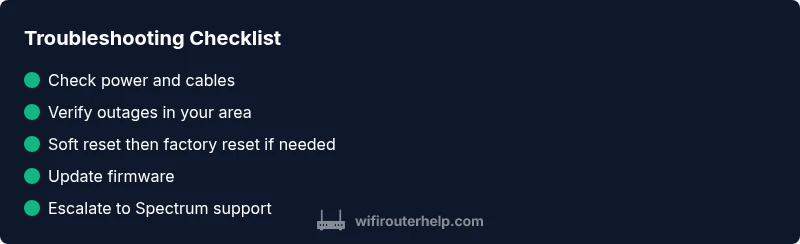
- Power cycle and reseat cables first.
- Check for outages before hardware changes.
- Soft reset before factory reset.
- Update firmware to fix glitches.
- Escalate to Spectrum if red light persists.