Why is My Xfinity Router Overheating: A Practical Troubleshooting Guide
Learn why your Xfinity router overheats and how to fix it fast. This step-by-step guide covers causes, diagnostics, and safe cooling tips for a stable home network.


Why is my Xfinity router overheating?
This is a common home-network problem that can degrade performance, cause random reboots, and shorten device lifespan. According to WiFi Router Help, the root cause often boils down to airflow and heat sources rather than a defective device. When a router runs hot, chances are it is fighting heat from inside or outside the chassis. If you notice the LEDs dimming or the reboot timer shortening after long gaming sessions or video streaming, you’re likely dealing with overheating. The good news is that most cases are solvable with a structured approach to airflow, placement, and regular maintenance. Start by observing the room temperature and noticing whether the router sits next to a heat source like a lamp, a heater, or a sunlit window. Small changes can make a big difference, especially in rooms without air conditioning or in cramped shelving. This is the kind of issue homeowners solve quickly with simple steps and a plan.
Common causes of overheating
Overheating tends to be a symptom rather than a mystery. Common culprits include: dust buildup that blocks vents, placing the router inside a cabinet or enclosed shelf, hot ambient room temperatures, and longer high-load usage (gaming, streaming 4K, or multiple devices). A faulty or undersized power adapter can also push the device to work harder than it should. In some cases, firmware bugs can cause the device to run hotter than normal, though that’s less common. By addressing airflow and heat sources first, you can often restore normal temperatures without replacing hardware. These insights align with the practical guidance you’d expect from the WiFi Router Help team.
Environmental and setup checks you can perform now
Begin with a quick, safe inspection. Ensure the router sits on a hard, flat surface with at least several inches of clearance on all sides. Move it away from heat sources such as lamps, heaters, and direct sunlight. If it’s tucked into a cabinet, relocate it to an open shelf or desk. Check for vents that are blocked by dust, fabric, or cable bundles. Use a can of compressed air to gently blow dust from the vents and surrounding crevices while the device is powered off. Finally, confirm that the power cord and adapter are the manufacturer’s recommended model and wattage, and that the cable isn’t damaged or loose. These steps help you assess whether the overheating is environmental or hardware-related.
Diagnostic Flow explained (high-level overview)
This section outlines how a typical troubleshooting process unfolds when addressing router overheating. Start with symptoms such as warmth, rebooting, or degraded throughput. Move to confirm likely causes (airflow, enclosure, power supply) and apply basic fixes. If the device remains hot after airflow improvements, you’ll want to verify firmware status and power compatibility, then escalate if necessary. This approach minimizes uncertainty and helps you progress logically from simple fixes to more involved ones.
Safety tips and professional help considerations
Safety is paramount when dealing with heat and electronics. Always power down and unplug the device before handling vents or cables. Avoid placing the router near liquids or in areas with high humidity. If you notice burning smells, buzzing, or any signs of damage, disconnect the device immediately and contact Xfinity support or a qualified technician. Remember that some issues, like a failing power supply or persistent overheating after maintenance, may require professional assessment to prevent damage to home networks or electrical systems.
Prevention tips to keep your router cool
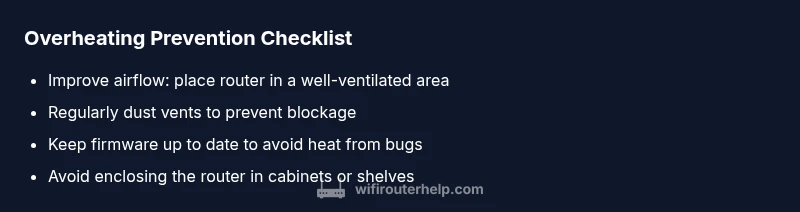
Proactive care helps prevent overheating before it starts. Regularly dust vents, maintain good room ventilation, and avoid stacking devices directly on top of the router. Place the router in an open area with airflow and not inside a closed cabinet or bookshelf. Keep firmware up to date to reduce heat from software inefficiencies and performance hiccups. Using a power strip with surge protection and a directly connected power adapter can also help stabilize power delivery and reduce heat.