How to Stop Router from Overheating: A Practical Guide
Discover practical steps to stop router from overheating: improve ventilation, update firmware, reduce load, and perform safe maintenance for reliable WiFi. Ideal for homeowners and tech enthusiasts seeking a cooler, more stable network.


Goal: Stop your router from overheating by improving ventilation, updating firmware, and optimizing placement. This guide covers practical steps you can take today, plus when to replace hardware. Gather a small fan, a clean workspace, and your router’s manual. Use the following step-by-step process to achieve cooler operation and more reliable WiFi performance.
How to Stop Router from Overheating: Core Causes
Learning how to stop router from overheating starts with understanding the common heat sources and how heat travels inside a device. Most consumer routers generate heat from the CPU, power supply, and radio transceivers. When ventilation is blocked, dust accumulates, or the ambient temperature is high, airflow is restricted and temperatures rise. If your router sits in a cabinet, behind a TV, or near a heat source, it is particularly vulnerable. Another contributor is firmware bugs or poor power management that keeps components active longer than necessary. Finally, many homes have layouts that force a router to work harder to reach distant corners, increasing thermal stress as data paths converge. By recognizing these factors, you begin to map a practical plan for cooling and safer operation. The goal of this article is not to simply lower the surface temperature; it is to reduce internal thermal cycling and extend the device’s useful life. Staying aware of heat patterns, such as when you notice slower speeds after a few hours of use, helps you catch issues early. The phrase how to stop router from overheating becomes a concrete, actionable task when you pair placement with maintenance.
titleIndicatorOnlyForBlockAligner
Tools & Materials
- Small Phillips screwdriver (PH1/PH2 depending on model)(For opening access panels or enclosures)
- Can of compressed air(Use in short bursts to clean vents; hold can upright)
- Soft brush or microfiber cloth(Gentle dusting around vents and ports)
- External USB-powered fan (optional)(Provides temporary cooling if heat persists)
- Router manual or model-specific guide(Identify proper vent locations and reassembly steps)
Steps
Estimated time: 60-90 minutes
- 1
Power down and unplug the router
Turn off the router and unplug the power cord before inspecting any internals. This prevents electrical shocks and avoids damage when you remove dust or adjust components. If you must open the case, consult the manual for safe disassembly steps.
Tip: Always unplug before touching internal parts to avoid short circuits. - 2
Check placement and airflow
Move the router to a well-ventilated area with at least 4 inches of clearance on all sides and none of the vents blocked. Avoid placing it inside cabinets, behind TVs, or near heat sources like space heaters. Proper space allows hot air to escape efficiently.
Tip: Do not stack devices on top of the router; stacked heat can trap warm air. - 3
Clean dust from vents and interior
Use compressed air in short bursts to blow dust from vents and fan grilles. Hold the can upright and keep a distance of several inches to prevent moisture from entering. Wipe exterior surfaces gently with a microfiber cloth.
Tip: Dust buildup is a leading cause of reduced airflow and higher temperatures. - 4
Update firmware and adjust settings
Connect to the router’s admin page and check for firmware updates. Install any available updates and review advanced settings to disable unused features or services that spike CPU usage. Automatic updates can help but verify you’re on the latest safe version.
Tip: Firmware updates often include performance and heat management improvements. - 5
Manage load and connected devices
Limit the number of devices connected simultaneously and set quality of service (QoS) rules to prioritize essential traffic. Excess devices and heavy downloads can push the router to work harder and generate more heat.
Tip: Consider scheduling bandwidth-heavy tasks for off-peak hours. - 6
Introduce active cooling when needed
If temperatures stay high, place a quiet USB-powered fan nearby to improve air movement around the router. Do not directly blow air into ports; indirect cooling distributes heat more evenly.
Tip: Avoid blocking intake or exhaust vents with objects or hands. - 7
Perform a safe reset if issues persist
If the device behaves oddly after cleaning and updates, consider a factory reset to restore default settings. Reconfigure from scratch, keeping only essential features to prevent reintroducing heat-heavy configurations.
Tip: Back up your settings before resetting. - 8
Monitor temperature and performance
After changes, monitor performance for several hours. Check for slower speeds, frequent reboots, or new hot spots. Revisit ventilation and load management if problems recur.
Tip: Set up a regular quick check of LED indicators and temperatures if available.
People Also Ask
Is overheating dangerous to my router?
Yes. Prolonged heat can degrade internal components and cause instability or reduced performance. If you notice frequent reboots or poor WiFi speeds after hours of use, address ventilation and load first.
Prolonged heat can damage internal parts and cause instability. Check ventilation and reduce load before considering repairs.
Can I use a fan to cool the router?
A fan can help temporarily but should not block vents or create condensation. Place an unobtrusive fan nearby to improve airflow, not directly on top of the device.
A nearby, unobtrusive fan can help, but never block vents or spray mist nearby.
Will a factory reset fix overheating?
A factory reset can resolve misconfigurations that cause heavy CPU use, but it won’t fix a hardware heat issue. Use it if firmware tweaks didn’t help and you’ve exhausted ventilation and load strategies.
A reset can help with settings, but it won’t fix hardware heat; try cooling first.
How do I know if my firmware is up to date?
Check the router’s admin interface for a firmware status page and enable automatic updates if available. Compare the installed version with the latest release notes from the manufacturer.
Check the admin page for updates and enable automatic updates if available.
Should I replace my router if it’s old and overheats often?
If overheating persists after cooling and firmware updates, and the device is several years old, replacement often yields better reliability and energy efficiency.
If it keeps overheating despite fixes and is old, upgrading is usually a good idea.
Why does my router heat up more at night?
Higher ambient temperatures, quiet operation, and more network activity can raise internal temperatures. Ensure good airflow and consider moving the router to a cooler, open area.
Heat can rise with warm rooms and active networks; improve airflow to cool things down.
Watch Video
What to Remember
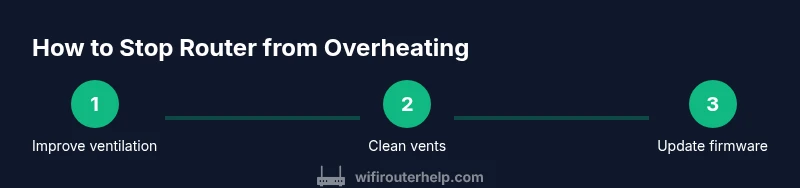
- Ventilate: maximize space and airflow around the router.
- Update: keep firmware current to improve heat management.
- Limit load: fewer devices and prioritized traffic reduce heat.
- Clean: regular dust removal protects airflow paths.
- Monitor: watch performance and heat to catch issues early.