How to Prevent Router Burn: Step-by-Step Guide
Learn practical, step-by-step methods to prevent router burn, including power protection, ventilation, firmware maintenance, and safe placement. A thorough, beginner-friendly guide from WiFi Router Help.


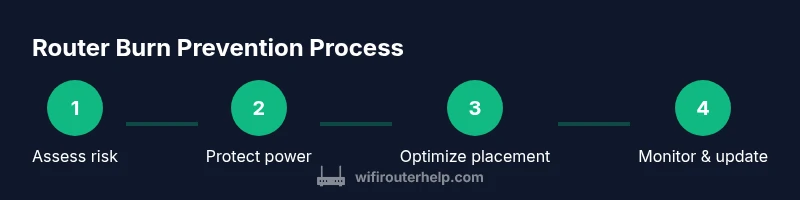
You will learn how to prevent router burn by safeguarding power supplies, ensuring proper ventilation, using surge protection, and maintaining firmware. Gather a surge protector and a ventilated placement, then follow a clear step-by-step safety routine and a simple maintenance schedule to reduce overheating and electrical damage. The guide also highlights warning signs and practical checks you can perform monthly to keep your network equipment safe.
Understanding Router Burn: Causes and Risks
Router burn is typically the result of electrical and thermal stress that harms internal components. Common causes include power surges, aging adapters, overloaded outlets, and restricted airflow. The WiFi Router Help team finds that older routers often struggle more with heat when placed in enclosed spaces or on soft surfaces that trap heat. By recognizing these factors, you can tailor a prevention plan that minimizes risk and extends the life of your equipment.
In practice, the most important risk signals are abrupt outages, a burnt smell, or discoloration near the power port. These signs warrant immediate action to prevent further damage and potential safety hazards. The goal is not to fear your router but to design safeguards that reduce stress on the device and the surrounding electrical circuit.
Pre-Check: Baseline Safety Before Handling Equipment
Before touching any electronics, power down the router and unplug the power supply. Avoid touching metal surfaces with wet hands and disconnect any external devices that could draw power from the same outlet. Ground yourself if you’re handling exposed circuitry, and work on a non-conductive surface.
Keeping a clean, dry workspace helps prevent accidental short circuits. If you smell burning or notice smoke, cease handling immediately and move to a safe area while you assess the situation. These baseline safety steps are foundational for any hands-on router maintenance.
Brand-context note: Following these steps aligns with best practices recommended by the WiFi Router Help team and reduces the risk of accidental damage during inspection.
Essential Hardware: Protectors, Cables, and Ventilation
Your prevention toolkit should include a surge protector, a high-quality power cord, and a stand or riser that elevates the router enough to improve airflow. Ensure the surge protector is rated for your region and can handle the router’s power demand without overheating. Avoid daisy-chaining devices from the same outlet, which can create heat buildup and voltage fluctuations.
Cables should be intact, with no exposed conductors or frayed insulation. Keep cables neatly organized to prevent kinks and tangles that trap heat. A simple, non-slip stand or small feet under the router can boost ventilation without sacrificing accessibility for ports and cables.
Placement and Ventilation Best Practices
Placement is critical for heat management. Position the router in an open area with at least a few inches of clearance on all sides and away from dark, enclosed spaces like cabinets or desks that trap heat. Do not place the unit on fabric, foam, or near heat-producing electronics.
Use a cooling-friendly stand or shelf that promotes air circulation. If your environment is warm, consider placing the router elevated on a small riser and directing airflow with a fan on a gentle setting. These small adjustments can dramatically reduce thermal buildup over time.
Power Management: Surge Protection and Safe Power Cords
Power protection is the frontline defense against router burn. Use a surge protector with a clearly labeled joule rating or a UPS to dampen voltage spikes. Do not rely solely on a standard wall outlet for long-term protection, and avoid swapping to a cheaper, flimsy power strip.
Never run the router through an extension cord if the cord is thin or old. Ensure cords are rated for the device’s current draw and are not crushed or pinched. Regularly inspect plugs and outlets for warmth after prolonged use and replace any that feel unusually hot.
Firmware, Maintenance, and Indicators of Damage
Firmware updates improve security and performance and can help thermal management features function optimally. Check for updates on a regular cadence and follow official vendor instructions for installation. If you notice instability after an update, revert to a previous stable version or perform a factory reset per manufacturer guidance.
Watch for unusual indicators such as unexpected restarts, frequent disconnects, or erratic LED patterns. These can signal overheating, a compromised power supply, or other hardware issues. Document such symptoms and monitor whether ventilation changes alleviate them.
Step-by-Step Troubleshooting If You Suspect Overheating
- Power down and unplug the router; 2) Inspect for visible signs of damage or melted components; 3) Reposition the router to a ventilated area with adequate clearance; 4) Test with a protected power source and minimal connected devices; 5) Update firmware and perform a controlled reboot; 6) If symptoms persist, replace the unit or consult the manufacturer service channel.
If the router still runs hot after relocation, consider measuring ambient temperature in the placement area and compare it to normal operating ranges from the manufacturer. Persistent high temperatures are a strong indicator to replace the device to prevent further risk.
Long-Term Prevention Plan and Routine Checks
Develop a simple monthly checklist that includes cleaning dust from vents, verifying clear airflow, inspecting power connections, and updating firmware. Create a regular rotation for testing different outlet configurations to avoid overloading a single circuit. Maintain a safer, organized cabling setup to reduce electrical noise and heat buildup. Keeping a written plan helps ensure you don’t overlook maintenance tasks during busy weeks.
What to Do If Burn Occurs: Replacement and Recovery Steps
If you detect a burn event, unplug the unit immediately and move it to a non-flammable surface. Do not reuse the damaged router; replace it with a model that has up-to-date safety certifications and adequate protection features. Review your power setup to identify the root cause—surge protection, ventilation, and circuit loading—and implement changes before reconnecting any device.
After replacement, monitor the new router for heat and performance over several days. If the new device shows any signs of distress, seek professional support and consider professional electrical testing of your outlets and power strips to ensure there are no systemic issues in your home wiring.
Tools & Materials
- Surge protector with proper joule rating(Choose a protector suitable for your region, UL-listed if possible.)
- High-quality power cord(Check for intact insulation and proper gauge.)
- Router stand or ventilated shelf(Provide 2-3 inches of clearance on all sides.)
- Non-conductive cable ties(Helpful for cable management but not essential.)
- Thermal camera or infrared thermometer (optional)(For advanced users to detect hotspots.)
Steps
Estimated time: 30-60 minutes
- 1
Power down and unplug
Shut down the router, disconnect the power supply, and remove any connected peripherals. This prevents shock risk and avoids accidental short circuits during inspection.
Tip: Set aside the power adapter where it cannot be reconnected by mistake. - 2
Inspect for damage
Look for melted plastic, discoloration near ports, or a burnt smell. If you notice any of these signs, do not continue testing; replace components.
Tip: Handle carefully; avoid touching exposed metal or damaged plugs. - 3
Relocate to ventilation
Move the router to a clean, open area with airflow. Ensure several inches of clearance and avoid placing on fabric or enclosed shelves.
Tip: Elevate using a stand to boost air circulation. - 4
Test with protective power
Reconnect to a surge-protected outlet or UPS. Power the device and observe for unusual warmth or odor over the first 15-20 minutes.
Tip: If the device becomes noticeably warm, power it down and seek replacement. - 5
Update firmware and reset if needed
Check the manufacturer’s site for updates and install following official instructions. If performance remains unstable, perform a controlled reset.
Tip: Back up settings before a reset to avoid reconfiguring from scratch. - 6
Plan for replacement and safeguards
If damage is confirmed, replace the router and implement a robust protection setup (surge protector, ventilation, proper outlets).
Tip: Document the root cause to prevent recurrence.
People Also Ask
What causes router burn and is it dangerous?
Router burn usually results from electrical stress, overheating, or a faulty power supply. It can degrade performance and pose a fire risk if left unaddressed. Unplug and assess safety before continuing.
Router burn can be dangerous due to heat and electrical faults; always unplug first and inspect for damage.
Can I continue using my router after a light smell or warmth?
A light warmth is common during extended use, but a persistent or strong burning smell warrants immediate shutdown and inspection. Do not ignore signs of potential damage.
If you notice a burn smell, turn it off and check for damage before using again.
Should I always use a surge protector with my router?
Using a surge protector or UPS is strongly recommended to guard against voltage spikes that can stress the router’s power components.
Yes, always use surge protection to safeguard your router’s power supply.
What placement tips help prevent overheating?
Place the router on a hard, flat surface with ample space around it and away from enclosed spaces or soft furniture that can trap heat.
Give your router space to breathe by avoiding tight corners and soft surfaces.
When should I replace my router due to burn risk?
If the device shows repeated overheating, burning smells, or visible damage after attempted fixes, replacement is the safest option.
If overheating keeps happening after fixes, it’s time to replace the router.
Watch Video
What to Remember
- Protect power supplies with a surge protector or UPS
- Place routers in well-ventilated, open spaces
- Regularly update firmware and monitor for signs of overheating
- Do not continue using a damaged router; replace if necessary
- Establish a simple monthly maintenance routine for safety