Why Does My Router Have No Internet? A Troubleshooting Guide
Urgent, practical guide to diagnose and fix no-internet router issues. Learn quick checks, a diagnostic flow, and safe fixes to restore your home network fast.


Most no-internet outages start with simple issues: a loose cable, a modem that isn't syncing, or a misconfigured WAN. In 2-3 quick steps, verify power, inspect cables, and check the lights. If the issue persists, follow the diagnostic flow below for a precise diagnosis. According to WiFi Router Help, most downtime is preventable with routine checks and updates.
Why does my router have no internet
If you're asking why does my router have no internet, you're not alone. The cause is rarely dramatic; more often, a loose cable, a modem that failed to sync, or a misconfigured setting blocks access. In this guide, we walk you through quick checks, then a structured diagnostic flow to pinpoint the exact problem. According to WiFi Router Help, the most common outages come from simple hardware or settings issues that are easy to fix with careful steps. Write down your findings as you go; this helps spot patterns over time. This situation is stressful, but a calm, methodical approach saves you hours of frustration and gets your network back online faster.
Quick checks you can do in 5 minutes
- Power cycle the modem and router separately, letting each unit finish booting before re-testing.
- Check every cable (power, ethernet, and coax) to ensure it’s fully seated and undamaged.
- Look at the LED status lights on both devices; note any abnormal blinking or color changes.
- Try a wired connection from a laptop or desktop to confirm if the issue is wireless-only.
- Test multiple devices (phone, tablet, PC) to rule out a single-device problem. If the problem persists, proceed to the diagnostic flow for a precise diagnosis. This rapid triage often reveals power or cable faults that are easy to fix.
Check the modem and ISP status
Your modem is the bridge between the provider and your home network. If the modem shows no online or syncing light, or if the service status page from your ISP reports an outage, the router won't have internet access regardless of its settings. Start by powering off the modem for 60 seconds, then power it back on and wait for the online light to stabilize. If your ISP indicates an outage, there’s nothing you can change on the router that will fix it—wait for the provider to restore service. WiFi Router Help analysis shows that most outages are ISP-related or modem-related, not due to the router itself.
Check router settings and firmware
Access the router’s admin interface using a wired device to avoid wireless connectivity quirks. Verify WAN/dialect settings (DHCP vs PPPoE), DNS servers, and DHCP range. Ensure the router is not in bridge mode unintentionally, and confirm NAT is enabled if you’re using a separate modem. Firmware updates can address bugs that affect connectivity; if an update is available, install it. If you recently changed security settings or parental controls, review those as a potential cause of blocked traffic. Resetting to factory defaults is a last resort, after saving your custom settings, because it will erase all personal configurations.
Local network issues and interference
Even when the modem and router are healthy, local interference can disrupt connectivity. Overcrowded channels on 2.4 GHz can cause dropouts, and many devices in close proximity can saturate bandwidth. If you’re on 2.4 GHz, try switching to 5 GHz for less interference, then test. Update channel settings manually or enable auto-channel optimization if supported. Ensure you’re not over-provisioning QoS rules that throttle essential traffic; misconfigured QoS can stall internet access for devices.
When to escalate and how to prevent future outages
If you’ve methodically worked through the steps and still have no internet, contact your ISP for a service check or consider a professional network audit. Keep a routine maintenance schedule: back up router configurations, document changes, and monitor lights for patterns. Regular firmware updates and credential hygiene (changing default passwords) reduce the risk of future downtime. The proactive maintenance habit — checked quarterly — minimizes downtime and improves resilience. According to WiFi Router Help, consistent upkeep dramatically lowers the chance of recurring outages.
Quick recap: what to do next
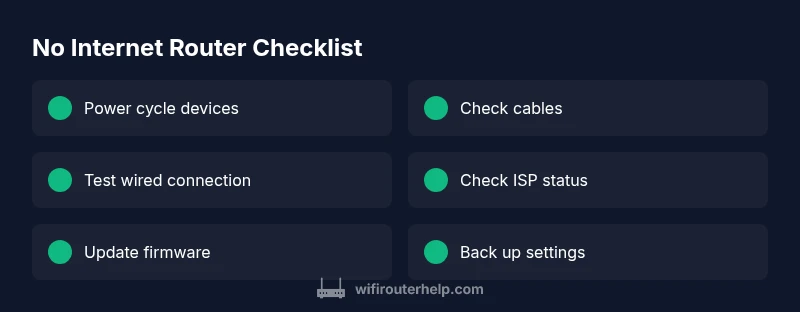
- Reboot devices, verify cables, and confirm ISP status.
- Validate WAN type and DNS settings; ensure DHCP works for devices.
- Update firmware and back up your config before any reset.
- If issues persist, consult your ISP or a technician. The most effective approach combines basic checks with a measured diagnostic flow.
Steps
Estimated time: 20-40 minutes
- 1
Power cycle the modem and router
Shut down both devices, unplug for 60 seconds, then plug the modem back in first. Wait for online status, then power the router. This clears many minor glitches and re-establishes the connection path.
Tip: Label the power cords so you reconnect to the correct outlet after a full reset. - 2
Check physical connections
Inspect coax or optic cables at the modem and router, plus Ethernet cables between devices. Replace frayed or damaged cables. A loose connection is a common cause of DNS or no-internet symptoms.
Tip: Reseat connectors firmly; a loose connector can still look seated but be marginally loose. - 3
Test with a wired device
Plug a laptop directly into the router or modem to see if you can access the internet. If wired works but wireless doesn’t, focus on Wi‑Fi settings and channel interference instead.
Tip: Use a different Ethernet port on the router to rule out a bad port. - 4
Verify WAN and DHCP settings
Log into the router, confirm the WAN type (DHCP, PPPoE, or static), ensure DHCP is enabled, and check DNS configuration. Incorrect WAN settings prevent devices from obtaining IP addresses.
Tip: If unsure, set WAN to DHCP and let the router obtain an IP automatically. - 5
Check for ISP outages
Visit your ISP status page or call support to verify service in your area. Even minor outages can disrupt your local network until the provider resolves the issue.
Tip: Document the outage reference number for future inquiries. - 6
Factory reset if necessary and reconfigure
If all else fails, perform a factory reset and re-enter your network name, password, and key settings. Do not forget to back up your existing configuration first if possible.
Tip: Only reset as a last resort; resets erase personalized settings.
Diagnosis: No internet after powering on router and modem
Possible Causes
- highPower or modem not syncing
- highISP outage or service disruption
- mediumIncorrect WAN type or DHCP issue
- lowCable or port fault
Fixes
- easyPower cycle the modem first, then the router, waiting 60–120 seconds between power cycles
- easyCheck all physical connections (coax, Ethernet) and reseat any loose cables
- easyTest a wired device to determine if the issue is wireless-related
- easyCheck the ISP status page or call the provider to confirm service status
- mediumIf no improvement, reset the router to factory settings and reconfigure from scratch
People Also Ask
Why is my internet working on other devices but not on this router?
If other devices can access the internet but one device cannot, the issue is likely with that device or its connection to the router (Wi-Fi settings, a blocked device, or a misconfigured network profile). Try forgetting and rejoining the network, or test via a wired connection to confirm.
If other devices are online but one device isn’t, check that device’s Wi‑Fi settings or use a direct wired test.
Should I reset my router to factory settings?
Only reset if you’ve exhausted other troubleshooting steps. A factory reset clears all custom settings, requiring reconfiguration of SSIDs, passwords, and port forwards. Back up settings if possible before performing a reset.
Reset as a last resort; you’ll need to reconfigure your network afterward.
How can I quickly check if there is an ISP outage affecting my router?
Visit your ISP’s status page or call support. Look for outage maps, service alerts, or maintenance notices. If the provider confirms an outage, there’s nothing wrong with your router—waiting for service restoration is the fix.
Check the ISP status page or call to confirm if there’s an outage in your area.
What should I do if the modem shows no synchronization light?
A missing sync light usually means the modem isn’t connecting to the provider. Power cycle the modem, check coax connections, and ensure the line signal is active. If not resolved, contact your ISP.
If there’s no sync light on the modem, power cycle and contact your ISP if needed.
Is a firmware update necessary for connectivity problems?
Firmware updates can fix bugs that cause drops or no-internet conditions. Check for updates in the router’s administration page, read the changelog, and apply the update if it’s clearly beneficial. Back up settings first.
Often updating firmware helps fix bugs; back up first and then update.
Watch Video
What to Remember
- Start with basic checks and avoid complex fixes first
- Use wired tests to isolate wireless issues
- Keep firmware up to date and back up settings
- Escalate to the ISP or a technician if problems persist