What to Do When Your Router Shows No Internet
Urgent, practical steps to diagnose and fix a router showing no internet. Learn how to identify the cause, follow a guided diagnostic flow, and restore home network connectivity quickly.


Most often, no internet on your router is caused by a simple, fixable issue. Start with a quick triage: power-cycle the modem and router in the correct order, verify the coax/DSL line is stable, and check the WAN status in your router’s admin page. If light indicators stay red or flicker, proceed through the diagnostic steps below.
Understanding the No Internet symptom
When you see 'no internet' on your router, the issue typically sits between your modem and the wider internet, not just your devices failing to connect. You may still see your Wi‑Fi network, but pages won’t load and apps won’t reach the web. According to WiFi Router Help, differentiating a total outage from a router misconfiguration helps you pick the right fix. Look at LEDs, confirm the cable from modem to router is secure, and note any error messages in the admin page. This awareness sets the stage for a focused diagnostic path, saving time and preventing unnecessary resets.
Immediate checks you can do now
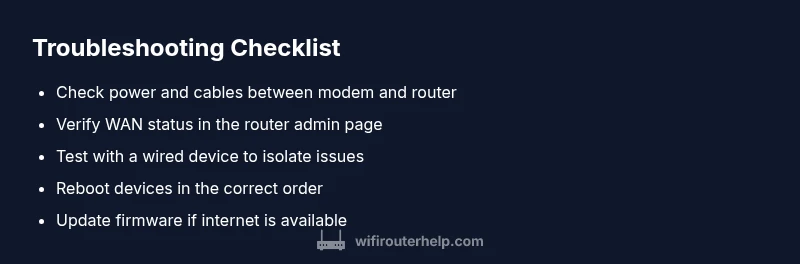
Before diving into advanced settings, perform a quick triage. Power-cycle the modem first, then the router, waiting at least 60 seconds between devices. Check that all cables are firmly connected and not damaged, especially the coax/DSL line and the Ethernet cable between modem and router. If you have a wired PC, connect it directly to the router and test for internet access. Also confirm there’s no ISP outage by visiting your provider’s status page or calling support. These basic steps catch most outages in minutes.
Common culprits behind standard home networks
Most no-internet issues fall into a few familiar categories. ISP outages or service degradation are common, as are modem or gateway misconfigurations. A loose or damaged cable between the modem and router can cause intermittent drops, while a mis-set WAN type (PPPoE vs. dynamic IP) or a DHCP conflict can leave devices without an IP. Router firmware glitches or a recent reset can also surprise you. Understanding these causes helps you apply targeted fixes rather than random resets.
How to verify WAN, LAN, and ISP status
Log in to your router’s admin interface and check the WAN/Internet status. If the WAN shows a valid IP, note the gateway, DNS, and connection type (DHCP, PPPoE, static). Ping external hosts from the router (e.g., 8.8.8.8) to test reachability, then ping a local device to confirm LAN health. If the modem light indicates no signal, the fault likely rests with the ISP or line; if the modem shows a signal but the router doesn’t, focus on router-side settings. In many cases, simply reapplying the modem’s should-be settings or rebooting in a specific order resolves the problem.
Step-by-step fix for the most common cause
If the root issue is a loose connection or a simple misconfiguration, follow these steps in order: 1) power down all devices; 2) reseat the coax/DSL cable and Ethernet cable; 3) power up the modem and wait for its status lights to stabilize; 4) power up the router and confirm Internet indicators are on; 5) log in to the router’s UI and check WAN/PPP settings; 6) update firmware if available and perform a factory reset only as a last resort. After each step, retest Internet access. If you still have no connection after resetting, move to ISP-related checks.
Prevention and best practices to avoid future outages
To reduce repeat outages, enable automatic firmware updates and schedule periodic reboots (e.g., once a month) to clear caches. Place the router in a central, elevated location away from interference, and use stable cabling. Maintain a simple lab notebook of hardware versions and settings, so you can spot changes that trigger problems. Finally, keep the ISP contact information handy and set up outage alerts if your provider offers them.
Steps
Estimated time: 30-45 minutes
- 1
Power down all devices
Turn off the modem and router. Wait 60 seconds to ensure residual power dissipates, then reconnect the modem first and wait for its status lights to settle before powering the router back on.
Tip: Waiting between devices helps ensure clean boot, reducing the chance of stale DHCP leases. - 2
Check physical connections
Inspect the coax/DSL cable from the service line to the modem and the Ethernet cable from the modem to the router. Ensure connections are snug and cables are undamaged. If you see any fraying or wear, replace them.
Tip: Loose cables are a common cause of intermittent outages. - 3
Verify WAN status in the router
Log in to the router’s admin page and check the WAN/Internet status. If it shows an IP, note it for reference; if not, focus on the WAN connection type (DHCP/PPPoE/static).
Tip: Take a screenshot of WAN settings for future reference. - 4
Test connectivity from a wired device
Connect a laptop directly to the router with an Ethernet cable and try to browse. If the wired device reaches the internet, the problem may be wireless-specific or a client issue.
Tip: Wired tests remove Wi‑Fi as a variable. - 5
Update firmware or reset if needed
If you can access the internet, update your router’s firmware. If you still can’t, consider a factory reset after backing up settings, then reconfigure.
Tip: Firmware updates fix known bugs and improve stability. - 6
Re-test and monitor
After applying fixes, re-test across multiple devices and keep an eye on stability for 24–48 hours. If issues reappear, escalate to ISP or consider hardware replacement.
Tip: Document outcomes to guide future troubleshooting.
Diagnosis: No internet after router and modem power cycle
Possible Causes
- highISP outage
- highModem misconfiguration or fault
- mediumLoose or damaged cables between modem and router
- lowRouter firmware glitch or recent reset
Fixes
- easyCheck your ISP’s outage status page or customer support to confirm service interruption
- easyPower-cycle modem and router in correct order (modem first, then router) and wait for lights to stabilize
- easyInspect and reseat all cables between modem and router; replace damaged cables as needed
- easyLog in to the router UI and verify WAN/PPPoE settings; update firmware if available
- mediumIf issues persist, perform a factory reset on the router and reconfigure from scratch
People Also Ask
What should I do first when there is no internet?
Begin with a quick triage: power-cycle the modem and router in order, check all cables, and test with a wired device. If you still have no internet, follow the diagnostic flow in this guide.
Start with a quick triage: power-cycle the modem and router, check cables, and test with a wired device before moving on.
Is it likely my ISP is the problem?
Yes, an ISP outage or service degradation is a common reason for no-internet symptoms. Check the provider’s outage status page or call support to confirm.
ISPs are a common cause; check their outage status page to confirm.
Can I safely reset my router to fix this?
A factory reset can fix stubborn misconfigurations but erases custom settings. Back up important configurations before resetting, and reconfigure carefully afterward.
Resetting can help, but you’ll lose custom settings, so back up first.
What if some devices connect and others don’t?
This usually points to IP conflicts or device-specific credentials. Check DHCP settings, reserved IPs, and ensure devices aren’t blocked by MAC filtering.
If some devices work and others don’t, look for IP conflicts or device-level restrictions.
When should I update firmware if no internet is available?
Firmware updates require internet access. If you can’t reach the internet, wait until you’re online to run updates, or use offline methods supported by the manufacturer.
You’ll need internet access for firmware updates; plan updates after you regain connectivity.
When is it time to replace a router?
If the router repeatedly fails after firmware updates and resets, or if it’s noticeably old, consider replacement to restore reliability and performance.
If issues persist after updates and resets, replacement is a sensible option.
Watch Video
What to Remember
- Start with quick power-cycle and cable checks
- Differentiate ISP vs device issues to save time
- Update firmware to improve stability
- Know when to call your provider for outages