Router Connected But No Internet: Step-by-Step Troubleshooting
A practical, urgent troubleshooting guide for when your router is connected but there is no internet. Follow a proven step-by-step flow, identify common culprits, and fix issues quickly with trusted methods from WiFi Router Help.


If your router shows a connected status but there is no internet, start with the simplest checks: reboot the router and modem, inspect all cables, and confirm the service status with your ISP. In most homes, this quick path resolves outages within minutes. According to WiFi Router Help, begin with the basics before diving into advanced settings.
Symptom snapshot
When your router shows a green connection but the internet is missing, you need a plan. This guide helps homeowners determine if the issue is local or external and how to restore service quickly. The exact phrase when router connected no internet appears often in user questions, so we start with practical checks you can perform now. The WiFi Router Help team notes that most home outages are resolved with a handful of basic steps in 2026. If you’re seeing the symptom across multiple devices, you’re likely dealing with broader connectivity rather than a single device issue. Keep a notebook handy to log each test and the result so you can track what has and hasn’t worked.
Why this happens
A no internet condition after a device shows connected can stem from several factors. An ISP outage is possible, or there may be a misconfigured WAN/Internet connection on the router. DNS problems, IP conflicts, or a faulty cable can also cause this symptom. Other culprits include outdated firmware or a modem in bridge mode that isn't passing traffic. Understanding these causes helps you prioritize fixes and avoid chasing non-issues. In 2026, most cases come down to a mix of external service status and local configuration.
Quick checks you can perform now
Work through these checks in order, pausing after each to test connectivity. Start with the simplest: reboot hardware, verify cables, and inspect indicator lights. Ensure the modem is receiving service from your ISP and that the router's WAN port is linked to the correct modem output. If wireless devices still can't reach the internet, try a wired test to rule out WiFi issues. If you’re unsure about any step, skip ahead to diagnostic flow rather than guessing.
Diagnostic flow overview
The diagnostic flow moves from symptom to diagnosis to solution, minimizing unnecessary steps. First confirm physical connections, then test the modem and router separately. If the problem persists after basic checks, escalate to configuration checks and potential resets. This approach keeps you from chasing ghosts and speeds up recovery. Remember, some issues require ISP intervention, but most cordless interferences are resolvable with careful testing.
Step-by-step fixes you can try
This section maps to practical actions with actionable outcomes. Each fix is staged from easy to more advanced so you can stop once service returns. If a step requires you to modify settings, back up current configurations first. Always verify internet access after each change. Start with the least disruptive options and document results to share with support if needed.
Prevention tips and safety notes
Keep your home network resilient by enabling firmware updates, saving configuration backups, and monitoring device status. Don’t forget to schedule periodic restarts and review parental controls and security settings. Safety note: unplug devices only when powered down to avoid surges. Routine checks, like monthly reboots and a standing firmware update habit, dramatically reduce recurring outages. WiFi Router Help emphasizes proactive maintenance to limit future downtime.
Steps
Estimated time: 30-60 minutes
- 1
Power cycle all devices
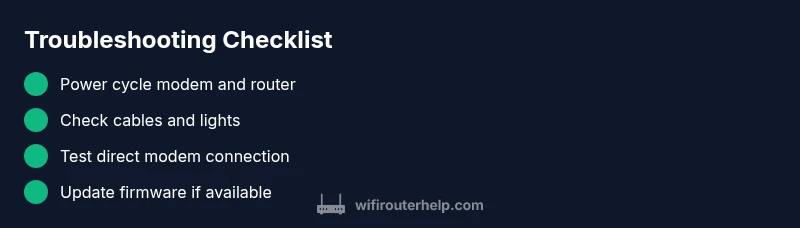
Turn off the modem, router, and any switches. Wait 60 seconds, then turn the modem on first, followed by the router. Allow a minute for each device to boot and re-establish connections.
Tip: This clears temporary outages and often resets the path to the internet. - 2
Check cables and indicator lights
Inspect the Ethernet cables between modem and router and the WAN port. Look for solid green/blue lights; blinking or red LEDs indicate port or device issues. Replace frayed cables and re-seat connectors.
Tip: Prefer high-quality Ethernet cables (Cat 5e/6 or better). - 3
Test via a wired connection
Connect a laptop directly to the modem to see if the internet works. If it does, the issue is likely with the router configuration or WiFi. If not, the problem is outside your local network.
Tip: Document the direct test result for support conversations. - 4
Verify WAN/IP assignment
Log into the router, check WAN settings, and confirm it receives a valid IP from the modem. If needed, release/renew or set to DHCP. Avoid changing multiple settings at once.
Tip: Take screenshots before adjusting settings. - 5
Update firmware or reset if necessary
Update to the latest firmware from the manufacturer. If issues persist, perform a factory reset and reconfigure from scratch, keeping a backup of your settings.
Tip: Back up current configurations prior to resets. - 6
Re-test and monitor
Test all devices for internet access over both wired and wireless connections. Monitor for 24–48 hours for any instability and log any repeat symptoms.
Tip: Create a simple weekly health checklist to catch recurring issues.
Diagnosis: No internet after router shows connected
Possible Causes
- highISP outage or service disruption
- highLoose or damaged cables
- mediumModem-router misconfiguration or wrong WAN/Bridge mode
- lowRouter firmware bug or outdated software
- lowDNS or DHCP misconfiguration
Fixes
- easyPower cycle all devices (modem, router, and any network switch)
- easyCheck and reseat all network cables; verify link lights and port activity
- easyTest with a direct modem connection to confirm external service status
- mediumReview WAN/DHCP settings; ensure the router is obtaining an IP from the modem
- mediumUpdate firmware or perform a safe reset if issues persist
People Also Ask
Why does my devices show connected but no internet?
This typically means the router or modem has a local connectivity issue, or the ISP is experiencing an outage. Run through the quick checks and test with a direct modem connection to isolate the cause.
Your router shows connected, but no internet usually means a local issue or an outage. Run through quick checks to isolate the cause.
What is the first step to fix no internet after connecting a router?
Power cycle the modem and router, then verify physical connections. If the issue persists, check WAN settings and test with a direct modem connection.
First step is power cycling and checking cables, then test WAN settings.
Should I reset the router to factory settings?
Only if firmware updates or WAN settings are misconfigured and other fixes fail. Always back up current configuration before resetting.
Only reset if necessary, and back up settings first.
How can I tell if the problem is an ISP outage?
Check your ISP's service status page or call support. If others in your area report outages, your problem is external.
Check the ISP status page or contact support to confirm outages.
What safety steps should I follow during troubleshooting?
Unplug devices during power changes and avoid opening hardware components. Use surge-protected power strips and follow manufacturer instructions.
Power down devices and use a surge protector when handling hardware.
Watch Video
What to Remember
- Start with the basics and work through steps in order
- Differentiate local vs ISP issues with a direct modem test
- Back up settings before resets
- Update firmware to fix known bugs