What Is Wrong with My Spectrum Router? A Practical Troubleshooting Guide
Learn fast, practical steps to diagnose and fix common Spectrum router issues. From power cycles to firmware updates, this urgent guide from WiFi Router Help shows a safe, step-by-step diagnostic flow.


Most Spectrum router issues stem from simple causes: a power cycle needed, loose coax or Ethernet cables, or outdated firmware. Start by rebooting the router, checking all cables, and confirming the modem is online. If the problem persists, verify bridge mode, DNS, and WiFi settings, then contact Spectrum support.
What is wrong with my spectrum router? A practical starting point
If you’re wondering what is wrong with my spectrum router, you’re not alone. The most stubborn home-network problems often boil down to a handful of repeatable causes: power delivery, loose connectors, and outdated firmware. According to WiFi Router Help, a calm, methodical approach is the fastest path to clarity. Begin with the simplest checks, then layer in configuration checks as needed. This section sets the stage for the rest of the guide, highlighting how Spectrum devices interact with home networks, and what you should expect from a reliable fix process.
You’ll encounter everything from intermittent drops to complete outages. Treat each symptom as a clue, not a verdict. By focusing on the connection chain—from the wall outlet to the router to the devices—you’ll isolate issues efficiently. The goal is to restore stable WiFi without guessing games or unnecessary calls. Throughout, this guide keeps safety front and center, and reminds you that basic maintenance is often the best remedy.
Symptom patterns: what your issues typically mean
Intermittent drops often signal interference or channel congestion, whereas no WiFi at all may point to a hardware fault or a failed modem connection. Slow speeds can be caused by outdated firmware, misconfigured DNS, or QoS settings that throttle throughput. Hardware wear, power surges, and even overextended cabling can mimic software problems. By mapping symptoms to likely causes, you can triage quickly. WiFi Router Help emphasizes documenting what you observe, which helps you avoid repeating steps and speeds up escalation if needed. In many cases, a targeted fix—rather than a full reset—resolves the majority of issues within an hour or less.
Quick checks you can perform right now
1) Basic power and cabling sanity check
- Unplug the power, then replug. Listen for the router to boot with stable indicator lights. Ensure the coax and Ethernet cables are snug and in good condition. A loose connection can masquerade as a software fault.
- Inspect the power brick and outlet for flicker or wobble. If you’re using a power strip, try a direct outlet to rule out strip issues.
2) Device status and outages
- Check for a service outage in your area via Spectrum status pages or mobile app.
- Confirm the modem shows online with solid status lights. A red or blinking light can indicate a line issue or a failed modem.
3) Router UI basics
- Access the router’s admin page and verify the WAN/Internet status. Confirm the router is not in bridge mode unless intended. Review the admin password status and ensure parental controls or firewall rules aren’t blocking access.
Inspecting your Spectrum modem and bridge mode
Bridge mode misconfigurations can cause double-NAT issues or odd routing behavior that looks like a Spectrum router fault. Ensure the Spectrum gateway is in the intended mode. If you rely on a separate modem or a separate router downstream, double-check bridge mode and DHCP settings. Disable any conflicting VPNs or security software that may interfere with local DNS resolution. Confirm that DNS settings on the router match your preferred DNS provider and are not overridden by the modem’s internal DNS. These steps prevent false positives in diagnosing why devices can or cannot connect.
Additionally, verify that your firmware is current. Outdated firmware can cause performance bottlenecks and unresolved security issues. The process is straightforward: check for updates via the admin panel, apply if available, and reboot to complete installation.
The diagnostic flow in practice
A practical diagnostic flow helps separate symptoms from causes. Start with the most common and reversible issues, then move toward more complex checks. If multiple devices experience the same issue, focus on the router or modem as the central point. If only one device has trouble, the problem may lie with that device’s network settings or WiFi configuration. Use a simple paper trail: note the symptom, date/time, device, and any recent changes (new app, new device, firmware update). This log will guide your next steps and is invaluable if you end up needing Spectrum support.
Step-by-step fixes for the most common cause
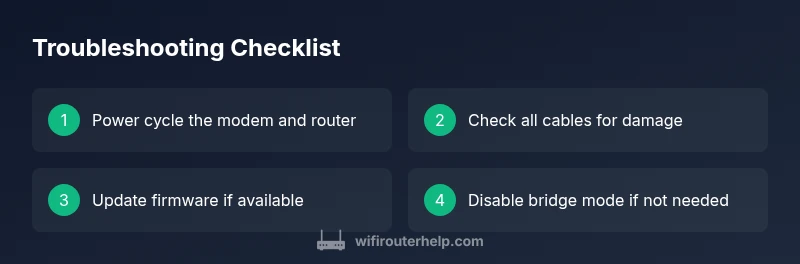
- Power cycle everything: unplug the modem and router, wait 30 seconds, plug the modem back in, wait for its lights to stabilize, then reconnect the router. 2) Check all cables: confirm coax and Ethernet cables are undamaged and firmly seated. 3) Verify network status: confirm Internet is showing as connected on the router interface. 4) Update firmware: check for updates in the router admin page and apply. 5) Reset if necessary: perform a factory reset only if instructed by guidance and ensure you can reconfigure later. 6) Re-test after each change: confirm devices regain connectivity and stability. 7) Schedule a simple channel optimization: choose 2.4GHz for longer range and 5GHz for higher speeds where coverage allows.
If this doesn’t resolve the issue, repeat steps with a different device or wired connection to rule out device-specific faults. It’s often the combination of steps that resolves stubborn problems.
Advanced checks: bridge mode, DNS, and QoS
Bridge mode can complicate router behavior and lead to unpredictable results if mixed with another router. Confirm that bridge mode is disabled if you are using the Spectrum gateway as your primary router. For DNS, ensure you’re not forcing a poor or slow resolver. Consider a trusted DNS provider and configure it on the router, then reboot. QoS rules can restrict bandwidth for critical devices; if you notice streaming stalls or gaming lag, review QoS settings and adjust priorities or temporarily disable QoS to test impact. These advanced checks address less obvious causes when basic fixes fail and can save hours of troubleshooting.
Safety note: never open the router’s admin interface from an untrusted network and never share credentials. Prefer wired setup when possible to reduce interference that degrades performance.
Safety notes and when to call Spectrum
If you observe a hardware failure indicator, frequent dropouts across many devices, or a confirmed outage, contact Spectrum support promptly. Avoid opening the device beyond documented tutorials; internal components may pose shock risks. When trying to diagnose, ensure you unplug devices before touching power adapters and avoid tampering with line connections. Spectrum support can verify line health and escalate to field technicians if necessary. If you rely on critical devices (work from home, medical devices, etc.), have a backup plan and keep emergency contact numbers handy.
Building a resilient home network: prevention tips
Prevention starts with a simple maintenance routine. Regularly reboot and check for firmware updates, rotate channels to balance congestion, and keep strong, unique passwords for both the router and WiFi networks. Consider placing the router in a central location away from walls and metal objects to improve signal distribution. If you have many devices, a mesh network or a secondary access point can help distribute coverage more evenly. Document changes so you can revert if needed and avoid the fear of ‘breaking things’ during updates.
Quick wins for stable coverage across floors
Strategic placement boosts performance. Elevate the router, avoid placing behind furniture, and minimize thick walls between devices and the router. Use 5GHz for devices close to the router and 2.4GHz for distant devices; enable band steering thoughtfully. Keep a spare Ethernet cable for a wired connection in a central location to test performance without relying on wireless only. Finally, establish a routine: monthly checks of connected devices, firmware updates, and a quick speed test to catch anomalies early.
Steps
Estimated time: 60-90 minutes
- 1
Power cycle everything
Unplug the modem and router, wait 30 seconds, plug the modem back in, wait for stable lights, then reconnect the router. This clears transient faults and forces a clean handshake.
Tip: Always start with a clean reboot before changing settings. - 2
Check physical connections
Inspect coax and Ethernet cables for damage and ensure snug connections. Replace any frayed cables. A loose cable can cause intermittent outages that mimic software faults.
Tip: Try a known-good Ethernet cable if you have one. - 3
Verify modem status and network lights
Ensure the modem shows online and that the router's Internet light is solid. If the modem shows wrong lights, support may need to check the line.
Tip: Note any unusual light patterns for reference when contacting support. - 4
Access router admin and review settings
Log into the router; review WAN status, DHCP pool, and DNS. Confirm the router isn’t accidentally in bridge mode unless intended. Make small, incremental changes rather than a full reset.
Tip: Document current settings before editing. - 5
Update firmware and reset when needed
If updates are available, install them and reboot. If problems persist and you cannot resolve quickly, perform a factory reset as a last resort, then reconfigure from scratch.
Tip: Back up configuration if your router supports it. - 6
Test with wired and wireless connections
Test critical devices both over Ethernet and WiFi. If wired works but wireless does not, adjust WiFi settings or consider a mesh extension for coverage.
Tip: Record signal strength and speeds for comparison.
Diagnosis: Devices intermittently disconnecting, or no internet on multiple devices
Possible Causes
- highPower issues or loose cables
- mediumOutdated firmware or misconfigured DNS
- lowModem/ISP outages or line problems
- lowBridge mode conflicts or double NAT
Fixes
- easyPower cycle the modem and router, then recheck connections
- easyUpdate firmware and review DNS settings in the router UI
- mediumVerify bridge mode status; disable it if not needed and ensure proper NAT settings
- easyTest with a wired connection to rule out WiFi-specific issues; replace cables if damaged
People Also Ask
What is the most common Spectrum router issue?
The most common issues are related to power, cabling, or outdated firmware. These are usually resolved by a simple reboot, checking connections, and applying available updates.
Most Spectrum router problems come from power, cables, or old firmware. A reboot and updating firmware almost always fixes it.
How do I access Spectrum router settings?
Open a web browser and enter the router's IP address or use the Spectrum app to reach the admin panel. From there you can check Internet status, DNS, and wireless settings.
Open a browser, go to the router's IP or use the Spectrum app, and review Internet status and wireless settings.
Should I reset my Spectrum router?
Resetting can fix stubborn problems, but you will lose customized settings. Only reset if you have a backup plan to reconfigure and test afterwards.
Reset only if necessary and you can reconfigure later; otherwise, try updates and setting checks first.
What if my devices still won't connect after fixes?
If several devices fail to connect, focus on the router or modem. Try a wired test and consider a factory reset as a last resort, then reconfigure.
If many devices fail, check the router and modem, test with a wired connection, and consider a reset if needed.
Is there a Spectrum outage affecting service?
Check Spectrum’s status page or app for outages. If there is an outage, troubleshooting won’t fix local devices until service is restored.
Look up outages on Spectrum's status page; if there is one, troubleshooting won't help until service returns.
When should I call Spectrum support?
Call Spectrum support if outages are confirmed, your hardware shows faults, or you’ve tried the steps here without improvement.
Contact Spectrum if you’ve verified outages or hardware faults and nothing else fixes the issue.
Watch Video
What to Remember
- Start with power and cabling checks
- Document symptoms to guide diagnosis
- Only reset if you can reconfigure later
- Call Spectrum if outages or service issues persist