Should Router Lights Be Blinking? A Practical Troubleshooting Guide
Learn why router LEDs blink, what patterns mean, and how to safely diagnose and fix blinking lights. A practical, urgent guide from WiFi Router Help.


Blinking router lights are often normal during startup, updates, or active data traffic, but persistent blinking on multiple LEDs can signal a fault. Start with the basics: verify power, check cables, and perform a soft restart. If blinking persists, follow this diagnostic flow to identify power, connection, overheating, or ISP issues.
What blinking lights tell you about your router
Blinking LEDs are common when booting, updating, or handling traffic. They can be signals of issues if patterns repeat or LEDs stay on continuously. According to WiFi Router Help, distinguishing between normal boot blinking and fault indicators is essential to avoid unnecessary troubleshooting. A quick observation of which LEDs blink and how fast they blink can reveal a lot. If the power LED blinks while others stay steady, the issue may be isolated to boot or power delivery. If the internet/WAN LED blinks while the others are solid, there could be a modem or line problem. The WiFi Router Help team found that many blinking patterns can be explained by firmware updates or temporary congestion, but consistent multi-LED blinking requires a structured diagnosis to prevent wasted time.
Identifying the exact LEDs involved helps you prioritize your next steps. For example, a blinking power indicator is often a power supply or ventilation issue, while blinking internet indicators usually point to a line, modem, or ISP problem. Treat blinking as a symptom, not a diagnosis, and use a methodical approach to isolate the root cause.
As you proceed, keep in mind that you are troubleshooting for reliability and stability. The WiFi Router Help team emphasizes patience and documenting each pattern you observe, so you can compare before-and-after results as you test changes.
Common blinking patterns and their meanings
LED indicators on modern routers follow common conventions, but manufacturers may vary slightly. Here are the typical meanings you’ll encounter and how to interpret them:
- Power LED blinking: Often normal during boot. If it continues after startup, your device may be encountering a power delivery issue or thermal throttling. In some models, a steady blinking power LED can indicate a hardware fault or a failing power adapter.
- Internet/WAN LED blinking: Usually indicates data transmission or an active connection. Persistent blinking without sustained connectivity can mean a line issue, modem problem, or DHCP/IP assignment trouble.
- 2.4GHz/5GHz radios blinking: Indicates wireless activity. Heavy blinking can simply reflect high traffic, while erratic blinking may point to interference or jammed channels.
- All LEDs blinking in unison: This can signal a firmware update or a crash-recovery loop. Do not power off mid‑update; risk of corrupting firmware.
WiFi Router Help analysis shows that many blinking patterns align with routine events like boot and firmware updates, but continual multi-LED blinking is a red flag requiring deeper testing. If you notice a pattern that sounds unfamiliar, treat it as a fault until proven otherwise and proceed with the diagnostic flow.
If your router has a status page, check the system log for warnings about temperature, memory, or failed updates. Logs can save time by pointing to the exact subsystem responsible for the blinking.
From a user experience standpoint, blinking is a language your device uses to communicate. The WiFi Router Help team found that translating these signals into a simple plan—power check, cable inspection, reboot, firmware update—can dramatically shorten downtime and improve overall network stability.
Quick checks you can perform right now
Before you dive into more complex steps, perform these quick checks to rule out the most common culprits. Start with the easiest fixes, and only move to more advanced actions if the simple steps fail.
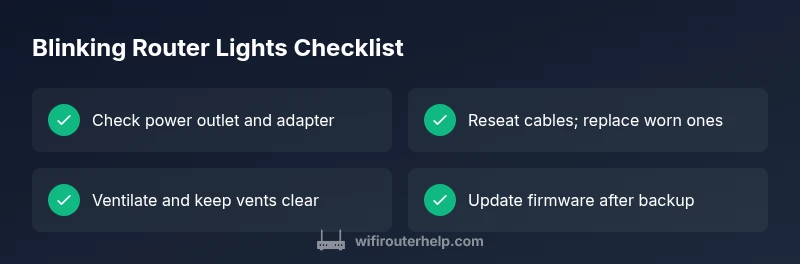
- Confirm power: Ensure the router is firmly plugged into a working outlet. If you use a power strip, test with the router plugged directly into a wall outlet to rule out a bad strip.
- Inspect cables: Check the WAN/Internet, Ethernet, and power cables for wear, kinks, or loose connections. Re-seat connections firmly and try a different Ethernet port if available.
- Reboot: Perform a soft reboot by power cycling the router (unplug for 15–30 seconds, then plug back in). Avoid rapid power cycles that may confuse the device.
- Check for overheating: Ensure adequate ventilation—keep vents clear, avoid stacking devices, and relocate the router away from heat sources.
- Look for firmware updates: If you can access the admin interface, check whether a firmware update is available and install it if advised by the manufacturer.
- Test a simpler setup: If possible, temporarily remove any USB modems, smart plugs, or extenders to see if a single device is causing the blinking.
If these checks don’t stop the blinking or restore connectivity, proceed to the diagnostic flow to pinpoint the underlying issue. The process helps you distinguish between local hardware faults, network configuration problems, and external ISP-related causes.
Diagnostic flow overview
This section maps the diagnostic flow to practical steps you can perform without specialized tools. The flow starts with observable symptoms (which LEDs are blinking and for how long) and moves toward a concrete fix. The goal is to eliminate the simplest causes first and escalate only as needed. Throughout the flow, document your observations so you can share precise details with support staff if needed.
- Step 1: Confirm power stability and basic cable integrity.
- Step 2: Reboot and observe which LEDs blink during boot vs normal operation.
- Step 3: Check for overheating or airflow issues.
- Step 4: Attempt a firmware update or factory reset if permitted.
- Step 5: Rule out ISP or modem problems by testing with a different device or temporarily bypassing the modem.
If you reach a point where the blinking persists after all these steps, the issue is likely beyond a simple fix and may require professional support. Keeping a detailed log will help a technician diagnose the problem quickly, and WiFi Router Help’s team can guide you through the next best steps.
Step-by-step fixes for the most common causes
This section provides a hands-on, structured approach to address the most frequent blinking issues. Each fix is designed to be safe, incremental, and easy to reverse if needed. Follow the steps in order; if a step resolves the issue, you can skip the remaining items.
- Power issue fix: Replace or re-seat the power adapter, and try a known-good outlet. If the power supply shows any signs of damage, replace it. Tip: Use the original power adapter if possible, and avoid third-party replacements that don’t match voltage and amperage specifications.
- Cable integrity: Reseat the WAN/Internet and LAN cables; replace any worn cables. Tip: Perform a simple continuity check if you have a spare cable handy.
- Reboot and observe: Power cycle the router, wait 2 minutes, then observe the LED sequence during boot and normal operation. Tip: Record which LEDs blink and for how long after reboot.
- Firmware updates: Access the router admin page and install any available updates. If a manual update is needed, download the firmware from the manufacturer’s site and follow their instructions. Tip: Back up settings before updating.
- Ventilation and placement: Move the router to a cooler, open area with at least a few inches of clearance for airflow. Clean dust from vents with a can of compressed air. Tip: Avoid placing the router inside a cabinet or behind furniture.
- Factory reset: If blinking continues and you cannot explain it by simple fixes, perform a factory reset and reconfigure from scratch. Tip: Save a backup of your configuration if the router allows export.
- ISP/modem checks: If your router connects behind a modem, verify the modem is online and powered. If you suspect the line, contact your ISP for a line test or to reset the connection. Tip: Note any service outages in your area.
estimatedTime':'30-45 minutes'
Steps
Estimated time: 30-45 minutes
- 1
Check power and outlet
Verify the router is firmly connected to a reliable power source. If you use a power strip, test the outlet directly. Look for any flickering indicator on the power LED that could signal a power issue.
Tip: If you use a smart plug, test the outlet with a simple lamp to confirm it supplies stable power. - 2
Inspect cables and connections
Reseat the WAN/Internet and LAN cables at both ends. Check for visible wear or fraying. If available, try a different cable or port to rule out a faulty connector.
Tip: Tug-test cables gently to ensure they’re seated without forcing connectors. - 3
Soft reboot the router
Power cycle the device by unplugging it, waiting 15–30 seconds, then plugging it back in. Allow 2–3 minutes for the router to boot fully and observe the LED sequence.
Tip: Avoid multiple rapid power cycles; they can cause firmware hiccups. - 4
Check for firmware updates
Log in to the router’s admin interface and check for firmware updates. Apply any available updates and reboot if required. Updating can resolve known bugs causing blinking patterns.
Tip: Back up settings before updating in case you need to restore after the update. - 5
Improve ventilation
Ensure the router has open space around it, away from heat sources. Clean dust from vents to improve airflow and prevent overheating causing LED activity.
Tip: Place the router on a desk or shelf with several inches of clearance on all sides. - 6
Factory reset if needed
If blinking persists after updates and checks, perform a factory reset and reconfigure your network from scratch. This step can clear corrupted settings that trigger unusual LED behavior.
Tip: Note your Wi‑Fi name (SSID) and password before resetting.
Diagnosis: Router lights blinking abnormally on startup or during use
Possible Causes
- highPower issue or unstable outlet/power supply
- mediumLoose, damaged, or incorrect cable connections
- lowOverheating due to poor ventilation or dust buildup
- lowFirmware glitch or corrupt settings
Fixes
- easyTest with a known-good power outlet and, if possible, a different adapter
- easyReseat or replace Ethernet/phone cables and ensure snug connections
- easyClean dust and improve ventilation; ensure router sits on a hard surface
- mediumFactory reset and re-flash latest firmware from the manufacturer
People Also Ask
Why are my router lights blinking even after I reboot?
Persistent blinking after a reboot often points to a power issue, a faulty cable, overheating, or a stuck firmware process. If basic fixes don’t help, follow the diagnostic flow to isolate the cause before attempting more invasive steps.
Persistent blinking after reboot usually means there’s a power, cabling, or firmware problem. Follow the flow to identify and fix it.
Is blinking normal during a firmware update?
Yes, during a firmware update many LEDs blink or flash. Do not power off the router during the update, as this can corrupt the firmware.
Blinking during a firmware update is normal. Don’t power off until the update finishes.
Could my ISP be causing blinking lights?
Yes. If the issue occurs after a loss of service or modem reset, the problem might be on the provider’s side or with the modem. Check outage maps and contact your ISP if necessary.
ISP problems can cause blinking. Check outages and contact support if needed.
What should I do before factory resetting my router?
Back up your current settings, note your network name and password, and be prepared to reconfigure your devices after the reset.
Back up settings and note your network details before resetting.
How long should I wait after reboot to see if the issue is resolved?
Give the router a few minutes to boot and settle. If blinking continues after 5 minutes, escalate to the diagnostic flow.
Wait a few minutes after reboot to see if it stabilizes.
Watch Video
What to Remember
- Check power and cables first
- Update firmware to fix LED bugs
- Ventilate to prevent overheating
- Document patterns and seek professional help when needed