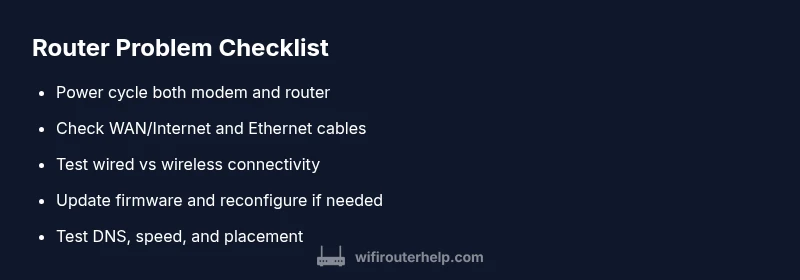
Router Problem: Immediate Diagnosis and Fix Guide
Urgent, actionable guide to diagnose and fix a router problem. Learn step-by-step checks, common causes, firmware updates, and prevention to restore reliable home networking.


Facing a router problem can disrupt family internet for work and streaming. Start with the simplest checks: confirm power and cables, restart the router, and test wired vs wireless devices. If problems persist, move to firmware updates and network settings. This guide walks you through a quick, step-by-step diagnostic to restore reliable connectivity.
Why a router problem matters in modern homes
A router problem can affect every device connected to your home network, from laptops to smart TVs. When the router misbehaves, online meetings stall, streaming buffers, and smart home routines fail. The root causes span simple misconfigurations to hardware faults. For homeowners and tech enthusiasts, adopting a structured troubleshooting process is essential to restore stability quickly. According to WiFi Router Help, a systematic troubleshooting approach helps homeowners identify whether the issue lies with the router, the modem, or the internet service itself, saving time and frustration.
In this guide, we’ll focus on practical, non-technical steps you can perform, plus clear indicators that point toward more advanced fixes. You’ll learn how to separate symptoms from causes, verify internet service status, and implement fixes safely. The goal is to get back online fast while maintaining your home network’s integrity.
Quick diagnostic checks you can perform now
Start with the easiest checks first. These steps apply to most router problems and can quickly reveal whether the issue is local or outside your control.
- Verify power and lights: Ensure the power cable is firmly seated and the router’s power LED is solid. If lights are blinking abnormally, note the pattern for later.
- Check cables and connections: Confirm the WAN/Internet cable and any Ethernet cables are securely connected and undamaged.
- Reboot the devices: Power off the router and modem, wait 30–60 seconds, then power them back on. Test wired and wireless devices after restore.
- Test devices: Use a wired connection to a laptop to see if the problem persists. If wired works but Wi‑Fi does not, the issue may be wireless, not the broadband link.
- Check service status: Look up your ISP’s status page or call support to confirm outages in your area. This helps distinguish router problem from service disruption.
- Note abnormal indicators: Record any unusual LEDs, error messages, or login prompts; these hints guide deeper troubleshooting.
Common causes of a router problem
Understanding common causes helps you target fixes efficiently. Below are the frequent culprits behind router problems and how they typically manifest.
- ISP outage or service degradation (high likelihood): If your internet goes dark across all devices, the issue might be the provider rather than your router.
- Firmware or configuration corruption (medium): Outdated firmware, factory resets, or misconfigured settings can disrupt connectivity and performance.
- Overheating or hardware faults (low): A hot router can throttle speeds or shut down ports, leading to intermittent drops.
- Physical connection issues (medium): Loose cables, damaged connectors, or broken ports can mimic a router problem.
- Wireless interference and channel conflict (medium): Nearby networks, microwaves, or thick walls can degrade Wi‑Fi performance.
Each of these causes can produce similar symptoms, so a stepwise approach helps isolate the true problem without expensive changes.
Step-by-step fix for the most common router problem
When you’re faced with a router problem, start with simple fixes and escalate only as needed. This step-by-step path targets the most common scenarios and minimizes risk.
- Power cycle everything: Unplug the router and modem, wait 60 seconds, plug them back in in the same order, and wait for full reboot.
- Tip: Use a timer to ensure you wait long enough before testing again.
- Check and reseat cables: Verify the WAN/Internet cable is secure, and reseat Ethernet cables on both ends.
- Tip: Try a different Ethernet port if available to rule out a faulty port.
- Compare wired vs wireless: If wired works but Wi‑Fi is slow or drops, focus on wireless settings rather than the broadband link.
- Tip: Temporarily disable guest networks to test if interference is the culprit.
- Update firmware: Check for and install any available router firmware updates. Updates fix bugs and security flaws that can cause instability.
- Tip: Back up current settings before updating whenever possible.
- Reset network settings (not factory): If settings are tangled, reset Wi‑Fi names/passwords to default and reconfigure. Avoid factory reset unless necessary.
- Tip: Record your current SSID and password before resetting, so you can restore access quickly.
- DNS and performance checks: Switch to a public DNS (e.g., 1.1.1.1 or 8.8.8.8) temporarily to test resolution issues, and run speed tests to gauge improvements.
- Tip: Note down latency changes after DNS tweaks.
- Channel and placement: Change the 2.4 GHz/5 GHz channel to a less congested option and place the router central to your home, elevated, and away from obstructions.
- Tip: Avoid placing the router near metal objects and large electronics.
- Factory reset as last resort: If problems persist, perform a factory reset and reconfigure from scratch using the manufacturer’s setup wizard.
- Tip: This restores default settings but requires you to re-enter all custom rules and passwords.
Estimated total time: 45–75 minutes depending on familiarity and network complexity.
Advanced troubleshooting for stubborn issues
Some router problems require deeper investigation. This section covers more advanced diagnostics without assuming you’re a networking expert, but it helps when the basics didn’t resolve the issue.
- Inspect WAN/Internet provisioning: Confirm your account is active and your device is provisioned by the ISP. Misprovisioning can mimic a router problem.
- Check for IP conflicts: Ensure DHCP is enabled and the router isn’t inadvertently issuing an invalid IP range that clashes with another device on the network.
- Evaluate QoS and parental controls: Overly strict rules can throttle traffic and appear as slow connectivity. Temporarily disable them to test.
- Review firewall settings: A misconfigured firewall can block legitimate traffic. Revert to default if you recently changed rules.
- Test with a different router: If possible, swap in a spare router to determine if the original device is faulty.
- Consider a bridge mode test: If your modem supports bridge mode, testing with bridge can reveal whether router settings are at fault.
Proceed with caution when changing advanced settings. Document changes to rollback if needed. If you’re uncomfortable, consult a technician or your ISP for hands-on help.
Prevention and best practices to avoid future router problems
Adopting routine maintenance keeps your network stable and minimizes the chance of a router problem recurring.
- Schedule regular firmware updates: Enable automatic updates where available and periodically verify patch levels.
- Proper placement and ventilation: Keep the router in an elevated, open space to reduce overheating and interference.
- Secure and back up configurations: Backup settings after major changes and use strong, unique passwords for admin access.
- Create a clean guest network: Isolate visitors from your main network to reduce exposure to misconfiguration.
- Monitor device health: Keep track of which devices are connected and watch for unusual spikes in traffic that could indicate a problem.
- Prepare a quick recovery plan: Maintain a simple, repeatable reset and reconfiguration process so you’re ready when issues arise.
When to call a professional and what to expect
If you’ve methodically worked through the steps above and the router problem persists, it’s time to involve a professional. A technician can perform hands-on diagnostics, rule out hardware faults, and verify service provisioning with your ISP. Gather your device model, firmware version, and a concise symptom log to speed up the visit. If you have multiple devices or a complex network (mesh, parental controls, VPNs), a pro can optimize your setup for reliability and performance.
Quick recap and what to do next
After running through the diagnostic flow for a router problem, you should have restored internet connectivity or identified the likely cause. Use the step-by-step fixes as a repeatable process, keep your firmware up to date, and implement preventive measures to reduce future issues. Remember, consistent maintenance saves time and preserves your home network’s stability.
Steps
Estimated time: 45–75 minutes
- 1
Power cycle devices
Unplug the modem and router, wait 60 seconds, then plug them back in, allowing each to fully boot before testing.
Tip: Use a timer to ensure you wait long enough for a clean reboot. - 2
Verify cables and ports
Inspect the WAN/Internet cable and Ethernet cables; reseat both ends and try alternate ports if available.
Tip: A loose port is a common cause of flaky connections. - 3
Test wired vs wireless devices
Connect a laptop via Ethernet to see if the issue is Wi‑Fi specific or a general outage.
Tip: If wired works but wireless fails, focus on wireless settings and interference. - 4
Update firmware
Check for and install the latest router firmware; apply any recommended configuration changes.
Tip: Back up current settings before updating when possible. - 5
Reset network settings
If configuration is tangled, reset Wi‑Fi settings to default and reconfigure from scratch.
Tip: Record your current SSID/password before resetting. - 6
DNS and performance test
Switch to a reliable public DNS and run speed tests to gauge improvements.
Tip: Note latency before and after DNS changes. - 7
Adjust channel and placement
Change the Wi‑Fi channel to reduce interference and place the router centrally.
Tip: Keep it elevated and away from large metal objects. - 8
Factory reset if necessary
If all else fails, reset to factory defaults and reconfigure with the setup wizard.
Tip: A factory reset should be a last resort.
Diagnosis: Intermittent connectivity or no internet after power cycle
Possible Causes
- highISP outage or service degradation
- mediumFirmware or configuration corruption
- lowOverheating or hardware fault
- mediumPhysical connection issues (cable/port)
Fixes
- easyPower cycle the modem and router, then re-test connectivity
- easyCheck all cables and connections; reseat WAN and Ethernet cables
- mediumUpdate firmware and reset affected settings if needed
- hardFactory reset and reconfigure if the problem persists
People Also Ask
What is the first thing to do when a router problem occurs?
Begin with a power cycle: unplug both router and modem for 60 seconds, then plug back in and test connectivity. This resolves many transient issues.
First, power cycle your devices and test again to see if the connection returns.
Why does my Wi-Fi work on some devices but not others?
This usually indicates Wi‑Fi interference or device-specific settings. Check the affected device’s network settings, forget and reconnect to the network, and test on a different device to compare.
If some devices can’t connect, focus on Wi‑Fi settings and interference for the problem device.
Should I update firmware automatically?
Automatic updates are convenient and reduce security risks, but they can sometimes disrupt settings. Enable automatic updates if you want hands-off maintenance, or check manually after a major change.
Automatic updates can help, but monitor after update for any quirks.
What if the issue persists after a factory reset?
If problems continue, test with a different router or contact your ISP to check provisioning. A hardware fault or service issue may require replacement or professional support.
If reset fails to fix it, you may need a replacement or help from your provider.
Can I fix router problem without calling support?
Yes, many router problems are solvable with the steps in this guide. However, some issues require professional diagnosis or ISP assistance.
Most issues can be solved with our steps, but some need a pro.
What indicates it’s time to call a professional?
If you’ve tried the full diagnostic flow without success, or you suspect hardware failure, contact a technician or your ISP for advanced diagnostics and support.
If basic steps don’t resolve it, it’s time for professional help.
Watch Video
What to Remember
- Identify symptoms quickly with simple checks
- Differentiate router problems from service outages
- Keep firmware up to date to prevent issues
- Test wired vs wireless to target the right area
- Have a recovery plan and backups for settings