Power Cycle Your Router: A Practical Step-by-Step Guide
Learn how to safely power cycle your router to fix connectivity issues. Step-by-step instructions, timing tips, and troubleshooting from WiFi Router Help.


Power cycling a router is a safe, first-line fix for many home network issues. In this guide, you’ll learn how to perform a proper router power cycle, what to expect during reboot, and when to escalate if problems persist. According to WiFi Router Help, this simple, low-effort technique often resolves issues without needing advanced troubleshooting. Follow the steps to avoid common mistakes and verify results.
Why Power Cycling Matters
Power cycling the router—turning it off, waiting, and turning it back on—resets the device’s internal state and clears temporary glitches that can affect performance. In many households, the simplest fix for intermittent Wi‑Fi drops, slow speeds, or devices that won’t connect is a quick power cycle of the router. According to WiFi Router Help, this safe, low-effort technique often resolves issues without needing advanced troubleshooting. A power cycle can renew DHCP leases, re‑establish connections with the modem, and encourage proper firmware processes to run. It’s particularly useful after ISP maintenance, after adding new devices, or when you notice devices showing as connected but not actually transmitting data. In short, a controlled restart is a reliable first step when your home network acts stuttery or unreliable.
Safety First: Precautions Before You Power Cycle
Before you power cycle, take a few safety steps: ensure hands are dry, avoid power cycling during thunderstorms, and if you’re using a surge protector or a smart power strip, turn off the switch or unplug the entire unit to ensure a clean reset. Never yank cords or force a reset when cables look damaged. Keep pets away and, if possible, perform the restart in a dry area. If you use a UPS (uninterruptible power supply), note that the router may stay powered briefly after the wall outlet is unplugged; model behavior varies, so plan accordingly.
Understanding What Happens During a Power Cycle
A power cycle restarts the router’s processor, clears caches, and forces a fresh boot of routing functions, including NAT, firewall rules, and DHCP services. When the router comes back online, it renegotiates connections with the ISP’s modem and redraws its routing tables. If you have devices that hold IP leases from DHCP, those leases are renewed during the reboot. In modern home networks, a successful power cycle often resolves phantom connections, slow DNS responses, and minor firmware hiccups without requiring a factory reset.
What You’ll Need (Tools and Materials)
Here’s a minimal, practical list to have on hand before you start:
- Router with its original power adapter (required)
- A dry, accessible power outlet (required)
- A surge protector or smart power strip (optional, recommended for clean shutdowns)
- A wired Ethernet cable (optional, useful for testing)
- A clock or timer (optional, helps track wait times)
Having these on hand keeps the process smooth and helps you verify results quickly. If you’re in a hybrid setup with a separate modem, you’ll want to power cycle that device too for the best results.
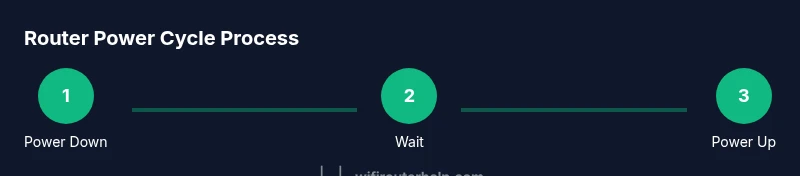
Step-by-Step: Cold Power Cycle (Complete Power Cycle)
A thorough power cycle means more than simply turning the router off and on. It includes a short pause to ensure internal capacitors discharge and that the device starts from a clean state. The steps below are designed to be repeatable and safe for most home networks.
- Power down the router using the power button or by unplugging the AC adapter. Do this calmly to avoid jostling cables.
- Unplug the router from its power source. Remove the plug entirely to ensure no residual power remains.
- Wait 60 seconds. This pause lets internal components reset and helps flush out stale data in memory.
- Reconnect the power cable or press the power button to turn the router back on. Avoid rushing this step; let the device begin its boot cycle.
- Allow the router 1–3 minutes to boot fully. Watch the status lights for a stable pattern (usually power, then link, then Wi‑Fi indicators).
- If you have a separate modem, power cycle it now as well. Begin by unplugging, waiting 30–60 seconds, then plugging back in and waiting for it to come online.
- Once both devices appear ready, test the network by connecting a device to the Wi‑Fi and loading a page. If a wired PC is available, verify traffic via Ethernet.
- Reconnect any smart home devices and rejoin all wireless networks as needed. This step ensures all devices re-establish clean DHCP leases.
Tip: Do not interrupt boot sequences if you see the lights stabilize slowly; some routers take longer to initialize after a fresh power-up.
tipToFollowUpYouTubeHint:
Tools & Materials
- Router(Include original power adapter; ensure it matches the device’s voltage and amperage specifications)
- Power outlet or surge-protected strip(Prefer a dedicated, unswitched outlet or a surge strip that you can switch cleanly off and on)
- Modem (if applicable)(Power cycle only if you use a separate modem — integrated gateways may combine steps)
- Ethernet cable(Useful for a wired speed test or direct device connection)
- Timer/clock(Helps verify wait periods during the cycle)
Steps
Estimated time: 5-15 minutes
- 1
Power down the router
Physically press the router’s power button until it shuts off, or unplug the AC adapter from the wall. Make sure the device is fully powered down before proceeding to the next step.
Tip: Silence any ongoing downloads so the reset doesn’t restart mid-way. - 2
Unplug the power source
Remove the power plug from the wall outlet or power strip, ensuring no active connections to the device remain. This ensures a complete cut of power.
Tip: Avoid pulling on cables; grip the plug head firmly. - 3
Wait for 60 seconds
Pause to allow internal capacitors to discharge and memory to clear. A full minute is enough for most consumer routers.
Tip: If you suspect a stuck process, extend to 90 seconds. - 4
Reconnect power
Plug the router back into power or press the power button to initiate boot. Do not force a restart if the lights are still blinking.
Tip: Give the device a moment to register power before continuing. - 5
Let the router boot fully
Allow 1–3 minutes for the device to complete its startup sequence. Look for a stable LED pattern indicating normal operation.
Tip: Don’t rush to test until the lights indicate readiness. - 6
Reboot the modem (if applicable)
If you have a separate modem, power cycle it in the same way after the router starts to re-establish the internet connection.
Tip: Wait an extra 60 seconds after powering the modem. - 7
Test connectivity
Connect a device to your Wi‑Fi or via Ethernet and load a web page or run a speed test to confirm the connection is working.
Tip: If pages load slowly, try a quick DNS flush (on your device) and retry. - 8
Restore devices and verify
Reconnect any smart devices, printers, or guests. Confirm all services (VPNs, port forwarding, parental controls) are functioning as expected.
Tip: Note any settings that may have reset and reconfigure as needed.
People Also Ask
What is a router power cycle?
A router power cycle means turning the router off, waiting briefly, and turning it back on. This restarts hardware, clears caches, and renegotiates connections, often resolving simple connectivity problems.
A router power cycle is turning the device off, waiting, and turning it back on to refresh connections and fix common issues.
How long should I wait after unplugging?
Waiting 30 to 60 seconds is usually enough for most routers to discharge internal capacitors and reset memory. If you have a large heat sink or older hardware, you might extend to 90 seconds.
Waiting about 30 to 60 seconds usually does the job.
Is it better to power cycle the modem as well?
If you have a separate modem and router, power cycling both can help re-establish a clean connection from the ISP to your home network. Start with the router, then the modem, and test.
Yes, if you have a separate modem, power cycle both for best results.
Will power cycling reset my custom settings?
A standard power cycle does not reset custom router settings like port forwards or DHCP reservations. Only a factory reset would erase those changes.
No, a regular power cycle won’t erase your custom settings.
Can power cycling fix Wi-Fi dead zones?
Power cycling can restore connectivity to devices that aren’t connecting properly, but persistent dead zones may require repositioning the router or adding extenders.
It can help with connectivity, but for dead zones you might need a better layout or range extender.
How often should I power cycle my router?
There’s no fixed rule, but doing a quick power cycle every few weeks or after major changes (new devices, ISP updates) can keep the network stable.
Do it as needed, especially after significant changes or if you notice issues.
Watch Video
What to Remember
- Power cycling is a safe, first-line fix for many router issues
- Follow a clean, step-by-step process to avoid missing critical steps
- Test connectivity after reboot to confirm success
- If issues persist, escalate to ISP support or consider hardware checks