How Long to Unplug Your Router: A Practical Power-Cycle Guide
Learn how long to unplug your router for a safe power cycle, with practical timing tips, safety notes, and a step-by-step reset guide from WiFi Router Help.


You’re aiming to power-cycle your router by unplugging it, then replugging after a short wait. For most home setups, a 60-second unplug is enough to clear transient memory and refresh connections, then reboot time may take another 1–3 minutes. If you’re troubleshooting, perform a full power cycle of both modem and router, waiting a minute between devices.
Why unplugging and power-cycling matters
Unplugging a router is more than a simple reset; it clears caches, resets memory, and forces fresh negotiation with your modem and devices. In WiFi networks, devices often hold onto stale DNS and routing table entries that can slow connections or cause dropped signals. A brief power cycle forces the hardware to reboot, reinitialize wireless radios, and renegotiate IP addresses. According to WiFi Router Help, unplugging is a safe first step for many network hiccups and does not affect your saved settings. Keep in mind that unplugging is different from a software restart initiated from the admin interface; the latter can save time, but a true power cycle ensures a full hardware reset that software-only restarts may not achieve. When you have a stubborn issue such as buffering or devices failing to obtain an IP address, this is one of the first diagnostics you should perform.
How long to unplug router: general timing
In most home setups, unplugging the router for about 60 seconds is enough to clear volatile memory and reset active connections. If you are dealing with a stubborn issue, a polite extension to 2 minutes can help, but avoid lengthy power-offs that could cause attached devices to reacquire leases unnecessarily. If you share a single power outlet with a modem, consider power-cycling the modem first or simultaneously power-cycling both devices in a controlled sequence to avoid IP conflicts. Remember: the exact duration depends on your equipment and whether the router is part of a larger gateway device.
Timing variations also depend on whether the router has built-in startup checks, LED indicators, or firmware features that enforce a warm-up period. When in doubt, start with the 60-second rule and observe whether connectivity returns cleanly before extending.
Factors that influence unplug duration
Several factors influence how long you should unplug a router. Older devices may reboot more slowly due to older firmware, whereas newer models with aggressive startup sequences might finish in under a minute. If you’re using a separate modem, its boot time can affect the perceived restart speed; universal guidance suggests waiting for the power LEDs to stabilize and for the connection to re-establish on one device before testing the rest. Heat and power stability also matter: a device in a hot or unstable outlet can take longer to complete a clean boot. Finally, if you’ve recently updated firmware, a longer post-update boot may be necessary to finalize settings.
Distinctions: unplugging a standalone router vs a modem-router combo
Standalone routers and modem-router combos behave differently during power cycles. A stand-alone router may reset quickly, especially if it has minimal active services. A modem-router combo (gateway) often requires a longer boot period as both the routing and modem functionalities restart and renegotiate IP addresses with the ISP. When troubleshooting, begin with the stand-alone router approach to minimize variables; if problems persist, switch to power-cycling the entire gateway in a controlled sequence. Always consult your device’s manual for any model-specific defaults or safety notes.
Step-by-step approach to power cycle safely
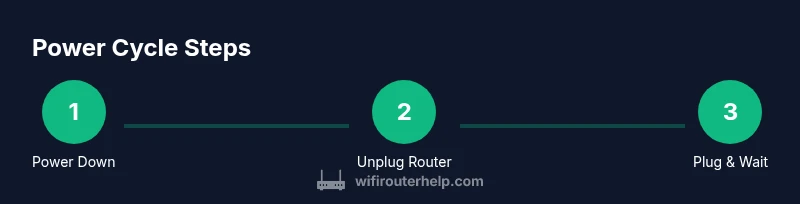
A power cycle is a three-part process: prepare, power off, and power on with a controlled wait. This section covers the practical steps you’ll take, with emphasis on safety and predictability. Always unplug by gripping the plug itself, not the cord, to avoid damaging the outlet or the power cord. If you’re using a power strip, ensure it’s switched off before unplugging the router. After you plug back in, give the device a full minute to boot before testing connectivity.
What to observe after reboot and what it means
After reconnecting power, watch the indicator LEDs: a steady, stable pattern usually means the device has booted correctly. If lights blink erratically or stay off, there may be a power issue or a hardware fault. Test connectivity by loading a webpage or streaming a short video. If you still don’t get a stable connection, repeat the cycle once more, check cable integrity, or consider a factory reset as a last resort, ensuring you’ve backed up configuration where possible.
Safety, best practices, and common mistakes
Always unplug from a safe, dry outlet; never pull the plug by the cord. Do not unplug during firmware updates or while security features are updating, as this can corrupt the device. Avoid replugging immediately after a power outage; allow time for micro‑reboots and system checks to complete. If you rely on smart devices or IoT, consider scheduling routine reboots during low-usage periods to minimize impact on household routines.
Authority sources in one place
For further reading, see authoritative guidance from official sources about home networking and device resets. The included sources span the Federal Communications Commission (FCC), the Federal Trade Commission (FTC), and the National Institute of Standards and Technology (NIST), providing general safety, security, and best‑practice context for home router maintenance.
Practical, real-world checklist
Use this quick-reference checklist during a power cycle: (1) Save work and prepare devices, (2) unplug router (and modem if part of a gateway), (3) wait 60 seconds (or 2 minutes if advised by your device), (4) plug back in and wait for lights to stabilize, (5) test connectivity on a wired or wireless device, (6) document any unusual behavior for future troubleshooting.
Tools & Materials
- Router power adapter(Original or replacement with correct voltage/amperage.)
- Wall outlet or surge-protected strip(Ensure it is powered on and not controlled by a switch with a dead outlet.)
- Patch cable or Ethernet (optional)(Useful to test wired connectivity after reboot.)
Steps
Estimated time: 15-25 minutes
- 1
Power down connected devices
Save any open work and shut down devices that rely on the network if you can do so safely. This minimizes the risk of data loss and helps ensure a clean reset. A brief shutdown also reduces router activity during the cycle.
Tip: Close critical apps first to prevent data loss. - 2
Unplug the router
Grasp the plug and remove it from the wall outlet or surge protector. Do not yank the cable; a gentle pull protects the cord and outlet. If you have a gateway, decide whether to power-cycle the modem and router together or separately.
Tip: If the outlet feels warm, give the device a moment before reconnecting. - 3
Wait the recommended duration
Hold the unplugged state for about 60 seconds for a standard cycle. If your device or firmware suggests a longer wait, follow those instructions. This pause allows capacitors to discharge and memory to reset.
Tip: Set a timer to avoid guessing and ensure consistency. - 4
Plug the router back in
Reconnect the power supply and wait for the router to boot. Look for steady lights indicating a normal startup. Avoid checking too frequently; some models take a minute or two to stabilize.
Tip: If the LED indicators don’t behave as expected, unplug again and recheck connections. - 5
Power cycle the modem (if using a gateway)
If you have a separate modem, unplug it as well after the router is reconnected, then wait 30–60 seconds before plugging it back in. Allow the modem to fully initialize before testing your network.
Tip: Some ISPs require a brief re-authentication period after a restart. - 6
Test connectivity
Check a device on Wi‑Fi or via Ethernet to confirm the internet is functioning. If you still have issues, repeat the cycle or move to more advanced troubleshooting such as checking cables and settings.
Tip: Note any persistent problems to troubleshoot later or contact support.
People Also Ask
Is unplugging necessary every time I lose connectivity?
Not always; many minor issues resolve with a soft reboot via the admin interface. A power cycle is a stronger reset and useful when software-only restarts fail.
Often a soft reboot will fix things, but a power cycle provides a deeper reset if the problem persists.
Can I unplug the router while other devices are on?
Yes, but expect a temporary loss of connectivity for all devices on the network. Save work on connected devices before unplugging.
Unplugging will interrupt all devices on the network, so save work first.
What is the difference between unplugging and rebooting from the admin interface?
Unplugging powers the hardware off and performs a full reset of all components. Rebooting from the admin interface restarts software, which may not clear all hardware caches.
Unplugging gives a deeper reset than a quick software reboot.
Should I unplug the modem as well?
If you have a separate modem, unplugging it can help re-establish a clean bridge to your router. Do this after the router has powered back on and give the modem time to restart.
If you have a separate modem, power cycle it after the router for best results.
How long should I wait after power back on before testing again?
Give the device two minutes to stabilize and establish connections with your devices and ISP.
Give it a couple minutes to settle before testing.
Will unplugging affect my network security settings?
Power cycling does not change your saved security settings. It can temporarily reset active sessions and force devices to renegotiate credentials.
No, unplugging doesn’t change your saved security settings.
Watch Video
What to Remember
- Power-cycle timing is typically 60 seconds for a basic reset.
- Unplugging clears caches and resets connections to resolve common issues.
- If problems persist, cycle both modem and router in a controlled sequence.
- Document results and safety notes for future reference.