How Long Does a Router Reset Take? A Practical Guide
Learn how long a router reset typically takes, what affects reboot times, and a step-by-step method to perform a safe reset for a stable home network. Includes timing ranges, troubleshooting tips, and expert guidance.


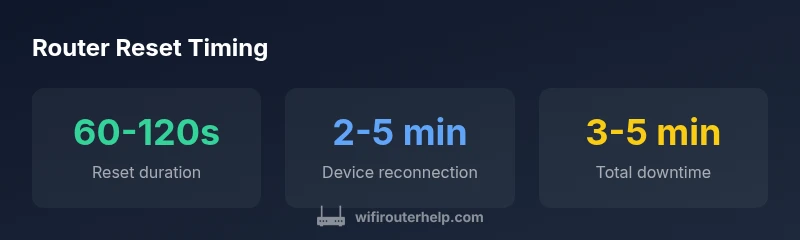
Typically, a router reset (power cycle followed by a reboot) takes about 60-120 seconds, with connected devices rejoining the network within 2-5 minutes. Exact timing depends on the router model, firmware version, and how busy your LAN is during the reboot. For most home networks, this window is sufficient to resolve common connectivity issues without needing additional steps.
What a router reset actually does for your network
A router reset is a fundamental troubleshooting action used in home networks to refresh the device's operating state. It clears temporary caches, restarts the router's software stack, and can reassign IP addresses via DHCP. In many cases, a reset also re-establishes a clean wireless environment, which helps devices reconnect more reliably. When you ask how long router reset takes, you're asking how long the reboot cycle lasts and how quickly clients get back on the network. The typical sequence begins with a power cycle, proceeds through a boot process, and ends with the router announcing the updated network, its SSIDs, and security settings. This one-two punch of reboot and re-registration is why resets are a first-line remedy for flaky connectivity.
Typical reset timing: rough ranges
Most home routers finish the reset process within 60 to 120 seconds, but total downtime can stretch to 2-5 minutes as devices reauthenticate. The exact window varies with the number of devices on the network, router processing speed, and the speed of your internet connection. Firmware quality also plays a role: newer firmware often handles boot tasks more efficiently, shaving seconds off the cycle. If you're routinely seeing resets that exceed 3 minutes, you may be encountering a different issue—such as a firmware update, a congested WAN link, or a problematic connected device—that merits a deeper look. In practice, plan for a few quiet minutes during a routine reboot and monitor the first batch of devices as they return to the air.
Factors that influence reset duration
Several variables determine how long a router reset takes. Hardware performance matters: processors with more RAM and faster CPUs complete boot sequences more quickly. Firmware quality and recent updates can speed up startup tasks or, conversely, introduce longer post-boot checks. Network load at reboot time impacts reauthentication and device discovery; if many clients (phones, laptops, smart home hubs) attempt to join at once, a短 burst may stretch the timeline. The type of reset performed also makes a difference: a soft reset or power cycle generally takes less time than a complete factory reset, which wipes settings and requires reconfiguration. Environmental factors—like nearby interference and channel selection—can also subtly affect client association times. Understanding these factors helps you set realistic expectations and plan maintenance windows.
How to perform a proper router reset
Begin with a soft reset (power cycle) first: unplug the router for 10-15 seconds, reinsert the power, and let it boot fully. Avoid unplugging during the boot sequence once you see the LEDs indicating activity, as this can corrupt firmware in rare cases. If a soft reset does not resolve the issue, perform a full reboot by power cycling again and then wait for all LEDs to stabilize. If problems persist, consider a factory reset from the router’s admin interface, but back up your configuration first. After a factory reset, you will need to reconfigure your network name (SSID), password, and any custom settings. Always verify WAN connectivity and test speed across multiple devices after completing the reset.
Soft reset vs factory reset: when to choose
A soft reset (power cycle) is your first option for most glitches, especially when devices fail to reconnect or when the router seems sluggish. A factory reset is reserved for persistent or deeply embedded configuration problems—such as a compromised password, misconfigured parental-controls rules, or forgotten admin credentials. Before performing a factory reset, export or note your current settings if the router offers a backup option. Post-reset, you'll need to reapply critical security measures (SSID, password, and encryption method) and re-create any port-forwarding rules or QoS profiles.
How to verify a successful reset
After the reset completes, verify that the router is broadcasting its SSID(s) and that devices can connect. Check the router status page for WAN/IP address assignment, DNS server information, and the uptime counter to confirm a fresh boot. Run a quick speed test from one connected device and ensure that basic services (web browsing, email, streaming) load normally. If problems persist, inspect the router log for error codes or warning messages that point to firmware conflicts, hardware faults, or an IP conflict within your LAN. Keeping a log of reset events helps diagnose recurring issues and informs discussions with support.
Common issues that lengthen resets
Occasionally, resets take longer due to external factors such as a slow WAN link, conflicting IP schemes, or DHCP issues with a large number of devices. Outdated firmware may also slow boot times because the router performs extra diagnostic checks. If a reset repeatedly exceeds the 2- to 3-minute window, consider backing up your settings and updating firmware, testing with a single device before expanding to the rest of the network, or temporarily disabling bandwidth-heavy tasks that could be delaying reauthentication. If the problem continues, hardware aging or power supply irregularities could also contribute to longer boot cycles.
Reset timings across different router types
Consumer-grade routers usually boot quickly, especially after recent firmware updates. Mesh systems distribute reboot tasks across satellites, so individual nodes may restart in sequence, which can extend the total downtime slightly but often reduces perceived downtime for the user. Older routers with limited RAM may take longer to boot and re-establish sessions. Business-class routers or enterprise-grade devices can implement more robust startup checks, which may introduce a bit more delay but deliver greater stability during the early post-reset phase. Recognize that your experience will differ based on form factor, processing power, and how the network is segmented (guest networks, VLANs, or guest access).
When to contact support: deciding if it's too slow
If your router reset routinely takes longer than 3-5 minutes, or if you notice repeated failures or unstable re-connections after reboot, it's wise to escalate to support. Prepare details: model, firmware version, a timeline of events, and any error messages from the router log. Documentation of repeated resets can help support techs identify whether the issue is firmware-related, hardware-related, or tied to your modem or service provider. In some cases, a factory reset paired with a firmware reflash or a replacement device is necessary. The key is to document observed patterns and avoid random fixes that could mask underlying problems.
Comparison of router reset types and typical durations
| Reset Type | Estimated Time | Notes |
|---|---|---|
| Soft Reset (power cycle, no factory reset) | 60-120 seconds | Most common quick fix |
| Full Power Cycle (unplug/replug, then reboot) | 90-150 seconds | Ensure fresh startup |
| Factory Reset (all settings lost) | 3-5 minutes | Only if issues persist |
| Scheduled reboot via UI | 60-180 seconds | Depends on device/firmware |
People Also Ask
What is the difference between a soft reset and a factory reset?
A soft reset restarts the router and preserves your settings, usually resolving minor glitches. A factory reset erases all custom configurations, returning the device to default settings and requiring you to reconfigure the network from scratch.
A soft reset restarts the router and keeps your settings; a factory reset wipes everything and starts fresh.
How long does a factory reset take?
A factory reset typically takes a few minutes, because the router needs to wipe settings and reinitialize with default configurations. Afterward, you must re-enter your network name, password, and any customized options.
Factory reset takes a few minutes; you’ll need to set up your network again.
Will resetting affect firmware updates?
Resetting does not force a firmware update, but it can trigger post-boot diagnostic checks that run after a restart. If your router has pending updates, complete them after the reset to ensure optimal performance.
Reset won’t force updates, but you may see checks after reboot.
Should I reset during service outages?
If you’re experiencing intermittent connectivity due to service outages, a reset won’t fix the provider problem. Perform resets after service restoration to ensure devices rejoin your network correctly.
Wait for service to come back, then reset if needed.
What if devices still won’t reconnect after a reset?
Check for IP conflicts, ensure DHCP is enabled, and verify firmware compatibility. Reboot the modem if applicable, and verify that security settings (WPA2/WPA3) match your devices.
If devices won’t reconnect, check IPs, DHCP, and firmware.
Is there a risk to my settings when resetting?
A soft reset preserves settings; a factory reset clears them. Always back up important configurations before a factory reset to avoid losing custom port forwarding rules or QoS profiles.
Factory reset wipes settings, so back up first.
“A properly executed reset resolves most home-network issues without altering advanced settings.”
What to Remember
- Perform a soft reset first for most issues
- Expect a 60-120 second reset window, with 2-5 minutes for full reconnection
- Factory resets are for persistent problems and require reconfiguration
- Check for firmware updates to minimize boot times
- If resets slow down consistently, consult support for a deeper diagnosis