Reset Router: A Practical Step-by-Step Guide
Learn how to reset your router safely, choosing soft vs hard resets, and reconfiguring afterward. This step-by-step guide from WiFi Router Help covers timing, precautions, and best practices to improve home network reliability.


Learn how to reset your router safely to fix connectivity issues, reclaim performance, and reconfigure your network. This guide covers soft resets, hard resets, and best practices. You'll know when to reboot, how to access the admin page, and what settings to reapply after a reset, so you can regain reliable WiFi quickly.
What a reset router does and when to do it
Resetting a router is a quick way to refresh the devices that power your home network. A reset router action can clear temporary cache, restart services, and restore stable connectivity. It is often the simplest first step when you notice slow speeds, dropped connections, devices failing to obtain an IP address, or issues after a firmware update. According to WiFi Router Help, many home-network problems stem from temporary config hiccups or stuck processes, and a reset can resolve them without complex troubleshooting. Before you proceed, define your goal: a soft reset to refresh system state while preserving your settings, or a hard reset to restore factory defaults if problems persist and you cannot access the admin page. Be mindful that a reset is not a substitute for a misconfigured network—if issues continue, you may need to investigate firmware, ISP settings, or hardware age. This section lays the groundwork to help you decide which reset path to take and what to expect from each option.
Soft reset vs hard reset: differences and use cases
A reset can be performed in two primary ways: a soft reset and a hard reset. A soft reset reboots the router, clears temporary caches, and often preserves your existing configuration and passwords. It’s ideal for minor glitches or after adding new devices that aren’t connecting reliably. A hard reset restores the router to factory defaults, wiping custom settings like the admin password, SSID, and port-forwarding rules. This is typically used when you’re locked out, when a failed update has corrupted settings, or when you need to start from scratch after a security concern. Because a hard reset eliminates your personalized setup, proceed only if soft resets fail or if you’ve documented your configuration and are prepared to re-create it.
Soft reset: step-by-step guide to a safe reboot
Performing a soft reset is usually the simplest route. First, log into the router’s admin interface via a browser (common addresses are 192.168.0.1 or 192.168.1.1). Navigate to the status or reboot option, and select Restart or Reboot. If you prefer, power cycle the router by unplugging it for 15–30 seconds, then plug it back in. Allow 2–5 minutes for the router to come back online and re-establish connections. During this time, avoid making other configuration changes to reduce the chance of conflicts. Pro tip: write down any current settings you plan to reapply if you’re unsure they’ll be retained after reboot. This approach keeps your existing network identity intact while refreshing the device’s health.
Hard reset: when and how to factory defaults
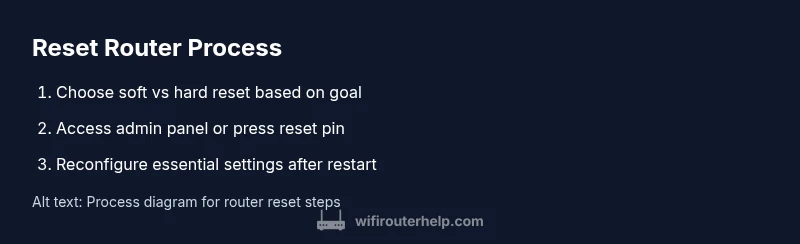
A hard reset is your last resort and should be used when you can’t access the admin panel or when a persistent issue demands a clean slate. Find the reset button, often a tiny recessed pinhole on the back or bottom of the unit. With a paperclip or pin, press and hold for 10–15 seconds until the lights flash and the router resets. Release and allow the router to reboot into its factory defaults. You’ll need to re-create your network name (SSID) and password, admin credentials, and any port-forwarding or QoS rules. After a hard reset, connect to the router’s default wireless network and proceed with a fresh setup. Diagram references available in the infographic section can help visualize the process.
After the reset: reconfiguring your network from scratch
Once the router boots to its default state, open the admin page again and begin the reconfiguration. Start with changing the admin password to a strong, unique credential and update the SSID and wireless password. Enable WPA3 if supported, or WPA2 as a minimum for current devices. Reapply essential features like guest networks, parental controls, and firewall settings if you rely on them. If your ISP requires specific settings (e.g., PPPoE credentials, VLAN tagging), re-enter those details exactly as provided. Save changes after each modification and test connectivity with a nearby device. Keep firmware updated to protect against known vulnerabilities and improve stability.
Common mistakes and how to avoid them
Resetting a router without a plan can lead to frustrating downtime or a worse setup. Avoid factory-default resets during peak usage times if possible. Ensure you have login credentials to reconfigure the router and any ISP-specific details before starting. Do not unplug the modem during a reset unless instructed, as this can interrupt the boot process. If you rely on NAT, ensure that the correct network mode and security settings are selected to prevent open networks or insecure access. Finally, back up your current configuration when the option exists, so you can restore your preferred setup quickly after a reset.
Post-reset testing: verifying speed, range, and stability
After reconfiguring, verify that devices can connect and obtain IP addresses. Run a series of quick checks: test speed using a nearby device, verify Wi‑Fi coverage in typical rooms, and ensure essential services (video conferencing, gaming, streaming) perform as expected. If speeds lag, consider relocating the router, updating firmware, or enabling beamforming and QoS to prioritize traffic. Re-test after adjustments to confirm improvements and note any persistent issues that may indicate hardware limitations or interference from nearby networks.
Advanced scenarios: firmware glitches and ISP-specific settings
In some environments, firmware glitches or ISP-provided configurations require a specialized approach. If your router’s firmware seems unstable after a reset, use the router’s update feature to install the latest version from the manufacturer. For fiber or DOCSIS services, you might need to pair the router with a modem and apply ISP-specific settings. In cases where you’re bridging or using a mesh system, refer to the respective documentation to avoid conflicts and double NAT issues. Maintain a clear record of any changes so you can revert if needed.
Best practices for ongoing router health and maintenance
To minimize future resets, implement a regular maintenance routine: schedule firmware updates, create and store a backup configuration, and periodically review security settings. Use robust, unique passwords for both the admin account and the Wi‑Fi network, and enable automatic updates where available. Keep a log of changes and performance metrics to diagnose issues quickly. With proactive care, you’ll maintain a stable network and reduce the frequency of resets while maximizing WiFi performance across devices.
Tools & Materials
- Paperclip or pin (for recessed reset button)(Use to press the reset pinhole if the button is not easily reachable by finger)
- Access to a computer, tablet, or smartphone(Needed to reach the router’s admin interface and apply changes)
- Router power adapter(Keep connected during soft reset; unplug only for a hard reset sequence)
- Current network credentials and admin login(Essential to reconfigure the router after a reset)
- Notes or backup of prior settings(Helpful if you want to restore a previous configuration after reset)
Steps
Estimated time: 30-45 minutes
- 1
Identify reset type
Determine whether a soft reset or a hard reset is appropriate for your goal. A soft reset reboots the router and preserves most settings, while a hard reset restores defaults and clears custom configurations.
Tip: If in doubt, start with a soft reset to avoid losing your configuration. - 2
Prepare access to the admin interface
Connect a device to the router’s network (preferably via Wi‑Fi or Ethernet) and open the router's admin page using the default IP (commonly 192.168.0.1 or 192.168.1.1).
Tip: Have your admin credentials handy before making changes. - 3
Perform a soft reset via admin interface
Log in, locate the reboot or restart option, and confirm. Allow 2–5 minutes for the router to fully reboot and re-establish connections.
Tip: If the admin page is unresponsive, a power cycle will achieve a soft reset. - 4
If needed, perform a hard reset
If you’re locked out or the issue persists, locate the recessed reset pinhole, press and hold for 10–15 seconds until lights flash, then release and wait for reboot.
Tip: Note that this will erase custom settings; be prepared to reconfigure afterward. - 5
Reconnect and access the default setup
Connect to the router using the default wireless network or via Ethernet and begin the initial setup. Create strong admin and Wi‑Fi credentials.
Tip: Record new credentials securely for future resets. - 6
Reconfigure essential settings
Set your SSID, Wi‑Fi password, and security (prefer WPA3 if available). Reapply parental controls, guest networks, and firewall settings as needed.
Tip: Enable automatic firmware updates if supported. - 7
Apply ISP-specific details
If your service requires PPPoE, VLAN, or other ISP settings, enter them exactly as provided by your ISP.
Tip: Double-check for typos and save after each change. - 8
Test network functionality
Verify device connections, run a quick speed test, and check coverage in typical rooms. Troubleshoot any dead zones with repositioning or boosting options.
Tip: Document results to track improvements over time. - 9
Document changes and plan maintenance
Create a simple log of what you changed and schedule periodic resets or updates to keep performance stable.
Tip: Keep firmware and security settings up to date.
People Also Ask
What is the difference between a soft reset and a hard reset?
A soft reset reboots the router and preserves most settings, while a hard reset restores factory defaults and wipes custom configurations. Use a soft reset first to troubleshoot minor issues; reserve a hard reset for when you’re locked out or persistent faults require a clean slate.
A soft reset reboots your router and keeps your settings. A hard reset returns the device to factory defaults and erases your custom setup.
Will resetting my router restore internet service if it’s down?
Resetting can resolve many local connectivity glitches, but if your internet outage is from the service provider, a reset won’t restore service. If issues persist after a reset, contact your ISP to verify line status and account settings.
A reset fixes many home-network issues, but if the outage is from your provider, you may need to contact them for service.
Do I need to reset my modem when resetting my router?
Typically you don’t need to reset the modem. If your modem shows persistent connectivity issues, you can perform a separate reboot of the modem, but avoid power-cycling both devices simultaneously if you don’t know the cause.
Usually not, but reboot the modem if it seems to be the bottleneck.
How long should a router reset take?
A soft reset typically completes within a few minutes as the router restarts and reconnects. A hard reset requires additional setup time, potentially 10–20 minutes to re-enter settings and verify connections.
Soft resets finish in a few minutes; hard resets take longer because you have to reconfigure everything.
What should I do if I still can’t access the router after a reset?
If you can’t access the admin page, try a hard reset to restore defaults, then reconnect using the default credentials. If the problem persists, verify your hardware, try a different browser, or contact support.
If you can’t reach the admin page, consider a hard reset and reconfiguring from scratch, then reach out for help if needed.
How often should I reset my router to maintain performance?
There’s no fixed schedule; reset as needed to fix issues or refresh settings. Regular maintenance, including firmware updates and backups, reduces the need for frequent resets.
Reset when you notice issues, and keep firmware updated to avoid problems.
Watch Video
What to Remember
- Choose soft reset first to preserve settings.
- Hard reset should be a last resort when locked out.
- Reconfigure essential settings immediately after reset.
- Test connectivity and coverage to confirm improvements.
- Back up configurations and keep firmware up to date.