Reset on Router: A Step-by-Step Guide to Soft and Hard Resets
Learn how to safely reset your router, when to use soft vs hard resets, and how to reconfigure your network after a reset. Practical steps, safety tips, and troubleshooting for a stable home WiFi.


Resetting a router clears settings and restores factory defaults, which can fix stubborn connectivity issues. Use a soft reset (reboot or web interface) first, then perform a hard reset only if problems persist. Gather a pin, admin access, and backup any important configurations before starting.
What resetting a router does
According to WiFi Router Help, a reset on router is a powerful recovery action that restores the device to its factory state. This process clears custom settings like your Wi‑Fi name (SSID), password, firewall rules, and port forwards. A reset can resolve stubborn conflicts, corrupted configurations, or firmware quirks that can’t be fixed with a simple reboot. It does not remove firmware upgrades that were installed post‑purchase, but it does reset the admin credentials to their defaults in most cases. After a reset, you’ll need to reconfigure essential network details, reconnect devices, and re-establish security settings. Treat a reset as a last resort for ongoing issues that software tweaks alone cannot cure, and always back up any config you value if your router supports it.
Understanding when to reset is just as important as knowing how. If your network is intermittently dropping clients, the router’s memory might be in a bad state, or there may be a stubborn IP conflict. If you recently changed settings and problems started afterward, a reset could help eliminate stray configurations. In most home networks, a simple reboot fixes many issues without touching your custom configuration, so reserve a reset for clearer, more persistent problems.
Soft reset vs hard reset vs reboot
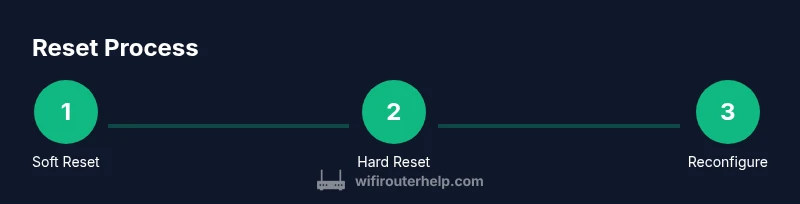
A soft reset, sometimes called a reboot or restart, restarts the router without erasing user configurations. This is the gentlest form of reset and is the first step in most troubleshooting workflows. A hard reset, sometimes labeled factory reset, restores all settings to their defaults and clears saved passwords, SSID names, and custom firewall rules. A reboot is simply cycling the power or sending a restart command, and it should not remove your configuration if done as a reboot rather than a reset. When dealing with persistent issues, start with a soft reset, verify results, and only escalate to a hard reset if the problem remains after a proper reboot. A hardware restart can fix firmware stuck states that a software restart cannot.
When you hear terms like “factory reset” or “restore defaults,” remember that the goal is to return the device to a known good state. After a reset, you often need to re‑enter your ISP settings, set up your Wi‑Fi network again, and reapply security features. If you rely on parental controls, QoS rules, or custom port forwards, have those backups ready or be prepared to recreate them.
Locating the reset button and safe handling
Find the reset point on your router. Most devices have a recessed reset button located on the back or bottom. You’ll need a paperclip or a small pin to press it. If your router has a detachable cover, never use a sharp object that could damage internal components. Before applying a reset, power the device on and wait until the status LEDs indicate normal operation. Handling should be gentle; excessive force can damage the reset switch or board. If your router sits on a shelf or in a closet, ensure airflow around the unit during and after the reset to prevent overheating.
Having the manual handy helps. If you can read the model number from the device label, you can quickly confirm the correct button location and any model‑specific instructions. If you don’t have physical access to the router, see whether the device supports a remote reset in the administration interface, which is safer than pressing a physical button.
Resetting via the web interface (soft reset)
A soft reset performed through the router’s web interface is often enough to clear glitches without losing your basic configuration. Log in using your admin credentials, navigate to the status or reboot option, and initiate a reboot. Some routers offer a one‑click “Reboot” or “Restart” button under the System or Administration tab. Expect the reboot to take one to three minutes while the firmware reinitializes settings and reestablishes wireless continuity. After the reboot, reconnect to the network and verify that your devices can access the internet.
If you cannot access the admin page due to a password issue or corrupted login data, you may still perform a soft reset by cycling the power or using the hardware reset method described in the next section. Revisit your password policy and change defaults after a successful reboot to maintain security.
Resetting with hardware button (hard reset)
When a soft reset does not resolve the issue, a hard reset can be necessary. Use a paperclip to press and hold the recessed reset button for 10–15 seconds, or until the LEDs flash in a recognizable pattern. Release and wait for the router to reboot completely, which may take 2–5 minutes. After the factory reset, you’ll be back to the default network name and credentials printed on the device label. Reconfigure the basics immediately to secure the router and reconnect your devices.
Important: a hard reset erases saved custom settings, including Wi‑Fi names, passwords, port forwards, and the admin password. You will need to re‑establish your network from scratch and reapply any security or parental control configurations. If your router supports cloud or account‑based restoration, you can reimport presets once you’ve reconfigured basic access.
After reset: reconfigure essentials
Begin with the basics: rename your Wi‑Fi network, set a strong admin password, and choose a modern encryption standard (WPA3, or at least WPA2). Update the firmware if an update is available to ensure you have the latest security improvements. Recreate essential network details like your SSID, password, guest network (if desired), and any port forwarding rules you rely on. Reapply QoS rules or device prioritization as needed to maintain performance for gaming or streaming. Finally, test all devices’ connectivity and run a few speed tests to confirm the network is performing as expected.
Troubleshooting common reset issues
If the reset doesn’t fix the problem, check for common culprits: ISP outages, faulty cables, or poor Wi‑Fi channel selection. Confirm the router’s firmware version is compatible with your modem and that you haven’t introduced IP address conflicts. If you can’t access the admin interface after a reset, try a different browser or clear cookies and cached data. Consider performing a second reset if the device remains unresponsive, and consult the manufacturer’s support page for model‑specific recovery tools.
Additionally, verify that your devices are set to obtain IP addresses automatically via DHCP, and ensure bridge mode isn’t conflicting with your home network. If problems persist after a hard reset, you may need to contact support to check for hardware failure or to obtain a replacement unit.
Security considerations after reset
A reset is a good time to reset security practices. Disable WPS if your router supports it, enable WPA3 on compatible devices, and create a unique, strong admin password. Limit the administrative interface exposure to your local network, and consider enabling a guest network to separate IoT devices. Regularly review connected devices and remove unknown clients. Keeping firmware up to date reduces vulnerabilities that could be exploited after a reset.
When to avoid resetting and alternative fixes
Not every problem requires a reset. For some issues, a simple reboot, DNS flush, or clearing the browser cache may fix the symptom without wiping your settings. If you recently changed a single configuration (such as a port forward or DNS setting) and the issue began, revert the change rather than performing a reset. For intermittent connectivity problems, investigate interference, channel congestion, or a damaged Ethernet cable. If your hardware has dual bands, consider testing with one band at a time to identify a specific issue during resets.
Tools & Materials
- Small pin or paperclip(For recessed reset button; keep clean to avoid damage)
- Admin access to router's web interface(Username and password; backup settings if available)
- Owner manual or model label(Contains model specifics and default credentials)
- Ethernet cable (optional but recommended)(Stability during setup if Wi‑Fi is unstable)
- Firmware update file (optional)(Use only from official vendor if available)
Steps
Estimated time: 20-40 minutes
- 1
Prepare and back up (if supported)
Before you begin, locate the router and confirm you have admin access. If your router supports configuration export, back up the current settings so you can restore them later. This step saves time and preserves essential rules and port forwards.
Tip: Backing up saves your educational customizations and avoids recreating tedious configurations. - 2
Soft reset via web interface
Log in to the router admin page, locate the reboot or restart option, and initiate a soft reset. This restarts the device without erasing your saved settings and is the first troubleshooting step for many issues.
Tip: If you can access the interface, a reboot often resolves temporary software glitches. - 3
Prepping for a hard reset
If issues persist after a soft reset, prepare for a hard reset by locating the reset button and ensuring you have a paperclip handy. Remember that this will erase all settings and restore defaults.
Tip: Have your backup available if your router supports restoration after the reset. - 4
Perform the hard reset
Press and hold the recessed reset button for 10–15 seconds until the LEDs indicate a reset. Release and allow the router to reboot fully (2–5 minutes).
Tip: Use equal, steady pressure; avoid bending or pushing the button aggressively. - 5
Reconfigure essentials after reset
Once the router boots, set a new admin password, re‑enable encryption (preferably WPA3), and recreate your Wi‑Fi network name and password. Reapply essential settings like DHCP, guest networks, and any port forwards you need.
Tip: Start with secure defaults; avoid reusing easy-to-guess passwords. - 6
Verify performance and security
Connect devices, run a quick speed test, and ensure all functions (guest networks, QoS, firewall) are behaving correctly. Update firmware if prompted.
Tip: Check for firmware updates to close vulnerabilities and improve stability.
People Also Ask
What is the difference between rebooting and resetting a router?
Rebooting restarts the router without losing saved settings, while a reset returns the router to factory defaults and erases custom configurations. Start with a reboot; use a factory reset only if problems persist after reboot.
A reboot restarts the router without changing any settings, but a factory reset restores defaults and wipes custom configurations.
Will resetting delete firmware updates?
A factory reset removes user‑configured settings but typically does not revert firmware upgrades installed after purchase. You may need to reconfigure after reset and then update firmware again if prompted.
A factory reset clears the settings and restores defaults, but your firmware usually stays updated if you already updated it before.
Can I reset my router remotely?
Some routers offer a remote reboot option via the admin interface. If you cannot access the UI, you’ll need to perform a hardware reset on the device itself.
If your router allows, you can reboot from the admin page; otherwise you must press the reset button directly on the device.
What should I do if I can’t access the admin page after a reset?
Ensure you’re connected to the router via Ethernet or Wi‑Fi, use the default credentials from the label, and consider a hardware reset if the defaults don’t work. Then reconfigure with the new credentials.
If you can’t log in after reset, try the default username and password printed on the router, or perform a hardware reset to restore defaults.
How long does a reset take to complete?
A soft reset (reboot) usually completes in 1–3 minutes. A hard reset may take 2–5 minutes for full reinitialization and for you to reconfigure settings.
Reboots are quick, usually a few minutes, while a factory reset can take several minutes for the device to come back online.
Should I reset after moving to a new ISP or changing equipment?
If you replace the modem or ISP gear, a reset helps clear legacy settings. Always verify your new network settings and update the connection type (DHCP/PPPoE) as required.
A reset can be helpful when changing ISPs to start fresh, but you’ll still need to configure the new connection details.
Watch Video
What to Remember
- Reset only when needed to fix persistent issues
- Start with soft reset; reserve hard reset for unresolved problems
- Back up settings before resetting to avoid data loss
- Reconfigure essentials immediately after reset to restore security
- Update firmware to improve stability and protection
- Verify connectivity with devices and run quick speed tests