How to Fix Router DNS Issues: Quick, Step-by-Step Guide
Urgent, step-by-step guide to diagnose and resolve router DNS issues. Learn practical fixes, recommended DNS settings, and how to keep your home network stable.


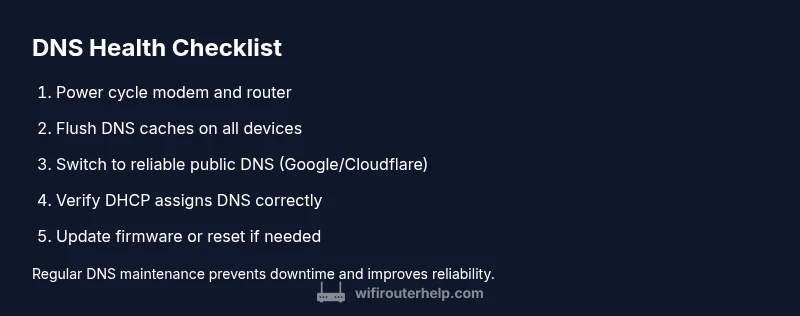
Start by power-cycling your router, then flush local DNS on affected devices. If the issue persists, switch to public DNS servers (Google 8.8.8.8/8.8.4.4 or Cloudflare 1.1.1.1) and verify DHCP is enabled. Reboot clients and test again. If needed, update firmware or perform a factory reset as a last resort.
Common DNS Problems with Home Routers
DNS issues are among the most frustrating network problems because they affect every device that relies on name resolution. When your router can’t translate domain names into IP addresses, websites won’t load even though you appear to have internet access. Symptoms vary from intermittent page loading and timeouts to completely unreachable domains, while some devices work fine and others don’t. In many cases, the problem isn’t the speed of your connection but how DNS is configured on the router or the devices. According to WiFi Router Help, DNS problems often stem from misconfigured settings, stale cache, or firmware glitches. Starting here helps you quickly identify whether the culprit is local (your network) or external (your ISP).
Quick Checks You Should Do First
Before diving into advanced fixes, run through a few quick checks that resolve most DNS hiccups. Confirm all cables are snug and the modem and router show stable connectivity indicators. Try accessing multiple domains and see if the problem is isolated to specific sites or all domains. Check that your devices are obtaining an IP address via DHCP and that the router’s DHCP range isn’t exhausted. If you have a dedicated DNS server on the network, ensure its services are running and reachable. WiFi Router Help analysis shows that these initial checks catch the majority of DNS-relevant misconfigurations without touching firmware or hardware. If you notice the problem only on wired devices, rule out wireless connectivity by testing a wired connection directly to the router.
How DNS Works in Your Home Network
Understanding DNS helps you troubleshoot more effectively. Your router acts as a local resolver for devices on your home network, translating human-friendly names into numeric IP addresses that devices can connect to. When the router’s DNS credentials or upstream DNS servers fail, devices either wait for a response or time out. In most homes, the router forwards requests to the ISP’s DNS servers or a configured public DNS service. If those upstream servers are slow or unreachable, everything behind the router experiences delays or failures. Grasping this flow helps you decide whether to adjust router-side DNS settings or change the upstream provider to restore fast, reliable resolution.
Step-by-Step DNS Fixes You Can Try Right Now
This section walks you through a practical, fault-first approach to resolve router DNS issues. Start with the simplest action and move toward more involved fixes if needed. Each step includes a quick check and a clear outcome so you know when to proceed.
- Step 1: Reboot and observe. Power cycle both modem and router, wait a full minute, and observe status lights. A clean restart clears temporary DNS cache and resets routing tables. Result: improved resolution on most devices.
- Step 2: Flush DNS caches on devices. On Windows, run ipconfig /flushdns; macOS uses sudo dscacheutil -flushcache; iOS/Android refresh automatically after reconnect. Result: stale local caches no longer mislead queries.
- Step 3: Test with public DNS servers. Change DNS in the router to 8.8.8.8/8.8.4.4 or 1.1.1.1/1.0.0.1 for Cloudflare. Reboot clients and verify domain resolution improves. Result: faster, more reliable name resolution.
- Step 4: Check DHCP and IP configuration. Confirm the router is assigning IPv4 addresses via DHCP and that clients use the router as their DNS server. If DHCP is misconfigured, devices may use incorrect DNS. Result: consistent name resolution across devices.
- Step 5: Update firmware or reset as a last resort. If issues persist after changes, update the router’s firmware from the official admin page. If nothing helps, back up settings and perform a factory reset, then reconfigure. Result: resolves stubborn bugs and firmware glitches.
- Step 6: Consider a secondary DNS and fault tolerance. For added resilience, configure a second DNS provider as a fallback and monitor for DNS outages from the ISP. Result: fewer DNS outages and smoother browsing.
When to Reset or Update Firmware
Firmware updates address bugs, security vulnerabilities, and compatibility issues that can affect DNS behavior. If you’ve tried all the above fixes without lasting improvement, check the router vendor’s site for firmware releases and backup your configuration before updating. In some cases, a full reset restores the default settings and eliminates stubborn misconfigurations that block DNS. Always document your custom settings (port forwarding, QoS rules, parental controls) so you can restore them after a reset. The WiFi Router Help team emphasizes caution: firmware updates should be performed on a stable connection to avoid brick risks, and a reset should be a planned step rather than a panic move.
How to Change DNS on Your Router's Admin Page
Changing DNS on the router affects all devices on the network. Access your router’s admin interface using its gateway IP (commonly 192.168.0.1 or 192.168.1.1) and log in with your admin credentials. Locate the Internet or WAN settings, then find the DNS configuration. Enter preferred DNS servers (for example, 8.8.8.8 and 8.8.4.4 or 1.1.1.1 and 1.0.0.1) and save. Reboot the router and your devices to ensure the new settings take effect. If IPv6 is enabled and causing conflicts, consider disabling IPv6 temporarily to test whether DNS traffic improves. WiFi Router Help notes that when using public DNS, some devices might retain old resolver settings; a device-by-device reboot can help finalize changes.
Common Pitfalls and Safety Tips
DNS troubleshooting can be perilous if you rush to a factory reset or firmware flash without backups. Always back up your current configuration before making changes, especially if you rely on port forwards, static routes, or access controls. Avoid configuring experimental DNS services on critical routers, and never disable essential security features without understanding the implications. When in doubt, consult your router’s documentation or reach out to the WiFi Router Help community for best-practice configurations. Always ensure you have working internet during changes to avoid lockout from the admin page.
Prevention: Keeping DNS Healthy Across Your Network
Preventing DNS issues is easier than fixing them after the fact. Keep firmware up to date, monitor DNS performance, and create a documented change log. Use a reliable upstream DNS provider and a secondary fallback to prevent single points of failure. Consider enabling DNS monitoring or basic health checks on the router so you’re alerted at the first sign of trouble. Regularly audit DHCP settings to ensure devices consistently receive valid DNS servers. By building a small, repeatable DNS maintenance routine, you reduce downtime and maintain a robust home network.
Steps
Estimated time: 45-60 minutes
- 1
Identify symptoms and isolate devices
Document which devices are affected and whether wired devices share the problem. Note whether some domains load while others fail. This helps distinguish router DNS issues from device-specific problems.
Tip: Keep a log of when issues occur to spot patterns. - 2
Power-cycle network hardware
Power off the modem and router, wait 60 seconds, then turn them back on in sequence. Allow a minute for the devices to boot and stabilize.
Tip: Avoid rebooting repeatedly in short intervals. - 3
Flush DNS caches on devices
On Windows, run ipconfig /flushdns; on macOS use sudo dscacheutil -flushcache, or simply reconnect Wi-Fi to reset caches.
Tip: Restart devices after flushing to ensure changes take effect. - 4
Test with public DNS servers
Configure the router’s DNS to public providers such as Google (8.8.8.8/8.8.4.4) or Cloudflare (1.1.1.1/1.0.0.1). Reboot clients and verify resolution.
Tip: Document which DNS you used for future reference. - 5
Check DHCP and DNS handoff
Ensure the router is providing DNS server addresses via DHCP and that clients are using the router as the DNS resolver.
Tip: If devices retain old DNS settings, reconnect or renew DHCP leases. - 6
Update firmware or reset as needed
If issues persist, update the firmware from the admin page. As a last resort, backup settings and perform a factory reset, then reconfigure from scratch.
Tip: Back up port forwards, QoS rules, and schedules before resetting.
Diagnosis: DNS resolution failures across multiple devices after a firmware update
Possible Causes
- highOutdated or corrupted DNS cache on the router
- highMisconfigured DNS settings following the update
- mediumISP DNS issues or upstream DNS outage
Fixes
- easyPower-cycle router and modem to clear caches and reset routing tables
- easyFlush DNS cache on affected devices and set public DNS (Google or Cloudflare) on the router
- easyVerify DHCP is active and DNS settings are correctly handed to clients
- mediumUpdate router firmware to the latest version and re-test
- mediumIf needed, perform a factory reset after backing up configuration
People Also Ask
What causes DNS issues on a home router?
DNS problems are usually caused by misconfigurations, stale caches, firmware bugs, or conflicts with the ISP’s DNS. Identifying whether the issue is local or upstream helps target the fix quickly.
DNS issues are typically due to misconfigurations, cached data, or firmware bugs. Upstream ISP DNS problems can also cause failures.
Should I change DNS on the router or on individual devices?
Changing DNS on the router ensures all devices share the same resolver, which simplifies management and reduces inconsistent behavior. You can also set DNS per device if you need device-specific controls.
In most cases, set DNS on the router so every device uses the same resolver.
What if rebooting doesn’t fix DNS issues?
If rebooting doesn’t help, try updating the router’s firmware, clearing caches, and testing with public DNS servers. If problems persist, a factory reset may be necessary, but back up settings first.
If a reboot doesn’t fix it, update firmware and test with public DNS. If it still fails, consider a factory reset.
Are public DNS services safe to use?
Public DNS providers like Google and Cloudflare are generally safe and fast, with a focus on privacy and reliability. Use reputable services and stay informed about policy changes.
Public DNS services from reputable providers are usually safe and fast.
How long does it take for DNS changes to take effect?
DNS changes in your network take effect immediately for devices using your router as the resolver. Global propagation is a broader concept that affects external resolvers, typically not a concern for home users.
DNS changes act quickly on your network, though external changes may take longer in public resolvers.
Do I need to contact my ISP for DNS problems?
Sometimes DNS outages are on the ISP side. If you’ve exhausted home-network fixes and suspect an outage, check with your ISP or service status pages before blaming your router.
If you suspect an ISP outage after trying fixes, check status pages or contact support.
Watch Video
What to Remember
- Power-cycle first to clear DNS hiccups
- Use public DNS as a quick stabilization measure
- Back up settings before firmware updates or resets
- Apply router-wide DNS changes for all devices