Can a Router Cause DNS Issues? Troubleshooting Guide
Urgent, practical guide to diagnose and fix DNS issues caused by your router. Step-by-step checks, common culprits, and prevention tips for reliable name resolution in 2026.


Many users ask: can router cause dns issues. The quick answer is yes in many cases, typically due to misconfigured DNS, stale cache, or firmware glitches. Reboot the router, verify DNS server settings, and update firmware. If problems persist, test with a different DNS provider to confirm root cause.
Can Router Cause DNS Issues? How It Happens
Can router cause dns issues? Yes, and understanding how it happens helps you fix it quickly. According to WiFi Router Help, a router sits between your devices and the internet, so any DNS misconfiguration or caching problem inside the router can distort name resolution across all devices. In 2026, many households rely on multiple devices—phones, tablets, smart speakers—sharing the same gateway, which makes DNS problems feel more widespread. Common culprits include incorrect DNS server addresses, built-in DNS hijacking by malware, or a firmware glitch that prevents the router from querying the correct DNS server. Even when a device appears to have internet access, you might still experience slow loading, timeouts, or inconsistent domain resolution. Recognizing the symptoms early lets you isolate the router as the point of failure rather than blaming individual devices or the ISP.
Common Symptoms Indicating Router DNS Problems
You may notice slow or failed lookups for many sites, or pages that load inconsistently. Some devices report 'DNS Server Not Found' while others load normally. A firmware update can briefly reset DNS behaviors, after which some domains resolve while others do not. If printers, smart home devices, or guest devices struggle to reach names while basic connectivity remains, that points to the router's DNS path rather than the ISP. The pattern matters: a device-wide DNS fault across several clients suggests a router-level issue rather than isolated app trouble.
Starter Checks You Can Do Right Now (The Basics)
Before you dive into deeper troubleshooting, perform quick checks to narrow the issue. Reboot the router and all connected devices. Verify that the router's DNS server fields match your chosen provider (e.g., Google DNS 8.8.8.8/8.8.4.4 or Cloudflare DNS 1.1.1.1/1.0.0.1). Disable IPv6 temporarily to see if the problem is IPv6-related, since some networks misroute DNS requests between IPv4 and IPv6. Temporarily disable firewall or parental controls to test if they’re blocking DNS, then re-enable with adjusted rules. If you’re comfortable, run a quick traceroute to a domain you know should resolve quickly and compare results across devices.
Diagnostic Flow: Symptom → Diagnosis → Solutions
By following a systematic flow, you can quickly pinpoint whether the router is at fault. Start with the symptom: multi-device DNS slowness or failures. Diagnosis: are DNS requests reaching the router and being forwarded to the right upstream servers? If yes, test different DNS servers; if no, revisit local settings. Solutions include adjusting DNS servers, updating firmware, clearing caches, or performing a factory reset if persistent. The goal is to confirm root cause before applying a fix that could disrupt your entire network. WiFi Router Help emphasizes documenting changes for accountability and future incidents.
Step-by-Step Fixes for the Most Common Causes
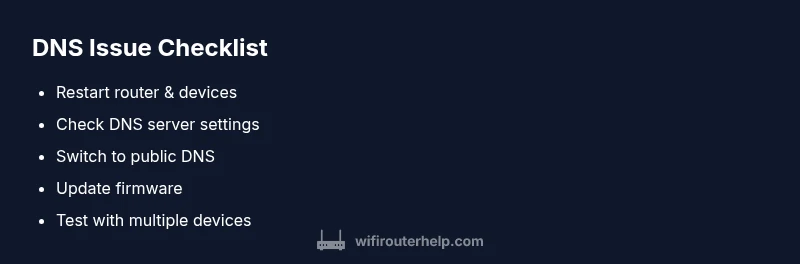
Step 1: Reboot everything. Power off the modem (if separate), unplug the router, wait 30 seconds, then power back on. Step 2: Check DNS settings on the router. If you rely on DHCP to provide DNS, ensure it remains enabled; if you use static DNS values, verify they’re correct and not typographical errors. Step 3: Switch DNS servers. Change to trusted providers (e.g., 8.8.8.8, 1.1.1.1) and test. Step 4: Flush caches. On Windows, run ipconfig /flushdns; on macOS, iOS, or Android, renew DHCP lease. Step 5: Update firmware. Check the router’s admin interface for firmware updates and install them. Step 6: Scan for malware. Ensure devices aren’t feeding DNS hijack settings through malware. Step 7: If issues persist, reset to factory defaults and reconfigure from scratch. Step 8: Verify with multiple devices and domains to ensure permanence. Tip: Always back up configuration before a reset.
Safety, Tips, and Common Mistakes
Safety first: back up current settings before making significant changes. Do not install firmware from unofficial sources. Pro-tip: keep a documented backup of your network layout and credentials. Warning: avoid disabling security features long-term; restore them with proper rules to prevent exposure. Note: work with trusted DNS providers to reduce risk of hijacking and to improve reliability.
Prevention: Keeping DNS Healthy
Proactive maintenance reduces DNS issues dramatically. Use a stable, reputable DNS provider and enable automatic firmware updates. Schedule periodic reboots during low-traffic windows to refresh DNS state and prevent stale caches. Regularly review router logs for unusual DNS requests or spikes in failed queries. Educate all household users about safe browsing habits to minimize malware that could alter DNS settings.
When to Escalate to ISP or Hardware Support
If DNS issues persist after all consumer-level fixes, involve your ISP or hardware support. Persisting failures may indicate a faulty router, modem, or a wider DNS outage in your area. Provide logs, traceroute results, and a clear record of steps you've taken to speed up the repair process. In some cases, a replacement device or an upgraded plan may resolve the issue more quickly.
Quick Recap: Maintain a DNS-Healthy Home Network
- Regularly verify DNS settings and firmware versions across devices.
- Use reliable DNS servers and test multiple providers when troubleshooting.
- Document changes to simplify future troubleshooting and reduce repeat issues.
Steps
Estimated time: 20-40 minutes
- 1
Power cycle all devices
Shut down the modem, router, and all connected clients. Power up the modem first, wait 60 seconds, then the router, then devices. This clears transient DNS states.
Tip: Note any changes in behavior after each reboot. - 2
Check DNS settings on router
Confirm whether DHCP provides DNS or if static DNS values are configured. Correct any obvious typos and ensure there are valid, reachable DNS addresses.
Tip: Prefer enabling DHCP-provided DNS for simplicity. - 3
Switch DNS servers
Change to trusted providers (e.g., 8.8.8.8 and 8.8.4.4 or 1.1.1.1 and 1.0.0.1) and save settings. Reboot router to apply.
Tip: Test with multiple domains to confirm reliability. - 4
Flush DNS caches
On each OS, flush DNS caches or renew the IP lease to clear stale resolutions.
Tip: Close and reopen browsers after flushing. - 5
Update firmware
Check the router’s admin interface for firmware updates and install any pending versions. Reboot after update.
Tip: Back up your configuration before updating. - 6
Scan for malware
Run reputable malware scans on all devices; malware can modify DNS settings or redirects.
Tip: Ensure devices' security software is up to date. - 7
Factory reset if needed
If problems persist, perform a factory reset and reconfigure network from scratch. This often resolves deep-seated DNS issues.
Tip: Document every setting before reset. - 8
Validate with multiple devices
Test DNS resolution on phones, laptops, and smart devices to verify consistent results.
Tip: If some devices still fail, investigate device-specific settings or MAC addressing features.
Diagnosis: Multi-device DNS slowness or failures
Possible Causes
- highIncorrect or inconsistent DNS server settings in the router
- mediumDNS cache corruption on the router or devices
- mediumFirmware glitches affecting DNS forwarding
- lowMalware or adware attempting DNS hijacking
- lowISP-level DNS issues or outages
Fixes
- easyReset or refresh DNS settings to a known-good configuration
- easySwitch to a reputable DNS provider and test
- easyUpdate router firmware to latest version
- easyFlush DNS caches on all devices and the router
- mediumRun malware checks on devices and network
- mediumFactory reset and reconfigure if issues persist
People Also Ask
Can a router truly cause DNS issues even when some sites load?
Yes. A router can affect DNS resolution even if some websites load, especially when its DNS forwarding or caching malfunctions. Distinguishing router-level DNS faults from ISP problems is crucial. Start with router-based fixes before escalating.
Yes. A router can affect DNS resolution even if some sites work. Start with router-based fixes to rule it out.
Why does clearing DNS cache help when the router is involved?
Clearing caches on devices and the router forces fresh DNS lookups, which can remove stale mappings and incorrect entries that cause lookups to fail or slow down.
Clearing caches forces fresh lookups and clears stale mappings.
Which DNS provider is best for home routers?
There isn't a single best provider for every home. Public DNS options like Google and Cloudflare offer reliability and speed. Test a couple to see which performs best in your network environment.
Public DNS options like Google or Cloudflare work well; test which is fastest for you.
How is router DNS different from ISP DNS?
Router DNS is the resolver used by your local network, often configured by the router. ISP DNS is the upstream resolver. Issues can originate in either, and isolating them requires testing alternate DNS servers.
Router DNS is your local resolver; ISP DNS is upstream. Test both to isolate issues.
What is the quickest fix if DNS issues persist after a firmware update?
If problems persist, re-check settings and perform a factory reset to rule out config corruption. After reset, reapply a clean configuration and test again.
If it persists after update, reset and reconfigure carefully.
When should I contact my ISP about DNS problems?
If you’ve ruled out router and device issues, yet DNS failures persist across multiple sites and devices, contact your ISP to check for outages or DNS filtering on their end.
If the issue remains across devices after troubleshooting, contact your ISP.
Watch Video
What to Remember
- Restart router to clear DNS state
- Use reliable DNS providers for consistency
- Keep firmware up to date to fix DNS bugs
- Test across devices to confirm router involvement
- Establish a maintenance routine to prevent DNS issues