How to Fix Your Router: Step-by-Step Troubleshooting Guide
A practical, educational guide to fix common router problems, covering power cycles, firmware checks, channel optimization, and network hardening. Learn a repeatable process from WiFi Router Help.


Want to restore reliable Wi-Fi quickly? This guide shows you how to fix a router in a practical, repeatable sequence, covering power cycling, cables, firmware checks, and optimizing your wireless settings. According to WiFi Router Help, most home outages stem from simple configuration or hardware issues that are easy to fix with the right order and patience. You’ll learn a dependable process that minimizes downtime and keeps your network secure.
Why Fixing Your Router Matters
Keeping your router healthy matters for stability, security, and performance across your home network. A well-tuned router reduces outages, speeds up streaming, and makes smart devices more reliable. The WiFi Router Help team notes that many households experience persistent issues when basic maintenance is skipped, leading to longer downtime and avoidable battery drain on devices. Regular checks also help guard against common security risks, since outdated firmware and weak passwords are frequent entry points for attackers. By focusing on a repeatable fix workflow, you can diagnose problems faster and minimize frustration during busy evenings when everyone is online. In practical terms, fixing your router means having a plan: test connectivity, verify hardware, push updates, and optimize settings. This approach keeps your home network resilient as your devices multiply and your internet plan evolves.
Symptoms You Might Be Fixing
Common symptoms include slow speeds, frequent buffering on video, devices reporting no internet, Wi‑Fi drops in certain rooms, or devices failing to connect at all. If you notice intermittent outages that align with peak usage times, or if a single device remains stuck on a bad connection while others work, it’s a sign to start troubleshooting. Another clue: after a power cycle, the router’s LEDs flash in unusual patterns or stay off; this may indicate power or hardware problems. Document how long issues last and which devices are affected to help isolate the root cause. Keep in mind that many symptoms have a shared cause, so follow the steps in order to avoid unnecessary guesses.
A Proven Troubleshooting Framework
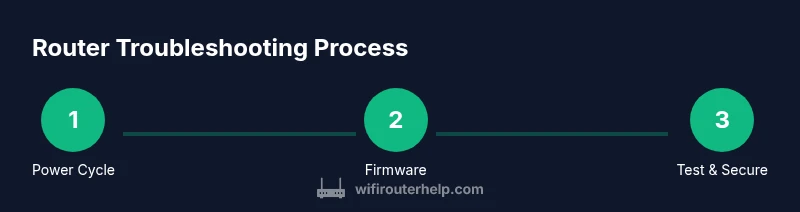
Think of router troubleshooting like a science experiment: establish the problem, gather data, form hypotheses, test them, and verify results. Start with the simplest checks (power, cables, and placement), then isolate the network segments (LAN vs WLAN), and finally verify external factors (modem, ISP, and outages). A structured framework reduces random tinkering and speeds up resolution. Use the data you collect (ping results, speed tests, LED status) to confirm your hypothesis before moving on. This method also makes it easier to communicate with support if you need to escalate. According to WiFi Router Help, a disciplined approach is the fastest path to stable Wi‑Fi and happier devices.
Step 1: Check Power, Cables, and Placement
Unplug the router and modem from power. Inspect the power adapter for any signs of wear. Ensure all Ethernet cables are firmly seated in the correct ports and not damaged. Place the router in a central, elevated location away from large metal objects and microwaves to minimize interference. Reconnect the devices, but avoid powering them on in a daisy-chain of power strips; a clean power source helps prevent brownouts. Tip: Wait 30-60 seconds after reconnecting power to let hardware initialize fully.
Step 2: Reboot and Power Cycle Properly
Power cycle by turning off the devices, waiting 60 seconds, then turning them back on, starting with the modem and letting it fully boot before the router. This clears memory and resets routing tables more reliably than rapid resets. If you must perform a reset, do a soft reset first (via web interface) before a factory reset. Always avoid multiple reboots in quick succession. Tip: Keep a simple log of when you reboot and what devices were affected so you can spot patterns.
Step 3: Verify Internet Source and Modem Health
Check the modem’s online status and, if available, use the ISP’s status page or app to confirm service is active. If you have multiple WAN options, ensure the correct one is selected. Connect a computer directly to the modem with an Ethernet cable to test if the internet works without the router. If the direct test fails, the issue is likely outside the router—contact your ISP. Tip: Note the current power levels and uptime in the modem’s UI for future reference.
Step 4: Diagnose Wireless Settings and Channel Interference
Log into the router’s admin interface and review SSIDs, passwords, and security settings. Ensure both 2.4 GHz and 5 GHz bands are enabled; if one band is missing, enable it and save settings. Check for channel congestion; switch to a less busy channel (e.g., 1/6/11 on 2.4 GHz) or enable auto channel selection. If interference persists, consider relocating the router or using a wired backhaul for critical devices. Pro Tip: Use a Wi-Fi scanning app to map nearby networks and pick a clear channel.
Step 5: Update Firmware and Restore Defaults If Needed
Check for firmware updates via the admin interface and install any available updates. Firmware updates fix bugs, improve performance, and patch security holes. If issues persist after updating, back up your current configuration and perform a factory reset, then re-enter essential settings. Avoid frequent resets unless you’re sure a misconfiguration is the cause. Pro Tip: Always back up settings before a reset so you can restore quickly.
Step 6: Measure Performance and Security Best Practices
After applying fixes, run a speed test on multiple devices, both wired and wireless, to verify improvements. Review security posture: change the admin password, enable WPA3 if available, and disable remote management if you don’t need it. Document results and note any recurring hotspots in your home. If problems continue, schedule a professional check or consider a replacement. Pro Tip: Test at different times of day to capture peak usage and verify consistency.
Tools & Materials
- Ethernet cable (CAT5e/6 or better)(Test both LAN ports; use a known-good cable)
- Laptop or smartphone for tests(Run speed tests and access admin interface)
- Original power adapters for router and modem(Use known-good power supplies)
- Access to modem and router admin interfaces(Prefer wired connection for setup)
- Pen and notepad or digital log(Document steps, results, and settings)
- Backup media or cloud storage(Back up current router configuration before resets)
Steps
Estimated time: 30-60 minutes
- 1
Power cycle the router and modem
Unplug both devices from power, wait 60 seconds, then plug the modem back in first and allow it to boot fully before powering the router. Check a wired device for internet access. This refreshes memory and clears transient issues.
Tip: Document boot times and any LED changes to spot anomalies. - 2
Test with a wired connection to isolate issues
Connect a laptop directly to the modem with an Ethernet cable and run a baseline speed test. If wired speeds are normal, the problem is likely wireless or router-related; if wired is slow, contact the ISP.
Tip: Use a fresh Ethernet cable to avoid flaky connections. - 3
Check modem health and service status
Log into the modem’s UI or use the ISP app to verify online status, signal levels, and uptime. If the modem shows errors, it may need a replacement or a service call.
Tip: Record the modem’s firmware version and status indicators for support. - 4
Update firmware and adjust wireless settings
Check for firmware updates in the router admin panel and install them. If issues persist, adjust 2.4 GHz/5 GHz settings and try different channels to reduce interference.
Tip: Back up the router configuration before applying firmware updates. - 5
Test performance after changes
Run multiple speed tests across wired and wireless devices at different times of day. Compare against your ISP plan to gauge improvement and stability.
Tip: Note latency and packet loss to spot subtle issues. - 6
Review security and plan next steps
Change the admin password, enable WPA3 if possible, and disable unnecessary remote management. Decide if a hardware upgrade or professional check is warranted if problems persist.
Tip: Maintain a routine: quarterly firmware checks and password audits.
People Also Ask
Why is my internet still slow after troubleshooting?
Slowness can be due to external factors like ISP congestion or a failing modem, or due to Wi‑Fi interference and device limitations. Start by verifying wired speeds, then test wireless performance in different rooms and on different devices.
If your internet is still slow after troubleshooting, the issue might lie with the ISP or the modem. Check wired speeds first, then assess Wi‑Fi coverage and device capability.
How do I access the router admin page securely?
Always access the router via a secured network on a trusted device. Use a wired connection when possible, and ensure you’re navigating to the correct IP address (usually 192.168.0.1 or 192.168.1.1).
Use a secure device on the local network and the router’s official IP to reach the admin page.
Should I always update firmware?
Firmware updates fix bugs, improve security, and can boost performance. Check for updates regularly and apply them when available, ideally during a maintenance window.
Yes, keeping firmware updated generally helps with stability and security.
Can I use a guest network to improve security?
Yes. A guest network isolates guests from your main devices and data. Use a strong password and enable WPA3 if available; disable access to other devices on the main network.
Guest networks improve security by isolating visitors from your main network.
When should I replace my router?
Consider replacement if the device is several years old, cannot keep up with traffic, or missing essential security features. Newer models offer better range, speed, and ongoing support.
If a router struggles with modern speeds or security, it may be time to upgrade.
Is frequent power cycling harmful?
Occasional power cycling is safe and often helpful, but frequent resets can indicate underlying hardware or configuration problems that should be diagnosed.
Power cycles are fine occasionally, but don’t rely on them as a long-term fix.
Watch Video
What to Remember
- Start with power-cycle and wired tests to isolate issues.
- Keep firmware up to date and secure admin access.
- Differentiate between modem, router, and wireless problems.
- Document results to track improvements and patterns.
- Decide between upgrade or professional help if issues persist.