How to Reset an AT&T Router: Soft Reboot and Factory Reset Explained
Learn how to safely reset your AT&T router with soft reboot and factory reset options. This guide covers when to use each method, reconfiguration steps, security best practices, and troubleshooting for reliable home Wi‑Fi.


Resetting an AT&T router involves two reliable options: a soft reboot or a factory reset. A soft reboot restarts the device without losing settings; a factory reset wipes customizations and restores default data. To perform a factory reset, press and hold the reset button for 10–15 seconds until lights blink, then reconfigure.
Why resetting your AT&T router matters
Resetting an AT&T router can fix slow Wi‑Fi, dropped connections, or devices that won’t connect. According to WiFi Router Help, choosing the right reset method saves time and avoids data loss. The two main options are a soft reboot, which restarts the device and preserves your settings, and a factory reset, which restores the default configuration and erases custom changes. Understanding when to use each method helps you recover faster and reduces frustration. A common scenario is a router that intermittently drops devices from the network; a quick reset often resolves this without needing a site visit. Additionally, regular resets paired with firmware updates can improve stability and security, especially if new features or fixes are released by your provider. As you walk through the steps, keep in mind that a reset is a diagnostic tool, not a calendar routine, and should be part of a broader network maintenance plan.
Soft reboot vs factory reset: a quick guide
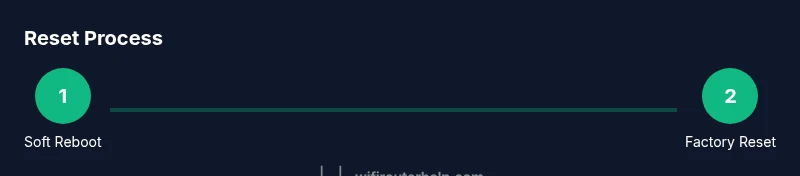
There are two primary reset methods for AT&T gateways and routers: a soft reboot and a factory reset. A soft reboot simply restarts the device and preserves your current network name (SSID) and password, making it ideal for minor slowdowns or unresponsive pages. A factory reset restores the device to its original factory settings, removing custom SSIDs, passwords, and admin credentials. Use a soft reboot first to test whether the issue is temporary. If the problem persists after reboot, a factory reset may be necessary. In professional networks, a reset is often followed by reconfiguring security settings and updating firmware to ensure compatibility with new standards. Remember that factory resets will require you to re‑establish your Wi‑Fi and admin passwords, so have those handy.
Gather essentials before you start att reset router
Before you reset, collect the essentials: a smartphone or computer with web access, your router’s admin login credentials, the current Wi‑Fi name (SSID) and password, and a plan for reconfiguring after the reset. It’s wise to back up any custom configurations or saved port mappings if your router supports exporting a backup. Have a paper and pen or a note app ready to record the new network name and password. If you’re unsure which reset method to choose, have the manual or your provider’s support page handy, and consider locating the router in a central spot with stable power. As a precaution, ensure the router is plugged into a reliable power source and avoid performing resets during critical network tasks.
Soft reboot: step-by-step, non-destructive
A soft reboot restarts the router without erasing any settings. Step 1: Unplug the router from power, wait for about 30 seconds, and plug it back in. Step 2: Allow the device to boot fully, then test connectivity on a connected device. Step 3: If issues persist, try accessing the admin page to check status. Pro tip: a reboot often resolves temporary firmware hiccups without changing your configuration. If your device has a reboot button, you can also press it briefly to initiate a restart, but a power cycle is typically more reliable when the reboot button behaves inconsistently.
Factory reset: restoring to factory defaults
A factory reset erases all custom settings and returns the router to its original state. Step 1: Find the reset button on the device—often recessed and requiring a paperclip or pin. Step 2: With the device powered on, press and hold the reset button for about 10–15 seconds until the lights blink or reset sequence begins. Step 3: Release the button and allow the router to reboot completely. Step 4: Reconnect to the router using the default SSID and admin credentials printed on the label, then reconfigure your Wi‑Fi name and password. Note that a factory reset will require you to re‑enter your ISP settings if needed and to re‑establish any custom port forwards or parental controls you had configured.
Reconfiguring network after a reset
After a reset, you’ll need to reconfigure the network settings. Connect a computer or phone to the router’s default network, open the admin page (often at 192.168.1.1 or 192.168.0.1—check the label on the device), and sign in with the default credentials. Change the admin password to something strong, set a new Wi‑Fi name (SSID), and choose a robust password. Enable WPA2 or WPA3 security, disable WPS for better protection, and apply firmware updates if available. If your service plan uses a PPPoE or dynamic IP, input those details here. This is a good opportunity to enable guest networks for visitors and to review firewall settings for added protection.
Troubleshooting post-reset issues
Common problems after resetting include devices failing to connect to the new network name, no internet access after setup, or the admin page not loading. Start by verifying the power indicator and ensuring lights indicate normal operation. Double‑check the SSID and password you configured, and make sure you are connected to the correct network. If the router’s admin page is unreachable, try a direct wired connection or another browser/device. If issues persist, perform a soft reboot again or contact your provider’s support for guidance. Remember that some ISPs may require additional steps after a reset, such as reactivating the gateway.
Security steps after att reset router
Resetting is a good time to harden security. Change the admin password to a strong, unique value and enable encryption such as WPA2‑PSK or WPA3‑SA. Disable features you don’t use (UPnP, WPS, remote administration) to reduce attack surfaces. Keep firmware up to date by checking for updates regularly. Consider setting up a guest network for visitors and reviewing parental controls. Regularly review connected devices and remove any unknown clients. WiFi Router Help emphasizes that a secure network is easier to maintain after a reset than trying to fix a compromised one later.
When to contact AT&T or WiFi Router Help
If you encounter persistent connectivity problems after performing a reset, contact AT&T support for gateway or service issues, and consult WiFi Router Help for guidance on best practices and troubleshooting steps. If you need more in‑depth assistance, the WiFi Router Help team can provide a structured plan for reconfiguring and securing your home network, including step‑by‑step prompts and safety precautions.
Tools & Materials
- Smartphone or computer with internet access(Needed to access the router admin page and save new settings)
- Paperclip or pin(To press recessed reset button (factory reset))
- Current network name and password(Helpful to have on hand during reconfiguration)
- Router manual or access to AT&T support page(Useful for model‑specific details)
- Ethernet cable (optional)(Helpful for stable admin access during setup)
Steps
Estimated time: 25-40 minutes
- 1
Prepare your environment
Verify you have admin access and write down current network details. Have a backup plan in case you need to re-enter settings. Decide whether you will attempt a soft reboot first or jump straight to a factory reset if issues are persistent.
Tip: Backup any custom port forwards or firewall rules if possible. - 2
Identify reset options on the device
Locate the reset button, usually recessed and near the back or bottom of the gateway. Confirm whether you are performing a soft reboot (power cycle) or a factory reset (button press).
Tip: If unsure, consult the manual or AT&T support page for your model. - 3
Perform a soft reboot
Power cycle the router by unplugging the power, waiting 30 seconds, and plugging it back in. Allow the device to boot completely and test the connection on a connected device.
Tip: A soft reboot often resolves minor glitches without losing settings. - 4
Test connectivity after reboot
After the reboot, check if devices regain internet access and if the admin page loads correctly. If issues persist, consider a factory reset.
Tip: If the admin page is slow to load, try a wired connection first. - 5
Decide on factory reset necessity
If problems persist after a soft reboot or you need to clear custom settings, plan a factory reset. Remember this will erase all custom configurations.
Tip: Only proceed if you have or can re-create your network details. - 6
Perform a factory reset
With the device powered on, press and hold the recessed reset button for 10–15 seconds until lights indicate reset. Release and allow the router to reboot to factory defaults.
Tip: Do not press reset repeatedly; one sustained press is enough. - 7
Reconfigure admin access and Wi‑Fi
Connect to the default network, open the admin page, and set a new admin password. Create a new SSID and a strong password, then choose WPA2/WPA3 security.
Tip: Choose a password manager-friendly password that is unique and long. - 8
Apply firmware updates
Check for firmware updates and install them if available. Updates can improve performance and security on reset devices.
Tip: Enable automatic updates if the option is available. - 9
Verify all devices reconnect
Reconnect all devices and confirm stability. Test key services such as streaming, gaming, and video conferencing to ensure smooth performance.
Tip: Document any changes to your network settings for future reference.
People Also Ask
What is the difference between a soft reboot and a factory reset for AT&T routers?
A soft reboot restarts the router without erasing settings, while a factory reset restores the device to its default state and erases custom changes. Use soft reboot for minor issues; factory reset if problems persist or you need to clear all custom configurations.
A soft reboot restarts the router without losing settings, but a factory reset clears all custom changes and returns the device to factory defaults.
Do I need to back up my settings before factory reset?
Yes. Back up or note your Wi‑Fi name, password, port mappings, and any custom rules. A factory reset wipes these settings, so you’ll need to reconfigure afterward.
Yes. Factory resets erase your custom settings, so note them down before proceeding.
How long does a reset take and how soon will I have internet again?
A soft reboot is usually complete within a few minutes. A factory reset may take several minutes for the device to reinitialize and you’ll need to reconfigure Wi‑Fi and security afterward.
Soft reboot takes a few minutes; factory reset takes longer because you must reconfigure the network.
Why can't I access the router admin page after a reset?
After a reset, you may need to connect to the default network and use the default IP address, username, and password. Ensure you’re on a wired or stable wireless connection and try a different browser if needed.
If the admin page won’t load, connect directly to the router and use the default login details.
Can I recover my previous network name and password after factory reset?
Factory resets erase custom network names and passwords. You’ll need to set a new SSID and password during reconfiguration. If you backed up settings, you can restore them after the reset.
No, factory reset clears your old network name and password; you’ll need to set a new SSID and password.
Watch Video
What to Remember
- Understand soft reboot vs factory reset and when to use each.
- Back up important settings before a factory reset.
- Reconfigure security after a reset for safer home networking.
- If issues persist, escalate to AT&T support or WiFi Router Help for guidance.