WiFi Router Spectrum: Practical Guide to a Faster Home Network
Learn how to optimize your wifi router spectrum for faster speeds and stronger signals. Step-by-step setup, band choices, channel widths, interference reduction, and troubleshooting tips for a reliable home network.


WiFi router spectrum refers to the radio frequency bands and channel widths your router uses to broadcast wireless signals. In most homes, you’ll manage 2.4 GHz and 5 GHz, with newer devices supporting 6 GHz. Choosing the right band, channel width, and placement can dramatically improve speed, range, and stability.
Why the wifi router spectrum matters
The wifi router spectrum is the lifeblood of your home network. It defines which radio bands your devices use to communicate with the router, and it determines how much data can travel through the air at any given moment. When we talk about spectrum, we’re really discussing two intertwined questions: which bands are active (2.4 GHz, 5 GHz, and, on newer devices, 6 GHz) and how wide each channel should be. The right spectrum setup can reduce buffering, improve responsiveness for online gaming, and increase the reliability of smart-home devices. According to WiFi Router Help, tuning the wifi router spectrum is one of the fastest ways to achieve noticeable gains without purchasing new hardware. A smart approach balances range with available bandwidth, considers interference, and adapts to the layout of your home. In practice, you’ll optimize spectrum by selecting bands that match the use case (long-range coverage versus high-throughput tasks) and by configuring channel widths to minimize overlap with neighbors or environmental sources of noise. This section will unpack why spectrum choices matter and how to think about trade-offs in real-world environments.
Understanding the bands and their roles
Radio bands behave differently in a home setting. The 2.4 GHz band travels farther and penetrates walls better, but it is more prone to congestion because many devices and neighbors share it. The 5 GHz band offers higher speeds and lower interference but has a shorter range and weaker wall penetration. State-of-the-art routers also support the 6 GHz band (Wi‑Fi 6E) on compatible devices, delivering even more non-overlapping channels in crowded apartments or homes with many network neighbors. The WiFi Router Help team notes that enabling multiple bands simultaneously and steering devices to the least congested option can dramatically improve performance for mixed-use households. In practice, you’ll typically reserve 2.4 GHz for IoT devices and older gadgets, while using 5 GHz (and 6 GHz where available) for laptops, phones, and streaming devices. This strategy reduces contention and makes better use of each band’s strengths.
Band steering, smart connect, and user control
Many modern routers offer band steering or smart connect features that automatically move devices between bands based on signal strength and network load. When correctly configured, these features can simplify setup and improve overall throughput without manual tweaks. However, band steering isn’t perfect in every home, especially with many smart devices or if the mesh is spread across several rooms. The recommended approach is to enable band steering if your devices are compatible and you notice devices stubbornly clinging to a slower band. If you notice inconsistent performance, you can disable automatic steering for a test period and assign some devices to a dedicated band (e.g., 2.4 GHz for older devices and 5 GHz/6 GHz for high‑bandwidth tasks).
How channel width affects performance
Channel width determines how much spectrum each channel can carry. Wider channels (such as 80 MHz or 160 MHz on the 5 GHz/6 GHz bands) can dramatically increase peak throughput for supported devices, but they also raise the risk of interference in dense environments. In practice, enable wider channels only if you have relatively clean air and many devices capable of utilizing the extra bandwidth. In crowded settings, starting with 80 MHz on 5 GHz and keeping 20/40 MHz on 2.4 GHz often yields the best balance between speed and stability. It’s wise to test different widths and measure real-world speeds at prime hours to determine what works best for your home.
Practical steps to optimize spectrum today
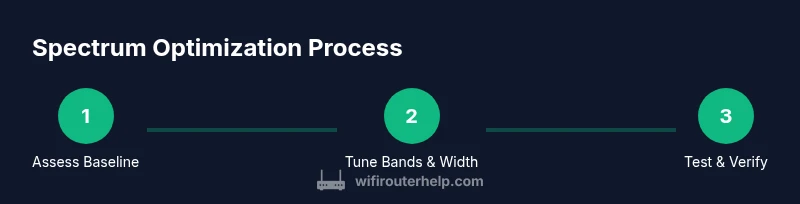
This section provides a concrete, step-by-step approach to tuning your wifi router spectrum. Start by updating firmware to the latest stable release, then verify you have a compatible router for the bands you want to use. Next, map your home to identify dead spots and interference sources (microwave ovens, wireless cameras, or neighbor networks). After that, enable or test band steering, decide on a primary band for high‑bandwidth devices, and configure channel width for each band. Finally, re-test performance with real tasks like streaming, video calls, and gaming, and adjust as needed. The goal isn’t perfection in one room but consistent performance across your home.
Tools, placement, and interference considerations
Placement is a spectrum decision as much as a hardware decision. A router placed high, in an open area, away from radios and metal surfaces, reduces interference and improves coverage. Antenna orientation matters, especially on single‑unit routers without a true mesh. If you’re in a multi‑story home, consider placing the main router centrally and using a mesh system or a satellite unit for distant rooms. Keep devices away from dense materials and metal objects, and minimize the number of walls between the router and your primary devices. For interference, nearby WiFi networks, cordless phones, Bluetooth devices, and microwaves can all cause channel noise. A routine check of neighboring networks on different channels helps you select non-overlapping channels for each band.
Troubleshooting spectrum problems and how to verify results
Intermittent drops, slow speeds, and buffering often point to spectrum congestion or misconfiguration. A quick diagnostic approach is to test speeds on different bands and at different times of day. If a device is consistently slow on 2.4 GHz, move it to 5 GHz or turn on band steering for that device. If you notice a particular room has weak coverage, consider a mesh node or a Wi‑Fi extender to fill the gap rather than cranking up the power, which can increase interference for neighbors. Document each change and re-test to quantify improvement. As you iterate, aim for stable, reliable performance rather than chasing maximum theoretical speeds.
Security and privacy considerations when configuring spectrum
Configuring the spectrum should go hand in hand with securing your network. Use a strong WPA3 passphrase where possible, disable WPS if not needed, and keep firmware up to date to protect against vulnerabilities. Segregate guest networks from your main network when guests require internet access. Regularly review connected devices and remove unfamiliar clients. If you manage a smart home, consider isolating IoT devices on a separate network or VLAN to minimize the impact of any compromised device on your main network.
Tools & Materials
- Router admin access (web UI)(You’ll need admin credentials to modify spectrum settings)
- Smartphone or computer(Used to access router settings and run speed tests)
- Ethernet cable(Wired setup for stable configuration and testing)
- Firmware update check(Ensure you’re on the latest stable release)
- WiFi analyzer app(Optional tool to survey channels and interference)
Steps
Estimated time: 45-75 minutes
- 1
Open router admin page and inventory current spectrum
Connect a device to the router via Wi‑Fi or Ethernet, then log in to the admin interface. Note current bands, channel widths, and the names of your networks. This baseline helps you measure improvements after changes.
Tip: Use a wired connection if possible to avoid dropping the session during changes. - 2
Update firmware to the latest stable version
Check for available firmware updates and install them. Firmware updates often include performance and security improvements that affect spectrum handling. Reboot after updating to apply changes cleanly.
Tip: Back up your current settings before updating in case you need to revert. - 3
Run a quick site survey and note interference
Scan the airwaves for neighboring networks and interference sources. Identify non-overlapping channels for both 2.4 GHz and 5 GHz. Record which channels neighbors are using to guide your own channel selection.
Tip: Aim for channels with the fewest visible networks during peak usage times. - 4
Configure band steering and SSID separation if needed
Enable band steering if your devices support it, so clients are directed to the best band automatically. If devices persist on a slow band, consider giving each band a distinct SSID to control assignment manually.
Tip: Test both options for a few hours to see which yields more consistent results. - 5
Adjust channel width for each band
Set 2.4 GHz to 20 or 40 MHz if interference is high; set 5 GHz to 80 or 160 MHz only if the air is clear and devices can utilize it for higher throughput.
Tip: Start with conservative widths and incrementally test wider widths if speeds improve without introducing instability. - 6
Test performance with real tasks
Run speed tests, streaming checks, and video calls from multiple rooms. Compare results when using auto versus fixed channel widths and when forcing bands to specific devices.
Tip: Document the best performing configuration for different use cases (gaming, streaming, browsing). - 7
Document changes and plan ongoing maintenance
Log the settings you changed and schedule periodic reviews, especially after new devices join your network or after firmware updates. Spectrum performance can drift over time due to new neighbors or changes in the house.
Tip: Set a quarterly reminder to re-run a quick site survey.
People Also Ask
What is wifi router spectrum and why does it matter?
WiFi router spectrum describes the radio bands and channel widths the router uses to send data over the air. It matters because it directly affects speed, range, and reliability. Proper spectrum usage reduces interference and improves performance for everyday tasks.
Wi-Fi spectrum refers to the radio bands your router uses, like 2.4 GHz, 5 GHz, and 6 GHz, which determine speed and coverage.
How do I decide between 2.4 GHz and 5 GHz for a device?
Choose 2.4 GHz for devices that are far from the router or pass through walls. Opt for 5 GHz for devices close to the router or that require high throughput, such as streaming or gaming. If available, 6 GHz (Wi‑Fi 6E) can offer even more room for congestion-free performance.
Use 2.4 GHz for range, 5 GHz for speed, and 6 GHz for high-demand devices if your gear supports it.
What about Wi‑Fi 6E and 6 GHz spectrum?
Wi‑Fi 6E adds a new 6 GHz band with more channels and less congestion, which can improve performance in dense environments. Not all devices support 6 GHz yet, so ensure your devices are compatible before investing in hardware.
Wi‑Fi 6E adds 6 GHz, offering more room to breathe for modern devices that support it.
How can I reduce interference from neighbors?
Survey nearby networks, choose non-overlapping channels, and consider enabling band steering if devices support it. If interference remains high, splitting networks by band and testing different channel widths can help.
Identify neighboring networks, pick clear channels, and test band steering to reduce interference.
Is upgrading my router necessary to improve spectrum?
Not always. If your current router lacks modern bands or sufficient channel diversity, upgrading can yield meaningful gains. For many households, firmware updates and proper placement deliver noticeable improvements without hardware changes.
A firmware update and good placement can fix many spectrum issues, but a new router helps if you need 6 GHz or true mesh coverage.
Should I use wide channels like 160 MHz on 5 GHz?
Wide channels offer higher peak speeds but are more susceptible to interference. Use them only if your air is relatively clean and your devices can utilize the extra bandwidth. Otherwise, stick to 80 MHz or even 40 MHz where stability matters.
160 MHz can be fast, but only in clean air; otherwise, it can hurt reliability.
Watch Video
What to Remember
- Identify the bands you will use and set expectations for range vs. speed
- Prefer 5 GHz/6 GHz for high-bandwidth tasks when devices support them
- Minimize interference through channel selection and placement
- Test changes with real tasks and document the results
- Keep firmware current to maintain spectrum efficiency