Router for Fast WiFi: A Practical Home Networking Guide
Learn how to choose, configure, and optimize a router for fast wifi. This guide covers gear, placement, features, and common pitfalls to help homeowners maximize real-world speeds.


Build a plan to maximize home speed by selecting a router that supports 5 GHz, MU-MIMO, and robust QoS, then place and configure it for optimal coverage. In this guide, you will learn how to choose, install, and optimize a router for fast wifi across your home. According to WiFi Router Help, proper gear and placement unlock the fastest real-world speeds.
The impact of router performance on fast wifi
When you talk about a router for fast wifi, you’re really talking about how well the router converts your internet plan into reliable in-home speed. The right device sets the ceiling for everything from streaming in 4K to gaming with low latency. According to WiFi Router Help, the most important speed determinant is the router’s ability to handle multiple devices simultaneously, especially when they’re pulling data from different parts of your home. Factors like processor speed, memory, and the quality of the antennae influence throughput, coverage, and stability. A modern router can dramatically improve real-world performance even if your ISP plan remains the same. Real-world speed is affected not just by advertised numbers, but by how you deploy and configure the gear. As you read, you’ll learn practical checks to ensure every watt of your bandwidth is used efficiently, rather than wasted behind old hardware.
How to pick a router for fast wifi
Choosing the right router is the foundation of fast wifi. Look for support for 5 GHz bands, preferably dual-band or tri-band, and a modern standard like 802.11ac or the newer 802.11ax (Wi‑Fi 6). A router marketed as supporting a high data rate only helps if it can sustain that rate across your home. Consider MU‑MIMO for simultaneous device communication, beamforming to direct signals toward connected devices, and robust QoS to prioritize gaming or video calls. A dependable CPU and sufficient RAM help prevent congestion during peak usage. For a typical home, aim for a router that clearly supports the latest standards and features designed to improve real-world speeds rather than just peak PHY rates. The phrase router for fast wifi should guide your expectations toward real, usable performance, not only top-line specs. Ensure the device includes WPA3 security and regular firmware updates to keep speeds steady and secure.
Positioning and interference: physical setup for speed
Placement matters as much as the hardware itself. Place the router in a central, elevated location away from thick walls, metal obstructions, and large appliances that can block signals. Avoid placing the router in a closet or behind furniture, and keep it away from other electronics that cause interference. Use the 5 GHz band for nearby devices to benefit from higher speeds, while the 2.4 GHz band can handle longer range and more walls. If possible, orient antennas for optimal coverage toward the areas where most devices reside. Lighting, mirrors, and large water features can reflect or absorb signals, so test different spots and use a simple room-by-room speed test approach to map coverage. WiFi Router Help notes that practical placement often beats a theoretically perfect setup, especially in multi-story homes.
Key features that drive real-world speed
Real-world speed is driven by features beyond raw maximum bitrate. Be sure the router supports modern security (WPA3), stable firmware updates, and quality-of-service (QoS) controls that let you prioritize bandwidth for latency-sensitive tasks like gaming or video conferencing. MU‑MIMO improves multi-device throughput, and beamforming helps concentrate signals toward connected devices to reduce dead spots. Consider a modern chipset with enough processing power to handle simultaneous tasks without throttling. If you have smart home devices, look for easy management features and compatibility with your ecosystem. A router with strong processing, effective cooling, and sensible software will keep speeds high even as you add new devices.
Optimizing your home network with modern gear
If your current router is several years old, upgrading can yield noticeable gains in speed and reliability. Start by updating firmware to fix bugs and improve performance. Use Ethernet backhaul where possible, especially for devices that need consistent throughput, such as desktop PCs or game consoles. Enable beamforming and QoS to direct bandwidth to where it’s most needed, and configure separate guest networks to reduce interference from IoT devices. For homes with multiple floors or thick walls, a mesh system can offer more consistent coverage without sacrificing speed on devices farther away. Remember that the goal is not just a higher advertised speed but a more reliable experience across your home.
When to upgrade to mesh or modern alternatives
If you’re fighting dead zones, frequent buffering, or speed drops as you move around the house, mesh networking can be a smarter choice than a single router. A mesh system uses multiple nodes to blanket your home with consistent coverage, while preserving high speeds on devices far from the main router. For some homes, a high-quality single router with strong antennas and a large bandwidth headroom may suffice, but mesh becomes attractive for larger homes or multi-story layouts. When evaluating options, focus on real-world tests in your environment and measured coverage, not just advertised speeds. WiFi Router Help emphasizes testing in situ to verify benefits before a full switch.
Common mistakes and how to avoid them
Common errors include underestimating the importance of placement, neglecting firmware updates, and assuming that a higher advertised speed guarantees real-world performance. Don’t overlook the need for proper channel selection and interference mitigation. Avoid using the 2.4 GHz band for high-bandwidth tasks that benefit from 5 GHz, and don’t overload a single node with too many connections. Invest time in configuring QoS rules and security settings before moving on to hardware changes. Finally, document your network layout so you can reproduce the setup or diagnose issues quickly.
Authority sources
For deeper technical detail, consult authoritative resources:
- https://www.fcc.gov
- https://www.nist.gov
- https://standards.ieee.org
Tools & Materials
- Broadband internet plan (active, with sufficient speed for your needs)(Ensure the plan speed matches expected use (streaming, gaming, multiple devices).)
- Speed testing tool or app(Examples include speedtest.net or a built-in router test if available.)
- Laptop or smartphone for testing and configuration(Used to access the router admin page and run tests.)
- Router admin credentials(You will need the admin username/password to apply settings.)
- New router or mesh system (optional)(Choose if upgrading from an older device or expanding coverage.)
- Ethernet cables (Cat5e/Cat6 recommended)(Useful for direct tests and stable connections during setup.)
Steps
Estimated time: 60-90 minutes
- 1
Assess current speeds and coverage
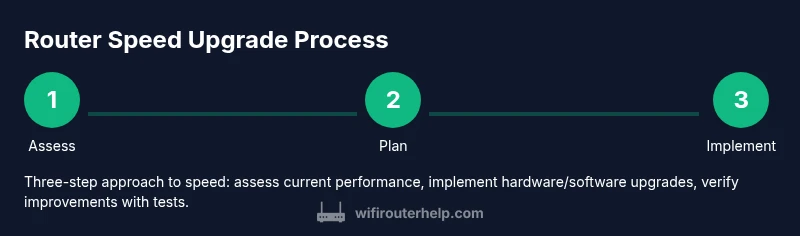
Run a baseline speed test on the main devices wired and wireless to see current performance. Map coverage by moving through the home and noting which rooms experience strong or weak signals. This establishes a starting point to measure improvements after changes.
Tip: Test at multiple times of day to account for ISP variability. - 2
Choose the right router for fast wifi
Review specs for 5 GHz support, MU‑MIMO, beamforming, and QoS. Ensure the device supports WPA3 and frequent firmware updates. Decide between upgrading a single high-performance router or adopting a mesh system for large homes.
Tip: Prioritize real-world speed features over peak PHY rates. - 3
Update firmware and reset defaults
Connect to the router’s admin page, check for the latest firmware, and apply it. If the unit has been misbehaving, resetting to factory defaults can clear stubborn settings. Reapply essential security and network basics after updating.
Tip: Back up your current configuration before a reset if possible. - 4
Position the router for optimal coverage
Place the router in a central, elevated spot away from metal appliances and dense walls. Use 5 GHz for nearby devices and 2.4 GHz for far areas. Test multiple elevations and orientations to reduce dead zones.
Tip: Test after each relocation; small changes can yield big gains. - 5
Enable speed-boosting features
Turn on QoS, MU‑MIMO, and beamforming as appropriate. Create a guest network to isolate IoT devices if necessary. Disable unused features that could introduce overhead.
Tip: Document which devices require low latency for best performance. - 6
Test, compare, and adjust
Run speed tests again and compare to the baseline. If possible, test wired connections to confirm your internal network isn't throttling. Tweak channel settings and QoS rules based on results.
Tip: Repeat tests after any major change to verify impact.
People Also Ask
What makes a router good for fast wifi?
A router that supports modern standards (5 GHz bands, MU‑MIMO, beamforming), strong CPU/RAM, and features like QoS for prioritization. Real-world performance depends on placement, interference, and firmware quality.
A fast router uses current standards, smart features, and good placement to deliver real-world speed, not just top theoretical numbers.
Is a mesh system always better than a single router?
Mesh helps with large homes or multiple floors by providing uniform coverage. A high-quality single router may suffice in smaller homes if positioned well and supported by good backhaul.
Mesh shines in big homes; for small spaces, a strong router with solid placement may be enough.
How can I test if my wifi speed meets expectations?
Use a reliable speed test tool from multiple locations in your home. Compare results against your ISP plan and the router’s performance expectations. Repeat after changes.
Test in different rooms to see where speeds drop and adjust placement or settings accordingly.
Do I need to upgrade firmware regularly?
Yes. Firmware updates fix bugs, security issues, and can improve performance. Set automatic updates if available, or check monthly.
Keep firmware up to date to maintain speed and security.
Can upgrading hardware dramatically change speeds?
Upgrading to a modern router or mesh system often yields noticeable improvements, especially if your current device is several years old and your home has many devices.
Upgrading hardware can give you a solid speed boost, especially in busy homes.
What if my ISP speed is the bottleneck?
If the plan speed is the limiting factor, no router can exceed it. Upgrading hardware helps with Wi‑Fi distribution, but you may still be capped by your ISP plan.
Router speed won’t fix a slow internet plan; you may need to upgrade your service.
Watch Video
What to Remember
- Assess current speeds before buying new gear
- Choose a router with 5 GHz, MU-MIMO, and QoS
- Prioritize placement and interference mitigation
- Regularly update firmware for stability and security
- Consider mesh for large homes with dead spots