High Performance Router: A Practical Guide to Setup, Optimization, and Troubleshooting
Learn how to select, install, and tune a high performance router for maximum speed, reliability, and coverage in a modern home network. Clear steps, practical tips, and safety notes.


Goal: achieve reliable, high-throughput WiFi throughout a typical home by selecting a capable router, placing it optimally, enabling QoS, and tuning channels. Requirements include a modern router with at least Wi‑Fi 6 (ax) or 6E, gigabit Ethernet ports, a stable internet connection, and a compatible modem. This guide from WiFi Router Help walks you through choosing, installing, and optimizing for best performance.
Why a high performance router matters for modern homes
In today’s connected households, the demand on home networks goes far beyond basic web browsing. Families stream 4K video, engage in real‑time video conferencing, host game nights, and connect a growing number of smart devices—from security cameras to voice assistants. A high performance router helps by delivering stronger coverage, lower latency, and more reliable connections across many devices. According to WiFi Router Help, upgrading to a high performance router can dramatically improve stability and speed, especially in homes with multiple floors or thick walls. The right gear reduces buffering, improves gaming responsiveness, and makes smart-home devices feel instant. This section explains what “high performance” means in practical terms, and why it matters for homeowners and tech enthusiasts alike.
Key takeaways: higher CPU and more capable radios enable sustained throughput; better antennas and beamforming reduce dead zones; consistent firmware updates improve long‑term stability.
Core features that drive speed and reliability
A true high performance router brings more than just a fast wireless standard. Look for a robust processor (CPU), adequate RAM for the router’s OS, and multiple high‑speed radios. Modern devices typically support Wi‑Fi 6 (802.11ax) or Wi‑Fi 6E, which offer higher usable throughput and better efficiency in crowded environments. MU‑MIMO, OFDMA, beamforming, and intelligent QoS help distribute bandwidth where it’s needed most—gaming consoles, work laptops, and streaming devices. A solid router also includes multi‑gigabit Ethernet WAN/LAN ports, ample flash storage for firmware, and a responsive admin interface. As WiFi Router Help notes, the best routers balance raw speed with real‑world performance under load, avoiding bottlenecks in the internal network stack and ensuring stable connections across devices.
Key takeaways: fast CPU, sufficient RAM, and modern radios enable sustained throughput; QoS and beamforming improve multi‑device performance; enterprise‑grade features translate to better home coverage.
How to evaluate routers: CPU, RAM, radios, antennas, firmware
When comparing models, start with the hardware profile: CPU speed, RAM size, and the number of radios. A router with two or more high‑efficiency radios (2.4 GHz and 5 GHz) supports simultaneous bands with reduced interference. Antennas matter too; detachable or adjustable antennas let you tailor coverage to your space. Firmware quality matters just as much as hardware. Look for regular updates, clear release notes, and support for security enhancements such as automatic updates and strong firewall protections. WiFi Router Help emphasizes checking review sites for real‑world tests, not just marketing specs. If you’re upgrading from an older device, consider how a new router’s feature set will complement your ISP plan and your home layout.
Key takeaways: assess CPU/RAM and radios; choose flexible antenna options; verify reliable firmware support for security and performance improvements.
Network topology considerations: gateway, modem, and ISP alignment
A high performance router sits at the center of your home network, acting as the gateway between devices and your ISP. For optimal performance, ensure your modem is capable of the speeds you pay for and is properly bridged or configured in a compatible mode. If your modem‑router combination is old, consider placing the modem in bridge mode to avoid double NAT, which can degrade performance and complicate setups. Consider a dedicated modem if your ISP provides a device with limited routing features. In practice, pairing a modern modem with a high performance router yields the best throughput and reliability, especially for multi‑device households and 4K streaming.
Key takeaways: match modem capabilities to plan; consider bridge mode for clean routing; a dedicated router often yields better performance.
Best practices for placement, channels, and interference management
Placement dramatically affects coverage. Place the router in a central, elevated location away from walls and metal objects. Avoid hiding it in cabinets or behind large furniture. Channel optimization matters in crowded apartments: manually selecting the least congested 2.4 GHz channel and testing 5 GHz channels can reduce interference. Use the router’s auto‑channel selection as a baseline, but be prepared to lock onto a stable channel when interference patterns change. Keeping firmware up to date improves performance, security, and stability. WiFi Router Help recommends using a dedicated 2.4 GHz footprint for IoT devices and a faster 5 GHz network for high‑bandwidth tasks.
Key takeaways: central placement matters; manual channel selection can outperform auto; separate bands for IoT and high‑bandwidth devices improves efficiency.
Setup steps to get real-world performance
Follow a structured setup to avoid misconfigurations that limit speed. Begin by updating firmware to the latest version, then configure basic WAN settings and enable WPA3 security. Create two SSIDs: one for high‑bandwidth devices and one for IoT devices. Enable QoS with a simple rule set that prioritizes video calls and gaming; tune to prioritize your primary workstation if needed. Disable unused features that could create overhead, such as legacy protocols or extra guest networks. Test your network with a speed test from several locations around the home, and adjust placement if coverage gaps appear. This process helps translate theoretical speeds into practical, reliable performance.
Key takeaways: update firmware first; create separate SSIDs for devices; implement QoS for critical tasks; test and adjust after changes.
Troubleshooting common issues that limit speed
Slow networks often result from misconfigurations, interference, or outdated hardware. Start with a quick health check: ensure cables are rated for gigabit speeds, reboot the router, and verify that your device is using current drivers. If speeds drop only on wireless devices, recheck channel selection, router placement, and interference from neighbors’ networks. If you still see issues, consider factory resetting and restoring a clean configuration. Security settings like overly aggressive firewalls or VPNs can also affect throughput; temporarily disable nonessential features to diagnose. WiFi Router Help recommends keeping a log of changes to measure which step yields improvements.
Key takeaways: rule out hardware faults first; optimize channels and placement; reset and reconfigure if problems persist.
Real-world scenarios: apartments, large homes, and multi-device households
In compact living spaces, a well‑placed dual‑band or tri‑band router with strong QoS will minimize interference from neighbors and deliver reliable streaming and gaming. Large homes benefit from mesh or wireless backhaul approaches, where multiple nodes extend coverage without sacrificing speed. Multi‑device households should segment traffic with QoS rules, assign IoT devices to a separate network, and schedule firmware updates during off‑peak hours. For gamers, prioritize latency and stability by connecting consoles via Ethernet when possible and using a wired backhaul to reduce wireless contention. The goal is practical, consistent performance across real living spaces, not just high theoretical marks.
Key takeaways: tailor solutions to space and device mix; consider mesh for large homes; use wired connections where feasible for gaming.
AUTHORITY SOURCES
- FCC: Wireless Interference and Home Networking guidance — https://www.fcc.gov
- NIST: Wireless Networking Overview and Security Considerations — https://www.nist.gov/topics/wireless-networking
- IEEE: Standards and Best Practices for Wireless Networks — https://www.ieee.org
NOTES ON PERFORMANCE AND MAINTENANCE
Regularly review and refresh your router configuration as devices and usage patterns evolve. Schedule periodic firmware checks, reassess QoS rules after new devices join the network, and keep a security mindset by changing admin passwords and enabling automatic updates. A well‑maintained high performance router remains your best defense against slowdowns and security risks in a modern home network.
mainTopicQuery':'high performance router'},
Tools & Materials
- Flathead screwdriver(For antenna screws and panel removal if needed)
- Ethernet cables (Cat5e/Cat6a)(At least one 1–2 m cable for wired testing and backhaul)
- Firmware USB drive (optional)(If your router offers manual offline upgrade)
- Access to a power outlet(Keep the router in a safe, ventilated area)
- Laptop or smartphone with admin access(To configure settings and run speed tests)
Steps
Estimated time: 45-60 minutes
- 1
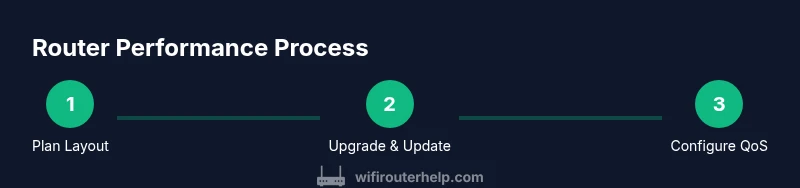
Plan your network layout
Define the main use cases, number of devices, and the desired coverage area. Sketch a rough floor plan to estimate how many access points or mesh nodes you’ll need. This planning helps you select a router with adequate CPU/RAM and ports, and guides placement decisions for optimal performance.
Tip: Document your home layout and key device locations before buying to avoid over‑ or under‑provisioning. - 2
Upgrade firmware and reset
Connect to the router’s admin page and update to the latest firmware. If the device is new, perform a factory reset to ensure a clean slate for configuration. This avoids legacy settings that can bottleneck performance.
Tip: Always back up current settings if you plan to reapply them later. - 3
Configure network segmentation and security
Create at least two SSIDs: a primary network for high‑bandwidth devices and a separate IoT network. Enable WPA3 where available and consider a guest network with appropriate restrictions. Update default admin credentials and enable automatic firmware updates.
Tip: Strong, unique passwords prevent unauthorized access that could affect performance. - 4
Enable QoS and set device priorities
Access QoS settings and create rules that prioritize latency‑sensitive tasks (video calls, gaming, work VPN) over less critical traffic. If the router supports per‑device or per‑application QoS, assign your primary work device and gaming console to high priority.
Tip: Keep QoS rules simple to avoid conflicting priorities that can cause instability. - 5
Tune channels and placement
Test 2.4 GHz and 5 GHz channels and select the least congested 2.4 GHz channel and a stable 5 GHz path. Place the router centrally and elevated, away from walls and metal objects. Consider a mesh or extra access points if coverage gaps persist.
Tip: Rotate the router’s position and re‑test to identify the best spot. - 6
Run real‑world tests and adjust
Use multiple devices to run speed tests in different rooms. Compare results against your ISP’s plan speeds. If gaps persist, tweak QoS and channel settings or add a mesh node for coverage extension.
Tip: Document results to track improvement over time.
People Also Ask
What is a high performance router?
A high performance router is a modern router that delivers faster throughput, better multi‑device handling, and improved reliability through advanced standards (like Wi‑Fi 6/6E), more capable hardware, and features such as QoS and beamforming. It’s designed to support busy homes with many devices.
A high performance router is a fast, modern device that handles many devices smoothly thanks to advanced tech and smart features.
Do I need Wi‑Fi 6 or 6E for good performance?
Wi‑Fi 6 or 6E offers higher throughputs and better efficiency in crowded spaces. If you have multiple devices, 6 or 6E can provide noticeable improvements, especially for streaming and gaming. However, ensure your ISP and devices support the standard to realize benefits.
Wi‑Fi 6 or 6E helps with speed and efficiency if your devices support it.
Should I buy a mesh system for large homes?
In large homes with coverage gaps, a mesh system can provide seamless coverage by distributing multiple nodes. It’s particularly effective when wired backhaul is feasible and the router supports reliable backhaul options.
If your home has dead zones, a mesh system can help spread coverage evenly.
How often should I upgrade my router firmware?
Check for updates at least quarterly, or enable automatic updates if available. Firmware updates improve security, fix bugs, and can enhance performance.
Update firmware regularly to stay secure and get the latest performance improvements.
Can QoS settings cause slower speeds?
If QoS rules are overly aggressive or misconfigured, they can throttle necessary traffic. Start with simple rules, monitor effects, and adjust gradually.
Poorly set QoS can hurt speed; keep rules simple and test changes.
Watch Video
What to Remember
- Upgrade to a modern router for higher throughput
- Use QoS to prioritize critical tasks
- Place router centrally for uniform coverage
- Test and adjust channels to minimize interference
- Consider mesh or additional nodes for larger spaces