Router VPN on Netgear: Setup, Security, and Best Practices
Learn how to set up a VPN on compatible Netgear routers, optimize privacy, and troubleshoot performance. This guide covers protocols, configuration steps, security considerations, and practical tips for router VPN with Netgear.


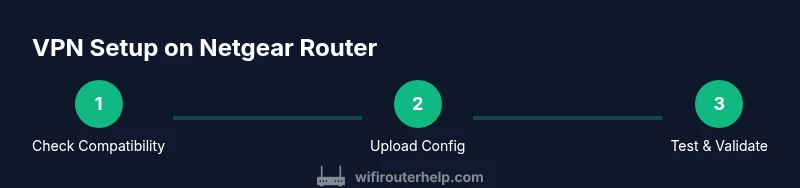
Set up a VPN on a compatible Netgear router to route all home traffic through a VPN server, protecting devices on the network. First, verify your model supports VPN via the admin panel or OpenVPN/WireGuard; ensure firmware is current; then upload VPN config and enable the connection. Test with a client device.
Why VPN on Netgear Router matters
A router-level VPN protects every device on your home network by encrypting traffic before it leaves your network. This approach reduces the need to configure VPN software on each endpoint and helps ensure that smart TVs, tablets, and IoT devices stay covered. According to WiFi Router Help, deploying a VPN on a Netgear router is a practical way to blanket-protect every connected device without managing individual apps. The WiFi Router Help team found that households often experience improved privacy hygiene when the VPN runs at the router level, reducing the risk of device-by-device misconfigurations.
Before you start, note that not all Netgear models include VPN client or server capabilities out of the box. Some devices require a firmware upgrade, while others need a compatible model or a supported VPN service. If your device is eligible, you’ll access the router’s admin interface and locate the VPN section. When configured properly, a router VPN can simplify privacy for streaming, gaming, and general browsing on a shared home network.
How VPN protocols map to Netgear devices
Netgear routers that support VPN typically offer options such as OpenVPN, IPSec, or, on newer models, WireGuard integration through firmware updates or apps. OpenVPN remains the most widely compatible, with widely available client configurations across Windows, macOS, iOS, and Android. IPSec provides another layer of compatibility, especially on devices with limited VPN client options. WireGuard offers streamlined performance and easier configuration on some recent Netgear platforms. WiFi Router Help analysis shows that choosing the protocol depends on compatibility with your VPN service and the devices you use to access the network. Always verify the exact protocol support for your model in the official Netgear documentation and your VPN provider’s guidance.
Privacy and trust: what a router VPN does and does not protect
A router VPN encrypts traffic leaving your network, which helps protect against local network sniffers and ISP monitoring on unencrypted connections. It does not automatically rescue you from insecure endpoints, misconfigured devices, or phishing attempts. DNS leaks can occur if the router DNS requests bypass the VPN tunnel, so configuring DNS inside the VPN and enabling DNS leak protection is important. The purpose of router-level VPN is to reduce exposure across all connected devices, but users should couple it with strong endpoint security, regular firmware updates, and a robust password strategy. Based on WiFi Router Help research, many households see meaningful privacy benefits from router-based VPN when paired with solid security hygiene.
Netgear models and firmware requirements
Not every Netgear model supports VPN client or server features natively. Some routers require a firmware update to expose VPN settings, while others need a compatible model that includes VPN functionality in the hardware or via official firmware. Before purchasing or upgrading, confirm VPN capability in the product specs and firmware release notes. If your model is in-scope, you should see a VPN section within the router’s admin interface, often under Advanced or Security settings. Staying on supported firmware helps ensure security patches and VPN compatibility continue to work over time.
Common misconfigurations and how to avoid them
Common misconfigurations include selecting an incompatible VPN protocol, misplacing VPN profile files, or failing to upload the correct certificate files. Always verify the VPN provider’s configuration files against the router’s required format. Double-check server addresses, ports, and authentication credentials. If you enable split tunneling by mistake, some traffic may bypass the VPN, defeating privacy goals for certain devices. Create a backup of the current router configuration before making changes so you can revert if something goes wrong.
Performance and tuning: balancing speed and privacy
VPN encryption adds overhead, so you may notice a slowdown in streaming or gaming. The impact varies by protocol, server distance, and your base internet speed. To mitigate slowdown, choose a VPN server physically closer to your location, enable only the necessary traffic through the VPN (if supported), and consider a plan with higher baseline bandwidth. You can also tweak MTU settings and ensure your router’s CPU is not overwhelmed by concurrent tasks. A careful balance between privacy and performance yields the best overall experience.
Testing and verification: confirming the VPN is active
After configuring the VPN, test on multiple devices to confirm traffic routes through the VPN. Check your public IP address from a browser or a dedicated test tool and verify it matches the VPN server location you selected. Run DNS tests to ensure no leaks are occurring and that DNS requests are routed through the VPN. If issues arise, consult the VPN provider’s troubleshooting steps and verify router firmware integrity. Consistent testing helps ensure reliability across all devices on your network.
End-to-end blueprint for typical home networks
For a small home with several devices, start by confirming VPN capability on your Netgear router and selecting a reliable VPN service. Install the service on the router, configure profiles, and test with a wired PC for baseline performance before expanding to wireless devices. Document the steps you take and who is responsible for each device so future maintenance is straightforward. This approach minimizes downtime and fosters secure internet use across all household devices.
Tools & Materials
- Netgear router with VPN support(Ensure model/firmware support VPN client/server)
- Active VPN service subscription(Obtain config files and credentials from provider)
- PC or laptop(For configuring router admin panel)
- Ethernet cable(Wired connection for stable setup)
- VPN configuration files (OpenVPN/CFG)(Provider-supplied files in correct format)
- Backup storage (USB drive or cloud)(Back up current router config)
- Sturdy power source(Avoid power interruptions during setup)
Steps
Estimated time: 60-90 minutes
- 1
Check compatibility and firmware
Verify that your Netgear router model supports VPN client or server and confirm firmware is up to date. Incompatible hardware or outdated firmware can cause configuration failures. If needed, update firmware first, then recheck VPN readiness.
Tip: A wired connection reduces setup errors during firmware checks. - 2
Choose VPN protocol and gather config
Decide whether to use OpenVPN, WireGuard, or IPSec based on your provider and device support. Collect all required config files, certificates, and credentials from your VPN service, and save them in a dedicated folder for easy access.
Tip: OpenVPN is widely compatible; WireGuard can offer better performance on newer devices. - 3
Back up current router configuration
Before making any changes, back up the existing router settings so you can recover quickly if something goes wrong. Export the configuration file to a safe location.
Tip: Backups speed up recovery after misconfigurations. - 4
Access the router admin panel
Connect a device via Ethernet or secure Wi-Fi and log in to the Netgear admin interface (commonly at 192.168.1.1 or 192.168.0.1). Navigate to the VPN settings section in the Advanced/Security area.
Tip: Use a strong admin password and enable two-factor if available. - 5
Enable VPN client/server and prepare to upload
Turn on the VPN feature on the router, choosing client or server mode according to your plan. Prepare to upload the VPN profile and certificates to the router.
Tip: If your model supports profiles, keep a copy of the original profile for fallback. - 6
Upload VPN configuration and apply
Upload the VPN config files (and certs, if required) through the router interface and apply changes. Reboot the router if required to activate the VPN service.
Tip: Double-check file formats before uploading to avoid parsing errors. - 7
Test VPN connection on a client device
On a connected PC or phone, connect to VPN and verify that your public IP reflects the VPN server location. Check for DNS leaks by testing domain resolution while the VPN is active.
Tip: Test multiple devices to ensure coverage across the network. - 8
Configure client devices and DNS settings
If needed, adjust client devices to use VPN DNS or enable the router's DNS resolver within the VPN tunnel. Ensure devices not using VPN still have secure DNS if possible.
Tip: Consider enabling DNS leak protection in your VPN settings. - 9
Enable ongoing maintenance and monitoring
Set up a schedule to review firmware, VPN status, and device behavior. Periodically test VPN performance and update configurations as needed when servers or networks change.
Tip: Keep a changelog for quick audits later.
People Also Ask
Can any Netgear router run a VPN?
Not every Netgear model supports VPN client or server functionality. Check the router's specifications and firmware notes, and upgrade or replace if VPN support is required. Some models only gain VPN features after specific firmware updates.
Not all Netgear routers support VPN features; verify model specs and firmware before starting.
What VPN protocols does Netgear support?
Supported protocols vary by model and firmware. OpenVPN and IPSec are common, while some newer units may support WireGuard through firmware updates or companion apps. Always confirm protocol support with Netgear documentation and your VPN provider.
OpenVPN and IPSec are common; WireGuard may be available on newer firmware.
Will using a router VPN slow down my internet?
Enabling a VPN introduces encryption overhead, which can reduce throughput. The actual impact depends on your base speed, VPN server distance, and chosen protocol. Expect some slowdown, but you can mitigate with a closer server and efficient protocol.
VPN can slow speeds a bit; closer servers and efficient protocols help.
Do I still need a VPN service if my router supports VPN?
Yes. A router can route traffic through a VPN, but you still need an active VPN service subscription to supply server access and authentication. The provider delivers the servers, certificates, and configuration data you’ll load into the router.
Yes, you still need a VPN service to provide servers and configs.
How do I verify the VPN is working after setup?
Test from multiple devices by checking the public IP and location shown on a browser. Run a DNS leak test to ensure DNS requests are routing through the VPN. If discrepancies appear, revisit configuration files and server settings.
Check your IP and run a DNS leak test to confirm VPN activity.
What should I do if the VPN keeps dropping?
Update firmware, verify server status, and try alternate VPN servers. Check device load on the router and ensure power stability during operation. Consult provider logs and Netgear support if drops persist.
Update firmware and try different servers; check power stability.
Watch Video
What to Remember
- Choose a Netgear model that supports VPN client/server before buying.
- Select the VPN protocol based on provider compatibility and performance needs.
- Test across multiple devices and verify DNS protections to ensure privacy.
- Maintain firmware and keep a clear change log for router VPN settings.