Set a Strong Network Security Key for Your Router
Learn how to create and apply a robust network security key on your router, enable WPA3 where possible, and keep firmware up to date to protect your home network from common threats. Step-by-step guidance, practical examples, and safety tips.


By following this guide, you will secure your home network by setting a strong network security key on your router, enabling WPA3 where supported, and updating firmware. The key requirements are admin access to the router, a modern device to configure settings, and a commitment to use a long, unique password. You’ll test the connection and document credentials for ongoing security.
Understanding the network security key router
The term network security key router refers to the passphrase or pre-shared key (PSK) that encrypts wireless traffic between your router and connected devices. A strong network security key router is essential to prevent unauthorized access to your WiFi and the data traveling across your home network. According to WiFi Router Help, protecting this key is a cornerstone of modern home networking. A robust key makes it difficult for attackers to guess or brute-force your network, reducing risks from common attacks such as eavesdropping, man-in-the-middle interception, and rogue access attempts. Beyond the password itself, the surrounding security posture—like encryption type, firmware, and admin account hygiene—drives overall resilience of your router against evolving threats.
In practical terms, think of the network security key router as a gatekeeper for your wireless traffic. If someone gains access to this gate, they can observe, imitate, or disrupt devices on your network. A memorable-but-strong passphrase, combined with capable encryption, is your first line of defense. This section lays the groundwork for how to select a high-quality key and why other security controls matter just as much as the password itself.
Password strength guidelines and password hygiene
Creating a truly strong network security key router means more than using a long string. A resilient key blends length with unpredictability and avoids common phrases or personal data. Aim for at least 16 characters, mixing upper- and lower-case letters, numbers, and symbols. Passphrases—multiple random words strung together with symbols—often outperform short, complex single words because they are easier to remember yet hard to guess. Using a password manager helps you store and retrieve long keys without reusing them across sites or devices. WiFi Router Help emphasizes that password hygiene is an ongoing practice, not a one-time setup. Additionally, never reuse credentials across the admin login and the wireless key.
When implementing, rotate your network security key at reasonable intervals (e.g., every 6–12 months) or after a known compromise. Document the date of changes and keep a secure backup location. If guests need access, create a separate guest network rather than sharing your main network security key router. This minimizes exposure if a guest device is compromised and preserves your primary credentials for essential devices.
Encryption protocols: WPA2 vs WPA3 and best practices
Encryption protocols define how securely your wireless traffic is encoded. WPA3 is the current standard that provides stronger protection against offline password guessing and better forward secrecy than WPA2. If your router supports WPA3, enable it for the strongest baseline security. If WPA3 isn’t available, choose WPA2-PSK with AES as the minimum standard—avoid TKIP and mixed modes that reduce security. WiFi Router Help analysis shows that devices compatible with WPA3 enjoy improved protection, particularly on public networks or households with many IoT devices. Always disable insecure options like WEP or WPA/WPA2 mixed modes to reduce vulnerability.
Security isn’t just about the key; it also includes the method of exchange between devices. Ensure your router enforces robust authentication and encryption, and beware of mixed-mode configurations that can downgrade overall security. If you’re unsure about your router’s capabilities, check the manufacturer’s support page or firmware release notes to confirm WPA3 availability.
Step-by-step secure router configuration overview
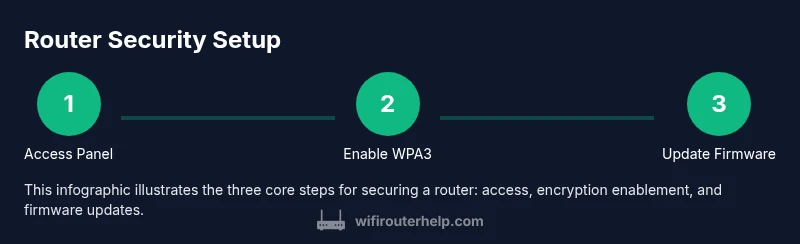
This section provides a practical overview of configuring your router to defend against common threats. Start by accessing the router’s admin interface from a wired or secure wireless connection. Update the device firmware to the latest version before making changes, since updates often fix security flaws. Enable WPA3-Personal (or WPA2-PSK with AES as a fallback), disable WPS, and switch to a unique SSID to distinguish your network from neighbors. Create and apply a strong network security key router that follows the guidelines above and avoid using default credentials. If your router supports a guest network, enable it with its own key and limit access to your main LAN.
Remember: administrative credentials should be unique and stored securely. After applying changes, test connectivity with multiple devices and verify each can connect to the network using the new security settings. This approach minimizes disruption and ensures consistent protection across all devices.
Best practices for router admin access and updating firmware
Strong router administration habits are as important as the wireless key. Change the default admin username and password immediately, and enable two-factor authentication if the feature exists. Keep your router’s firmware up to date; firmware updates often include security patches that address newly discovered vulnerabilities. Check for updates on a regular schedule—monthly or quarterly—and configure automatic updates if supported. As part of security hygiene, consider disabling remote administration unless you specifically need it, and tighten remote access by restricting it to trusted IP addresses.
A well-managed router reduces attack surface and helps ensure that your network security key router remains effective over time. Document the update history and keep a log of changes in a secure location to facilitate troubleshooting and audits.
Practical examples: applying a robust network security key
A robust network security key router blends length and randomness to resist brute-force attempts. For example, a passphrase formed from four or five unrelated words with separators (e.g., “violet-rail-moon3$parrot”) is typically more memorable than a random jumble while still being highly resistant to guessing. Avoid predictable patterns such as dates, pet names, or common phrases. Consider using a password manager’s password generator to create a unique key for your network that you never reuse elsewhere. If you share access, distribute a guest network key instead of the main one, and revoke access when guests depart.
Pair your network security key router with a strong encryption setting and a properly configured guest network. This layered approach helps mitigate risk even if one device is compromised. Regularly review connected devices and remove unknown ones to maintain ongoing network integrity.
Troubleshooting common issues during setup
If devices fail to connect after updating your security settings, confirm the exact network name (SSID) and the new password are input correctly on each device. Double-check that the router is broadcasting the SSID and that there are no MAC address filtering rules inadvertently blocking legitimate devices. If WPA3 is not functioning as expected, temporarily switch to WPA2-PSK with AES and reattempt connections, then later re-enable WPA3 if compatible devices are available. Restarting the router and devices can help apply new settings, but avoid power cycling too aggressively. If problems persist, consult the router’s official support resources or contact the manufacturer for guidance.
Common misconfigurations include leaving WPS enabled, using weak encryption, or sharing admin credentials. Addressing these issues promptly reduces exposure and protects the network security key router from unauthorized access.
Security hygiene and ongoing maintenance
Security is an ongoing process. After establishing a strong network security key router, schedule periodic reviews of your router configuration, including password changes, encryption level, and connected devices. Rotate passwords for admin access separately from the wireless key, and keep a secure backup of both credentials. For households with guests or IoT devices, segment networks and apply appropriate access controls. Monitor logs for unfamiliar devices or unusual activity, and be prepared to revoke access or reset the router if a breach is suspected. A proactive maintenance routine keeps your home network resilient against new threats.
Tools & Materials
- Router with admin access(Ensure you know the admin username and password)
- Computer, tablet, or smartphone(Used to access the router's admin interface)
- Stable power source(Keep the router powered during configuration and updates)
- Password manager(Store long, unique network keys securely)
- Ethernet cable (optional)(Wired connection can reduce interference during setup)
Steps
Estimated time: 30-45 minutes
- 1
Access the router admin panel
Connect a device to the router, open a web browser, and navigate to the router’s IP address. Log in with the current admin credentials. If you cannot recall them, perform a factory reset only after first attempting recovery options provided by the manufacturer.
Tip: Use a wired connection if possible for reliability during setup. - 2
Back up current settings
Before making changes, export or snapshot the current configuration. This creates a rollback point in case something goes wrong after applying new security settings.
Tip: Store backup in a secure location, not on the router itself. - 3
Update firmware
Check for the latest firmware version and install it. Firmware updates often include security patches and improved WPA3 support. Allow the update to complete without interruption.
Tip: If the router requires a reboot, avoid powering off mid-update. - 4
Enable WPA3-Personal
In wireless settings, select WPA3-Personal as the primary encryption protocol. If unavailable, use WPA2-PSK with AES as a fallback. Avoid mixed-mode or TKIP options.
Tip: Prefer WPA3 whenever compatible with your devices. - 5
Create a strong network security key router
Generate a long, unique key using a mix of uppercase, lowercase, numbers, and symbols. Consider a passphrase of several unrelated words with separators for memorability and strength.
Tip: Use a password manager to store this key securely. - 6
Configure a separate guest network
If supported, enable a guest network with its own SSID and password. Restrict guest access to the internet only or apply limited LAN access policies to protect your main devices.
Tip: Do not share the main network key with guest users. - 7
Disable WPS and remote admin
Turn off WPS to prevent brute-force attacks. Disable remote administration unless you need it, and restrict it to trusted devices or IPs if available.
Tip: WPS is a common attack vector; disable it even if it seems convenient. - 8
Apply and verify changes
Save all changes, reboot if required, and verify every device can reconnect using the new settings. Re-scan connected devices to confirm only authorized clients are present.
Tip: Keep a written record of changes and test from multiple devices. - 9
Document and back up credentials
Record admin credentials and the network security key in a secure manager. Store recovery steps and keep the backup offline if possible.
Tip: Rotate passwords periodically and after any suspected breach.
People Also Ask
What is a network security key router?
A network security key router is the password used to encrypt wireless traffic between your router and connected devices. It protects data from eavesdroppers and unauthorized access, forming a key part of your home network security.
The network security key router is the password that encrypts your WiFi; it keeps your data safe from intruders.
Why should I use WPA3 instead of WPA2?
WPA3 provides stronger protections against offline password guessing and better forward secrecy. It reduces risk from passive eavesdropping and improves security for devices on your home network.
WPA3 gives stronger protection than WPA2 for your WiFi networks.
Can I change the security key remotely?
Some routers support remote administration, but it is generally safer to change keys locally via a trusted network. If remote access is necessary, restrict it to a trusted IP range and disable it when not in use.
You can change keys remotely if your router supports it, but only with tight security controls.
What if I forget the network password?
If you forget it, log into the router’s admin panel from a connected device to view or reset the network key. If you cannot access the panel, you may need to reset the router to factory defaults and reconfigure.
If you forget the password, reset or view it in the admin panel, then set a new one.
Is WPS safe to use?
WPS is a known vulnerability vector and should be disabled unless you have a compelling reason to use it. Prefer manual key entry and strong WPA3/WPA2-PSK encryption instead.
WPS is not the safest option; disable it and use a strong manual password.
How often should I update router firmware?
Check for firmware updates monthly or when the manufacturer releases a security patch. Regular updates close vulnerabilities and improve compatibility with new devices.
Update firmware regularly to protect against security flaws and improve performance.
Watch Video
What to Remember
- Choose a long, unique network security key.
- Enable WPA3 whenever possible.
- Update firmware regularly.
- Store credentials securely and back them up.