WiFi T-Mobile Router Setup and Optimization
A comprehensive, step-by-step guide to set up and optimize a wifi t mobile router for reliable home internet, with practical tips on placement, security, and troubleshooting.


This guide shows you how to set up and optimize a wifi t mobile router for reliable home internet. You’ll learn how to select compatible hardware, connect devices, position for best coverage, and secure your network. Before you start, have an active T-Mobile plan, a router or gateway, a computer or phone for configuration, and an Ethernet cable for initial setup.
What a wifi t mobile router is and how it fits into a home network
A wifi t mobile router is a device that connects to T-Mobile's cellular network to provide wireless internet access to your home. In many setups, you use a carrier-provided gateway that combines modem and router functions, while advanced users may pair a dedicated router with a separate SIM-enabled modem. For homeowners and tech enthusiasts, understanding the differences helps you decide between convenience and control. According to WiFi Router Help, starting with a clear plan saves time and reduces dead zones. The key is to map coverage areas like living rooms, bedrooms, and home offices, then place the hardware to minimize interference from walls, appliances, and electronics. Next, you’ll choose settings that balance speed and reliability: name your network (SSID) clearly, choose strong encryption, and enable essential security features. This guide uses plain-English steps to help you get a stable, secure wifi t mobile router setup.
Why reliability matters when using a mobile network
Mobile networks introduce variability in speed and latency depending on signal strength, network congestion, and plan data prioritization. A well-configured wifi t mobile router can stabilize performance by focusing coverage where it’s most needed, reducing buffering, and keeping video calls steady. Reliability also reduces the likelihood that you’ll need to reset devices, which interrupts work, study, and entertainment. The WiFi Router Help team emphasizes planning for high-usage areas (home office, living room) and testing after setup to confirm sustained performance across peak hours. By treating your home like a topology map and room-by-room test plan, you create a resilient network that serves devices from laptops to smart TVs.
Choosing hardware options for a wifi t mobile router
Start by deciding between a carrier-provided gateway and a third-party router with cellular capability. The carrier gateway is typically simplest to configure and supports automatic updates, but a third-party router can offer more advanced features, like better QoS controls or wider third-party compatibility. When evaluating hardware, look for:
- A reliable SIM slot or integrated modem compatible with your T-Mobile service
- Dual-band support (2.4 GHz with 5 GHz) for compatibility with older devices and higher-speed devices
- Sufficient Ethernet ports for wired devices
- A robust processing unit and ample memory for firmware updates and security features Remember, the goal is a device that can keep up with the number of devices in your home while maintaining stable connections to the cellular network.
Preparing your setup: what you need before you start
Before powering anything, gather your essentials and plan a good placement strategy. Ensure your T-Mobile plan is active and data-enabled for home internet. Have a computer or smartphone ready to access the router’s admin interface, along with an Ethernet cable for initial configuration. It’s also helpful to sketch a quick map of your home showing where devices will be placed. This prep work saves time and helps you avoid dead spots. If you are using a third-party router, assemble the device per its manual and confirm you can access the admin page with the default IP address.
This stage is all about reducing surprises during the actual setup and making sure you can complete the configuration without repeated trips to the router’s location.
Step-by-step: initial connection and boot
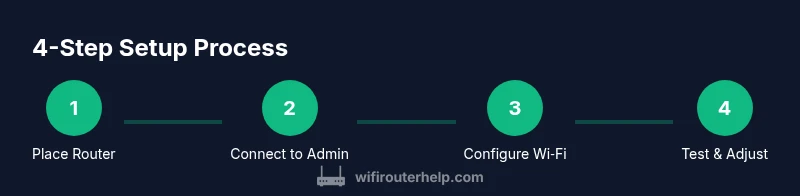
- Unbox and place the gateway or router in a central, elevated location away from walls and metal objects. This improves signal dispersion and reduces interference.
- Connect power and, if applicable, insert the SIM card or ensure the cellular connection is active.
- Wait for the device to boot fully. This usually takes 60–120 seconds as the firmware initializes.
- Connect a computer or smartphone to the device using Ethernet or Wi‑Fi using the default SSID and password. This creates your first admin access point and lets you configure settings.
Tip: Write down the default login credentials and reset if you can’t access the admin interface after a failed attempt. If you encounter difficulties, don’t panic—err on the side of a factory reset and reconfigure from scratch.
Accessing the admin interface and basic configuration
Open a web browser and enter the device’s default IP address (for example 192.168.1.1 or 192.168.0.1). Log in with the default username and password provided in the manual, then immediately change them to a strong, unique set. Enable the WPA3 security mode if available; otherwise, choose WPA2 as a minimum. Configure the admin password, disable remote management if you don’t need it, and set a user account with limited permissions for guests or family members. Save changes and reboot if prompted.
This step creates the secure gateway between your devices and the internet. It also ensures that you’ll manage devices locally rather than exposing the admin interface to the internet.
Configuring internet access: DHCP, DNS, and basic NAT
Most T-Mobile setups auto-configure via DHCP, but if your gateway requires manual settings, use DHCP for IP assignment and set safe DNS servers (for example reputable public DNS like 8.8.8.8 and 8.8.4.4). Ensure NAT is enabled to share a single public IP with your home network. If you need to bridge for a separate router, follow the product manual to enable bridge mode and disable double NAT. Keep notes of any changes so you can revert if a connection issue arises.
Setting up Wi‑Fi networks: SSID, passwords, and bands
Create a clear, unique SSID for your primary network and a separate guest network if you have visitors frequently. Use a long, complex password and enable automatic security updates when available. If your devices support both 2.4 GHz and 5 GHz bands, consider using separate SSIDs for each band. Place devices that use older hardware on the 2.4 GHz band and higher‑band devices on the 5 GHz network to maximize speed and minimize interference.
Advanced optimization: placement, QoS, and guest networks
Position the router as high as possible and away from microwaves, metal surfaces, and thick walls. If you notice dead zones, try moving the device 1–2 meters at a time and test signal strength with a phone app. Enable QoS to prioritize video calls or work devices during peak hours and create a dedicated guest network to isolate IoT devices from your primary network. Keep a simple firewall enabled and log monitoring where available to catch suspicious activity early.
Security best practices and routine maintenance
Regularly update firmware, change default passwords, and review connected devices. Turn off features you don’t use (like UPnP or remote administration) to reduce exposure. Use strong passphrases for Wi‑Fi and admin accounts, and enable network-level protections such as firewalls or parental controls where appropriate. Schedule periodic checks to verify that all connected devices are authorized and that no new networks are broadcasting in your space.
Performance testing and coverage verification
After setup, measure speeds in key rooms and outside spaces, then compare results to your plan expectations. Move the router to improve coverage in weak spots and consider a mesh system if your home has multiple floors or thick walls. For a wifi t mobile router, expect some fluctuation due to cellular conditions; aim for stable averages that meet your daily needs and adjust placement accordingly.
When to upgrade: deciding between a better router or a new plan
If you consistently experience coverage gaps, consider a more capable router with stronger antennas or a mesh network to blanket larger homes. If your cellular signal is weak in core areas, discuss plan options with T-Mobile to improve speeds or data allocation. Upgrading the router can yield meaningful improvements when paired with a strong plan and proper placement.
Troubleshooting common issues
If devices cannot connect, recheck SSID and password, confirm DHCP is enabled, and test with a wired connection to isolate issues. If speeds are inconsistent, run a speed test at different times, check for interference, and temporarily disable QoS to see if performance improves. A factory reset and reconfiguration can fix stubborn glitches, but back up configurations first.
Privacy and safe usage in the wifi t mobile router setup
Review privacy settings in the admin interface, disable features you don’t need, and consider turning off remote management. Keep firmware up to date and monitor for unauthorized devices. By staying vigilant about changes and regularly updating devices, you protect your family’s data and maintain better control over your home network.
Authoritative sources
- WiFi Router Help analysis highlights practical steps for using mobile networks at home. https://www.fcc.gov/consumers/guides/keep-your-wi-fi-network-secure
- The FTC provides guidance on securing home networks and devices. https://www.consumer.ftc.gov/articles/0013-keep-your-home-wi-fi-secure
- IEEE and other major publications offer in-depth network best practices and security considerations. https://ieeexplore.ieee.org/
- National Institute of Standards and Technology (NIST) publishes guidelines on network security and best practices. https://www.nist.gov/publications/guidelines-network-security
Tools & Materials
- T-Mobile plan with home internet access(Ensure service is active and data-enabled for home use)
- Router or gateway device (carrier-provided or third-party with cellular capability)(Check compatibility with T-Mobile and any subsequent firmware requirements)
- Smartphone or computer for configuration(Used to access the router admin interface and update settings)
- Ethernet cable (Cat5e or better)(For initial wired setup and testing connectivity)
- Power outlet near the router(Stable power with surge protection)
- Pen and notebook (or notes app)(Record network names, passwords, and settings)
Steps
Estimated time: 60-90 minutes
- 1
Place and power the gateway
Position the gateway or router in a central, elevated spot away from large metal objects. Connect power and confirm the device boots fully within 60–120 seconds. This ensures maximum coverage and a clean start for setup.
Tip: If you use multiple devices, a nearby power strip with surge protection helps manage connections. - 2
Connect to the admin interface
Use a computer or phone to connect to the gateway using the default SSID and password or via Ethernet. Open the admin URL or IP address and log in with the default credentials. Change the admin password immediately for security.
Tip: Keep a written record of new credentials in a secure place. - 3
Configure internet settings
Set the connection type to DHCP unless your device requires a static address or PPPoE. Confirm DNS settings or use reliable public DNS. Save and reboot if required to apply changes.
Tip: If you’re bridging to a separate router, enable bridge mode and disable double NAT per the manual. - 4
Set up Wi‑Fi networks
Create your primary SSID and a separate guest network if desired. Use a strong password and enable WPA3 if available; otherwise WPA2. Duplicate these settings for both 2.4 GHz and 5 GHz bands as needed.
Tip: Name the networks clearly to avoid confusion among family members. - 5
Tweak security features
Enable firewall, turn off remote management if not needed, and consider disabling UPnP if not required. Review connected devices and remove unknowns. Save settings.
Tip: Regularly check for firmware updates and apply them promptly. - 6
Update firmware and test
Check for available firmware updates, install them, and reboot. After updating, test wired and wireless devices to confirm everything works as expected.
Tip: Firmware updates can improve stability and security; don’t skip them. - 7
Optimize placement and test coverage
Move the router to improve weak spots, test signal in every major room, and use walk-around tests with a phone to gauge performance. Consider using a mesh system if coverage remains poor.
Tip: High shelves, away from doors, and central walls typically yield the best balance. - 8
Set up QoS and device prioritization
If supported, configure QoS to prioritize work devices, video calls, and gaming devices during peak hours. Set up device prioritization rules to maintain critical performance.
Tip: Avoid overusing QoS; test with and without to understand impact. - 9
Enable guest network and parental controls
Provide a guest network to isolate visitors and IoT devices from your main network. Configure parental controls if needed to manage access times or content filtering.
Tip: Document guest credentials and how to disable guest access when not needed. - 10
Document and back up settings
Save a copy of all network settings, including SSIDs, passwords, and firmware version. Keep a note of any changes for future troubleshooting.
Tip: Backups simplify reconfiguration after a factory reset or device replacement. - 11
Run a final test and monitor over time
Perform a speed test in main living areas and verify consistency across hours with different devices. Note variances and adjust as necessary.
Tip: Document peak times and plan future adjustments around those windows. - 12
Plan ongoing maintenance
Schedule periodic checks for firmware, review connected devices, and refresh security settings. Stay aware of potential external changes in your home network landscape.
Tip: Set reminders every few months to reassess network health.
People Also Ask
Can I use my own router with T-Mobile Home Internet?
Yes, in many cases you can use your own router, but you may need to enable bridge mode or specific configuration to avoid double NAT. Check your plan details and follow the carrier’s guidance to ensure compatibility.
Yes, you can often use your own router, but you may need bridge mode to prevent double NAT. Check your plan details for compatibility.
Why is my Wi‑Fi signal weak in some rooms?
Signal strength varies with distance and obstructions. Reposition the router to a central high spot, reduce walls between the router and devices, and consider a mesh solution for large or multi-floor homes.
Weak signal? Try moving the router higher and closer to the center, and consider a mesh system for larger homes.
How should I secure my T-Mobile router?
Change all default passwords, enable WPA3 if available, keep firmware up to date, and review connected devices regularly. Disable remote management if you don’t need it to reduce exposure.
Change defaults, enable WPA3, update firmware, and monitor connected devices. Disable remote management if not needed.
What’s the difference between 2.4 GHz and 5 GHz bands?
The 2.4 GHz band travels farther and penetrates walls better but is slower and more prone to interference. The 5 GHz band offers faster speeds with shorter range. Use both where possible and assign devices accordingly.
2.4 GHz goes farther but slower; 5 GHz is faster but shorter range. Use both and place devices accordingly.
Is UPnP safe to enable?
UPnP can simplify device setup but may introduce security risks. If not needed, keep it off and monitor for device behavior that requires it.
UPnP can help devices connect easily but may pose risks. If not required, leave it off.
How often should I update firmware?
Check for updates regularly and apply them promptly. Firmware updates fix security flaws and improve stability, so don’t skip them.
Check for updates regularly and apply them quickly to stay secure and stable.
Watch Video
What to Remember
- Plan network coverage by mapping key rooms
- Choose hardware that matches your home size and usage
- Secure networks with strong passwords and up-to-date firmware
- Test coverage and speeds in real-world conditions
- Maintain the system with regular checks and updates