Where to Find the Network Security Key on Your Router
Learn where to locate your router's network security key (the Wi‑Fi password) on the device and in the admin interface. This guide covers physical labels, UI paths, and best practices for secure sharing and rotation.


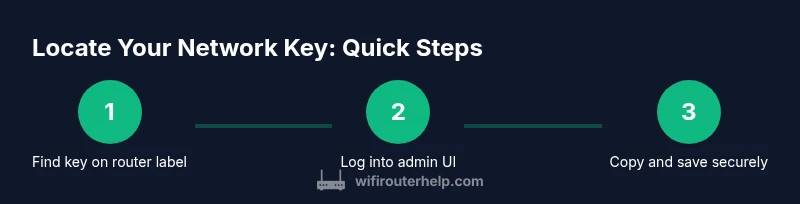
By default, your network security key (the Wi‑Fi password) is found on the router’s label or in the admin UI. Check the sticker on the back or bottom for the WPA/WPA2 key, then verify it in the router’s settings under Wireless or Security. If you’ve changed it, use the reset or recovery options per the manufacturer’s guidance. This quick lookup helps you reconnect fast after changes.
Understanding the Network Security Key: What it is and why you need it
The network security key, often called the Wi‑Fi password or passphrase, is what devices use to join your wireless network. In most homes today, it is a WPA2-PSK or WPA3-PSK password that encrypts your traffic and keeps your network from being accessed by strangers. According to WiFi Router Help, knowing where to locate this key helps you reconnect quickly after you replace devices or reset settings. While the admin username and password control access to the router, the network security key is what guests and personal devices need to connect to the Wi‑Fi itself. Treat it as sensitive information and rotate it periodically to maintain security. For best results, use a strong, unique passphrase that’s difficult to guess and store it in a password manager.
In practice, you’ll typically see the network key labeled as “WPA-PSK/WPA2-PSK passphrase,” “Network key,” or “Wi‑Fi password” in your router’s settings. Some routers also show a QR code for easy connection on mobile devices. Always verify you’re viewing the correct key for the primary SSID you use in your home, especially if you have multiple networks or guest networks.
Finding the key on the router label (physical card)
Most routers ship with a label on the back or bottom that lists the default network name (SSID) and the default password. This key is the one you’d use before you’ve changed any settings. Even if you previously changed the password, the label can still help you locate the original key or confirm the default. If you recently moved or inherited the router, start here to identify the credentials quickly. Note that some newer models print only a partial key with a prompt to reveal the full password through the UI. When reading the label, ensure you copy characters exactly, including any capitalization.
If the label is damaged or worn, continue to the admin UI or reset path described below. Preserving a copy in a password manager is a prudent step to prevent loss from hardware changes or device upgrades.
Accessing the router’s admin page to find the key (best practice)
The most reliable way to locate or confirm your network security key is to log into the router’s web interface or mobile app. Open a browser or the vendor app, then sign in with the router’s admin credentials. If you don’t remember the login, you may find the information on the router’s label, in the manual, or use a password reset procedure provided by the manufacturer. Once logged in, navigate to Wireless or Security settings; the key is typically shown as the Wi‑Fi password, Passphrase, or Network key. Some vendors require you to click a “Show password” toggle to reveal it.
If you’re using a separate guest network, make sure you’re viewing the correct SSID key for the network you want devices to join. For easier management, consider enabling a guest network with its own password to keep your main network more secure.
The path in common router UIs: where the key usually lives
In most routers, you’ll find the network key under Wireless, WLAN, or Security sections. Look for entries labeled as “Password,” “Passphrase,” or “Network key.” Some interfaces group it under an advanced settings page. If your router supports it, you may also see a QR code next to the key for quick, device-friendly sharing. When you locate the key, copy it exactly as shown—even a single character mismatch will prevent devices from joining. If you share the key with guests, consider creating a temporary guest network with its own password to keep your primary network more secure.
Note that admin login and network key are separate; do not confuse the two. The admin credentials control access to the router's settings, while the network key protects access to the actual wireless network.
If you forgot the admin password or can’t access the UI
If you can’t sign in to the admin page, you have a few options. First, check whether your device is still connected to the router via Ethernet or a previously saved session. If you still cannot login, perform a factory reset as a last resort, which restores default settings, including the original network key shown on the label. After reset, you’ll need to set up the network again and set a new, strong key. If you rent or lease the router from an ISP, you may need to contact customer support for account-level assistance or a temporary password reset.
Remember:Resetting will erase all customized settings (including port forwards and parental controls). Have a plan to reconfigure those features after regaining access to the admin page.
Security best practices after locating the key
Once you’ve found or reset the key, implement security best practices to reduce risk. Use a long, unique passphrase that combines letters, numbers, and symbols. Do not reuse passwords across devices or services. Consider enabling a guest network so visitors don’t access your main network. Disable WPS if possible, and keep firmware updated to mitigate vulnerabilities. Finally, store your network key securely in a password manager rather than on sticky notes or exposed documents. WiFi Router Help emphasizes proactive security management as a core habit for homeowners and tech enthusiasts.
Troubleshooting quick checks when the key won’t work
If devices fail to connect after updating or locating the key, verify you copied the password exactly, paying attention to capitalization and special characters. Ensure you are connecting to the correct SSID—the key for the guest network might be different from the main network. Check if MAC filtering is enabled, which could block new devices. If your router is set to use a different encryption mode (e.g., WPA3 only), some older devices may fail to connect. Restart devices and the router to apply changes, and re-test the connection.
Quick reference cheat sheet: locating, verifying, and securing your network key
- Locate the key on the router label or in the admin UI under Wireless/Security.
- Copy exactly; confirm with at least one test device.
- If the key isn’t visible, use the UI’s reveal option or reset to restore default.
- After locating, update and store the key in a password manager.
- Create a separate guest network and disable WPS for better security.
Tools & Materials
- Router with power supply(Ensure the router is powered on and accessible)
- Computer, smartphone, or tablet(Used to access the admin page or app)
- Web browser or router mobile app(Used to log in and view Wireless/Security settings)
- Ethernet cable (optional)(Useful if Wi‑Fi is unstable and you need a stable connection to the admin page)
- Pen and paper or password manager(For securely recording the network key after locating it)
Steps
Estimated time: 20-40 minutes
- 1
Identify router model and prepare admin access
Locate the model number on the device or box and gather admin credentials (username and password). This ensures you know where to look and that you can access the admin interface. If you’re unsure of the login, refer to the manual or the manufacturer’s website for the correct defaults.
Tip: Take a photo of the label for quick reference and avoid relying on memory. - 2
Find the security key on the physical router label
Check the sticker on the back or bottom for the WPA/WPA2 key, usually listed as the network password or passphrase. Read it carefully and copy exactly, including capitalization. If the label is damaged, proceed to the admin UI in the next step.
Tip: If the key is partially obscured, use the reveal option in the UI or a manufacturer app to view the full string. - 3
Log in to the router’s admin interface
Open a web browser or the router’s app and sign in with the admin credentials. If you’ve forgotten them, use the label/manual or the reset option described by the manufacturer. Access to the UI is your reliable route to confirm the exact network key.
Tip: Ensure your device is on the same network as the router and disable any VPNs that might block local IP access. - 4
Navigate to Wireless/Security settings to view the key
In the UI, locate the Wireless or Security section. Look for entries like Password, Passphrase, Network key, or WPA-PSK. Some interfaces show a QR code to share the key; use the reveal option if available.
Tip: If you don’t see the key, try the advanced settings view or switch to a different SSID (primary vs. guest) to locate the correct key. - 5
Copy or record the key securely
Copy the key exactly as shown and store it securely in a password manager. If you’re creating a new key, compose a strong passphrase and update both the router and all connected devices.
Tip: Avoid writing the password on sticky notes or exposing it in shared spaces. - 6
Test the connection and verify devices connect
Disconnect and reconnect a device using the key to verify it works. If issues persist, re-type the password, verify the correct SSID, and check for encryption mode compatibility.
Tip: If a device still won’t connect, reboot the router and the device, then reattempt the connection.
People Also Ask
Where is the network security key located on my router?
The key is usually on a sticker on the router or visible in the admin page under Wireless/Security. If you’ve changed it, refer to the updated value in the UI or reset the device to restore defaults.
Check the router’s sticker or log into the admin page and look under Wireless or Security to find the network key.
What if the sticker is unreadable?
If the sticker is faded, use the router’s admin interface to view or change the key. If you can’t access the UI, perform a safe reset as described in the manual.
Try the admin page first; if that fails, follow the manufacturer’s reset procedure to recover or set a new key.
Does resetting the router reset all settings?
Yes, a factory reset restores default settings, including the network key. You’ll need to reconfigure Wi‑Fi, ports, and parental controls after the reset.
A reset returns you to factory defaults, so you’ll need to set up your network again.
Is the network key the same as the admin password?
No. The network key controls access to Wi‑Fi, while the admin password protects access to the router’s settings. They may be different, and you should keep both secure.
No—one is for joining Wi‑Fi, the other is for configuring the router.
How do I change my network security key?
Log in to the router’s admin page, navigate to Wireless/Security, and enter a new passphrase. Save changes, then reconnect devices using the new key.
Sign in, go to Wireless settings, update the passphrase, save, and reconnect devices.
What if my router is ISP-provided?
ISP-provided routers follow the same principles, but you may need to access a carrier-specific app or portal. If you can’t log in, contact your provider for credentials or a reset option.
ISP devices have similar steps, but you may need provider support to access or reset.
Watch Video
What to Remember
- Know where to locate the network key on the label or in the UI
- Copy accurately and verify with a test device
- Rotate keys regularly and store securely
- Differentiate between network key and admin login