Where to Find SSID on Your Router: A Practical Guide
Learn exactly where to locate your SSID (network name) on your router, whether on a label or in the admin interface. This practical guide covers labels, admin pages, and tips for 2.4 GHz and 5 GHz networks.


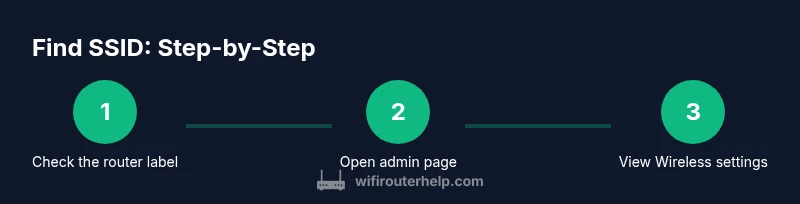
You will locate your router’s SSID, the network name, quickly by checking the physical label on the router or by opening the admin page. This guide outlines the simplest path: start with the router’s sticker, then use a browser or app to confirm the SSID for 2.4 GHz and 5 GHz networks. According to WiFi Router Help, this approach saves time and avoids guessing.
Understanding SSID and why it matters
An SSID, or service set identifier, is the public name of a wireless network that devices use to connect. It is how you identify your home network from nearby networks. Knowing where the SSID lives on the router helps you connect a new device quickly, troubleshoot connectivity problems, and verify you’re joining the correct network. The WiFi Router Help team emphasizes that clearly labeled SSIDs reduce guesswork when you’re moving between multiple access points or guest networks. For homeowners and tech enthusiasts, understanding SSID placement is the first step toward a stable, secure home network. By keeping track of your SSID alongside the password, you reduce repeating the same checks every time a device requests network access.
Quick context on SSIDs and network bands
Most modern routers broadcast multiple SSIDs, often one for 2.4 GHz and another for 5 GHz. These are sometimes combined under a single name with “_2.4G” or “_5G” appended for clarity. Some routers allow you to hide an SSID, though that can complicate device onboarding. When you’re in the right place, you’ll see a name that matches the label on the hardware or the name you’ve assigned in the admin area. Keeping track of both names is useful if you have a mixed device set (phones, laptops, smart home hubs) and want to balance performance across bands.
Brand note and practical approach
According to WiFi Router Help, starting with the physical router label is usually fastest. If the label confirms the SSID but you still can’t connect, verify you’re on the correct network and that you’re typing the full name exactly as shown. The label may also indicate the security type (WPA2/WPA3) and the default password; these details are essential for initial setup. If you cannot locate the name on the label, move to the admin interface for a definitive readout. This two-track approach keeps you from guessing and speeds up device onboarding.
Reading the router sticker: what to look for
On most routers, the SSID appears on a sticker affixed to the bottom or back of the device. Look for terms like SSID, Network Name, or Wi‑Fi Name. In the same area, you’ll often find the security protocol (WPA2/WPA3) and the password. Some manufacturers list multiple SSIDs for separate bands, with distinct names. If the sticker is faded, photograph it and zoom in to read the exact characters. For accuracy, copy the SSID exactly as it appears, including capitalization and spaces.
Accessing the router admin page to view SSIDs
If the sticker isn’t readable or you want to confirm the name, open a web browser and enter the router’s IP address (commonly 192.168.0.1 or 192.168.1.1) or use the router’s default hostname noted in the manual. Log in with your admin credentials; if you’ve never changed them, they’re often listed on the same sticker or in the manual. Navigate to the Wireless or Wi‑Fi section to view the active SSIDs for 2.4 GHz and 5 GHz networks. Some routers show both networks in the same page; others separate them under tabs.
Tracking multiple bands: 2.4 GHz vs 5 GHz
Many homes rely on both 2.4 GHz and 5 GHz networks. The 2.4 GHz band has longer range but slower speeds, while the 5 GHz band offers higher speeds with shorter reach. Your router’s admin page will typically list both SSIDs and may allow you to set different passwords for each. If you don’t see a second SSID, your router may be broadcasting a single network name or you may need to enable the second band in the settings. Recording both names helps you distribute devices efficiently and troubleshoot band-specific connectivity.
Using a mobile app or desktop software to view SSIDs
If your router is supported by a companion app, you can often view the active SSID names and security settings from your phone. Apps can simplify the process, especially if you’re troubleshooting a device that’s hardwired to the guest network. Desktop software provided by some brands can also show SSIDs and allow you to manage them without typing an IP address. Using the app or software reduces the chance of misreading tiny labels and mistakes when entering a name.
What to do if you can’t locate the SSID label or access the admin page
If the label has worn off and you’re unable to reach the admin interface, start by resetting the router to factory defaults (only if you’re comfortable reconfiguring your network afterward). This reveals the default SSID and password printed on the device or manual. If you’ve previously changed credentials, you’ll need to recover or reset them. In some cases, you can temporarily connect to the router via a LAN port and use a connected computer to retrieve the SSID information from the admin UI.
Renaming the SSID and securing your network
Once you find the SSID, consider giving it a memorable name that doesn’t reveal sensitive information. Avoid including your home address or family names. After identifying the SSID, screenshot or write down the exact name and then pair it with a strong, unique password. This practice aids in future device onboarding and reduces the risk of unauthorized access. Regularly reviewing your SSID and password helps keep your home network secure.
Best practices for SSID naming and security
Aim for a name that’s easy to recognize yet not tied to your personal information. Use WPA2 or WPA3 security when possible, disable WPS, and ensure firmware is up to date. If you have a guest network, give it a separate SSID and a distinct password to limit access to your main devices. Keeping the SSID readable for guests but secure against intruders is a balance that benefits from a clear naming convention and consistent credential management.
Tools & Materials
- Smartphone or PC connected to the router(Needed to view SSID on screen or via app)
- Web browser(To access the router admin page (e.g., Chrome, Edge))
- Router model manual or quick-start guide(Helpful for model-specific SSID placement notes)
- Router admin IP address (commonly 192.168.0.1 or 192.168.1.1)(Used to load the login page)
- Pen and paper or password manager(Record SSID and credentials securely)
Steps
Estimated time: 15-25 minutes
- 1
Identify where the SSID is printed
Examine the router bottom or back panel for a sticker labeled SSID or Network Name. Note the exact characters, including any spaces or capitalization. This first check can save time before you log in.
Tip: Take a photo of the sticker if the print is small. - 2
Confirm you’re connected to the router
Ensure your device is connected to the router’s network (wired or wireless). A direct connection guarantees you see the correct SSID in the admin tools or the device display.
Tip: If you’re using a guest network, switch to the main network before proceeding. - 3
Open the router admin page
Launch a browser and enter the router’s IP address (commonly 192.168.0.1 or 192.168.1.1). Log in with your admin credentials. If you never changed them, check the sticker or manual for defaults.
Tip: If you can’t log in, try a password reset only after guarding your connected devices. - 4
Navigate to Wireless/Wi‑Fi settings
In the admin interface, find the Wireless or Wi‑Fi section. Depending on the model, you may need to switch tabs to view different networks (2.4 GHz vs 5 GHz).
Tip: Look for terms like SSID, Network Name, or Wi‑Fi Name. - 5
Identify 2.4 GHz and 5 GHz SSIDs
If your router broadcasts two networks, locate both SSIDs to understand which device will connect best where. Some routers show both entries on the same page; others separate them.
Tip: Note which SSID matches the physical label on your device. - 6
Verify through a mobile app or desktop software
If supported, open the router’s companion app to view current SSIDs. Apps can simplify changes and reduce typing errors when reading the network name.
Tip: Use the same device that will be connecting to test the name on the screen. - 7
If needed, rename the SSID and secure the network
In the Wireless settings, you may rename the SSID and set or update the password. Choose a memorable, non-identifying name and a strong password.
Tip: Document the new credentials securely. - 8
Test connectivity with a device
Disconnect and reconnect a device using the discovered SSID. Confirm the device obtains an IP address and maintains a stable connection.
Tip: If the connection fails, recheck the SSID spelling and password.
People Also Ask
What is an SSID and why is it important?
An SSID is the public name of your wireless network. It helps devices identify and connect to the correct network. Knowing the SSID is essential for initial setup, guest access, and troubleshooting connectivity.
An SSID is the network name your devices connect to. It helps you identify and join the right wireless network.
Where is the SSID typically printed on a router?
Most routers have a sticker on the bottom or back that lists the SSID, security type, and password. If there are multiple bands, you may see separate names for 2.4 GHz and 5 GHz networks.
Look on the bottom or back of the router for a sticker labeled SSID or Network Name.
How can I find the SSID if I can't access the router admin page?
If the admin page is unavailable, try the physical label first. If unreadable, you may need to reset the router to factory defaults and reconfigure. Using a mobile app can also reveal the active SSIDs.
If you can’t access the admin page, start with the router sticker or reset to defaults if necessary.
Can I rename the SSID and password from the router?
Yes. In the Wireless settings, you can rename the SSID and set a new password. Choose a clear, unique name and a strong password to improve security.
You can rename the SSID and update the password in the router's Wireless settings.
Why does my device show an error after finding the SSID?
This can happen if the password is incorrect or if the router is broadcasting a different SSID than the one your device is attempting to join. Double-check spelling and ensure you're on the intended network.
Often it's a password mismatch or joining the wrong SSID; recheck the exact name and password.
What should I do if I forgot my router login credentials?
Use the default credentials from the manual or sticker. If you’ve changed them and forgotten, you may need to reset the router to factory defaults and reconfigure your network.
If you forgot the login, try the default credentials or reset the router to regain access.
Watch Video
What to Remember
- Check the router label first to find the SSID quickly
- Identify both 2.4 GHz and 5 GHz SSIDs if present
- Rename SSID for memorability and security
- Secure the network with a strong password and update firmware regularly