Where Is the SSID on My Router? A Step-by-Step Guide
Learn where to find the SSID on your router, whether on the device label or in the admin interface. This practical guide covers 2.4 GHz and 5 GHz networks, guest networks, and secure management of your WiFi.


Goal: locate the SSID on your router and understand where the network name is shown. You’ll learn to read the label on the device, access the admin interface, and identify 2.4 GHz and 5 GHz network names. This quick guide also covers guest networks and how to differentiate between the two bands.
Understanding the SSID and why it matters
When you connect a device to WiFi, the network name that appears is the SSID (service set identifier). The SSID identifies your home network from others nearby and can be broadcast or hidden depending on the router settings. Understanding where to find the SSID is foundational for setup, troubleshooting, and securing your home network. According to WiFi Router Help, locating the SSID on a router is typically straightforward, and the label on the device often reveals the default name before you customize it. Recognizing the SSID is essential whether you’re setting up a new router, reconnecting after a firmware update, or switching devices. The SSID is usually accompanied by the wireless password or passphrase, which you’ll also need to connect new devices. By learning where the SSID lives, you save time and avoid confusion when guests try to join your network or when you administer guest access. The goal here is clarity: know where to look, what to look for, and how to confirm you’re connecting to the right network.
Where to Find the SSID on the Router (Physical Label)
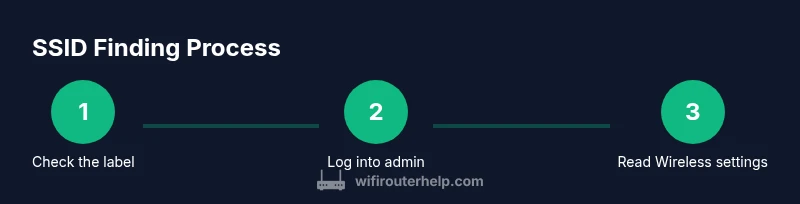
Most consumer routers print the SSID on a physical label affixed to the bottom or back of the device. The label often includes the default network name (SSID) and the wireless password. In some models, there may be separate labels for the 2.4 GHz and 5 GHz networks, or a combined listing of all network names. If the router has a removable panel or requires an advanced mode to view the label, you’ll still typically find the SSID printed somewhere on the chassis or the underside. Always check both the top and bottom surfaces if you don’t immediately see a label. If you’re scanning the label, verify you’re looking at the correct router (in a multi-router home setup) to avoid connecting to the wrong device.
Accessing the SSID in the Admin Interface
If the physical label doesn’t help or you want to confirm the current network name, log into the router’s admin interface. Connect your computer or mobile device to the router (via Wi‑Fi or Ethernet), then open a web browser and enter the router’s default IP address (commonly 192.168.0.1 or 192.168.1.1). Enter the admin username and password (often found on the same label or in the manual). Navigate to the Wireless settings or Basic Settings page to view the SSID for the 2.4 GHz and 5 GHz bands. If you’ve changed the login credentials, use your updated username and password. Keep a record of the SSID here to avoid needing to re-check the label after every firmware update. This approach is supported by standard router documentation and is a reliable way to verify the exact network name your devices should see.
Distinguishing 2.4 GHz, 5 GHz, and Guest Networks
Routers commonly expose separate SSIDs for 2.4 GHz and 5 GHz networks. Some models group them under a single name with a suffix like _2.4G or _5G; others will use distinct names entirely. If you see two SSIDs, test which one your devices connect through by temporarily connecting to each and observing signal strength and performance. Guest networks may have their own SSID and password; if you don’t see a guest network in the admin page, it might be disabled by default or temporarily unavailable. Naming conventions help you identify the right network for each device, and knowing which SSID corresponds to each band improves reliability and performance. WiFi Router Help emphasizes keeping the primary network name simple and consistent to reduce confusion for family members and guests.
What to Do If the SSID Is Not Visible or Has Been Changed
If you cannot locate the SSID on the label or in the admin interface, the network may be hidden, or the SSID might have been renamed to a different value. Hidden networks require configuring devices to connect by entering the exact SSID and password manually. If you suspect a change, compare the current settings with the original documentation or your saved notes. A common remedy is to enable SSID broadcast or restore the default SSID from the admin interface, followed by reconfiguring your devices. If you perform a reset, you’ll need to re-enter your network name and password. Remember to re-enable security features after any change to prevent unauthorized access. The WiFi Router Help team recommends documenting any changes you make to avoid future connection issues.
Best Practices for Managing SSIDs and Security
Choose a clear, unique SSID that doesn’t reveal personal information. Maintain a single primary network for everyday devices and use a separate guest network to keep visitors isolated. Always enable WPA2 or WPA3 security and use a strong, unique passphrase. Regularly review connected devices in the admin interface to detect unfamiliar connections. If you update firmware, re-check the SSID settings to ensure nothing was reset to defaults. The guidance here helps you stay organized, secure, and ready to troubleshoot quickly.
Quick Troubleshooting Checklist for Locating the SSID
- Verify the router label for SSID and password; note any distinctions between 2.4 GHz and 5 GHz.
- If the label isn’t legible, log into the admin page and check Wireless settings.
- Confirm you’re connected to the correct router in a multi-router environment.
- Check that SSID broadcast isn’t disabled and that the network name hasn’t been renamed unexpectedly.
- Test a connection to each SSID to identify which band is in use by your device.
- If all else fails, perform a cautious reset and reconfigure the network, then record the new SSID.
- For guests, verify whether a guest network is needed and configure it with its own password.
Quick Summary for Users
Knowing where the SSID lives—whether on the device label or in the admin interface—saves time and reduces confusion during setup or repairs. Always confirm the exact network name, and distinguish between the different bands and any guest networks. Document your choices and update them after firmware changes to keep devices connected smoothly.
Tools & Materials
- Router model manual or product label(Has model number and default SSID/password.)
- Device with browser access (phone, tablet, or computer)(Needed to view admin interface.)
- Ethernet cable (optional but helpful)(Useful if Wi‑Fi is down during setup.)
- Pen and paper or digital note app(Record SSID, password, and changes.)
- Current login credentials for router admin(Some models require updated credentials.)
Steps
Estimated time: 15-25 minutes
- 1
Identify router model and locate the label
Locate the exact model number on the device and scan for a label on the bottom or back. The label often lists the default SSID and password. If a removable panel hides the label, gently open it according to the manual. This first action preserves accuracy when you later confirm the SSID.
Tip: If the label is damaged, photograph it and compare with the model number online. - 2
Check the physical label for the SSID
Read the label carefully for the SSID (network name). Some models print separate SSIDs for 2.4 GHz and 5 GHz. Note both names if present, and verify whether the label lists a guest network as well. Record the exact spelling and capitalization.
Tip: Ensure you’re reading the correct router in a home with multiple devices. - 3
Connect to the router admin page
Connect a device to the router via Ethernet or Wi‑Fi, then open a browser and enter the default IP address (commonly 192.168.0.1 or 192.168.1.1). Log in with the username and password. If you’ve changed these, use your updated credentials; otherwise reset if necessary and allowed by your device policy.
Tip: If you can't access, try a different browser or clear cache before retrying. - 4
Open Wireless settings to read the SSID
Navigate to the Wireless or Basic Settings page to view the current SSID(s) for each band. Some routers show a combined view; others display separate entries for 2.4 GHz and 5 GHz. Confirm which SSID corresponds to which band and ensure broadcast is enabled.
Tip: If you’re unsure, test connections with devices on both networks to confirm which is which. - 5
Review guest networks and hidden SSIDs
Check whether a guest network exists and note its SSID and password. If an SSID is hidden, you’ll need to configure devices manually by entering the exact SSID and password. Hidden networks are less convenient but can be useful for keeping main networks clean.
Tip: Avoid leaving guest networks enabled without monitoring access. - 6
If needed, reset and reconfigure
If the SSID is still not visible or has been lost, consider a factory reset and reconfigure. Understand that this will erase custom settings, so back up important configurations first. After reset, re‑apply a clear SSID and strong security settings.
Tip: Perform resets only when you’ve exhausted non-destructive options.
People Also Ask
What is an SSID and why is it important?
The SSID is your WiFi network name. It helps devices identify and connect to the correct network. Knowing where to find it makes setup and troubleshooting faster.
The SSID is your WiFi network’s name and is what devices look for when connecting. It helps you pick the right network during setup and troubleshooting.
Where can I find the SSID on different router brands?
Most routers display the SSID on a label on the device and also in the admin interface under Wireless settings. If you have a dual-band router, you may see separate SSIDs for 2.4 GHz and 5 GHz.
Look for the SSID on the router’s label and in the Wireless settings of the admin page. If you have two bands, there will be two names.
How do I change or hide my SSID?
You can change the SSID in the Wireless settings of the admin interface. If you want to hide it, enable SSID broadcast off (not recommended for most homes) and connect manually.
Change the name in the wireless settings, and avoid hiding it unless you have a specific reason and know how to reconnect devices.
What if I forgot my SSID or password?
Check the router label, admin page, or any saved notes. If needed, reset the router to factory defaults and set a new SSID and password, then document them.
If you forgot the details, check the label or admin page, and use a reset only if necessary to set new ones.
Can I have more than one SSID on the same router?
Yes, many routers support multiple SSIDs for different bands or guest access. Keep naming consistent and note which network is used for which devices.
Yes, you can have separate names for different bands or guests; just keep track of which is which.
What should I do after changing the SSID?
Reconnect devices to the new SSID, update saved passwords, and verify internet access. Consider documenting the new name in your notes for future reference.
After changing the SSID, reconnect devices and update saved passwords to avoid future frustration.
Watch Video
What to Remember
- Locate the SSID on the device label or admin page
- Identify 2.4 GHz and 5 GHz names clearly
- Record exact SSID and password for quick reconnects
- Check guest networks and hidden networks if needed
- Use a reset only as a last resort and document changes