Where Do Routers Connect To: A Practical Setup Guide
Learn where routers connect to in a home network, including the modem, WAN/LAN ports, and how to set up wired and wireless connections step by step. Clear guidance for homeowners and tech enthusiasts.


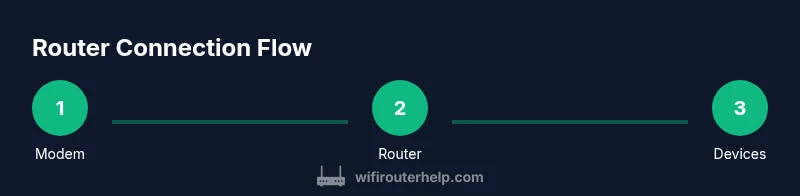
Routers connect at two main points: the WAN (internet) port to your modem and multiple LAN ports for wired devices or to supply Wi‑Fi to wireless clients. The typical setup routes the internet signal from the modem into the router’s WAN port, then distributes it to local devices via Ethernet cables or the wireless network. This keeps home networks organized, secure, and scalable.
What does it mean for a router to connect to the Internet?
In a typical home network, the router sits between your Internet Service Provider's (ISP) modem and everything else that uses the network. The router's WAN (sometimes labeled Internet) port receives the external signal from the modem, and its LAN ports or built-in Wi‑Fi distribute access to devices like laptops, smartphones, smart TVs, and smart home hubs. A well‑designed setup helps data flow smoothly, makes it easier to apply security rules, and supports features such as QoS, guest networks, and device prioritization. According to WiFi Router Help, clear router setup starts with understanding where devices connect and how data travels from the ISP to your home. Understanding these connections lays the groundwork for reliable speed and consistent coverage across rooms and floors.
The population of devices and the role of the router
A modern home may include dozens of devices — phones, tablets, streaming players, gaming consoles, and IoT gadgets. The router acts as the traffic manager, giving each device an IP address, routing traffic efficiently, and enforcing security policies. Homes with multiple floors or thick walls benefit from a central, elevated router location to minimize dead zones. The WiFi signal is broadcast by the router and, in most setups, travels through walls and furniture with varying strength. The router’s firmware controls features like firewall rules, parental controls, and firmware updates, which help keep the network secure and up to date.
Wired vs wireless connections: what’s the difference?
Wired connections use Ethernet cables to connect devices directly to the router, delivering stable speeds and low latency ideal for gaming and work-from-home tasks. Wireless connections use Wi‑Fi to connect devices without cables, offering mobility and convenience. A balanced setup often uses wired connections for computers and smart hubs while providing Wi‑Fi for mobile devices and guests. In both cases, the router assigns local IP addresses, manages traffic, and applies security settings to protect the network from intrusions.
Security basics: keeping the network safe
Security starts with a strong Wi‑Fi password and modern encryption (WPA3 if available; WPA2 as a minimum). Regular firmware updates from the manufacturer patch vulnerabilities and add improvements. Use a separate guest network for visitors to isolate personal devices. Enabling features like NAT, firewall protections, and UPnP should be considered carefully, as they affect how devices discover services on the network and outside connections. These practices help reduce risks while maintaining convenient access for legitimate users.
Common home layouts and how to optimize coverage
Placement matters more than you might think. A central location away from large metal objects, cordless phones, and microwaves yields a better signal. If one room remains weak, consider a mesh system or a single access point to extend coverage. The goal is to provide reliable signal across living spaces, with minimal interference and consistent speeds for all devices. WiFi Router Help analysis shows that strategic placement and proper channel selection are often enough to eliminate most dead spots.
Troubleshooting mindset: a quick-start diagnostic
If a device cannot reach the Internet, check power, cabling, and LED indicators first. Reboot the modem and router in sequence, then test with a wired connection before diagnosing Wi‑Fi issues. Document changes you make so you can revert if something disrupts service. By methodically ruling out common causes, you can identify whether the problem lies with the modem, the router, or the ISP.
Quick-start setup checklist
- Verify you have a compatible modem and a capable router.
- Place the router centrally and at an elevated height.
- Use an Ethernet cable to connect the modem to the router's WAN port.
- Connect a computer or phone to the router to begin configuration.
- Set a strong Wi‑Fi name (SSID) and a robust password; enable WPA3 if available.
- Test wired and wireless connections and adjust settings as needed.
Tools & Materials
- Modem(ISP-provided or compatible device; ensure it is active for service)
- Router(Dual-band preferred for better coverage; ensure it supports your speed tier)
- Ethernet cables (Cat5e/Cat6)(At least two; longer cables as needed for device placement)
- Computer, tablet, or smartphone(Used for initial setup and firmware updates)
- Paper and/or digital notes(Record current settings before changes)
- Power strip or surge protector(Helpful for a clean, safe power setup)
Steps
Estimated time: 30-60 minutes
- 1
Unpack and verify equipment
Open the boxes and confirm you have a modem, router, required Ethernet cables, and power adapters. Inspect for damaged parts and keep all manuals handy for reference. This initial check helps prevent mid‑setup surprises that slow you down.
Tip: Take photos of cable labeling and keep receipt/instructions in a designated folder. - 2
Choose the router placement
Select a central, elevated location away from thick walls and metal appliances. A good spot reduces dead zones and ensures more uniform coverage. If you have a multi‑story home, aim for a midpoint to balance upward and downward signal propagation.
Tip: Avoid placing the router inside a cabinet; open-air exposure improves performance. - 3
Power down and prepare the workspace
Unplug the modem and router if they are already powered on. Clean the area and plan where cables will run to minimize clutter and tripping hazards. This reduces the risk of accidental unplugging or connector damage during setup.
Tip: Keep a spare Ethernet cable handy for testing connections during setup. - 4
Connect the modem to the router WAN port
Insert one end of an Ethernet cable into the modem and the other into the router’s WAN/Internet port. Ensure the link lights indicate a solid connection. This is the critical bridge that brings Internet access into your local network.
Tip: If your modem has multiple Ethernet ports, use the one labeled ‘Ethernet’ or ‘LAN’; WAN ports are typically color-coded. - 5
Connect a configuration device to the router
Use a laptop or smartphone to connect to the router either via Ethernet or Wi‑Fi. This allows you to access the router’s setup interface and apply initial settings. Having a wired connection for the first login reduces setup errors caused by a weak wireless link.
Tip: If you’re using Wi‑Fi, temporarily disable other networks to avoid interference during setup. - 6
Configure basic settings
Change the default admin password, set a strong network name (SSID), and enable WPA3 (or WPA2 if WPA3 isn’t available). Update the firmware to the latest version and create a guest network if you want to isolate visitors from your main network. Save changes and reboot if prompted.
Tip: Document the admin URL, default credentials, and any new passwords for future reference. - 7
Test, secure, and optimize
Test both wired and wireless connections across multiple devices. Run a speed test to verify performance and adjust channels to minimize interference. Revisit security settings if you notice unauthorized devices or suspicious activity.
Tip: Set a reminder to check firmware updates every few months for ongoing security.
People Also Ask
Do I need a separate router if my modem has built-in Wi‑Fi?
Not always; many modems include Wi‑Fi, but dedicated routers offer stronger performance, better coverage, and advanced features. If you rely on the built-in Wi‑Fi, you may still want a separate router for larger homes or higher speeds.
A separate router can improve coverage and features, even if your modem has built-in Wi‑Fi.
What is the difference between bridge mode and router mode?
Router mode uses NAT and a built‑in firewall to manage traffic for your devices. Bridge mode disables most router features on the device, effectively handing the job of IP management to another router.
Bridge mode turns off the device's routing features and relies on another router for IP management.
Can I connect a router to a fiber modem?
Yes, you can connect a router to a fiber modem via the WAN port. Some fiber services provide a gateway that combines modem and router functions; check with your ISP for the best configuration.
Yes, connect via the WAN port; some providers supply a gateway that merges functions.
How do I reset a router if I forget the admin password?
Most routers have a reset button you hold for 10–15 seconds. After resetting, use the default login, reconfigure security, and set a new password. Save changes and store credentials securely.
Reset with the reset button, then reconfigure the router with a new password.
Why is my Wi‑Fi signal weak after setup?
Weak signal typically results from placement or interference. Try relocating the router higher and away from obstacles, selecting a less congested channel, and ensuring firmware is up to date.
Weak signal usually comes from placement or interference; adjust position and channels.
Should I use the 2.4 GHz or 5 GHz band?
Use 5 GHz for short range with higher speeds and less interference; 2.4 GHz offers better wall penetration. If possible, enable dual‑band operation and connect devices to the appropriate band.
Use 5 GHz for speed; 2.4 GHz travels farther. Dual‑band is ideal.
Watch Video
What to Remember
- Plan topology before wiring to reduce rework
- Use wired connections for critical devices
- Secure Wi‑Fi with a strong password and up-to-date firmware
- Document settings to simplify future changes
- Test thoroughly and iterate as needed