What to Connect Router To: A Practical Home Network Guide
Learn what to connect your router to for a stable home network. Step-by-step guidance on wiring to modems, ONTs, and gateways, plus practical tips for speed, security, and future-proofing.


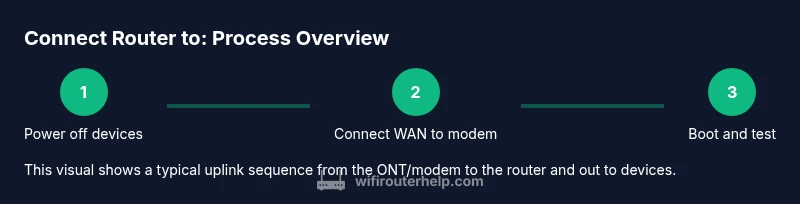
Typically, you connect the router to the broadband modem or gateway supplied by your ISP. If you have fiber, connect the router to the Optical Network Terminal (ONT) instead, then let the router obtain an IP. After that, connect your devices via Ethernet or Wi‑Fi for a stable home network. If your modem is a separate device, the router's WAN/Internet port should be linked to the modem's LAN port.
Why this matters: the uplink shapes performance and reliability
According to WiFi Router Help, understanding the uplink topology — how the internet enters your home and then gets distributed — is the foundation of a stable network. The path typically starts at your ISP's infrastructure, goes through a physical conduit (cable, fiber, or DSL), reaches a modem or gateway, and finally feeds a router that creates your local network. When this uplink is set up correctly, you’ll notice fewer dropouts, more consistent speeds, and simpler device management. If you’re troubleshooting a sluggish network, tracing the uplink first often reveals the bottleneck before you juggle settings on individual devices. This section explains the core elements you’ll connect and why each piece matters for overall performance.
Core idea: where the router fits in
Your home network relies on a router to manage traffic between your devices and the internet. The router sits on the “LAN side” and talks to the internet side through a WAN/Internet port. The upstream device — typically a modem, gateway, or ONT in fiber setups — provides the internet connection via Ethernet to the router. Understanding this separation helps you diagnose issues, plan device placement, and decide when a separate router or a mesh system is worth the investment for coverage and reliability.
Modem or gateway: what to connect to and why it matters
Most households connect the router to a modem or gateway supplied by the ISP. A modem translates the service signal (cable, DSL, fiber) into a digital stream that the router can distribute. If you have a combined gateway, your router still uses the gateway’s LAN port for the uplink, but you’ll manage the network from the router’s admin page. The specific ports and settings can vary, but the principle remains: establish a solid upstream connection, then configure the local network to distribute it securely.
Optical Network Terminal (ONT) and fiber scenarios
In fiber setups, the ONT is the device that converts光 into an internet signal your router can handle. The ONT connects to the router via Ethernet; some providers place the ONT in a utility closet, while others mount it near the primary router location. Because fiber networks differ by provider, you may need to adjust VLAN tagging or authentication steps in the router’s WAN settings. If your service uses an MPoE or PPPoE login, ensure those credentials are correctly entered in the router’s WAN configuration. The key is to have a stable, authenticated connection between the ONT and the router.
Ethernet vs Wi‑Fi: when to use each for devices
Ethernet offers the most stable and fastest connection for desktops, gaming consoles, and smart hubs that demand low latency. Use wired connections for the initial setup to avoid dropouts and to verify the internet is reachable. Once your network is up, enable Wi‑Fi for mobile devices and zones where running cables is impractical. If you’re extending coverage, consider adding a mesh system or a second access point to minimize dead zones without sacrificing speed.
Placement and cabling tips for reliable connections
Position your router in a central, elevated spot away from dense walls and metal objects. Avoid putting it behind furniture or inside cabinets, which can attenuate signals. Use a high-quality Ethernet cable (Cat 5e or better) for the uplink to the modem or ONT, and label cables to prevent confusion during future changes. Cable length matters: excessively long runs can introduce minor latency and signal loss, while short, well-routed cables reduce clutter and interference. A simple, tidy setup often yields the most reliable performance.
Troubleshooting a non‑responsive network
If devices can’t reach the internet, start by checking the physical links: power, LED indicators, and cable connections. Reboot the modem/gateway first, then the router, allowing each to fully boot before testing again. Verify WAN/Internet status in the router’s admin interface and confirm the correct connection type (DHCP, PPPoE, or static) as required by your ISP. When in doubt, perform a factory reset on the router and reconfigure from scratch using the quick setup wizard. This approach can clear misconfigurations that block connectivity.
Do you need a separate router? When to use a mesh system
If your home has multiple floors or thick walls, a single router may not provide uniform coverage. A separate router can offer more advanced features and better performance for long-range networks. For larger homes, a mesh network can unify coverage seamlessly without dead zones. Mesh systems typically include multiple nodes that communicate to distribute a single SSID. For smaller homes or apartments, a single, well-placed router with strong antennas and updated firmware may be enough.
Security and privacy basics when wiring devices
Always start with a unique, strong Wi‑Fi password and a separate guest network to isolate IoT devices. Change the default admin password on the router and disable remote management unless you need it. Use WPA3 whenever available, and keep firmware up to date to patch vulnerabilities. Finally, document your network name (SSID) and password somewhere secure so household members can reconnect easily without resorting to weak or unsafe practices.
Tools & Materials
- Router(Ensure it has a WAN/Internet port (often labeled 'WAN' or 'Internet'))
- Modem or gateway from ISP(If you have static IP, PPPoE, or VLAN requirements, have the details handy)
- Ethernet cable (Cat 5e or better)(One to connect router WAN port to modem/ONT)
- Power supply for router and modem(Keep power cords accessible and labeled)
- Laptop or smartphone for configuration(Used to access the router admin interface)
- Optional: surge protector or UPS(Protects equipment during outages or surges)
Steps
Estimated time: 30-60 minutes
- 1
Power off the modem and router
Power down both the modem/gateway and the router. This prevents electrical surges and ensures settings are reset cleanly when you reconnect. Wait 15 seconds after shutdown before unplugging if you’re resetting hardware.
Tip: If using a surge protector, unplug the entire chain to avoid residual power. - 2
Connect the router’s WAN port to the modem with Ethernet
Plug one end of the Ethernet cable into the router’s WAN/Internet port and the other end into a LAN port on the modem/gateway. Ensure the cable is snug and not loose or twisted. This creates the uplink for your local network.
Tip: Use a fresh Ethernet cable if you’re experiencing intermittent drops. - 3
Power on the modem first, then the router
Plug the modem back in and wait for it to boot completely (status lights should be steady). Then plug in the router and let it boot. This sequence helps allocate a valid IP for the router to obtain.
Tip: If the lights seem off, give the devices extra time; some modems take longer to initialize. - 4
Access the router’s admin interface
From a wired computer or a device connected to the router, open a browser and enter the router’s IP address (commonly 192.168.0.1 or 192.168.1.1). Log in with the default credentials found in the manual or on the router label. If you’ve forgotten credentials, use the reset option.
Tip: Consider using a password manager to store admin credentials securely. - 5
Configure WAN/Internet and ISP settings
Set the WAN type to DHCP for most cable modems, PPPoE for some fiber or DSL services, or Static IP if provided by your ISP. Enter any authentication details if required (PPPoE username/password).
Tip: Consult your ISP documentation or WiFi Router Help for typical WAN defaults. - 6
Set up Wi‑Fi name (SSID) and password
Create a distinct network name and a strong, unique password. If possible, enable WPA3 and consider enabling a separate guest network for visitors. Save changes and reboot the router to apply the settings.
Tip: Do not reuse the same password across multiple services. - 7
Test connectivity on a wired device
Connect a laptop or desktop directly to the router with Ethernet and run a speed test or load a website to confirm the uplink is functional. If there’s no internet, revisit WAN settings or reboot components.
Tip: Testing with a wired device helps isolate Wi‑Fi issues later. - 8
Test Wi‑Fi on multiple devices
Connect a phone or tablet to the new network and verify streaming, browsing, and online gaming performance. Check signal strength in areas of the home and adjust placement if needed.
Tip: If coverage is weak, consider adjusting antenna orientation or adding a mesh node. - 9
Update firmware and finalize the setup
Check for firmware updates in the router’s admin interface and apply them. Reboot after updating to ensure all changes take effect. Document the network name and basic configuration for future reference.
Tip: Enable automatic updates if your router supports it.
People Also Ask
What should I connect my router to first?
Connect the router to your modem or gateway. For fiber, connect to the Optical Network Terminal (ONT) first, then the router. This creates a stable uplink for your home network.
Connect the router to the modem, or to the ONT if you have fiber, to establish a solid uplink.
Can I connect a router directly to a fiber ONT?
Yes. If your provider uses an ONT, use an Ethernet cable from the ONT to the router's WAN port. Some fiber services require additional authentication in the router WAN settings.
Yes, connect the ONT to the router's WAN port and configure WAN settings if your service requires it.
Why is there no internet after setup?
Common causes include incorrect WAN type, a loose cable, or the modem not fully booted. Recheck connections, verify WAN settings, and reboot devices in the proper sequence.
Check WAN settings and cables, then reboot the modem and router in order.
Do I need a separate router if I already have a gateway?
A gateway combines modem and router functions. A standalone router or mesh system can offer better performance or features, but it requires proper bridging or disablement of the gateway's router function.
You might not need a separate router if your gateway provides solid coverage, but a dedicated router or mesh system can improve performance.
How often should I reboot my router?
Regular reboots aren’t required, but a monthly reboot can help clear memory and refresh connections after firmware updates or major configuration changes.
Reboot monthly or after firmware updates to keep things smooth.
Is Ethernet more secure than Wi‑Fi?
Yes, wired connections are inherently more secure and stable. Use Ethernet for desktops and gaming when possible, while securing Wi‑Fi with strong encryption and passwords.
Wired connections are more secure and stable; use strong Wi‑Fi security for wireless devices.
Watch Video
What to Remember
- Verify upstream devices before adjusting settings.
- Use wired connections for setup and critical devices.
- Secure Wi‑Fi with a strong password and WPA3 when available.
- Keep firmware up to date to maintain security and performance.
- Consider mesh or additional access points for larger homes.