What Router Works with T-Mobile Home Internet: A Practical Guide
Learn which routers work with T-Mobile Home Internet, how to enable passthrough/bridge mode, and tips for selecting a reliable dual-band router for fast, stable home Wi‑Fi.


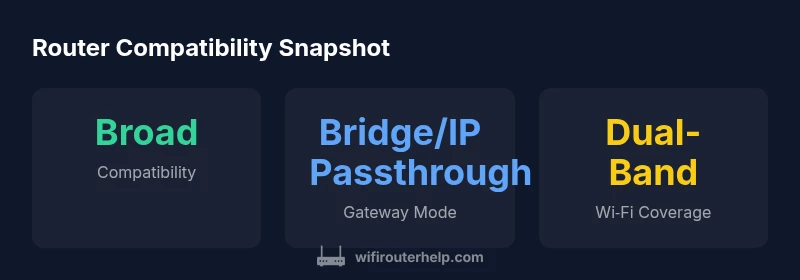
What router works with T-Mobile Home Internet? Most standard consumer routers work when connected to the T-Mobile gateway, especially if you enable IP passthrough or bridge mode so your router handles the local network. Look for dual‑band support (2.4 and 5 GHz), a reliable WAN/LAN interface, good CPU for handling traffic, and features like QoS and beamforming for best performance. If you’re unsure, start with a dual‑band model.
What makes a router compatible with T-Mobile Home Internet
T-Mobile Home Internet relies on a 5G gateway to bring the internet into your home, after which your own router can manage the local network. In practice, compatibility means you can connect a standard router to the gateway and have it handle DHCP, NAT, and wireless broadcasting. The key is to ensure you can place the gateway in a mode that won’t double‑NAT the connection, which can cause connectivity oddities. According to WiFi Router Help, many users achieve reliable results by configuring IP passthrough or bridge mode on the gateway so the external router handles the WAN side and your internal network. This setup is especially beneficial in homes where the gateway’s built‑in Wi‑Fi is insufficient or where you want more advanced features from your own router. The result is a faster, more consistent wireless experience across multiple rooms and floors, with the gateway effectively acting as a modem only.
IP passthrough vs bridge mode: choosing the right gateway configuration
When you’re running your own router with T-Mobile Home Internet, you’ll likely encounter two terms: IP passthrough and bridge mode. IP passthrough lets the gateway pass the public IP directly to your router, which then performs all router duties (NAT, firewall, DHCP, etc.). Bridge mode, on the other hand, minimizes the gateway’s routing responsibilities, effectively placing the gateway in a transparent state. The practical difference often comes down to feature control and ease of use. If you want the gateway to act mostly as a modem, IP passthrough is the common choice; if you want to minimize the gateway’s involvement in advanced networking features, bridge mode makes more sense. Whichever you choose, ensure the gateway’s settings align with your router’s WAN configuration to avoid double NAT and misrouted traffic.
Essential router features for best performance
To maximize performance with T-Mobile Home Internet, prioritize modern features. Look for dual‑band support (2.4 and 5 GHz) to balance coverage and speed, and ensure the router supports MU‑MIMO and beamforming for improved multi‑device performance. A solid CPU and sufficient RAM help maintain throughput during busy periods. At minimum, ensure there are multiple LAN ports for wired devices, a stable WAN interface, and reliable firmware updates. QoS (Quality of Service) helps prioritize time‑sensitive traffic like video calls and gaming, which is especially useful in households with several connected devices. If you plan wireless mesh, confirm compatibility with your gateway in passthrough/bridge mode to avoid conflicts. Finally, security matters: enable a guest network, enable a firewall, and keep firmware current.
How to set up your own router with the T-Mobile gateway
Getting everything working is largely a matter of orderly configuration. Step 1: choose a router with recent Wi‑Fi standards (at least 802.11ac/ax) and a reliable processor. Step 2: reset your router to factory settings if you’re reusing it. Step 3: connect the gateway’s LAN port to your router’s WAN/Internet port. Step 4: log into the gateway admin page and enable IP passthrough or bridge mode, selecting the correct device as the passthrough target. Step 5: power cycle both devices, then time the router’s WAN interface. Step 6: configure your router’s wireless networks (SSID, password, security). Step 7: test speeds and devices’ connectivity in different rooms. Step 8: enable automatic updates and review firewall rules for protection.
Troubleshooting common issues
Double NAT is a frequent culprit when using your own router with a gateway. If you notice inconsistent streaming or online gaming lag, review whether passthrough/bridge mode is properly enabled and whether the gateway is still performing NAT. Another common issue is DHCP conflicts when multiple devices try to issue IP addresses. Disable DHCP on the gateway if you’re using IP passthrough and let your router handle it. Ensure the WAN connection type on your router is set to obtain an IP automatically (DHCP) unless your setup requires a static IP. If DNS resolution seems flaky, try switching to a public DNS like 1.1.1.1 or 8.8.8.8. Regularly rebooting both devices during big changes can also help verify configuration.
Optimizing Wi‑Fi coverage and performance
Placement is everything. Position the router centrally on a shelf or stand away from thick walls and metal objects. In larger homes, consider a mesh system or a high‑powered single unit with external antennas. Manually selecting the best channel for 2.4 GHz (often channel 1, 6, or 11 in the US) and enabling automatic channel selection for 5 GHz can reduce interference. If your devices show uneven performance, you may want to enable band steering and adjust transmit power. Built‑in tools for monitoring connected clients and bandwidth usage can help you identify bottlenecks and reallocate resources accordingly.
Real‑world scenarios: small apartment vs. multi‑story home
In a one‑bedroom apartment, a midrange router with strong 5 GHz performance and a good antenna setup will usually suffice. For a multi‑story home, a mesh system or a high‑power router with external antennas is often necessary to maintain consistent coverage across floors. If you’re in a rural or larger property, consider devices with a higher transmit power and more robust cooling, since longer cable runs and heavier simultaneous use can stress budget devices. Remember to test in different rooms and adjust placement to minimize dead zones.
Maintenance and security best practices
Maintain security by applying firmware updates promptly, using strong admin passwords, and rotating your Wi‑Fi password periodically. Disable WPS if supported, enable a firewall, and consider enabling a VPN for privacy on sensitive devices. Set up automatic backups and save your configuration profiles, especially after major changes. For mesh networks or multi‑unit deployments, keep firmware synchronized across devices to avoid compatibility issues. Regularly check the gateway’s settings to ensure IP passthrough or bridge mode remains correctly configured after updates.
Comparison of router configurations for T-Mobile Home Internet setups
| Router Type | Ideal Use Case | Pros | Cons |
|---|---|---|---|
| Standalone router | Small to medium homes | Pros: quick setup; affordable; straightforward management | Cons: limited coverage for larger spaces |
| Mesh system | Large homes or multi-story | Pros: seamless roaming; scalable; strong overall coverage | Cons: higher upfront cost; more devices to manage |
| Router + Access Point | Custom layouts | Pros: flexible; optimal for unique spaces | Cons: more complex setup and maintenance |
People Also Ask
Can I use any router with T-Mobile Home Internet?
Generally yes, but you may need IP passthrough or bridge mode on the gateway to let your router manage the LAN. Some older routers may have issues.
Most routers work, but you might need passthrough or bridge mode.
What features matter most when choosing a router for this setup?
Look for dual‑band support, good range, QoS, beamforming, and a capable CPU for stable performance.
Prioritize dual‑band, QoS, and a solid processor.
How do I enable IP passthrough or bridge mode on the gateway?
Log into the gateway admin page, locate IP passthrough or bridge mode, and follow on‑screen steps to connect to your router.
Open the gateway page and enable passthrough.
Will mesh systems work with T-Mobile Home Internet?
Yes, you can use mesh systems with IP passthrough; ensure the gateway is configured to passthrough and disable its NAT where appropriate.
Mesh systems can work with passthrough.
How long does setup typically take?
Most users complete in about 15-45 minutes, depending on hardware and configuration.
Expect roughly 15-45 minutes.
Are there security considerations when using your own router?
Keep firmware up to date, use strong admin passwords, and review firewall settings; disable features you don’t use.
Keep firmware updated and use strong passwords.
“A compatible third‑party router, paired with the right gateway settings, can dramatically improve home network reliability and speed. The key is selecting a model that supports modern standards and robust features.”
What to Remember
- Verify gateway passthrough support before buying
- Choose a dual-band router with QoS for best performance
- Position the router centrally for maximum coverage
- Test speeds after setup to confirm improvements
- Keep firmware up to date for security and stability