T-Mobile Mobile WiFi Router: Setup, Bridge, and Optimization
Comprehensive, step-by-step guide to set up and optimize a T-Mobile mobile wifi router, bridge with a home router, and secure your network for reliable, flexible internet.


With a T-Mobile mobile hotspot, you can extend a home network by connecting a standard router via Ethernet passthrough or USB tethering, if supported. Ensure your hotspot plan allows hotspot data and bridging, enable bridge mode or passthrough on the device, and configure your main router for WAN with DHCP or PPPoE as required. Place equipment for strong signal and secure the network.
How a T-Mobile mobile wifi router fits into a home network
A T-Mobile mobile wifi router can serve as the internet backbone for a small home, travel setup, or backup link. When you use a mobile hotspot as the core connection, your regular router becomes the boss of your local network—handling wireless distribution, guest networks, and device policies. This approach can be practical when fiber or cable is unavailable, when you travel, or during relocations. According to WiFi Router Help, the key is understanding the role of each device: the hotspot provides cellular data, while the home router provides reliability, control, and expandability. The quality of the experience depends on signal strength, data plan, and the hotspot’s ability to pass through or bridge to a dedicated router. If you opt for a bridge or passthrough, you can preserve features such as NAT, firewall rules, and parental controls managed by your primary router. If not configured correctly, you may experience double NAT, IP conflicts, or limited performance. With careful setup, you can maintain a stable network that supports streaming, gaming, and smart-home devices without giving up the flexibility of a mobile plan.
Key options for integrating with a home router
Several pathways exist to combine a T-Mobile mobile wifi router with a traditional home router. The most common are: 1) Bridge mode or passthrough on the hotspot, which exposes the primary router to the internet without double NAT; 2) USB tethering from the hotspot to the primary router, converting the hotspot into a USB data source; 3) Using a router with an integrated cellular modem and a SIM slot that accepts a T-Mobile SIM; 4) Dedicated standby devices, such as a secondary hotspot or portable gateway used solely as the internet source. Each option has tradeoffs in speed, reliability, and complexity. The WiFi Router Help team notes that bridge mode often yields the most seamless experience, but device compatibility varies by model and firmware. If you choose USB tethering, you’ll typically set the main router’s WAN interface to a USB interface and enable appropriate USB networking on the hotspot. Regardless of the path, ensure your plan supports hotspot data and is configured to avoid throttling, especially during VPN or large file transfers. Finally, keep firmware up to date on your router and hotspot to minimize compatibility issues.
Understanding bridge mode, passthrough, and USB tethering
Bridge mode turns your hotspot into a simple data pipe, allowing your primary router to handle all network services. Passthrough keeps NAT on the hotspot but forwards the public IP to your router; this can be easier but may complicate firewall settings. USB tethering is an alternative that uses a USB connection between the hotspot and the router to feed internet access. Not all devices support all three options, and some carriers restrict hotspot performance on certain plans. Check the hotspot’s management interface for terms like 'APN settings,' 'tethering,' 'bridge,' or 'pass-through' and verify you can enable them. If you cannot bridge, USB tethering may still work, but you may encounter additional NAT layers. The goal is to minimize double NAT, maximize throughput, and retain control over your local network.
Step-by-step bridging overview
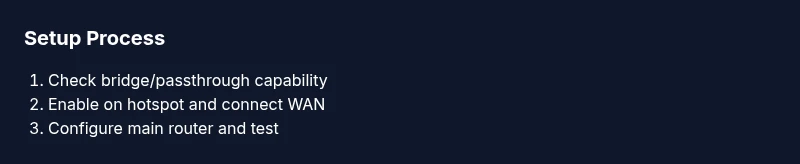
This section provides a high-level bridge workflow. 1) Confirm the hotspot model supports bridge or passthrough; 2) Access the hotspot admin page and enable bridge mode or passthrough; 3) Connect your main router’s WAN port to the hotspot via Ethernet; 4) Set the main router to obtain an IP automatically (DHCP) and disable NAT on the hotspot; 5) Secure the network with a strong password and updated firmware; 6) Test connectivity with multiple devices and adjust wireless settings as needed. The aim is to let your main router manage IP addresses, firewall rules, and guest networks while the cellular link remains the sole internet source. If you run into issues, revert to a non-bridged configuration and review the device’s support resources. WiFi Router Help emphasizes patience during initial trials—some devices require a reboot or a factory reset to apply changes properly.
Step-by-step USB tethering overview
USB tethering is a straightforward fallback when bridge mode isn’t available. 1) Ensure the hotspot supports USB tethering and that your router has a USB port capable of networking; 2) Connect the hotspot to the router with a USB cable and enable USB tethering on the hotspot; 3) In the router’s WAN settings, select the USB interface as the broadband source and choose DHCP or PPPoE as required by the hotspot; 4) Disable extra NAT on the hotspot if possible to simplify the path; 5) Configure the router’s LAN to the preferred IP range and refine WLAN settings; 6) Run a speed test and enable security features. USB tethering often introduces lower latency and more predictable performance for LAN devices, but availability and speed depend on hardware and carrier policy. Monitor data usage to avoid surprises, and consider limiting background updates on connected devices.
Optimizing performance for stability and speed
Performance is a function of signal quality and device placement. Place the hotspot near a window or higher on a shelf to improve reception, but avoid obstructing airflow. Use a dedicated router for local services, and configure Quality of Service (QoS) to prioritize work devices or conferencing apps. If your main router supports beamforming or MU-MIMO, enable them to maximize throughput for multiple clients. For Wi‑Fi, choose 2.4 GHz for range and 5 GHz for speed, and consider a separate guest network to keep work devices isolated. Keep firmware up to date on both the hotspot and the main router, and periodically check for security patches. If you use a dedicated cellular antenna, verify the connector type and mounting requirements. Finally, track true speed over time—short tests can be misleading when the cellular network fluctuates.
Security and privacy considerations
Always assume the cellular link is a shared medium with variable performance. Use WPA3 on your main router and a strong admin password for both devices. Regularly update firmware and disable remote management unless you require it. Segment guest networks from your trusted devices to reduce exposure to printers, IoT hubs, and smart speakers. If bridging, ensure firewall rules on the main router are strict enough to mitigate attacks from compromised devices on guest networks. Enable VPN usage for sensitive work, especially when connected over public hotspots, and monitor data usage for unexpected activity. WiFi Router Help’s guidelines stress reducing exposure by turning off UPnP and reviewing port forwarding settings when needed.
Troubleshooting common issues
When things go wrong, follow a systematic approach. First, verify all cables are firmly connected and the hotspot has adequate signal. If the main router cannot obtain an IP, double-check bridge or passthrough settings and consider rebooting both devices. If you notice double NAT, revisit the bridge configuration or try USB tethering as an alternative. Slow speeds can stem from network congestion or strict QoS rules; adjust settings and run speed tests at different times of day. If devices fail to connect to Wi-Fi, re-check SSID, encryption, and password. In persistent cases, consult the hotspot or router’s support resources, which often include a factory reset option—use it as a last resort.
Real-world scenarios and cost considerations
Some households require a temporary internet solution during a move or power outage. A T-Mobile mobile wifi router can provide quick coverage if you keep the hotspot charged and place it strategically. In rental apartments, bridging a hotspot to a home router may deliver reliable performance without pulling new lines. However, you should weigh cost against stability: cellular plans have data caps and potential throttling, and a dedicated home broadband service often remains more predictable for heavy workloads. Consider total cost of ownership, including device wear, power usage, and potential data overages. WiFi Router Help’s real-world testing indicates variable outcomes based on location, carrier, and device age, so plan to test across a few days to gauge performance.
Quick testing and verification procedures
For any new bridge or USB tether setup, validation is essential. Run a baseline speed test using the main router’s Wi‑Fi and wired LAN, compare against the hotspot’s claimed speeds, and monitor latency with multiple devices. Test with streaming, video calls, and gaming to ensure QoS holds. Check uptime for at least 24 hours, and adjust settings based on results. Keep an eye on data usage and verify VPN connections if you rely on corporate networks. A thorough verification cycle helps catch edge cases before you rely on the setup daily.
Tools & Materials
- T-Mobile data plan with hotspot allowance(Confirm data cap, hotspot eligibility, and any throttling terms)
- T-Mobile mobile hotspot device (MiFi) or portable gateway(Prefer a model with Ethernet passthrough or USB tethering options)
- Main router with Ethernet WAN port(Must be configurable as a separate NAT/LAN device)
- Ethernet cable (Cat5e or better)(At least a 3–5 ft length for comfortable placement)
- Power adapters and surge protector(Provide stable power for uninterrupted operation)
- Optional external cellular antenna(Improves signal in weak coverage areas)
- Laptop or smartphone for configuration(Needed to access admin pages and apply settings)
Steps
Estimated time: 40-60 minutes
- 1
Verify hardware compatibility
Check that your hotspot supports bridge mode or passthrough and that your primary router can operate with a WAN connection from a non-fiber source. Review device manuals or support pages for terms like bridge, pass-through, APN, and USB tethering. Confirm the plan allows hotspot data to avoid throttling during work activities.
Tip: If in doubt, contact carrier support to confirm hotspot capabilities before buying new gear. - 2
Prepare network devices
Power down both the hotspot and the main router. Position them to minimize interference and maximize signal from the hotspot to the router. Gather the required cables and ensure you have admin access to both devices.
Tip: Label cables for easy reassembly if you need to revert to a standard setup. - 3
Enable bridge mode or passthrough on the hotspot
Access the hotspot’s admin interface and locate bridge or passthrough options. Enable the setting and save changes. If you don’t see a bridge option, investigate USB tethering as an alternative.
Tip: Some devices require a reboot after enabling bridge mode to apply changes. - 4
Connect the main router via Ethernet
Use the Ethernet cable to connect the hotspot’s LAN or passthrough port to the WAN port of your main router. Ensure the connection is secure and that the hotspot remains powered.
Tip: Avoid using a switch between devices in this path; keep a direct connection for reliability. - 5
Configure WAN and LAN settings on the router
Set the main router’s WAN interface to DHCP (most mobile connections) or PPPoE if required by your hotspot. Disable unnecessary features from the hotspot (like NAT) if bridge mode is active. Configure the LAN subnet to avoid conflicts with devices on the hotspot’s network.
Tip: Document the IP range you choose for easier future troubleshooting. - 6
Test, secure, and monitor
Power on both devices and test connectivity with multiple devices. Check that the router’s firewall, WPA3, and guest networks are active. Run speed tests and verify VPNs if used. Monitor for any drops or degraded performance over several hours.
Tip: Enable automatic firmware updates to keep security current.
People Also Ask
Can I use a T-Mobile mobile hotspot with my own router for home internet?
Yes, you can use a T-Mobile mobile hotspot with a separate home router, typically through bridge mode or USB tethering, which lets the main router handle most network services.
Yes, you can use a T-Mobile hotspot with a home router, usually via bridge mode or USB tethering so your main router controls the network.
Do I need a special plan to enable hotspot data and bridging?
Most T-Mobile plans include hotspot data by default, but some cheaper plans restrict hotspot usage or apply data caps. Check your plan documentation before enabling bridging.
Most plans include hotspot data, but verify restrictions and caps before bridging.
What is bridge mode and why would I use it?
Bridge mode makes the hotspot a simple data pipe, letting your main router manage IPs, NAT, and firewall rules. It minimizes double NAT and improves control of your home network.
Bridge mode turns your hotspot into a data pipe so your main router handles the network.
Will 5G increase my speeds when using a hotspot with a router?
5G-capable hotspots can offer higher speeds, but real-world results depend on signal strength, network congestion, and plan terms. Expect variability.
5G can boost speeds, but real-world results depend on signal and congestion.
What security steps should I take when using bridging?
Use WPA3 on the main router, keep firmware updated, disable unnecessary remote access, and segment guest networks from work devices.
Enable WPA3, update firmware, and segment guest networks for security.
Watch Video
What to Remember
- Understand bridge vs passthrough vs USB tethering for your hotspot.
- Bridge mode often yields the cleanest setup when supported.
- Keep hotspot data plans in mind to avoid throttling and overages.
- Securely configure your main router and monitor performance over time.