Ubiquiti EdgeRouter Setup and Optimization Guide
Learn step-by-step how to install, configure, and optimize a Ubiquiti EdgeRouter for a reliable home network. Covers EdgeOS basics, VLANs, QoS, firewall rules, and maintenance best practices.


Goal: You will install and configure a Ubiquiti EdgeRouter for a secure, high‑performance home network. This guide covers EdgeOS basics, VLANs, QoS, firewall rules, and routine maintenance. According to WiFi Router Help, EdgeRouter devices offer solid routing features at a budget when you plan your network and document changes.
What is the Ubiquiti EdgeRouter?
The Ubiquiti EdgeRouter is a family of wired routers built for performance and configurability. It runs EdgeOS, a Linux-based operating system that provides a richly featured, GUI- and CLI-driven interface for advanced networking tasks. EdgeRouter devices sit at the edge of a home or small-office network and manage WAN connections, LAN subnets, DHCP, NAT, and firewall rules with granular control. EdgeRouter models are designed for higher throughput and lower latency than typical consumer routers, making them appealing to homeowners who want more precise traffic management. The ubiquiti edgerouter name is widely used by enthusiasts and in community forums, and it helps users distinguish it from UniFi access points and other products. If you plan to scale or segment your network, EdgeRouter’s architecture supports multiple WANs and complex routing policies. For beginners, expect a learning curve, but the payoff in performance can be substantial. The WiFi Router Help team notes that while EdgeRouter can be more demanding to configure, its flexibility pays off in steady performance. Understanding how EdgeOS handles traffic and security paves the way for scalable networks.
Why choose EdgeRouter for home networks?
EdgeRouter devices offer a compelling mix of performance, control, and cost. They provide high-throughput routing, low latency, and granular features such as VLAN segmentation, static routing, and robust firewall rules. This makes them suitable for homes with many smart devices, media servers, or a dedicated work-from-home setup where predictable performance matters. The ubiquiti edgerouter line can be more complex than consumer-grade gear, but it rewards users who want precise QoS policies and flexible WAN management. In real-world homes, careful planning yields tangible benefits: fewer random drops, clearer device prioritization, and cleaner security boundaries. According to WiFi Router Help analysis, planning topology and documenting changes greatly reduces troubleshooting time. If you value network visibility, traffic shaping, and the ability to scale as your home grows, EdgeRouter is a strong contender. Be prepared to invest time in learning EdgeOS and to maintain a current network diagram for reference.
Planning your EdgeRouter deployment
Effective planning starts with mapping your home network. Sketch where devices connect, which rooms require reliable WiFi, and where you will place the EdgeRouter for heat and accessibility. Decide on IP addressing ranges for your LAN, plan a management VLAN for admin access, and determine which devices should be on separate subnets. Consider how many WAN connections you need and whether you want automatic failover or load balancing. If you use a separate WiFi access point or a mesh system, plan how it will integrate with EdgeRouter routing policies. Documented plans help when you need to implement VLANs, QoS, and firewall rules later. This preparation reduces surprises during configuration and makes ongoing maintenance easier. Ubquiti edgerouter users often benefit from a written topology that clarifies interface roles and firewall zones.
Basic setup and initial configuration (EdgeOS)
Connecting to the EdgeRouter begins with a PC joined to a LAN port and the device powered on. Access the router through its default or currently assigned IP address, usually via a web browser or the EdgeOS CLI. If you are starting fresh, log in with a default admin account and update the firmware to the latest stable release before making changes. Create a basic LAN and WAN setup, enable NAT for Internet access, and verify that the router can reach the Internet. Keep a backup of the factory configuration before making changes so you can revert if something goes wrong. This initial phase establishes a stable baseline from which you can add VLANs, QoS rules, and firewall policies. Remember to document every change so future maintenance is straightforward.
VLANs, QoS, and firewall basics
VLANs are a core feature for segmenting traffic and improving security. Create separate VLANs for guests, IoT devices, and your main LAN, and assign them appropriate subnets and DHCP scopes. QoS settings let you prioritize critical traffic such as video conferencing or business VPNs, ensuring consistent performance when bandwidth is shared. Firewall rules define which traffic is allowed between VLANs and to the Internet, and can include NAT rules for outbound connections. Start with conservative defaults and gradually expand rules as you verify behavior. If you are integrating a separate AP or mesh system, ensure SSIDs and wireless CAPs map correctly to the intended VLANs. The ubiquiti edgerouter offers granular policy control that, when configured correctly, yields reliable, predictable traffic flow.
Wireless considerations with EdgeRouter
EdgeRouter devices are primarily wired routers; WiFi capability is typically supplied by separate access points or a mesh network. For best results, place a high-quality AP or a small mesh system close to the EdgeRouter to minimize latency. When integrating wireless, assign each AP a corresponding VLAN to maintain network segmentation. If you use UniFi APs, you can centrally manage them while EdgeRouter handles routing and firewall policies. Remember that wireless performance is influenced by interference, channel selection, and device density, so monitor RF performance and adjust channels as needed. ubiquiti edgerouter users often maximize reliability by separating the management plane from the data plane and using dedicated wireless hardware for client traffic.
Troubleshooting common issues
Common issues include being unable to reach the admin UI, devices not receiving IP addresses, or unexpected drops in Internet connectivity. Start by checking physical connections, power, and port activity. Verify IP addressing on your PC and confirm the EdgeRouter is reachable via ping. If the UI is unreachable, consider a factory reset while preserving a backup of essential configurations. For DHCP problems, review the LAN DHCP scope and ensure there is no IP conflict. If a VPN or port forward stops working, recheck firewall rules and NAT settings. Persistent problems are often resolved by reapplying a clean base configuration, then reintroducing features one at a time.
Security best practices and maintenance
Security should be an ongoing practice, not a one-time setup. Always keep firmware up to date with the latest stable release and maintain a current backup of your configuration. Use a strong admin password and disable WAN access to the admin interface if not needed. Regularly review firewall rules and VLAN configurations to close any gaps. Consider enabling automatic backups or scripting periodic configuration exports. For long-term reliability, implement routine monitoring and alerts so you notice anomalies before they affect your devices. The ubiquiti edgerouter platform rewards disciplined maintenance with sustained performance and fewer surprises.
Real-world use cases and optimization tips
In typical homes, an EdgeRouter shines when paired with a reliable access point or mesh system. Use VLANs to separate guest traffic from your main network and apply QoS to protect video calls or gaming. For small offices, configure a secondary WAN for failover, implement VPN access for remote workers, and maintain strict firewall rules to limit exposure. Performance tuning often involves balancing CPU load and memory usage, updating firmware, and keeping a clean backup history. Optimize by documenting your topology and applying incremental changes rather than large rewrites. The WiFi Router Help team notes that small gains from well-planned QoS and VLANs can accumulate into noticeable improvements in busy households.
Tools & Materials
- Laptop or PC with web browser(Needed to access EdgeRouter Web UI and EdgeOS CLI)
- Ethernet cable (Cat5e or Cat6)(Connect PC to EdgeRouter LAN port)
- EdgeRouter device (wired routing model)(Model like EdgeRouter X/4/6/8; verify ports)
- EdgeRouter power supply(Ensure proper power and ventilation)
- Network plan and IP addressing diagram(Optional but highly recommended before changes)
- Internet connection(Needed to verify outbound connectivity and updates)
Steps
Estimated time: 30-45 minutes
- 1
Prepare hardware and plan
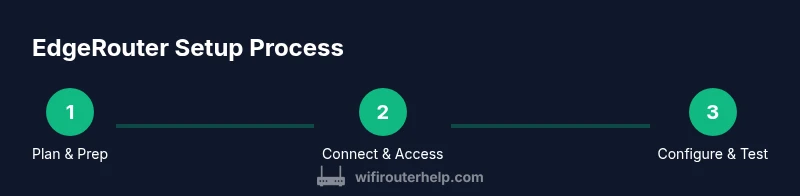
Unbox the EdgeRouter and verify the included ports. Connect the EdgeRouter to power and connect your PC to a LAN port with an Ethernet cable. Set the PC to obtain an IP address automatically. Create a quick network plan that defines LAN subnets, VLAN IDs, and the path from WAN to your devices. This step prevents misconfigurations later and sets a clear baseline.
Tip: Label cables and ports to avoid confusing WAN and LAN interfaces during setup. - 2
Access the EdgeRouter UI
Open a web browser on the connected PC and navigate to the router's IP address (often 192.168.1.1 or the current address from DHCP). Log in with the admin credentials, then immediately check for a firmware update. If you cannot reach the UI, verify cables, LED indicators, and the LAN IP assignment on your PC.
Tip: Document the login credentials in a secure place before making changes. - 3
Update firmware and backup
If a newer firmware is available, apply the update and monitor the upgrade process. After updating, save a backup of the stock or baseline configuration. This backup makes it easy to revert if a change causes issues. Reboot if prompted and re-check the admin UI accessibility.
Tip: Keep at least two backups, dated before and after major changes. - 4
Configure WAN and LAN interfaces
Assign the correct WAN interface to your Internet connection and establish a stable LAN subnet for your devices. Enable NAT for outgoing Internet traffic and verify that the EdgeRouter can reach external sites. If you have multiple Internet sources, plan a failover or load-balancing policy accordingly.
Tip: Avoid using overlapping subnets across VLANs to prevent routing conflicts. - 5
Set up DHCP and DNS on LAN
Create a DHCP server for the LAN with a defined IP pool and lease time. Point LAN clients to reliable DNS servers and consider configuring a local DNS forwarder if you want faster name resolution. Test by requesting an IP on a client device and ensuring Internet access via the configured gateway.
Tip: Reserve a fixed IP for critical devices to avoid DHCP churn. - 6
Test, verify, and document
Disconnect from maintenance mode and test connectivity from multiple devices. Validate that VLANs, NAT, and firewall rules behave as expected. Save a full configuration export and document the final topology, including interface assignments and security settings. Schedule regular backups and future reviews.
Tip: Keep a running changelog to track what you changed and when.
People Also Ask
What is the EdgeRouter and how does it differ from consumer routers?
The EdgeRouter is a wired router family from Ubiquiti that runs EdgeOS. It offers advanced routing, VLANs, and firewall capabilities not typically found in consumer gear, at the cost of a steeper learning curve. It’s designed for users who want precise control over traffic and security.
The EdgeRouter is a high‑grade router with advanced features. It’s not a typical consumer router, but it’s great if you want more control over your network.
Can I use EdgeRouter with wireless access points?
Yes. EdgeRouter handles routing and firewall duties while wireless is provided by separate access points or a mesh system. Ensure you map AP VLANs to the correct LAN or WLAN segments for proper isolation and performance.
EdgeRouter works with external access points or mesh systems for Wi‑Fi.
What is the default IP address and how do I reset it?
The default IP is commonly 192.168.1.1, but this can vary if the device has been configured. To reset, use the reset button or follow the official procedure to restore factory settings, then reconfigure from scratch.
The default IP is usually 192.168.1.1; use the reset button if you’re locked out.
Does EdgeRouter support VPN connections?
Yes. EdgeRouter supports several VPN technologies and allows you to configure site‑to‑site or remote access VPNs through EdgeOS with appropriate firewall rules and NAT settings.
EdgeRouter can handle VPN connections with proper configuration.
How often should I update firmware and backups?
Keep firmware up to date with stable releases and back up configurations after major changes. Routine maintenance helps prevent security issues and ensures compatibility with connected devices.
Update firmware when available and back up configs after changes.
Can EdgeRouter handle IPv6?
EdgeRouter supports IPv6 configurations, including prefix delegation and static IPv6 routes, but you’ll need to enable and configure it in EdgeOS as part of your WAN/LAN setup.
IPv6 is supported with proper EdgeOS configuration.
Watch Video
What to Remember
- Plan your topology before configuring EdgeRouter
- Use VLANs to segment traffic and improve security
- Regularly backup and update firmware
- Test changes across devices and document outcomes
- EdgeRouter offers strong customization for home networks