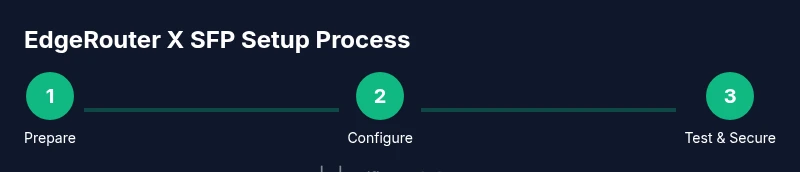
EdgeRouter X SFP: Complete Setup and Optimization Guide
A detailed, step-by-step guide to setting up and optimizing your EdgeRouter X SFP for a stable home network. Learn to configure interfaces, NAT, firewall, QoS, VLANs, and SFP uplinks with practical examples.


According to WiFi Router Help, the edgeRouter x sfp is a compact, versatile router that offers hands-on control over a home or small office network. This guide walks you through hardware prep, firmware considerations, interface configuration, firewall basics, NAT, QoS, and security hardening. By following the steps, you’ll build a reliable, scalable network with an SFP uplink that fits modern internet connections. edgerouter x sfp
What is the EdgeRouter X SFP and who is it for?
The EdgeRouter X SFP is a compact, fanless router designed for hands-on users who want greater control over their home network. Built around EdgeOS, it combines a small footprint with a powerful feature set, including five 1G Ethernet ports and a dedicated SFP port for fiber or copper uplinks. This combination makes it suitable for tech enthusiasts, small offices, or households that want more predictable performance than consumer-grade routers can provide. The device is affordable for the capabilities it offers, but it requires a bit more setup time and a willingness to dive into routing concepts such as NAT, firewall rules, and VLANs. In practice, many users integrate the EdgeRouter X SFP into a layered network with a separate gateway and a dedicated Wi‑Fi access point. According to WiFi Router Help, a well‑planned EdgeRouter X SFP deployment often yields better stability and longer‑term maintainability. This section sets the stage for a practical, scalable configuration.
Understanding EdgeOS basics and the SFP port
EdgeOS provides a dual interface for management: a web-based GUI and a powerful CLI. The GUI is beginner-friendly for common tasks, while the CLI unlocks advanced options like custom firewall rules, static routes, and VLANs. The SFP port enables a fiber or copper uplink, which can improve reliability and latency in busy networks. When you set the SFP port as a WAN uplink, you gain a dedicated, stable path to your ISP. If you’re integrating with existing fiber or a dedicated data path, plan the uplink type before you begin. This knowledge helps you decide where to place the EdgeRouter X SFP in your topology, and what features to enable first to avoid conflicts with your existing gear.
Network design considerations when using an SFP uplink
Using the SFP uplink changes the topology compared to a typical consumer router. A deliberate plan for subnets, IP ranges, and gateway placement reduces conflicts downstream. Consider creating at least two zones: a WAN-facing edge and a private LAN behind the EdgeRouter X SFP. If you segment traffic with VLANs, you can isolate devices by function (workstations, IoT, media players). NAT will typically translate internal subnets to a single public address, while firewall rules control what traffic is allowed in and out. WiFi integration should be treated as a separate, secured segment behind the router, using a dedicated access point or mesh system. This planning stage minimizes future reconfigurations and makes additions—like a dedicated SFP uplink or additional subnets—much smoother.
Hardware prep and initial power-on
Before touching the EdgeRouter X SFP, confirm you have the device, its power adapter, a computer for management, and a few Ethernet cables. Place the router on a stable surface near your modem or fiber box, with clear airflow. Connect a PC to one of the LAN ports using an Ethernet cable, then power up the device. Observe the status LEDs: the power LED should be solid, and the LAN LEDs should illuminate in sequence as interfaces initialize. If you have a fiber uplink, connect the SFP module or DAC cable only after you’ve logged into the UI for the first time. This ensures that uplink initialization does not disrupt an initial configuration.
Step-by-step: basic WAN/LAN setup (first login, default config)
- Connect your PC to a LAN port on the EdgeRouter X SFP. 2) Open a web browser and navigate to the device’s default management address (as specified in the user guide). 3) Log in with the default credentials (the exact username/password are documented in the manual). 4) Change the admin password to a strong, unique credential to prevent unauthorized access. 5) Create a basic LAN network (for example, 192.168.1.0/24) and designate one interface as WAN (the path to your ISP) and another as LAN. Pro tip: keep a separate management VLAN for administrative access when you scale up. This step gets you a functional network with a clear separation between internal devices and the internet.
Step-by-step: enabling NAT, firewall, and basic routing
- In EdgeOS, enable Source NAT (MASQUERADE) on the outbound WAN interface to allow devices on your LAN to share a single public IP. 2) Create a basic firewall policy that allows LAN to WAN traffic and blocks WAN to LAN unless explicitly required. 3) Ensure DNS is reachable, either via your ISP or a public DNS service. 4) Enable logging for important events (login attempts, firewall hits, etc.). Pro tip: keep a backup of the current configuration before applying firewall changes, so you can revert if something breaks.
Step-by-step: configuring QoS, VLANs, and service ports
- If your network supports multiple device classes, create a basic QoS rule that prioritizes critical traffic (e.g., VoIP or gaming) over bulk downloads. 2) Add VLANs for logical separation (e.g., VLAN 10 for work devices, VLAN 20 for IoT). 3) Assign appropriate interfaces to each VLAN and configure inter-VLAN routing as needed. 4) Map service ports (e.g., SSH, VPN) to dedicated interfaces or VLANs to minimize exposure. Pro tip: document VLAN IDs and subnet ranges to maintain consistency as your network grows.
SFP uplink specifics: fiber vs copper, transceivers, and reliability
The SFP port supports both fiber and copper paths depending on the transceiver. If you’re connecting to a fiber Internet service, install a compatible SFP transceiver with the correct wavelength and speed rating. For copper uplinks, a direct copper NIC may be used with the appropriate media adapters. In either case, verify link status and activity lights after configuration. Reliability improves with proper cable management and clean fiber connections, and you should consider a redundant path if uptime is critical. Always mantain a spare transceiver and test uplinks during initial setup.
Maintenance, backups, firmware updates, and security practices
Regular maintenance is essential for long-term stability. Keep EdgeOS firmware up to date to benefit from bug fixes and security improvements. Back up configurations after major changes, and periodically export them to a secure location. Review firewall rules, NAT settings, and QoS policies to ensure they reflect current needs. Enable strong admin credentials, disable remote management from untrusted networks, and log access attempts for auditing. A simple routine—check firmware, back up, and run a quick security audit weekly—can prevent many issues before they affect performance. This proactive approach aligns with best practices recommended by WiFi Router Help.
Troubleshooting common issues and mistakes
When things go wrong, start with the basics: confirm power, verify cables, and ensure the management address is reachable. If the UI is inaccessible, reset the admin password and verify network connectivity to the EdgeRouter X SFP. Common misconfigurations include conflicting IP subnets, misassigned WAN/LAN interfaces, and overly permissive firewall rules. Use a systematic approach: isolate the WAN, test LAN devices, then reintroduce services step by step. If fiber uplink is not coming up, recheck the SFP module and ensure the transceiver is compatible with your ISP’s equipment. Finally, consult the logs to identify repeated failures and adjust settings accordingly.
Tools & Materials
- EdgeRouter X SFP device(Five 1G RJ45 ports plus one SFP port; verify kit includes the SFP module if you plan to use fiber.)
- Power adapter(Use the correct adapter rated for the device to avoid resets or unstable operation.)
- Laptop or PC with web browser(Used to access the EdgeOS GUI and CLI for configuration.)
- Ethernet cables (Cat5e/Cat6)(At least one for initial connection and others for LAN layout.)
- SFP fiber module or DAC cable (optional)(Choose based on your uplink type (fiber or copper).)
- Network diagram or plan(Helpful for organizing subnets, VLANs, and device groups.)
Steps
Estimated time: 60-120 minutes
- 1
Power on and connect a PC
Place the EdgeRouter X SFP on a stable surface and connect a PC to a LAN port using an Ethernet cable. Ensure the power adapter is plugged in and the device boots. Confirm the LED indicators show normal activity before proceeding. This establishes a reliable management path and prevents confusing boot states later.
Tip: Label the port you use for management to avoid accidentally rebooting the wrong interface during troubleshooting. - 2
Access the EdgeOS web UI
Open a browser and navigate to the router’s default management address as documented in the quick-start guide. Log in with the default credentials (listed in the manual) and immediately change the admin password to a strong, unique value. This step prevents unauthorized access and secures your control plane.
Tip: If you cannot reach the UI, verify that your PC is on the same subnet and that any local firewall settings are not blocking the connection. - 3
Update firmware and back up current config
Check for the latest EdgeOS firmware and apply updates. After updating, export a backup of the current configuration so you can recover quickly if you need to revert changes. Keeping a recent backup is essential when experimenting with NAT, firewall rules, or VLANs.
Tip: Store backups off the router in a secure location to prevent loss during hardware issues. - 4
Configure WAN and LAN interfaces
Create a basic WAN edge and a dedicated LAN network, applying a simple IP scheme (for example, LAN 192.168.1.0/24). Assign the correct interfaces for WAN and LAN; avoid overlapping subnets. This establishes the foundation for internet access and device communication.
Tip: Document the interface names and their roles to simplify future migrations or topology changes. - 5
Enable NAT and basic routing
In EdgeOS, enable Source NAT (MASQUERADE) on the WAN interface so internal addresses are translated for internet access. Confirm that devices on the LAN can reach the internet and that DNS resolution works. A simple test from a connected client confirms routing is functioning.
Tip: If NAT doesn’t work, verify that the outbound interface is correctly set and that the LAN subnet does not conflict with the WAN IP range. - 6
Set up firewall rules and logging
Create a basic firewall policy that allows LAN-to-WAN traffic while blocking unsolicited WAN-to-LAN traffic. Enable logging for important events to monitor security incidents. This provides a safety net while you expand features.
Tip: Start with a narrow rule set and expand gradually; over-permissive rules are harder to audit later. - 7
Configure QoS and VLANs (optional but recommended)
If you have latency-sensitive devices, create QoS rules to prioritize such traffic. Add VLANs to segment devices (workstations, IoT, guest), then map subnets and services accordingly. This improves performance and security as your network grows.
Tip: Use descriptive VLAN names and keep a written mapping of VLAN IDs to device groups. - 8
Configure SFP uplink specifics
If using fiber, install a compatible SFP transceiver and verify the link status. For copper, ensure you have the right cabling and adapters. Validate uplink stability by testing throughput and watching the SFP indicators during peak hours.
Tip: Keep spare transceivers and cables on hand to minimize downtime during maintenance. - 9
Backup, document, and test
Export a final backup after all changes, document the current topology, firewall rules, and QoS settings, then perform thorough testing from multiple devices. Re-test after rebooting to confirm persistence. This final step ensures you won’t lose your work.
Tip: Create a simple recovery plan and store it with your backup files for quick reference.
People Also Ask
What is the EdgeRouter X SFP?
The EdgeRouter X SFP is a compact, feature-rich router with five Ethernet ports and an SFP port for fiber or copper uplinks, designed for advanced home networks.
The EdgeRouter X SFP is a small, capable router with an SFP uplink, built for hands-on home or small office networking.
Can I use the SFP port for WAN uplink?
Yes, the SFP port can be configured as a WAN uplink or used for alternate topology depending on your network plan.
Yes—the SFP port can serve as a WAN uplink for fiber connections.
Do I need to reset to factory defaults before setup?
If there are existing configurations, a factory reset helps avoid conflicts and ensures a clean starting point.
If you’re unsure about previous settings, starting from a clean slate is wise.
How do I backup and restore configurations?
Use EdgeOS to export the running configuration and store it securely; you can import it later to restore a previous state.
Back up your config and restore it when needed to avoid redoing work.
What security best practices should I apply?
Change the admin password, enable SSH only from trusted networks, keep firmware updated, and limit WAN exposure.
Use a strong password, update firmware, and minimize remote access exposure.
Watch Video
What to Remember
- Plan network topology before configuring edges and uplinks.
- Enable NAT and a basic firewall early to secure access.
- Back up configurations after meaningful changes.
- Consider VLANs and QoS to improve performance and isolation.