Unifi Router Setup & Optimization Guide for Home Networks
Learn how to set up and optimize a UniFi router, from initial wiring to advanced security, QoS, and guest networks. Clear steps, troubleshooting tips, and best practices for a reliable home network.


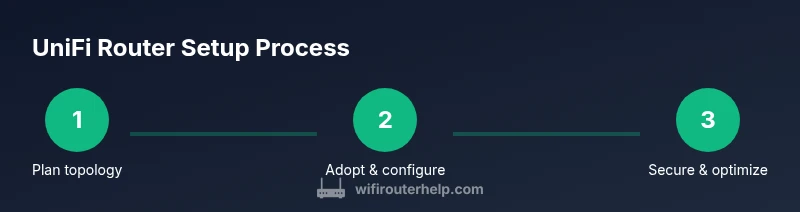
You will set up a router unifi and optimize it for a reliable home network. This guide covers adopting the device to the UniFi Network Controller, configuring WAN, SSIDs, VLANs, firewall rules, and QoS. Required items include a UniFi router, Ethernet cable, power supply, and a device to run the controller. Follow the steps to achieve a secure, scalable network.
Why UniFi Routers Matter for Home Networks
A well-designed home network begins with a reliable router, and UniFi devices are designed for consistent performance and centralized control. A router unifi from Ubiquiti fits neatly into a growing home network by offering scalable features, uniform management, and strong security posture. According to WiFi Router Help, planning your topology and naming conventions early reduces confusion as you add devices. In this guide we’ll explore why UniFi routers appeal to homeowners and tech enthusiasts, and how to approach a first setup that avoids common pitfalls. You’ll learn how to assess your internet connection, plan network segments, and decide where to place the gateway to balance coverage with speed. The goal is a stable, simple baseline you can expand without rerunning cables or reconfiguring every device. By starting with a clear map, you’ll reduce later troubleshooting and make it easier to roll out guest networks, parental controls, and faster WiFi across the home.
Planning Your UniFi Setup
Before touching any hardware, define what you want from your network. Consider the number of wired and wireless devices, streaming needs, gaming, teleconferencing, and smart-home sensors. Map where your modem sits, where you’ll deploy the router, and how you’ll extend coverage to weak spots. Decide if you want a dedicated guest network, firewall rules to isolate devices, and VLANs for segmented traffic. This planning phase reduces rework later and helps you choose a configuration that aligns with your household’s usage patterns. According to WiFi Router Help, a clear topology and naming convention simplify ongoing maintenance and troubleshooting. A well-documented plan also makes it easier to communicate with family members who share the network.
Hardware and Software You Need
Your preparation is supported by a small set of dependable tools. At minimum you’ll need a UniFi router, a reliable Ethernet cable, a power supply, and a device with the UniFi Network app or controller software. A modem with an active internet connection is essential for initial adoption. If you prefer centralized control on a dedicated device, you can use a UniFi Cloud Key or a small PC running the controller software. Additional items like labeling supplies and a notebook help keep your topology tidy. Keeping everything labeled reduces the chance of misconfiguring ports or networks when you add new devices.
Adopting and Configuring Your UniFi Network Controller
The UniFi Network Controller is the central management plane for all UniFi devices in your home. Whether you run the controller on a PC, a Cloud Key, or directly in the cloud, adoption is the process that binds your router to the central management interface. You’ll typically need to ensure the controller is on the same network as the router during discovery, then click the Adpot button until the device changes status. After adoption, update to the latest stable firmware if prompted and set up admin credentials. This phase lays the foundation for consistent policy application across wired and wireless networks, from which you can scale as new devices arrive.
Physical Setup: Placement, Wiring, and Power
Physical layout matters for performance. Place the router in a central, elevated location away from obstructions to maximize signal propagation. Connect the WAN port to your modem using a high-quality Ethernet cable, and use a separate LAN port for wired devices. Ensure the power supply is stable and that the router’s ventilation is not blocked. If you have a multi-story home, consider a single router with supplemental access points or a mesh-like approach to avoid dead zones. Good placement reduces the need for frequent adjustments and improves initial stability.
Accessing the UniFi Network Controller and First Login
Access to the controller is typically via a web interface or the mobile app. Log in with the admin credentials you created during setup, then verify connectivity to the router and other UniFi devices. Make sure your computer or phone is connected to the same network during onboarding. If you encounter discovery issues, reset the router to factory defaults and retry adoption. Establish a baseline security posture by reviewing default credentials and enabling 2FA for the administrator account.
Wireless Network Design: SSIDs, Security, and Guest Access
Create one or more SSIDs to cover different use cases (e.g., household, work-from-home, and guests). Use strong WPA3 or WPA2 security, preferably with a unique passphrase per network. Consider separating guest traffic from the main network to protect sensitive devices. You can also enable captive portals for guest access or time-based restrictions if your router supports them. Document the SSID names, passwords, and access policies for easy reference.
Network Segmentation: VLANs, NAT, and Firewall Rules
VLANs help isolate traffic with better security and cleaner traffic management. If you don’t need segmentation, you can start with a simple flat network and gradually introduce VLANs as your ecosystem grows. Define NAT rules that protect your LAN while enabling necessary internet access. Create firewall policies that restrict unnecessary inbound traffic while allowing essential services, such as DNS and DHCP. Always test each change to verify that devices can still discover services they rely on.
Quality of Service (QoS) and Performance Tuning
QoS helps ensure critical traffic—like video calls or gaming—gets priority during peak times. Start with simple rules, such as prioritizing work devices or real-time communications, and monitor impact on other devices. Avoid overly aggressive limits that cause unintended throttling. Fine-tune based on observed performance, not just theoretical bandwidth. Regularly reassess QoS as your network usage evolves.
Backups, Firmware Updates, and Monitoring
Create regular backups of your controller configuration so you can restore quickly after a failed change. Enable automatic firmware updates when possible to stay protected against vulnerabilities. Monitoring dashboards can help you spot unusual activity, device dropouts, or performance trends. Keep a log of changes so you can track what worked well and what didn’t in your environment.
Troubleshooting Common Scenarios
Expect occasional adoption hiccups, connection drops, or misconfigured VLANs. Start with the basics: verify physical connections, confirm controller accessibility, and check device firmware compatibility. If a device refuses adoption, reset it and retry. When WiFi coverage is weak, re-evaluate access point placement or add a mid-span extender. For persistent issues, consult the official UniFi documentation and confirm settings against your documented topology.
Final Checks and Next Steps
Before wrapping up, run a final check: confirm internet access on all critical devices, test guest access, review firewall rules, and verify that backups exist. If you plan to expand, create a staged rollout with a rollback plan. The goal is not to over-tweak but to steadily refine the configuration for reliability and ease of maintenance.
Tools & Materials
- UniFi router (router unifi)(Ensure device version is compatible with UniFi Network Controller.)
- Ethernet cable (Cat6 or better)(Used for WAN and LAN connections.)
- Power adapter for the router(Provide a stable power supply.)
- Computer or mobile device with UniFi Network app(For controller install and device adoption.)
- Modem with active internet connection(Your ISP connection must be live during setup.)
- Optional: UniFi Cloud Key or dedicated PC/Server(If you prefer centralized control on a dedicated device.)
- Notepad or digital notes(To document topology and credentials.)
Steps
Estimated time: 90-120 minutes
- 1
Plan your network topology
Define the flow of data from the modem to the router and onward to wired and wireless devices. Decide where security boundaries will exist and how many networks you’ll use. This planning step prevents later rework and makes configurations predictable.
Tip: Create a simple diagram showing where devices connect and which networks each device should use. - 2
Plan placement and power
Choose a central location for the router to maximize coverage. Ensure the power supply is stable and vents are unobstructed. A good placement reduces dead zones and makes initial testing easier.
Tip: Avoid placing the router behind furniture or near microwaves and cordless phones that can cause interference. - 3
Install the controller software
Install the UniFi Network app on your phone or the controller software on a PC/Cloud Key. Follow the on-screen prompts to create an account or sign in. This creates the management plane for adoption and policy application.
Tip: Keep the app or software updated to access the latest features and security fixes. - 4
Power up and verify status
Plug in the router and confirm the LED indicators show power and connectivity. If the device doesn’t boot, check the power adapter and cable integrity. A stable boot sequence is essential before attempting adoption.
Tip: If LEDs indicate a fault, consult the manufacturer’s LED codes in the manual. - 5
Adopt the router in the controller
In the controller, locate the new device and click Adopt. Wait for the status to change to ‘Connected’ or ‘Provisioned.’ If adoption fails, verify same-subnet discovery and restart the device and controller.
Tip: If adoption stalls, reset the device to factory defaults and retry from step one. - 6
Set admin credentials and enable 2FA
Create a strong admin password and enable two-factor authentication for enhanced security. This protects management access from unauthorized changes. Document the credentials securely.
Tip: Use a password manager to generate and store complex credentials. - 7
Configure LAN and DHCP settings
Define your primary LAN network and set DHCP scope(s) for address distribution. If you have existing network devices, reserve IPs for critical equipment to simplify management.
Tip: Reserve static IPs for printers, servers, and network storage devices. - 8
Create SSIDs and wire security
Create at least one primary SSID with robust security (WPA3 if available). Consider a separate guest SSID with its own password and restrictions. Document the SSID names and credentials.
Tip: Prefer a unique guest password and enable guest isolation from the main LAN. - 9
Enable guest access and captive portal
Turn on guest access if you have visitors. Configuring a captive portal can help you manage usage and collect basic guest data if needed, without exposing your main network.
Tip: Limit guest access to the internet unless you explicitly enable access to local resources. - 10
Configure VLANs and segmentation
If you require segmentation, create VLANs and assign them to the appropriate networks. Map VLAN IDs to each SSID or wired network as needed. This improves security and traffic management.
Tip: Document VLAN mappings and ensure devices have compatible tag support. - 11
Set up firewall and NAT basics
Create fundamental firewall rules to block unsolicited inbound traffic while allowing essential services. Configure NAT as necessary to enable internet access for LAN devices.
Tip: Test rules by attempting to reach blocked services from a LAN device to verify enforcement. - 12
Apply QoS for critical traffic
Implement basic QoS rules to prioritize real-time applications like video calls and gaming. Start with a simple rule set and observe how performance shifts during peak usage.
Tip: Avoid overly aggressive throttling; iteratively adjust based on real-world tests. - 13
Back up and plan firmware strategy
Create a backup of the current configuration and set up automatic firmware updates if available. Schedule periodic backups and reviews of the configuration as part of maintenance.
Tip: Store backups in a secure location and keep a changelog for future reference.
People Also Ask
What is the UniFi Network Controller and why do I need it for a router unifi?
The UniFi Network Controller is the centralized management interface for UniFi devices. It provides configuration, monitoring, and provisioning from a single dashboard, which simplifies maintaining multiple devices across your home network.
The UniFi Controller is the centralized management tool for UniFi devices, giving you one place to configure and monitor everything.
Can I use a UniFi router without a Cloud Key?
Yes. You can run the controller locally on a PC or mobile device, or use a Cloud Key as a dedicated controller. The Cloud Key is optional; many users manage their network without it.
Yes, you can manage UniFi routers with a local controller on a PC or phone—Cloud Key is optional.
How often should I update firmware on UniFi devices?
Update when available after testing in a safe environment. Firmware updates fix issues and enhance security, but always ensure compatibility with your network policies.
Update when available, but test if you can and ensure compatibility with your setup.
Why isn’t my UniFi router adopting in the controller?
Check that both the router and controller are on the same network segment, verify firmware compatibility, and ensure discovery is enabled. If needed, perform a factory reset and retry adoption.
Make sure the router and controller are on the same network and retry adoption after reset if needed.
Is it safe to enable a guest network?
Yes. A guest network isolates guest devices from your main LAN and can be limited with access rules and time restrictions to protect your primary devices.
Guest networks are safe when properly isolated from your main network.
Do I need VLANs for a small home network?
VLANs provide security and traffic control, but for many small homes a single network suffices. VLANs are useful when you have multiple devices with distinct security needs or hosts.
VLANs are optional for small homes but helpful if you want stronger segmentation.
Watch Video
What to Remember
- Plan topology before changes.
- Adopt devices via the controller for centralized control.
- Secure admin access and separate guest networks.
- Back up configurations and monitor firmware.
- Test QoS and adjust for real-world traffic.