Ubiquiti Dream Router: Setup and Optimization Guide
Learn how to set up, optimize, and troubleshoot the Ubiquiti Dream Router for reliable, high‑performance home Wi‑Fi. Step-by-step guidance, safety tips, and practical advice from WiFi Router Help.


According to WiFi Router Help, using a ubiquiti dream router lets you set up a high-performance home network with AI-assisted optimization, secure guest access, and fast, reliable coverage. This quick guide outlines essential steps, required tools, and key precautions to configure your device for better range, simpler management, and robust security right out of the box.
Understanding the Ubiquiti Dream Router and its place in home networks
The Ubiquiti Dream Router is a compact, powerful edge device that combines a router, switch, and firewall with UniFi OS. It provides centralized management, AI-assisted optimization, and seamless integration with other UniFi devices. For many households, it offers a simpler path to professional-grade Wi‑Fi without a separate controller PC. In modern homes, the Dream Router serves as the anchor for a growing ecosystem of IoT devices, smart TVs, and work-from-home gear. This section breaks down what the Dream Router does, how UniFi OS changes configuration workflows, and why homeowners often choose an all-in-one solution for easier maintenance and more predictable performance. Attaining good coverage starts with understanding the core ideas: placement, updated firmware, and consistent network rules that scale with your devices.
Preparing your setup environment
Before you power up the Dream Router, gather essential materials and prepare your space. Place the router in a central location away from thick walls or large metal objects to maximize coverage. Use a stable power outlet and keep ventilation clear to prevent overheating. Have your internet service credentials handy (username/password for your ISP’s portal) and a device for configuration (a laptop, tablet, or smartphone). Update any existing devices to ensure compatibility with the latest firmware. Write down your preferred network names (SSID) and strong passphrases. If you plan to segment traffic or guest networks, decide on a naming scheme and VLAN plan in advance. Consider temporarily disabling other networking gear during setup to avoid IP conflicts. WiFi Router Help recommends performing a speed test at several points in your home to establish a baseline. By starting with the right environment, you’ll reduce troubleshooting time and avoid common signal dead zones.
Initial hardware connection and boot sequence
Power on the Dream Router and connect it to your modem using the included Ethernet cable. If you already have a separate router, you may need to place the Dream Router in bridge mode or disable the old router’s wireless service to prevent conflicts. Allow the device to boot completely—this typically takes a couple of minutes. During boot, you can confirm indicator lights are steady and not flashing in a way that indicates errors. If you see a solid status, you’re ready to begin configuration from a connected device. If problems arise, a simple restart often clears transient issues and speeds up the adoption process.
Accessing the UniFi Network app and starting Quick Setup
Connect your computer or mobile device to the Dream Router’s default network or directly to its admin port. Open a web browser or the UniFi Network app and follow the on-screen prompts to begin Quick Setup. You’ll be prompted to create a new admin account, set a strong password, and choose your preferred language. The wizard will guide you through WAN settings (DHCP or PPPoE, as required by your ISP), LAN settings, and the first Wi‑Fi network. If your ISP uses IPv6, consider enabling it in a later step for future-proofing. Keep access instructions handy and avoid sharing admin credentials.
Configuring your first Wi‑Fi network and guest access
Create a stable primary Wi‑Fi network (2.4 GHz and 5 GHz bands if separate) with distinct SSIDs and secure passwords. Enable WPA3 where possible or WPA2‑WPA3 mixed mode for broad compatibility. Turn on guest network isolation to keep guest traffic separate from your main network, and set bandwidth limits if your ISP plan permits. Document the SSIDs and passwords in a safe place. For households with IoT devices, consider a separate IoT network or VLAN to reduce risk exposure. After saving, test connectivity from multiple devices and different rooms to verify coverage.
Performance optimization: QoS, band steering, and device learning
Enable QoS to prioritize critical traffic like video calls and conferencing, while not throttling background activities entirely. Use band steering to encourage capable devices to migrate to the faster 5 GHz band when appropriate, and enable airtime fairness to prevent any single device from monopolizing bandwidth. The Dream Router can learn from device usage over time, which helps it optimize channel selection and resource allocation. For heavy households, consider scheduling peak usage times to adjust QoS rules and ensure stable performance for work and education tasks.
Security and maintenance: firmware updates, backups, and password hygiene
Regular firmware updates are essential for security and performance. Enable automatic updates if you prefer hands-off maintenance, or set a monthly reminder to check for new releases. Create a dedicated admin password and enable two-factor authentication if available. Back up your configuration after major changes so you can quickly restore settings after a reset. Review firewall rules and enable intrusion prevention where supported. Periodic reviews of connected devices help you remove unused nodes and reduce attack surfaces.
Troubleshooting common issues and quick fixes
If the Dream Router has no internet, double-check the WAN/PPPoE settings and ensure your modem is in bridge mode if you’re using a separate router. If devices fail to adopt, reset the device and re-run the Quick Setup, ensuring you’re connected to the router’s management network. Slow speeds or dropped connections can result from interference, outdated firmware, or misconfigured QoS. Run a multi-point speed test, re-position the router if necessary, and verify that guest networks aren’t consuming excessive bandwidth. When all else fails, consult the official UniFi forums or WiFi Router Help resources for troubleshooting workflows.
Fine-tuning for large homes or challenging layouts
In bigger homes, a single Dream Router may not cover every corner. Consider adding UniFi access points or mesh components to extend coverage while preserving unified management. Place APs near the center of problem zones and run tests from those areas. If you’re working with thick walls or multi-story layouts, adjust channel selection and enable transmit power controls where allowed. Regular re-evaluation of coverage maps helps you identify new dead zones as devices or furniture layouts change.
AUTHORITY SOURCES
WiFi Router Help references industry coverage and user-focused guides from reputable outlets. For additional reading, see: - https://www.pcmag.com/reviews/ubiquiti-dream-router - https://www.tomsguide.com/reviews/ubiquiti-dream-router - https://www.cnet.com/products/ubiquiti-dream-router/
Tools & Materials
- Ethernet cable (Cat6 or better)(At least 1.5 meters to reach modem and Dream Router comfortably)
- Smartphone or computer with Wi‑Fi(For initial setup using UniFi Network app or web interface)
- Stable power outlet(Near the modem and a clear airflow around the router)
- Latest firmware update(Have network access to download updates during setup)
- Notebook or digital note app(Record SSIDs and passwords, VLAN plans, and test results)
- Optional: Additional UniFi access points(Use to extend coverage in large homes)
Steps
Estimated time: 45-60 minutes
- 1
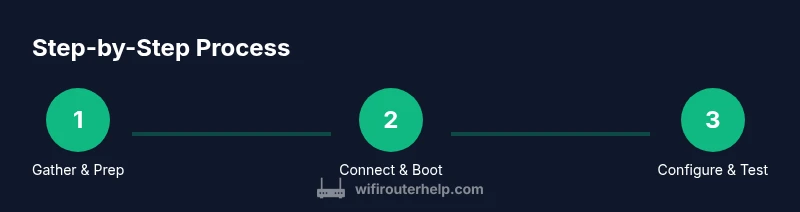
Gather and prep
Collect all items, choose a central location, and plan your Wi‑Fi naming scheme. Ensure the area is clear of obstructions and has good ventilation. This step reduces later troubleshooting and helps you map coverage.
Tip: Label SSIDs and write down default login details before you begin. - 2
Connect the Dream Router to the modem and power
Connect the Dream Router’s WAN port to your modem with an Ethernet cable. Plug in the power adapter and wait for the device to boot. Look for solid status lights indicating a healthy startup.
Tip: If the modem also has a built‑in router, disable its wireless and consider bridging to avoid double NAT. - 3
Access the admin interface and start Quick Setup
On your device, join the router’s default network and open the UniFi Network app or web portal. Create an admin account and follow the setup wizard to configure WAN and LAN settings. Keep your network secure by creating a strong admin password.
Tip: Use a computer for initial setup to avoid touchscreen quirks on mobile devices. - 4
Create admin credentials and WAN/LAN rules
Set a non‑default admin password and configure WAN type (DHCP, PPPoE, or static). Define LAN address ranges and DHCP behavior to ensure devices receive stable IPs. Enable secure remote management only if you need it.
Tip: Document IP ranges and DHCP scope for future changes. - 5
Configure Wi‑Fi networks
Create a primary 2.4 GHz and 5 GHz network with strong passwords. If desired, enable a separate guest network with isolation. Activate security features and minimum encryption to protect data as it traverses your home.
Tip: Prefer WPA3 where supported; fall back to WPA2‑WPA3 mixed mode if some devices don’t support WPA3. - 6
Enable optimization features
Turn on QoS for critical apps, enable band steering, and consider airtime fairness. Allow the system to learn device patterns to allocate resources efficiently. Test after enabling features and adjust as needed.
Tip: Test a video call while streaming to verify QoS is prioritizing correctly. - 7
Secure and maintain your network
Set up automatic firmware updates, back up configurations, and review firewall settings. Periodically audit connected devices and remove ones you no longer use. Schedule routine maintenance to keep performance consistent.
Tip: Create periodic backups after major changes to simplify recovery.
People Also Ask
What is the Ubiquiti Dream Router and who is it for?
The Dream Router is an all‑in‑one UniFi device that handles routing, switching, and firewall duties with UniFi OS. It’s well suited for homeowners who want centralized, scalable control of their home network without managing a separate controller. It’s ideal for households with multiple devices and growing smart home ecosystems.
The Dream Router is an all‑in‑one device for homes with many devices. It uses UniFi OS for centralized control and is great for scalable home networks.
Do I need a separate modem to use the Dream Router?
In most setups, the Dream Router connects to your ISP’s modem or gateway. If your ISP provides a modem/router combo, you may need to disable its router function or place it in bridge mode to avoid double NAT. Check your ISP’s guidance for the best method.
Usually you connect the Dream Router to your modem. If you have a router‑modem combo, you might need to bridge or disable the extra router.
Can I use the Dream Router in a large home?
Yes, but one unit may not cover very large homes. Consider adding UniFi access points or mesh components to extend coverage while keeping unified management. Reposition APs and retest to map dead zones.
You can expand with additional UniFi access points to cover a large home.
What security features come with the Dream Router?
The Dream Router includes firewall capabilities, traffic segmentation via VLANs, guest isolation, and support for strong encryption. Regular firmware updates are recommended to keep protections current. Consider enabling automatic updates and periodic security audits.
It includes firewall, VLANs for segmentation, and guest isolation; keep firmware updated.
How do I troubleshoot slow speeds on the Dream Router?
Start with a service test across devices and locations, verify QoS settings, and check for interference on the 2.4 GHz band. Reboot the router, update firmware, and reassess placement. If issues persist, test with a direct wired connection to isolate wireless problems.
Test speeds by location, check QoS, fix interference, and update firmware.
Is a guest network required for better security?
A guest network is highly recommended to separate visitor devices from your main network. Enable guest isolation and limit access to local resources as needed. This approach helps protect your primary devices while maintaining guest access.
Yes, use a guest network with isolation to protect your main devices.
Watch Video
What to Remember
- Place the Dream Router centrally for even coverage.
- Enable QoS and band steering to improve speeds where it matters most.
- Create separate networks for guests and IoT devices to reduce risk.
- Enable automatic updates and backups to maintain reliability.
- The WiFi Router Help team recommends following these steps for best results.