Unifi Dream Router Setup: Complete Step-by-Step Guide
Learn how to set up and optimize the UniFi Dream Router with practical steps for planning, QoS, guest networks, and security to maximize home WiFi performance.


With this guide you will configure the UniFi Dream Router for a reliable home network. You’ll set up the device, adjust Wi‑Fi settings, create guest access, configure basic security, and verify performance. The quick steps cover initial onboarding, network planning, and ongoing maintenance for stable connectivity. It emphasizes safe configurations and troubleshooting basics.
What is the UniFi Dream Router?
According to WiFi Router Help, the UniFi Dream Router is an integrated network appliance designed to simplify home networking while delivering enterprise-grade features. It combines a router, a switch, and a security gateway with a centralized management interface powered by UniFi OS. The goal is to provide a single device that handles routing, Wi‑Fi distribution, and security tasks with a friendly onboarding flow. The device targets homeowners who want to avoid juggling multiple boxes yet still want visibility into what the network is doing. It runs the UniFi Network app through a clean onboarding flow, making tasks like creating guest networks, configuring firewall rules, and monitoring traffic straightforward. In practice, the Dream Router can replace a separate modem/router combo for many setups, while still offering room to grow with additional UniFi access points or switches if you need to extend coverage. The built‑in threat management and logging keep an eye on traffic and alerts without extra hardware.
Core benefits for home networks
A UniFi Dream Router brings cohesion to a home network with a single management layer. Expect straightforward onboarding, centralized device health monitoring, and a single dashboard for Wi‑Fi, firewall rules, and guest networks. This consolidation reduces the number of devices you must fiddle with and can decrease maintenance time. Users often notice quicker onboarding when replacing older routers because the UniFi OS interface emphasizes guided setup, clear status indicators, and consistent terminology across features like QoS, VPN, and access control. For households juggling multiple smart devices, the Dream Router helps keep traffic predictable with defined rules, better visibility into bandwidth usage, and automatic backups of configurations. Ongoing maintenance becomes a matter of checking for firmware updates and reviewing security alerts from a single pane of glass.
Hardware and features you can rely on
The Dream Router integrates routing, switching, and security features into one compact unit. Expect dedicated WAN and LAN ports, a built‑in security gateway that performs basic threat management, and a user-friendly UniFi OS Console that runs on the device itself. Its management is designed around the UniFi Network app, which presents device health, connected clients, and network statistics in real time. While you won’t see every enterprise-grade option found in a larger controller, the Dream Router provides sufficient configuration surfaces for most homes: multi‑SSIDs, guest access, VLAN tagging, firewall rules, and simple VPN capabilities. The device is designed to grow with your network, letting you add UniFi access points or switches later without rearchitecting your setup. As a result, homeowners can start with a single box and scale up as their needs evolve.
Planning your network topology
Effective planning starts with understanding your space and how you want devices to connect. Map your home’s layout and identify central locations for the Dream Router to optimize coverage. Decide whether you’ll rely on the built‑in wireless to cover most rooms or add UniFi access points for dead zones. Consider the ISP modem placement, the number of floors, and sources of interference such as microwaves or Bluetooth devices. Plan your IP addressing scheme in advance and decide if you will use DHCP reservations for known devices. If you expect guests, determine how you’ll segment guest traffic from your main network and what access controls you’ll enable. A clear topology reduces rework during setup and helps you forecast expansion needs, such as additional APs or VLANs for smart devices.
Step-by-step setup overview
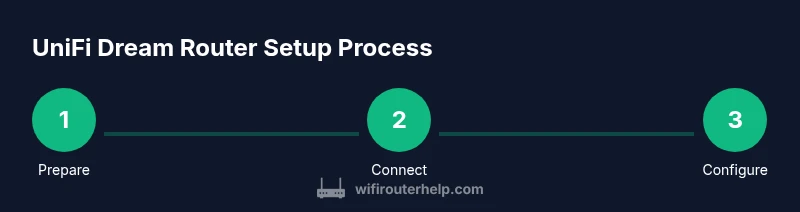
The initial setup with the UniFi Dream Router emphasizes onboarding, basic configuration, and performance checks. Before you begin, confirm you have a compatible modem or gateway from your ISP, a device to manage the setup (phone or computer), and a stable internet connection for initial provisioning. Start by powering on the Dream Router and connecting it to your modem with an Ethernet cable. Open the UniFi Network app or web portal to begin the onboarding flow. Create an admin account, assign your site, and follow the guided steps to configure your primary Wi‑Fi network, enable security features, and set up a guest network if desired. Finally, check for firmware updates and test your home network’s speed and reliability.
QoS, guest networks, and access control
Quality of Service (QoS) helps prioritize traffic for latency‑sensitive activities like video calls or gaming. On the Dream Router, you can establish rules that favor work devices during business hours and ensure streaming devices get bandwidth when requested. A guest network is essential for visitors; enable it with separate SSIDs and apply restrictions to prevent cross‑traffic to your main network. Access control lets you enforce time limits or block devices entirely, which is useful for managing children’s screen time or isolating IoT devices. For more control, consider VLANs to segregate traffic between devices that require different security policies. These features empower you to tailor your home network for performance and safety without adding hardware.
Security, monitoring, and updates
Security on the Dream Router centers on threat management, firewall rules, and routine monitoring. Enable automatic firmware updates so you receive the latest protections without manual checks. Use the built‑in monitoring tools to track device connections, bandwidth consumption, and alert logs. Regular backups of your configuration help you recover quickly after a reset or hardware change. Be mindful of default admin credentials; change them during onboarding and enable two‑factor authentication if available. This section emphasizes proactive maintenance so you can catch issues before they affect daily use.
Troubleshooting common issues
No setup is perfect on the first try. Common issues include not accessing the admin UI, IP conflicts between devices, or your Wi‑Fi not broadcasting as expected. Start with basic checks: verify that the Dream Router is receiving power, confirm the modem is in bridge mode if required, and ensure the WAN port is connected correctly. If you cannot reach the admin interface, try a wired connection directly from a computer to the router and use an alternative browser or clear caches. For Wi‑Fi problems, check SSID visibility, channel selection, and ensure both 2.4 GHz and 5 GHz bands are enabled. If problems persist, consider restoring factory defaults and re‑running the onboarding flow.
When to upgrade or expand your network
If you notice dead spots across a multi‑story home or if you have many smart devices that demand reliable connectivity, expanding with additional UniFi access points or a managed switch can be worthwhile. The Dream Router scales by adding APs and switches, allowing you to extend coverage while maintaining centralized control. Consider upgrading your internet plan if you consistently hit bandwidth ceilings during peak usage, or adding a secondary VLAN for guests or smart devices to isolate traffic and improve security. Regular reviews of performance metrics will guide you on when expansion is needed.
Real-world use cases and scenarios
A typical home network benefits from a Dream Router by simplifying device onboarding, centralizing monitoring, and reducing the number of devices to manage. For families with multiple streaming devices, a guest network ensures visitors don’t compromise main network security. Small home offices can leverage QoS to protect video conferencing quality, while parents can apply access controls to manage screen time. In smaller apartments, the built‑in Wi‑Fi is often sufficient, but in larger homes, adding APs creates uniform coverage. Across scenarios, the key is to align network design with actual usage patterns and adjust as your household evolves.
Tools & Materials
- UniFi Dream Router (UDR)(Primary device for routing, switching, and security management.)
- Power adapter(Keep the unit powered during setup and operation.)
- Ethernet cable (Cat5e or better)(Used to connect the modem to the Dream Router and for initial onboarding if needed.)
- Modem or gateway from your ISP(If you’re replacing an existing router, place the Dream Router between the modem and LAN.)
- Computer or mobile device for setup(Phone or laptop with the UniFi Network app installed.)
- Stable internet connection(Needed during onboarding and for firmware updates.)
- Additional UniFi devices (optional)(Access points or switches to extend coverage later.)
Steps
Estimated time: Estimated total time: 25-40 minutes
- 1
Prepare the environment
Power off the modem and disconnect any existing router. Place the Dream Router in a central location away from thick walls and metal obstacles. Have your setup device ready and ensure you have a working internet connection for on‑boarding.
Tip: Choose a central spot on a solid surface to maximize Wi‑Fi coverage. - 2
Connect the Dream Router to the modem
Connect the Dream Router’s WAN port to your modem using an Ethernet cable. Power on the Dream Router and wait for the LED indicators to stabilize. If you are switching from a bridged modem, ensure the modem is in bridge mode to avoid double NAT.
Tip: If the device doesn’t power on, try a different outlet and verify the power adapter is the original one. - 3
Onboard and create admin account
Open the UniFi Network app on your setup device and start the onboarding flow. Create the admin account, assign a site name, and prepare to configure your first Wi‑Fi network. The onboarding flow will guide you through basic security settings.
Tip: Use a strong, unique password and enable two-factor authentication if offered. - 4
Configure primary Wi‑Fi and security
Set up the 2.4 GHz and 5 GHz networks with distinct SSIDs. Choose WPA3 if available or the strongest supported security option. Apply firewall rules for basic protection and enable threat management insights.
Tip: Name your networks clearly (e.g., Home-2.4, Home-5) and avoid common defaults that invite attacks. - 5
Enable guest network and access controls
Create a guest network with its own SSID and restricted access to your main LAN. Configure parental controls or device allowances if needed, and set up device‑level restrictions for family use.
Tip: Guest networks reduce risk by isolating visitor traffic from primary devices. - 6
Update firmware and back up configuration
Check for firmware updates and apply them. Back up the current configuration to a secure location in case you need to revert changes later.
Tip: Regularly back up after major changes to simplify recovery. - 7
Test connectivity and fine‑tune
Run a basic speed test, verify client connectivity, and ensure devices can reach the internet. Adjust channel selection and transmit power if necessary to minimize interference.
Tip: Test in multiple rooms to assess coverage and make small adjustments as needed.
People Also Ask
What is the UniFi Dream Router and what does it do?
The UniFi Dream Router is an integrated network appliance that combines routing, switching, and security features under UniFi OS. It provides centralized management through the UniFi Network app, making setup and ongoing maintenance simpler for home networks. It supports features like guest networks, firewall rules, and threat monitoring without needing separate hardware.
The UniFi Dream Router is an all-in-one network device that you manage through a single app, including guest networks and basic security.
Do I need an external modem to use the UDR?
If you are replacing an existing router, place the Dream Router between your modem and LAN and set the modem to bridge mode if required by your ISP. Some setups use the Dream Router as the primary gateway with the modem in bridge mode to avoid double NAT. Check your ISP’s guidance for bridging options.
You may need your modem in bridge mode to avoid double NAT, depending on your ISP.
Can I set up guest networks and parental controls with the UDR?
Yes. The Dream Router supports guest networks with separate SSIDs and access controls. You can apply time limits, bandwidth limits, and restrictions to protect your main network while allowing visitors to stay connected.
Guest networks are supported with optional restrictions to protect your main network.
How do I update the UDR firmware safely?
Firmware updates can be applied from the UniFi Network app. Enable automatic updates if you prefer, and manually check for updates after major changes or new features. Always back up your configuration before applying a firmware upgrade.
Update through the app and back up your settings first.
Can the UDR work in a multi‑AP setup or with mesh devices?
The Dream Router can work with additional UniFi access points to extend coverage. It provides centralized management for both the Dream Router and any connected APs, helping you maintain consistent policies and network visibility.
Yes, you can expand with other UniFi access points for better coverage.
What should I do if the WiFi is slow after setup?
First, test wired vs wireless performance to identify bottlenecks. Check channel interference, enable optimal channel settings, and verify QoS rules. If slow persists, consider adding more APs or adjusting transmit power and placement.
Test, tweak channels and QoS, and consider more APs if needed.
Watch Video
What to Remember
- Plan placement before wiring to maximize coverage.
- Use QoS to prioritize essential traffic and protect latency.
- Keep firmware up to date for security and stability.
- Segment guest and main networks to improve security.