TP-Link WiFi Router Setup Guide: Step-by-Step Instructions
Learn to set up, optimize, and troubleshoot your TP-Link wifi router with a practical, step-by-step guide. From firmware updates to security, achieve reliable home networking.


This guide helps you set up a TP-Link wifi router, optimize its wireless performance, and troubleshoot common issues. You’ll learn to choose the right model, connect devices, configure security, and apply practical tweaks to improve coverage. By following the step-by-step process, you can establish a fast, reliable home network with proper safety practices.
TP-Link router basics and why this guide helps
Understanding TP-Link wifi router basics sets the foundation for reliable home networking. TP-Link offers a broad range of models from entry-level to AX/Wi-Fi 6/7 devices. In this guide, we cover common features like dual-band radios, guest networks, parental controls, QoS, and firmware updates. According to WiFi Router Help, starting with a model that matches your home size and internet speed reduces dead zones and streamlines setup. The WiFi Router Help team found that most households benefit from a router with at least 2.4 GHz and 5 GHz capabilities, and a simple web-based admin interface. This section clarifies terms and helps you align expectations: what a router does, what those LED indicators mean, and why placement matters. You’ll also learn about firmware importance, security basics, and how to plan for future upgrades. The goal is to empower you with practical knowledge so you can make informed choices and avoid common beginner mistakes.
Choosing the right TP-Link model for your home
Selecting the right TP-Link model depends on coverage area, device count, and internet speed. For small apartments, a single router with solid 2.4 GHz coverage and decent 5 GHz performance may suffice. For larger homes, look for models with MU-MIMO, beamforming, or mesh-ready capabilities, so you can expand later without starting over. Consider the number of wired devices and guest network needs. The WiFi Router Help approach emphasizes evaluating real-world use: streaming, online gaming, and video calls, then matching a model with appropriate CPU and RAM to handle concurrent connections. Always compare features such as USB ports, QoS profiles, parental controls, and firmware support length. Avoid models with aging wireless standards if your home grows toward higher speeds.
Unboxing, placement, and initial power-on
Unbox the TP-Link wifi router and verify all components are present. Place the router in a central, elevated location away from walls and metal appliances to maximize signal. Keep it off the floor and near open spaces to reduce interference. Connect the power adapter and, if you have a modem, connect the modem to the router’s WAN/Internet port using an Ethernet cable. After powering on, wait for LED indicators to stabilize; this usually takes a minute or two. If the router does not power on, recheck the power connection and consult the user guide. This step lays the groundwork for a smooth setup and helps identify any physical defects early.
Accessing the admin interface securely
To configure your TP-Link router, you’ll access the admin interface via a web browser. Open http://tplinkwifi.net or http://192.168.0.1 (or 192.168.1.1 on older models) and log in with the default credentials provided in the quick start. If you haven’t changed them before, update the admin password to something unique and store it safely. Disable remote management unless you must access the router from outside your home network. Enabling HTTPS access, if available, adds a layer of encryption for settings. These steps protect your network from unauthorized changes and set a secure baseline for subsequent configurations.
Running the setup wizard and updating firmware
Many TP-Link routers offer a Setup Wizard that guides you through selecting your country, time zone, and WAN type (DHCP, PPPoE, or static IP). Run the wizard, input your ISP details, and choose your Wi‑Fi password during this step. After initial setup, check for firmware updates in the router’s admin page and install the latest version. Firmware updates fix security vulnerabilities and improve stability. If the wizard prompts you to create a cloud account or enable cloud features, decide whether you want remote management and data backup before enabling.
Configuring Wi‑Fi networks: SSID, password, security
Create distinct 2.4 GHz and 5 GHz network names (SSIDs) to help devices connect to the most suitable band. Use strong, unique passwords with at least 12–16 characters, mixing upper/lower case, numbers, and symbols. Choose WPA2‑AES or WPA3, depending on device compatibility. If your router supports both, enable automatic band steering to push capable devices to faster bands. Enable a guest network with its own password to isolate visitors from your main network and protect devices. Save changes and note the new SSIDs and passwords in a secure place.
Advanced features: QoS, parental controls, and guest networks
Quality of Service (QoS) helps prioritize bandwidth for real-time apps like video calls and gaming. Configure QoS rules based on your most important devices or applications. For households with kids or guests, enable parental controls to limit screen time and block inappropriate content. The guest network feature keeps visitors separated from your primary devices, reducing risk if a visitor’s device is compromised. If your router supports USB storage, consider sharing it over the network. Always test changes for any unintended impact on speed.
Performance tuning: placement, interference, and channels
Even well‑chosen settings can fail if placement is poor. Elevate the router, avoid placing it near microwaves, cordless phones, or metal barriers, and aim for a central position in the home. For crowded 2.4 GHz environments, switching channels to a less congested option can improve performance. Use the router’s built‑in signal strength indicator or a network analyzer app to identify dead spots and refine placement. If your home uses a lot of Bluetooth devices, consider mitigating interference on the 2.4 GHz band by enabling a strong 5 GHz section and enabling beamforming if available.
Troubleshooting and maintenance
If devices can’t connect, first reboot the router and verify the WAN connection is active. Check for firmware updates and confirm you’re using the correct SSIDs and passwords. If speeds are slow, run a wired speed test to separate line issues from wireless issues, then re-position the router or enable QoS. Regular maintenance includes updating firmware, backing up configurations, and reviewing security settings periodically. If problems persist, consult TP-Link support resources or WiFi Router Help’s troubleshooting flow for device-specific tips.
Authoritative sources
- https://www.fcc.gov
- https://www.cisa.gov
- https://www.nist.gov/topics/cybersecurity
Tools & Materials
- TP-Link wifi router(Model or box available for reference)
- Ethernet cable (Cat5e/6)(For initial wired connections)
- Power adapter(Compatible with your model)
- Laptop, smartphone, or tablet(For web admin access)
- Web browser (Chrome/Edge/Safari)(No special plugins needed)
- Stable internet connection (optional for updates)(Not required to complete local setup)
Steps
Estimated time: 60-90 minutes
- 1
Power on and modem connection
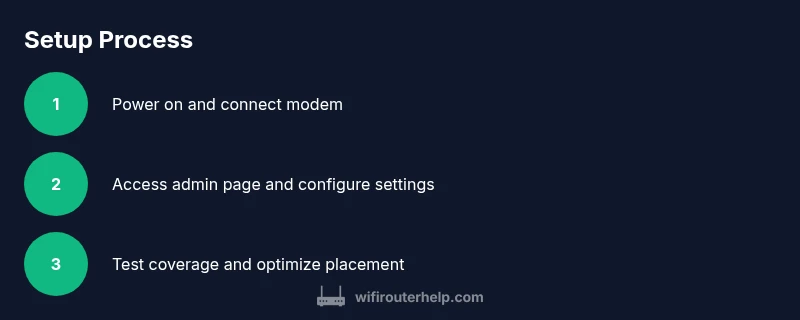
Unbox the router and connect the WAN/Internet port to your modem with an Ethernet cable. Plug in the power supply and wait for the status lights to stabilize. This establishes the physical link needed for configuration.
Tip: If the lights don’t come on, recheck power and ensure the modem is powered. - 2
Connect a device for setup
Use a laptop or mobile device to connect to the router’s default network, preferably via Ethernet for initial setup. This ensures a stable connection during configuration.
Tip: For Wi-Fi connection, temporarily disable guest networks to avoid confusion. - 3
Access admin interface
Open the router’s login page (tplinkwifi.net or 192.168.0.1/192.168.1.1) and enter the default credentials. Change the admin password immediately to secure the device.
Tip: If you can’t reach the page, check your device is on the same network segment. - 4
Run the setup wizard
Follow the on-screen steps to select your WAN type and country, then set your Wi‑Fi name and password. This standardizes your network settings.
Tip: Choose unique SSIDs to avoid confusion between bands. - 5
Firmware update
Check for firmware updates and install the latest version. Updates fix vulnerabilities and improve compatibility with devices.
Tip: Do not power off during firmware installation. - 6
Configure Wi‑Fi networks
Create distinct 2.4 GHz and 5 GHz networks with strong passwords. Enable WPA2/WPA3 as available and consider enabling band steering.
Tip: If devices don’t see one band, disable it temporarily to test. - 7
Improve security basics
Change the admin password, enable the built‑in firewall, and disable remote management unless needed. Add HTTPS if available.
Tip: Use a password manager to store the admin credentials securely. - 8
Enable advanced features
Set up a guest network, configure QoS if you need prioritization, and adjust parental controls as needed.
Tip: Test that the guest network is isolated from your main network. - 9
Test and optimize
Test internet speed on wired and wireless devices, check signal strength in key areas, and tweak placement or channels for best coverage.
Tip: Document changes so you can revert if needed.
People Also Ask
What is the best TP-Link router for a small apartment?
For small spaces, look for models with solid 2.4 GHz coverage, ease of setup, and reliable firmware. Dual-band options often provide good value and future flexibility.
For small apartments, a solid dual-band TP-Link router with reliable firmware is usually best.
How do I reset a TP-Link router to factory settings?
Locate the reset button, press and hold for 8-10 seconds using a paperclip until lights flash, then reconfigure from the default settings.
Find the reset button and hold it for about 8-10 seconds, then reconfigure.
How can I improve Wi‑Fi range without buying a new router?
Position the router centrally, update firmware, and adjust antennas or use a mesh extender if needed. Avoid interference from microwaves and cordless phones.
Move the router to a central spot and reduce interference; consider a mesh extender if coverage is still weak.
Is WPS safe to use?
WPS can be convenient but has known security weaknesses. Disable WPS and rely on WPA2/WPA3 and strong passwords for better security.
WPS is convenient but less secure, so disable it and use strong WPA2/3.
What should I do if I forget the admin password?
Use the factory reset procedure to restore access, then immediately reconfigure a new strong admin password.
If you forget it, reset the router and set a new password.
Watch Video
What to Remember
- Plan your layout before wiring
- Use strong passwords and current encryption
- Keep firmware updated for security
- Test coverage and adjust placement as needed